

Windows Central reported on July 12, 2026, that Microsoft is internally exploring deeper Phone Link integration across Windows 11. The reported concepts include a system-tray phone flyout, richer phone activity in Start, drag-and-drop sharing, synchronized clipboard history, and a standalone Messages app.
None of those concepts has been announced for Windows Insiders, however, and Microsoft has provided no public shipping date or commitment. More importantly, Microsoft has neither confirmed a Phone Link memory leak nor promised that the proposed redesign will reduce RAM consumption.
Measure Phone Link Before Disabling It
A large number in Task Manager is not automatically evidence of a leak. Windows uses memory for running applications and caching, and occupied RAM can still be available for reuse when another workload needs it.
Microsoft’s Windows application-performance material advises developers to avoid memory leaks and provides tracing tools for investigating resource use. It does not establish a universal rule that any particular rate of in-process growth proves a leak. For users, repeated growth under comparable conditions is best treated as a warning worth investigating—not a final diagnosis.
That distinction matches the recurring concern in WindowsForum’s Maximize Performance: Understanding RAM Usage in Windows 11. Readers moving from Windows 10 to Windows 11 often focus on the total amount of RAM shown as used, but the more useful question is whether a specific process keeps consuming more memory and whether that behavior affects the workloads the PC is expected to run.
Use a repeatable test rather than judging one screenshot:
- Press Ctrl+Shift+Esc to open Task Manager.
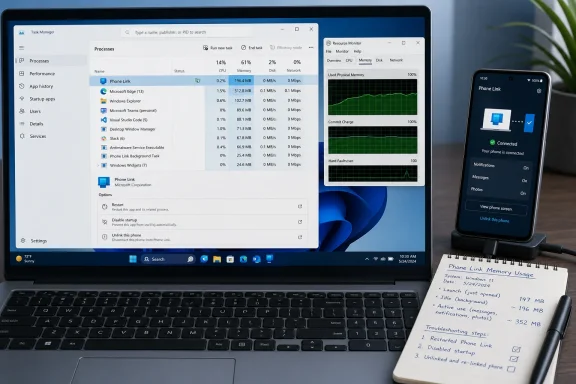
- Select Processes, sort by the Memory column, and locate Phone Link and any clearly associated entries.
- Expand the Phone Link process group if Task Manager offers that option. Record the memory shown for the main application and related processes.
- Leave Phone Link idle for 15 to 30 minutes, then record the figures again.
- Use the Phone Link features that are part of your normal routine, such as messages, photos, calls, notifications, or phone-screen functions. Record another reading.
- Close the Phone Link window and check whether its background footprint falls, stabilizes, or continues growing.
- End the Phone Link task from Task Manager, reopen it, and repeat the same sequence.
The point is not to prove that Phone Link uses RAM. Every active application does. You are looking for a reproducible pattern: the same Phone Link-related process grows through comparable idle or active periods, does not return to a stable range, and leaves less memory available for the applications you actually need.
Use Task Manager’s Performance > Memory page to put the process reading in context. Note total memory use, available memory, and whether ending Phone Link materially changes the system-level result. Avoid declaring a leak solely because the graph is high or because Windows has filled otherwise unused RAM.
For a broader view, press Windows+R, enter resmon, and open Resource Monitor’s Memory tab. Resource Monitor can help distinguish an application’s current memory use from the wider system picture. Its figures still require interpretation; not every occupied block represents memory that Windows cannot reclaim.
WindowsForum users looking for better performance have repeatedly described the practical problem in terms of applications lagging, system stutters, or high fan activity. As discussed in Boost Your Windows 11 Speed: Expert Tips to Reduce RAM and CPU Usage, those symptoms justify investigation, but they do not identify Phone Link by themselves. The measurement sequence above is what connects a general performance complaint to a specific process.
Keep a small test log:
| Test point | Phone Link memory | Related process memory | Available system memory | What Phone Link was doing |
|---|---|---|---|---|
| Immediately after launch | Idle | |||
| After 15–30 minutes | Idle | |||
| After normal use | Messages/photos/calls/etc. | |||
| After closing the window | Background | |||
| After ending and reopening | Restarted |
A table is more useful than a single Task Manager capture because it shows whether the behavior can be reproduced.
Attribute the Footprint to the Right Process
Phone integration does not necessarily appear as one tidy Task Manager row. When investigating, distinguish the main Phone Link process from supporting components that may include Runtime Broker, Microsoft Edge WebView2, or Windows cross-device services.
Do not add every WebView2 or Runtime Broker process on the computer to Phone Link’s total. Those components may be used by multiple Windows applications. Expand process groups where possible, close Phone Link, and observe which entries disappear or materially shrink before assigning responsibility.
The same caution applies to Windows’ standby cache. Cached memory is intended to be reusable. A large cached figure on Task Manager’s Memory page is not the same finding as one Phone Link-related process repeatedly growing during a controlled test.
Use this diagnostic sequence:
- Restart Phone Link and check whether its memory returns to a lower baseline.
- Reboot Windows and test Phone Link before launching unrelated applications.
- Test idle behavior separately from photo browsing, message synchronization, calls, and screen-related features.
- Change one variable at a time so that a difference can be attributed to a particular action.
- Note whether growth appears under Phone Link itself or under a related component.
- Record the installed Phone Link version before reporting the problem.
The location of version information can vary by Phone Link release. Look in the app’s Settings or About area rather than relying on one universal path or expecting an Updates page to appear in every build. The Phone Link listing in Windows Settings or Microsoft Store may also expose version information, depending on the Windows and Store versions installed.
If restarting Phone Link returns memory to a lower baseline but comparable use causes the same growth again, that is stronger evidence of an application-specific problem than a one-time high reading. It still does not establish a Microsoft-confirmed leak. It does give users and administrators a reproducible report that can include the Phone Link version, Windows build, connected phone type, actions performed, and before-and-after measurements.
Mitigation Starts With the Least Disruptive Option
Start by checking for Phone Link updates through the Microsoft Store or any update control exposed by the version of Phone Link installed on the PC. Then close and reopen the application and repeat the measurement test. An update is worth evaluating, but do not assume that a release contains a memory fix unless Microsoft documents one.
If the behavior continues, try the least disruptive controls first:
- End Phone Link from Task Manager.
- Reopen it only when needed.
- Remove it from automatic startup.
- Test any background-activity restriction Windows offers for that app.
- Use Windows’ app-repair controls if they are available.
- Consider resetting or unlinking only after recording the current configuration and test results.
On many Windows 11 installations, app controls are found by opening Settings > Apps > Installed apps, selecting the menu beside an application, and looking for Advanced options. The exact entries exposed for Phone Link depend on the Windows build, app packaging, device policy, and current Phone Link release. If Advanced options, Terminate, Repair, Reset, or background permissions do not appear, do not assume the instructions are being followed incorrectly.
Windows provides Repair and Reset controls for some packaged applications, but the supplied information does not establish Phone Link-specific results for either action. Treat them as troubleshooting options, not guaranteed fixes. Before using Reset, record linked-device and sign-in details and be prepared to check the app’s configuration afterward.
Some Windows versions expose background controls on an application’s Advanced options page. Others may expose per-app activity controls under power or battery settings, while managed systems may hide or enforce those choices. Labels such as Background app permissions, Battery usage, or Manage background activity are therefore conditional, not universal Phone Link menu paths.
If Windows offers a background restriction for Phone Link, test it and then verify the result in Task Manager. Do not assume selecting a setting stopped every cross-device component. Confirm whether Phone Link starts again, whether related processes remain, and whether the memory pattern changes.
You can also look for Phone Link under Settings > Apps > Startup or Task Manager’s Startup apps page. If a startup entry is present, disabling it preserves the application while preventing that particular entry from launching automatically. Open Phone Link manually when it is needed and repeat the same memory measurements.
The reports summarized in WindowsForum’s How to Optimize RAM Usage in Windows 11: Improve Speed & Efficiency emphasize that Windows 11’s broader resource demands make selective optimization more useful than indiscriminately closing everything. In this case, the selective approach is to stop Phone Link from running continuously if it is only used occasionally.
Do not download an unofficial older Phone Link package as a troubleshooting shortcut. Instead, record the installed version, test the controls Windows actually provides, and submit reproducible results through Feedback Hub. Include:
- Windows edition and build
- Phone Link version
- Connected phone platform and model
- Memory at launch, after idle time, and after normal use
- The action that appears to trigger growth
- Whether ending and reopening Phone Link restores the baseline
- Whether the behavior returns after a reboot
- Screenshots or recordings showing the same process over time
Unlink Only After Testing Less Disruptive Controls
Users who do not need phone-PC integration can consider unlinking the phone. Phone Link and Windows cross-device settings vary by release, so removal should be approached as a device-specific process rather than a fixed sequence guaranteed to match every PC.
Begin in Phone Link’s settings and look for a section that lists connected or linked devices. Depending on the release, this may be labeled Devices, My Devices, or something similar. Use the removal or unlink option shown for the relevant phone.
Then check Settings > Bluetooth & devices for a Mobile devices area if the installed Windows build exposes one. A Manage devices page may be available on some systems. If the phone is still listed there, review the removal options presented by Windows.
Also review Link to Windows on the phone and any ordinary Bluetooth pairing that is no longer required. Android and iPhone procedures differ, and organization-managed devices may prevent users from changing some account or pairing settings.
Do not assume that removing one listing automatically clears every account, app session, Bluetooth pairing, or Windows cross-device record. After unlinking, reboot or sign out if appropriate, reopen Task Manager, and verify whether the Phone Link-related processes and memory behavior have changed.
Windows 11 can expose supported phone experiences outside the main Phone Link window, including phone files or photos in File Explorer, use of a compatible phone as a camera, and mobile activity in Start. Availability depends on the device and Windows rollout. The supplied information does not establish that one Phone Link removal procedure disables every one of those experiences, so verify each surface that matters on the affected PC.
Some Windows 11 builds may offer a Start setting for mobile-device content under Settings > Personalization > Start. If a control such as Show mobile device in Start appears, it can be turned off independently. Hiding that surface should not be treated as proof that all Phone Link or cross-device background activity has stopped; check Task Manager afterward.
Likewise, do not rely on undocumented individual switches for File Explorer content, connected-camera use, or photo notifications. If the current Windows build displays those controls, their on-screen descriptions can be evaluated. Their labels and availability should not be presented as universal.
The Rumored Redesign Is Not a Current Remedy
Microsoft has already moved some supported phone experiences beyond the standalone Phone Link window. Windows 11 can expose phone files or photos through File Explorer, use a compatible phone as a camera, and display mobile activity in Start.
Windows Central’s reporting suggests Microsoft is considering taking that approach further. The reported concepts—a tray flyout, synchronized clipboard history, richer Start activity, drag-and-drop transfers, and a separate Messages app—would make phone functions visible in more parts of Windows.
That description does not reveal the proposed architecture. There is no public build or technical documentation showing which processes would run, how memory would be allocated, whether components would remain active in the background, or whether existing Phone Link behavior would change. Claims that the redesign would improve responsiveness, reduce RAM use, or distribute work among particular services would therefore be speculation.
It is also too early to use the reported redesign as a reason to postpone troubleshooting. A concept can change substantially before public testing, can ship in stages, or may not ship at all. Even if Microsoft eventually releases it, users would still need to measure the resulting implementation rather than infer performance from its interface.
The practical decision remains tied to the software running today:
- If Phone Link stays within a stable range and the PC handles normal work, leave it enabled.
- If the footprint repeatedly grows, restart the app and reproduce the test.
- If automatic startup is unnecessary, disable its startup entry where available.
- If background controls are exposed, test them and verify the result.
- If the app is rarely used, open it only when needed.
- If it provides no meaningful value, unlink it and confirm what remains active.
Keep It Only When the Workflow Earns Its Footprint
Phone Link can be valuable for users who routinely answer messages from a physical keyboard, handle supported phone interactions at a PC, retrieve recent photos, or use a compatible phone camera in desktop applications. A stable footprint may be a reasonable cost when those functions are used regularly.
For occasional use, manual launch is the cleaner compromise. For no use, unlinking is more sensible than leaving an optional application active solely because a future redesign has been reported.
WindowsForum’s Unlock Windows 11 Performance: Optimize RAM for Smooth Apps and Gaming and Optimize RAM Allocation on Windows 11 for Enhanced Performance reflect a common reader objective: preserving enough resources for the foreground task that matters. That does not mean manually “allocating” RAM to Phone Link or treating every background process as harmful. It means measuring contention, removing unnecessary automatic activity, and prioritizing the applications the user is actively running.
After dealing with Phone Link, use this concise system-level checklist rather than chasing unnamed optimization tricks:
- Restart Windows and establish a clean baseline.
- Install documented Windows, driver, and application updates.
- Review Task Manager’s Startup apps list.
- Sort Task Manager by both memory and CPU use.
- Test one suspected application at a time.
- Close unnecessary browser tabs and extensions during comparison tests.
- Pause optional virtual machines, game launchers, or creative tools while isolating the issue.
- Check free storage space and Windows’ reported memory totals.
- Run a malware scan with the installed security product.
- Reproduce the workload after every change.
- Keep changes that produce a measurable improvement; reverse those that do not.
The important word is measurable. WindowsForum user reports about sluggish applications, elevated resource use, and Windows 11’s greater demands provide a reason to investigate, but no generic optimization guide can establish that Phone Link is the cause on a particular PC. Only a controlled before-and-after test can do that.
Frequently Asked Questions
Does high Phone Link memory use prove there is a leak?
No. One high Task Manager reading does not prove a leak. Record the process at launch, after an idle period, after normal use, and after closing or restarting the app. Repeated growth under comparable conditions is a reason to investigate and report the behavior, not automatic proof of a Microsoft-confirmed defect.
Should I wait for the rumored Phone Link redesign?
No. Microsoft has not publicly committed to the reported redesign, provided a shipping date, or said it will fix Phone Link memory use. Troubleshoot the version installed now.
What is the fastest temporary workaround?
End Phone Link in Task Manager and reopen it only when needed. If it starts automatically, disable its startup entry where Windows exposes one. Then check whether the system-level memory picture materially changes.
Where are Phone Link’s Repair, Reset, and background controls?
They may appear under Phone Link’s entry in Settings > Apps > Installed apps > Advanced options, but availability and labels vary by Windows build, app package, policy, and device. Some systems expose separate power or battery activity controls. Follow the options actually shown on the PC rather than assuming every published menu path applies.
Will Repair or Reset definitely fix the problem?
No. They are troubleshooting controls, not guaranteed Phone Link memory fixes. The supplied information also does not establish the exact Phone Link-specific consequences of either action. Record the current setup before using Reset and verify the app’s configuration afterward.
Does closing the Phone Link window stop it completely?
Not necessarily. Close the window, wait briefly, and check Task Manager. If Phone Link or associated components remain, use the available startup or background controls, or end the task when the app is not needed.
Should every WebView2 or Runtime Broker process be counted as Phone Link memory?
No. Those components can support multiple applications. Expand process groups and compare what changes when Phone Link is closed or ended before assigning a process to it.
Will unlinking the phone remove every cross-device feature?
Do not assume so. Windows and Phone Link expose different experiences according to build, device, and rollout. Remove the phone from the relevant Phone Link and Windows device listings, review Link to Windows and Bluetooth on the phone, and then verify each Windows surface that matters.
What should I include in a Feedback Hub report?
Include the Windows build, Phone Link version, phone platform and model, measured memory values over time, the actions performed, and whether restarting Phone Link or Windows returns memory to a lower baseline. A repeatable sequence is more useful than a single screenshot.
The rumored redesign does not change today’s decision. There is no confirmed Phone Link memory fix, no public Insider release to evaluate, and no schedule against which users can plan. Measure the footprint now, apply the least disruptive mitigation that works, and keep Phone Link enabled only if its daily value survives that test.