

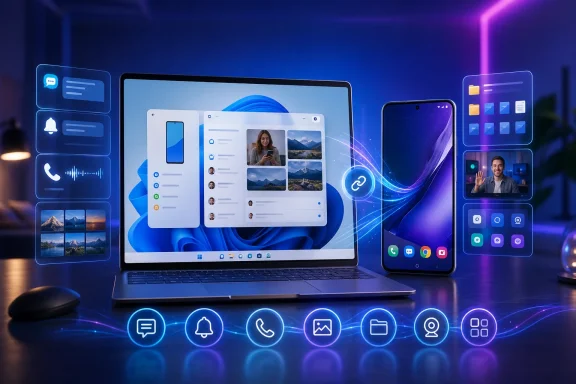
That breadth can reduce the number of times you need to unlock a phone during the workday, but the experience is uneven by design. The dependable features are not necessarily the flashy ones, and compatibility depends on the particular task, the phone model, Android version, Link to Windows version, network, and sometimes market. The practical way to approach it is to enable the capabilities that solve a specific desktop problem, then treat app streaming and advanced clipboard sharing as optional bonuses.
Think in three separate Windows experiences
The first and most familiar route is Phone Link, paired with the Link to Windows app on Android. Microsoft positions it as the place to read and reply to text messages, see notifications, make and receive calls, access recent photos, and use selected mobile-app features. For routine communication, this is the core experience.
The second route is Windows 11’s Mobile devices integration. This is where the connected-camera feature is enabled, and it is also relevant to the newer File Explorer connection. It is not simply another tab inside Phone Link. In particular, Windows 11’s photo experience is moving away from Phone Link’s former Photos tab and into File Explorer.
The third is the Mobile device companion in the Start menu. Where it is available, the panel can show Android battery and connectivity status and offer paths to Messages, Calls, Photos, recent activities, and sending files. It is useful as a quick status and launch surface, not a prerequisite for the rest of the integration. Microsoft describes this as a gradual rollout, so readers should not assume that the panel will appear on every Windows 11 installation immediately.
Separating these paths avoids a common setup mistake: looking for every phone-related feature in Phone Link. It also helps explain why one capability may be present while another is missing.
Start with the high-value, broadly useful features
For many Windows users, the most practical Phone Link functions are messages, notifications, and calls. Keeping text conversations on the larger screen can be genuinely helpful when a response requires copying a tracking number, an address, or a meeting detail into a desktop application. Notifications are similarly useful when they are managed deliberately rather than mirrored indiscriminately.
Calls have a clear technical requirement that is easy to overlook: Phone Link needs a Bluetooth connection between the Windows PC and Android phone to place or receive calls through the PC. Microsoft’s stated baseline is a Bluetooth-capable PC, Android 10 or later, and either Windows 11 or Windows 10 version 1903 (the May 2019 Update) or later. In other words, calling is not exclusive to Windows 11, even though newer Windows 11 integrations are.
A sensible work configuration is to allow only the notification categories that warrant interruption—perhaps direct messages and calendar-related alerts—and turn off noisier app notifications. The goal is not to reproduce a phone’s lock screen on a desktop. It is to let the PC handle small, actionable interactions without creating a second stream of distractions.
There is an important privacy trade-off. Message permissions can expose sensitive content in Phone Link, including two-factor authentication text messages. That can be acceptable on a personally controlled PC with a locked Windows account, but it deserves more caution on a shared household computer, a public-facing workstation, or any device that other people can access while you are signed in.
File Explorer is now the better place for Android photos and files
The most consequential recent change is that linked Android photos are moving into Windows 11 File Explorer rather than remaining centered in Phone Link’s Photos tab. This is more than a cosmetic relocation. File Explorer is designed for file work, and the phone connection can expose folders beyond the camera roll.
On a compatible setup, Windows 11 can wirelessly browse and manage files stored on the Android phone. The available actions include opening, copying, moving, renaming, and deleting files, as well as transferring files between the phone and PC. That makes the feature more useful than a “recent photos” viewer: it can become a direct route for bringing a document, recording, download, or image into a Windows workflow without hunting for a cable.
Microsoft’s documented requirements for this File Explorer capability are Windows 11, Android 11 or later, and Link to Windows version 1.24072.258.0 or later. Those are the thresholds to check before concluding that the feature is unavailable.
This point also corrects an outdated assumption about compatibility. File Explorer access is not documented as a Samsung-, HONOR-, or OnePlus-only privilege tied to a particular Android skin. The published requirements are based on Windows 11, Android version, and Link to Windows version. That is a different and broader eligibility model from app streaming, which remains heavily device-dependent.
For users who regularly import phone-shot images, this matters. Rather than treating Phone Link as the destination for photos, look for the linked phone in File Explorer and work with its folders as part of the normal desktop file-management process. Be careful with destructive operations: the documented feature includes deletion and moving, so actions performed from the PC can alter the phone’s stored files.
A phone can be a Windows webcam—if it meets the threshold
Windows 11 can use a linked Android phone’s camera as a webcam in PC applications. For a laptop with an aging built-in camera, or a desktop without a strong webcam, that can be a meaningful option because a modern phone camera may be the better piece of hardware already on hand.
The documented requirements are specific: the PC must run Windows 11 or later, the Android phone must run Android 10 or later, and Link to Windows must be version 1.24022.0 or later. The setting is enabled through Settings > Bluetooth & devices > Mobile devices > Manage devices.
This should be understood as a Windows linked-device feature. The available documentation establishes the requirements and the Windows setting, but does not substantiate broader claims about the underlying architecture or whether it is “inside” Phone Link. For users, that distinction is less important than knowing where to enable it and why it may be absent on an older phone or outdated app installation.
Before relying on the phone for an important meeting, test it in the actual PC application you use. The documentation confirms that it can be used as a webcam in PC apps, but an individual setup can still vary based on software versions, permissions, and the application’s own device-selection behavior.
App streaming is the least universal feature
The Phone Link Apps and Phone screen features create the most compelling screenshots, but they have the strongest limitations. They should not be described as a general right available to every Android phone.
Microsoft’s supported-device material identifies selected Samsung, HONOR, OPPO, ASUS, OnePlus, Realme, vivo, iQOO, Xiaomi, and ROG devices, with capabilities varying by model, software, feature, and market. Android version availability itself can depend on the device, carrier, and region. Google Pixel does not appear on the official Apps compatibility list, although that absence alone does not establish why it is absent.
Even on a supported device, Phone screen depends on both the PC and phone being connected to the same Wi-Fi network. That requirement has real workplace consequences. Enterprise networks, public Wi-Fi, and VPN arrangements can interfere with the experience, so a feature that works at home should not automatically be expected to work on a managed office network.
There are also functional boundaries:
- Only apps in the Android device’s default profile appear in Phone Link. Work and other Android profiles are excluded.
- Some Android apps block casting to another screen.
- Some apps may fail to work or may display a black screen.
- Sound from the Android app continues playing on the phone rather than automatically moving to the PC.
Those limitations make app streaming best suited to occasional, compatible tasks rather than as a replacement for native Windows software. If it works with a personal messaging app, a smart-home controller, or a utility that lacks a good desktop client, it may be convenient. For work apps, media playback, protected-content apps, or anything dependent on a managed profile, expectations should be conservative.
Clipboard sharing is useful, but narrow
Cross-device copy and paste has similar compatibility constraints. It is supported on Surface Duo and selected devices from Samsung, HONOR, OPPO and OnePlus, ASUS, vivo, and Xiaomi. Its current content scope is limited to text and images; it is not a general-purpose way to move arbitrary file types through the clipboard. Images over 1 MB are resized.
That makes it handy for pasting a short note, a code fragment, a URL, or a small image into a Windows app. It is a poor choice for preserving a full-resolution image or transferring a file where exact fidelity matters. File Explorer’s wireless phone access is the more appropriate route for files on compatible Windows 11 and Android 11-plus devices.
A practical setup and troubleshooting order
The fastest way to avoid disappointment is to validate each goal separately:
- Pair the Android phone and PC for Phone Link, then verify basic messages and notifications first. These are the features most likely to justify the connection day to day.
- For calls, verify Bluetooth, not merely Wi-Fi. Confirm that the PC supports Bluetooth and that the phone meets the Android 10 baseline.
- For files and photos, check Windows 11, Android 11, and Link to Windows version 1.24072.258.0 or newer. Then use File Explorer rather than relying on an older instruction that points to the Phone Link Photos tab.
- For the phone-camera webcam option, check the lower Android 10 baseline and Link to Windows version 1.24022.0 or newer, then enable it in Mobile devices settings.
- For Apps or Phone screen, consult the model-specific compatibility situation before troubleshooting. If the phone is not among the supported families or the feature is not available in the market, repeated re-pairing is unlikely to solve it.
- When app streaming fails, test the network and the app itself. Both devices need the same Wi-Fi network, and an individual Android app may deliberately block casting or otherwise refuse to run.
This sequence distinguishes a missing requirement from a genuine fault. It also keeps users from granting extensive permissions or changing network settings for an advanced feature that their device is not eligible to use.
The realistic Windows 11 payoff
Phone Link is most convincing when it reduces small points of friction: replying to a text without picking up the phone, answering a call through a PC headset, retrieving a phone file in File Explorer, or using the phone camera for a video call. These are concrete integrations with clear requirements.
It is less convincing as a promise that every Android app, every clipboard item, every photo workflow, and every Start-menu panel will behave identically across Android hardware. Microsoft’s own compatibility boundaries make that clear. The right expectation is a capable but modular bridge between Windows and Android: start with communications and File Explorer, add camera support if needed, and regard streamed apps as a model- and network-dependent extra rather than the foundation of the experience.
References
- Supported devices for Phone Link experiences Microsoft Support
- Setting up and using your phone in File Explorer Microsoft Support