

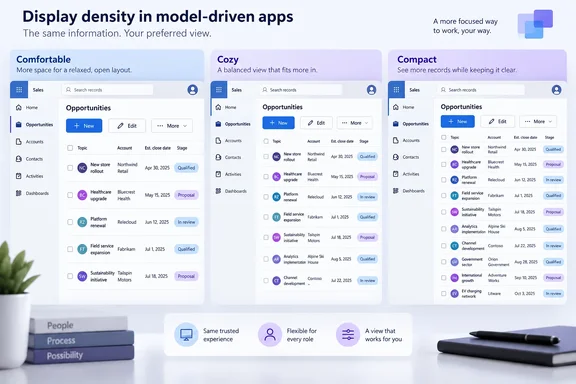
Power Apps display density makes spacing a user choice
Model-driven apps present business data through components such as forms, views and dashboards. Their layout has historically been shaped largely by the app and its components. Display density adds a personal choice over how much space the refreshed interface puts between elements, without requiring a maker to redesign a form or change which fields it contains.
Microsoft documents three levels. Comfortable is the default spacing of the modern refreshed look. Cozy moderately reduces horizontal and vertical spacing across the app shell, grids, forms and controls. Compact is the tightest option, intended for people who want to see more information at once. These are spacing choices, not settings that change the data in a view or the size of an interactive control. Microsoft says all three retain accessibility-compliant target sizes.
That makes the setting potentially useful in a record-heavy workflow: a user can choose less empty space around a grid or form while another user keeps the more spacious default. Microsoft suggests high-volume data entry, field service and manufacturing as possible uses. It has not published a measured productivity improvement or a fixed number of additional rows that Compact will reveal; the visible result depends on the content and controls in an app.
Header and navigation refresh is the Power Apps prerequisite
The density control belongs to the Header and navigation refresh, also called wave 2 of the model-driven app modernization. Microsoft describes that refresh as generally available and opt-in for existing apps. It brings a redesigned app header, a streamlined sitemap and more working space on forms; density adds a configurable spacing choice on top of that layout. The earlier New Look, or wave 1, is a separate stage and does not by itself make the density setting appear.
For an existing app, a maker can open the app designer, select Settings on the command bar, select Features, and enable Header and navigation refresh. Microsoft says apps generated by the Plan designer already have that refresh applied. If wave 2 is off, users will not see the Appearance tab in Personal settings, and the app retains its default appearance.
The rollout descriptions need to be read separately. Microsoft’s September 17 Power Platform announcement says display density is entering public preview with version 2609.1 and is enabled by default once the header refresh is on. Roadmap item 572682, submitted September 23, lists density as In development, estimates preview availability in September 2026 and estimates general availability in November 2026. Those roadmap dates are forecasts; neither the refresh’s GA status nor the preview announcement makes density generally available.
Personal Power Apps density overrides app and environment defaults
There are three levels of configuration, with a clear order of precedence. An administrator can set a default for model-driven apps in an environment. A maker can set a different default for an individual app. An explicit user choice of Comfortable, Cozy or Compact overrides both. If the user selects Auto, the app’s configured default applies, including an app value that overrides the environment value. The default Display density value is Comfortable.
Where the preview is available in a wave 2-enabled app, Microsoft documents this user procedure:
- Open Settings in the app header and select Personal settings.
- Open the Appearance tab.
- Under Display density, choose Auto, Comfortable, Cozy or Compact.
The choice saves immediately. Microsoft says a personal density preference applies across that user’s model-driven apps with the header refresh enabled, so selecting Compact is not merely a change to the app currently open. Auto is the useful choice for someone who wants to follow each app’s configured default instead.
Makers also have an app-level stop switch. Setting Display density to Off—enumerated value 0—makes that app use Comfortable spacing, hides the density options from its users and ignores their stored preferences in that app. Microsoft documents configuration through the app designer’s Settings dialog or by adding the setting to a solution and editing its environment or app value. An app settings change must be published to take effect.
Fluent spacing tokens set the limit of Compact mode
A selected density applies to controls that use Fluent spacing tokens, the design-system spacing values that let a control respond to the chosen layout. Microsoft warns that some first-party and third-party controls do not yet use those tokens. They keep their existing spacing even when the surrounding app is set to Cozy or Compact. Custom component developers can add density support by adopting the tokens.
This is the practical test for a maker considering the preview: inspect the actual forms, grids and custom components people use, rather than assuming the whole screen will tighten uniformly. A mixture of responsive and unchanged components is expected during the rollout. Microsoft labels the appearance feature preview, cautions that preview functionality may be restricted or change, and says previews are not meant for production use.
What this means for you
Try density in a suitable preview app before setting an environment-wide default. The user override makes an organization-wide preference less coercive than it might sound, but the wave 2 prerequisite and uneven control support still deserve a check in the app people actually use.
- If Appearance is missing from Personal settings, first check whether the app has Header and navigation refresh enabled.
- If you want each app maker’s intended spacing, choose Auto rather than an explicit personal density.
- If you make an explicit choice, expect it to follow you into other model-driven apps that have wave 2 enabled.
- If you manage an app, compare Comfortable, Cozy and Compact on its real forms and custom controls before choosing a default.
- If density must be suppressed for one app, its maker can set Display density to Off; that app then uses Comfortable spacing even for users with a saved preference.
Power Apps display density is a modest but useful change in who controls a model-driven app’s working space: administrators and makers can establish a starting point, while users can choose the spacing that suits them. The preview provides a way to assess that choice in refreshed apps now; the roadmap’s estimated November 2026 general-availability date is the next rollout milestone, not a reason to treat the feature as production-ready today.
References
- Power Apps: Control information density in model-driven apps Microsoft AI at Work Roadmap · 2026-10-13T23:01:05.899565Z
- Appearance settings for model-driven apps (preview) - Power Apps | Microsoft Learn learn.microsoft.com
- Modern, refreshed look for model-driven apps - Power Apps | Microsoft Learn learn.microsoft.com