

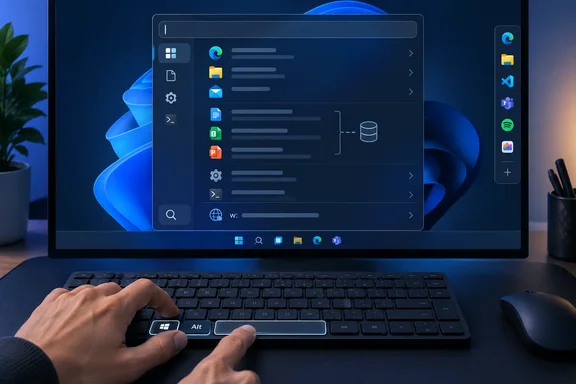
PowerToys Command Palette Turns Win + Alt + Space Into the Search Box Windows Lacks
PowerToys is Microsoft's free, open-source collection of add-on utilities for power users. Command Palette is one of those utilities, separate from the Start menu's search box. Microsoft's documentation describes it as a tool that "helps you launch apps, run commands, search files, browse the web, and reach Windows tools from one place." It has to be switched on and left running in the background. You can enable it from the PowerToys Settings Home page and change the activation shortcut in Command Palette's own settings.
It replaced an older launcher. Microsoft upgraded the PowerToys Run UI and rebranded it to "Command Palette," and when Windows Latest updated to version 0.90, the Run tool was now called Command Palette, though the old Run tool could still be turned on from settings. The shortcut changed as well: you now press Win + Alt + Space instead of the old Alt + Space shortcut. Windows Latest's explanation is that Alt + Space is associated with Copilot, ChatGPT and other AI-based apps.
In MakeUseOf's account, setup means installing PowerToys, opening System Tools > Command Palette and flipping the Enable Command Palette switch. Microsoft also offers a smaller mode. If you turn on "Open with a compact search box," the palette opens as a slim search field and only grows when results need the room. Press Down Arrow or Tab to expand it.
MakeUseOf's case for Command Palette rests on everyday experience, not measurements. Author Amir Bohlooli describes typing "obs," picking Obsidian once, and having the launcher offer Obsidian first from then on. He jokes that Windows Search would probably have shown a Bing result about obsidian rocks. He says file results appear "almost instantly." Those are one writer's impressions on his own machine. Nobody has published timings comparing Command Palette with Windows Search on the same files. Windows Latest's earlier hands-on found much the same thing: it saw no slowdowns in normal actions, and Command Palette calculated math problems instantly and worked properly when searching for app settings or applets.
Command Palette's Prefixes Do the Work Windows Search Leaves to Bing
Windows Search guesses what kind of thing you want. Command Palette lets you say so with a short prefix, and that is the real difference between them. According to Microsoft's documentation, each prefix sends your typing to a different handler:
| What you type | What happens |
|---|---|
| An app name, then Enter | Launches the app |
file followed by a space (or the Search files page) | Searches files and folders |
$ followed by a page name, e.g. $ display | Opens a Windows Settings page, including Windows Update pages such as Check for updates and View update history |
> followed by a command, e.g. > cmd or > Shell:startup | Runs a command |
?? followed by a query | Searches the web in your default browser |
A math expression, or = and a space | Uses the built-in calculator |
Web results appear only when you ask for them with ??. That directly addresses MakeUseOf's main complaint about Windows Search: web suggestions mixed in with local files.
The built-in list goes well beyond search. Microsoft documents a window switcher, clipboard history, Windows Terminal profiles and a WinGet page for finding and installing apps. It can also start, stop and restart Windows services, look up registry entries without opening regedit, and open Remote Desktop sessions, including to a hostname typed on the spot. There are system commands too, such as restart and empty Recycle Bin. When Windows Update is waiting for a reboot, Command Palette adds "Update and restart" and "Update and shut down" to its results.
Bookmarks, Home Pins and Ctrl + K Actions Turn Command Palette Into a Workflow Tool
Bookmarks turn a location into a command. Microsoft's documentation says a bookmark can point to a file, folder, URL or shell command, and you then launch it by typing its name. Bookmarks can also contain placeholders such as {query} in a URL. When you run one, Command Palette asks for the missing value inside the search box rather than opening a separate dialog. MakeUseOf's author bookmarked his Downloads folder and a few project folders so each one is two keystrokes away instead of several clicks in File Explorer.
The Home page is what you see when the palette opens. It shows relevant commands, recent items and a Pinned section you manage yourself. To add something, right-click any command and choose Pin to Home. Microsoft notes that Home pins and Dock pins are separate lists: Home pins are for quick access inside the palette, Dock pins for one-click access without opening it.
MakeUseOf also describes actions attached to each result. The bottom bar shows options such as Open link and Copy URL, and Ctrl + K opens the full list of actions for the selected item. That lets you copy a file path or open the containing folder without launching the file. The same report describes a Markdown preview pane on the right that shows details for the selected result. These features come from MakeUseOf's walkthrough of the current version. The exact action lists may differ between releases and extensions.
The Command Palette Dock Is a Second Taskbar, Minus the Windows
The biggest recent addition is the Dock, a toolbar that stays on one edge of the screen. It started as an experiment. In January, WindowsForum and others reported that it was only available from a dedicated GitHub branch: developers could test it by compiling code from that branch, and Microsoft was seeking feedback but hadn't committed to shipping it. PCWorld noted that trying it then was pretty advanced to set up and required developer experience. By late March it had shipped in a regular release. Windows Latest reported that PowerToys adds a macOS-style Dock to Windows 11, bringing faster app access, system stats, and workflow tools.
The Dock is off by default, and you turn it on in Command Palette settings. It can sit on the top, bottom, left or right edge and can auto-hide until you move the pointer to that edge. Like the taskbar, it has three regions: Start, Center and End. A lightning icon at the left opens Command Palette with a click. Next to it by default is the WinGet integration, which gives you a proper UI to search and install apps instead of typing commands in a terminal.
You can add items in several ways. Right-click any command in the palette and choose Pin to Dock. Or right-click an empty part of the Dock, choose Edit Dock, click + in a region, pick a command and save. You can also drag a file or URL onto the Dock to create and pin a bookmark. Built-in performance bands show CPU, memory, GPU, disk, network and battery figures. Battery only appears on devices that have one. On multi-monitor setups, each display gets its own Dock with its own pinned items.
The Dock does not replace the taskbar. It doesn't show open windows, so you still need the taskbar to switch apps. MakeUseOf's colleague who moved half her taskbar items to the Dock concluded it works best alongside the taskbar. Microsoft's documentation adds some layout details. While pinned, the Dock reserves screen space through the Windows AppBar API. It can't be resized or dragged. It can fall back to pinned mode if auto-hide conflicts with the taskbar or another auto-hiding app on the same edge, and it returns to its position if Windows Explorer restarts.
Extensions and the Extension Gallery Stretch Command Palette Beyond Search
Microsoft built Command Palette to be extended. The settings include an Extension Gallery for browsing, installing, updating and uninstalling community extensions. According to Microsoft, the Gallery is curated and points to install sources rather than hosting the extensions itself. WinGet and the Microsoft Store are the documented sources. MakeUseOf's shortcut is to type "extensions" in the palette and choose either one. A few extensions come preinstalled and are listed under Settings > Extensions.
MakeUseOf named several third-party examples. SteamPal lets you search for and launch Steam games, Virtual Desktop switches between virtual desktops, EverythingExt integrates Everything Search with Command Palette, Git repositories finds your local git repositories, and Temp Cleaner clears your temp folder. These come from that report. Check their availability and who maintains them in the Gallery before installing, because most are community projects rather than Microsoft code.
Extensions can be customised too. The GitHub extension has a "Saved GitHub queries" command: you apply filters on GitHub, copy the URL from the address bar, paste it into a new query, name it, and pin it to the top level. MakeUseOf adds that a saved query can have its own hotkey and alias. Because the project is open source, developers can write their own extensions. Microsoft publishes an extension SDK, and extensions can also supply Dock bands.
For IT administrators, the extension model is where the governance questions are. Every extension is extra code running inside a tool that stays resident on the machine. The Gallery being curated tells you where extensions come from, not whether they are safe to run.
Command Palette File Search Still Leans on the Windows Search Indexer
MakeUseOf's headline suggests Microsoft built a separate, better search engine. For files, it did not. Command Palette's built-in file search uses Windows Search, and Microsoft's own developers have documented problems with that link. In January, Command Palette contributor Jiří Polášek opened an issue in the public PowerToys repository titled "CmdPal: Make indexer great again." It lists several problems:
- The SearchEngine and SearchQuery components are unreliable in multi-threaded code, and Command Palette is multi-threaded almost everywhere.
- The query "priming" step does little because it is repeated for every query.
- Neither the search page nor the fallback can cancel an earlier query, so an older search can overwrite a newer one.
- The folder/file filter is not safe outside interactive use.
The issue asks for "usable and correct file search." It is a feature request and a developer's diagnosis, not a confirmed bug affecting every install. Still, it undercuts any claim that Command Palette's file search avoids Windows Search's weaknesses.
So if your problem with Windows Search is missing or out-of-date files, the fix is still the index. Microsoft's troubleshooting guidance says results can be incomplete while indexing is running. On Windows 11 you can check which locations are indexed under Settings > Privacy & security > Searching Windows > Advanced indexing options, and a full rebuild can take up to 24 hours. Command Palette gives you a cleaner, keyboard-driven way to query that index. If the index is broken, both tools will miss the same files. Users who want search that doesn't depend on the index at all can add the EverythingExt extension, which connects to the third-party Everything search tool, as MakeUseOf mentions.
Microsoft Has Started Moving Command Palette Code Into Windows 11
MakeUseOf's closing claim is that Microsoft is "reportedly experimenting" with Command Palette as a built-in Windows 11 feature. It gives no details, but XDA Developers reported something related in May. Its report says Microsoft integrated PowerToys' Command Palette into Windows 11's new Run dialog, with CmdPal's run provider identical to the new Run Dialog code. XDA says the new dialog loads in 94ms. No other outlet has reported the code match. It also covers only the Run dialog (Win + R), not the Start menu search box.
Read carefully, that report supports a narrower conclusion than the headline. Command Palette code has reached at least one part of the Windows shell. There is no evidence that Microsoft plans to replace Windows Search with Command Palette. For now, the full launcher, its Dock and its extensions still require PowerToys.
Choosing Between Command Palette and Windows Search
If you already live on the keyboard, try Command Palette now. If your complaint is missing files, fix the Windows Search index first, because the launcher won't solve that on its own. Command Palette costs nothing, sits alongside Windows Search rather than replacing it, and can be switched off in PowerToys Settings if you don't like it.
Organisations should treat it like any other resident utility. PowerToys can be deployed through WinGet (winget install --id Microsoft.PowerToys --source winget), with per-user or machine-wide installers from GitHub, or from the Microsoft Store. It requires Windows 11, or Windows 10 version 2004 (build 19041) or newer, on an x64 or ARM64 processor. The installer adds the Microsoft Edge WebView2 Runtime if needed.
- Command Palette opens with Win + Alt + Space once you enable it in PowerToys, and it must keep running in the background to respond.
- The
$,>,??andfileprefixes send your typing to Settings, commands, the web or file search, which keeps web results out of local searches. - The Dock is an optional extra toolbar with pinned commands and live CPU, memory, GPU, disk, network and battery bands, but it doesn't show open windows.
- File results still come from the Windows Search indexer, so check Advanced indexing options on Windows 11 when files are missing.
- Most extensions come from third parties through the Extension Gallery, WinGet or the Microsoft Store, so check who maintains them before rolling them out.
- The speed and accuracy claims come from reviewers' experience, not published benchmarks.
MakeUseOf's headline gets the idea right and the mechanism wrong. Microsoft built a better way to reach search, commands and settings, but file search underneath still uses the Windows Search indexer, whose PowerToys integration its own developers want to rework. What changes things is the code moving into Windows. If the XDA report is accurate, Command Palette's Run provider already powers Windows 11's new Run dialog. The Start menu search box has not received the same treatment, so for now the fastest way to get better search on Windows is still a free PowerToys install.