

The three that stuck
Command Palette as launcher and system monitor
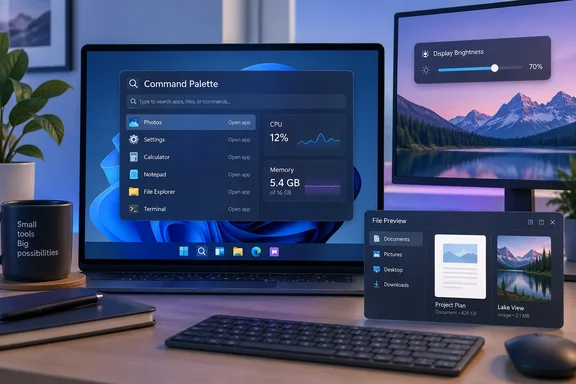
Ellis found Windows Search cluttered, even after trimming it. She switched to Command Palette for launching apps and running commands. She also does quick maths in the same box. For her, the surprise was the performance readout. It shows CPU, memory, GPU and network speed, so she only opens Task Manager when a process misbehaves and needs killing.
Microsoft's documentation matches this. The Dock is part of Command Palette and needs Command Palette enabled and running in the background. You turn it on with the Enable Dock toggle in Command Palette settings. By default, the Dock's right-hand end region includes Performance Monitor, Network Speed and Date/Time bands. Microsoft's overview page gives the default shortcut as Win+Alt+Space. It lists calculator input such as 23*47 and sqrt(256). It says Performance Monitor can show CPU, memory, network, disk, GPU and battery metrics, and that individual metrics can be pinned to the Dock.
Some caveats, from outside coverage and release notes:
- Memory use: Wanture reported that the Dock consumed 200 MB to 260 MB of RAM when it launched with PowerToys 0.98. It suggested that people on budget laptops, or those trying to stretch battery life, should watch memory use. That figure is from an earlier version, so treat it as a rough guide.
- Leaks fixed: Windows Forum's earlier coverage noted that v0.100.2, the current non-preview release, patched a Command Palette memory leak involving the Performance Monitor Dock extension.
- Multi-monitor and docking fixes: A 0.101 preview addressed the Dock losing contents or settings when a laptop was docked or undocked, or after a Win+P display-mode change. The newest preview release notes also add a Win+Alt+J shortcut to reveal and focus the Dock.
Running a live resource monitor does cost something. For a glance at CPU and memory it's convenient. It doesn't replace Task Manager for diagnosis, and Ellis says as much.
Power Display for external monitors
This was her standout. Laptop panels have a brightness slider in Settings. Monitors on a desktop tower usually mean poking the monitor's own buttons and menu. Power Display gives you a slider instead. It also supports profiles for warmth and contrast, with the exact options depending on the monitor.
Microsoft says Power Display talks to external monitors over DDC/CI. It can adjust brightness, contrast, volume, input source, rotation, color temperature and power state, depending on what the monitor reports. Profiles can store brightness, contrast, volume and color temperature. Power Display can reapply saved brightness and color temperature at launch. It also integrates with Light Switch, so a profile can follow the Windows light or dark theme.
Before enabling it, read Microsoft's warnings:
- Rare crash risk: On a small number of monitors with malformed capability data, the read at startup can trigger a Windows kernel bug and a blue screen. Microsoft says the underlying issue is in Windows, not Power Display. If a crash is detected, Power Display disables itself at the next PowerToys launch and excludes that monitor. You then have to re-enable the module manually.
- Risky controls are off by default: Color temperature, power state and input source each ask for confirmation. Microsoft warns that some monitors keep a new color temperature value after Power Display closes. Switching to an input with no signal can leave the screen black. After an input switch, software control may be unavailable until you change inputs again with the physical buttons.
- Max compatibility mode: Only use it if a monitor is missing. It probes every supported VCP feature directly. The screen may go black briefly, and the monitor may react unpredictably.
If your monitor isn't recognized, don't jump straight to Max compatibility mode. Check the monitor's own on-screen menu to confirm DDC/CI is enabled. This is my general advice, not from the documentation. Then try the monitor refresh delay setting. Microsoft says to increase it if monitors aren't detected after hot-plug.
Peek for quick file previews
Ellis often opens files only to check a number in a PDF or a detail in a screenshot. Peek lets her do that without launching the full app. Microsoft describes it as a system-wide preview for images, Office documents, videos, web pages, Markdown, text and developer files. Pressing the activation shortcut with a file selected in File Explorer opens it. Space is the default shortcut in PowerToys 0.95 and later. Arrow keys move through the other files in the folder. Selecting several files first limits the browsing to that selection. The Delete key sends the current file to the Recycle Bin, with a confirmation dialog on by default.
She says it works with the third-party file manager she uses in place of File Explorer. Microsoft's documentation describes the File Explorer workflow. Treat that compatibility as her result, and test your own file manager.
The four that didn't fit
Ellis is clear that these misses reflect her workflow, not the tools' quality.
| Utility | What it does (per Microsoft) | Why it didn't stick for her |
|---|---|---|
| Color Picker | Picks colors from the screen and copies them in configurable formats | She mostly writes rather than designing |
| Keyboard Manager | Remaps keys and shortcuts | She already uses her keyboard's shortcuts, and it has a volume knob |
| Image Resizer | Resizes images from the File Explorer right-click menu | She needs a specific crop or aspect ratio, not a pixel size |
| Workspaces | Launches apps into saved positions | She works mainly in a browser, which restores her tabs |
Two details in Microsoft's documentation may help others. Color Picker's default shortcut is Win+Shift+C. Its activation shortcut won't work in an app started as administrator unless PowerToys is also elevated. Workspaces, by Microsoft's account, repositions windows after launch. It uses public APIs and the FancyZones engine, and it doesn't provide Windows snapping when restoring saved windows.
Quick mentions
Ellis uses Quick Accent and ZoomIt only occasionally, and finds them very useful when she does. She hasn't yet found her use for FancyZones. Microsoft's utility list is long. Others on it include Advanced Paste, Awake, Always On Top, Text Extractor, PowerRename, File Locksmith, Light Switch, Mouse Without Borders and Screen Ruler. That list is a reminder that a one-week trial of everything is a lot to ask of anyone.
How to run your own PowerToys week
Her suggestion works, with some structure:
- Start with friction. Do you juggle apps to check files? Fight your monitor's buttons? Pick the matching utility.
- Enable a few at a time. Too many new shortcuts at once and you won't remember any of them.
- Check hardware compatibility first. For Power Display, read the DDC/CI warnings above. Leave color temperature, input source and power state off until you know your monitor behaves.
- Check for shortcut clashes. Command Palette's Win+Alt+Space and Peek's Space are defaults you can change in settings.
- Disable what you don't touch. Ellis left some tools enabled without using them. Each running module is background software you maintain.
Bottom line
The practical takeaway is not "install everything." Command Palette, Power Display and Peek earned their place for Ellis because each removed a specific annoyance: a cluttered search box, a monitor menu, a pile of file-preview windows. Yours may be FancyZones or Keyboard Manager instead. Power Display has the most hardware dependency and the most documented caveats, so approach it with a little caution. Treat the week as an audit of your own habits, not a verdict on the tools.
References
- I tried every PowerToys utility for a week, and a handful actually changed how I use Windows XDA · 2026-10-06T14:00:19+00:00
- PowerToys Command Palette Dock Enhances Windows 11 Workflow wanture.com
- PowerToys 0.100 is here: new Shortcut Guide, Command Palette improvements and much more! - Windows Command Line devblogs.microsoft.com