

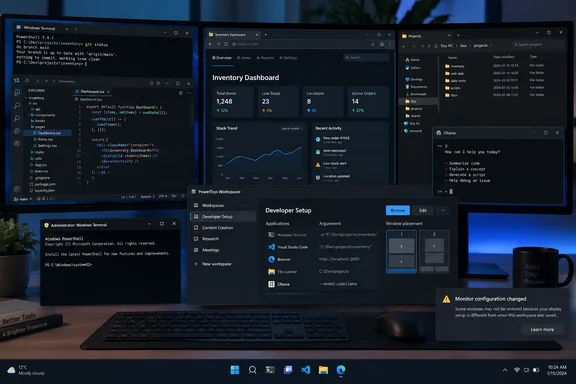
The important distinction is that Workspaces is a workspace launcher, not a replacement for Windows 11 Snap Layouts or PowerToys FancyZones. Snap and FancyZones help arrange windows that are already open. Workspaces saves a project-specific starting state: which applications should run, their approximate size and display placement, selected launch arguments, and whether an existing window should be moved rather than another instance started.
Microsoft’s Workspaces documentation confirms the core workflow reported by XDA: capture an arrangement, edit it, and launch the saved workspace later. Microsoft’s own test plan also explicitly covers minimized and maximized application states, command-line arguments, administrative launches, and changing monitor configurations. That gives the feature more substance than a simple saved layout, particularly for machines that support several recurring work patterns.
A saved desktop is more useful than a saved window grid
The problem Workspaces addresses is startup friction. A developer may need Windows Terminal in a particular profile, Visual Studio Code pointed at a repository, a browser opened to a project dashboard, File Explorer at a deployment folder, and a documentation PDF or ticketing page on a second display. Windows can remember some individual application behavior, but it does not provide a built-in project launcher that coordinates that entire collection.
XDA’s example of a PowerShell window, Claude Code, and a local Ollama instance is therefore a sensible use case. The tool’s value does not come from putting three rectangles beside one another; Windows 11 can already do much of that with Snap Layouts. It comes from reducing a many-step ritual—launching programs, opening the right target, moving each window, and recovering from a restart—to one saved action.
This is also why Workspaces can fit non-development roles. A help-desk technician could save a layout with Remote Desktop, an elevated terminal, Event Viewer, a browser-based ticket queue, and documentation. A finance or operations user could arrange an Excel workbook, a reporting dashboard, a line-of-business client, and a shared folder. The practical benefit grows with the number of applications whose starting context matters.
Microsoft lets a saved workspace create a desktop shortcut, which can then be pinned to the taskbar. That is a more direct launch path than repeatedly opening the PowerToys settings interface, as XDA describes. It also means the feature can be treated as a small, project-specific launcher rather than another settings panel users must remember to visit.
Command-line arguments are the feature that changes the result
A layout alone is easy to overstate. If a workspace merely opened five blank programs and shuffled their windows afterward, it would save some mouse work but leave the meaningful setup unfinished. Workspaces becomes considerably more capable when an application accepts command-line arguments.
Microsoft documents examples including launching Visual Studio Code to a specified file and Windows Terminal to a specified profile. Browsers can generally be passed a list of addresses, while Office applications, editors, IDEs, and PDF readers may accept a path to a document or project. The behavior depends on the application’s own command-line interface; Workspaces does not invent those controls.
For an administrator, this enables repeatable entry points. A workspace for an incident investigation could open a terminal in the appropriate shell profile, a browser to the organization’s management portal, a log viewer with the relevant file, and an editor in a scripts directory. A developer workspace could start an IDE in a repository and a terminal with a predefined profile. In both cases, the saved command line is the difference between restoring window geometry and restoring a usable working session.
There is a maintenance consequence that Microsoft calls out and XDA’s overview does not: re-capturing an adjusted workspace performs a clean capture and removes the previous command-line arguments and related settings. Users who carefully configured a workspace should edit it when possible instead of casually capturing over it. A re-capture is convenient for rearranging windows, but it can quietly strip away the app-specific launch behavior that made the workspace valuable.
Existing instances determine whether restoration feels reliable
Workspaces cannot command every Windows application to appear at a precise coordinate at the instant it starts. Microsoft says the utility launches an app and then sends it instructions to move and resize. That is why windows can visibly appear and then jump into place, with a PowerToys progress dialog showing whether each launch succeeded, is still running, or failed.
That implementation detail matters on a busy desktop. Applications vary widely when an instance is already running: some start another window, some activate the old one, and some permit only a single active instance. Microsoft uses the Windows Settings app as an example of the latter. Workspaces includes a “Move existing windows” option, but the result remains partly governed by each application’s own behavior.
For apps with well-documented command-line switches, the better approach is to deliberately define that behavior. Microsoft specifically points to Visual Studio Code’s --reuse-window option for users who want to place an existing VS Code window rather than create another one. Similar choices exist in many developer tools, terminals, and browsers, but they must be tested per application. A workspace is dependable only after its individual programs have been made dependable.
This is a meaningful difference from a Linux tiling window manager, which typically controls window placement continuously according to rules. Workspaces stages a desktop at launch time and then hands control back to Windows and the applications. It is a practical compromise for users who want a repeatable opening arrangement without changing how they manage windows throughout the day.
Administrator windows remain the major limitation
The XDA report highlights the per-application “Launch as Admin” toggle as a convenience for PowerShell. It is useful, but Microsoft’s current documentation carries a warning that should prevent administrators from assuming the entire layout will be restored correctly: applications launched as administrator may not be repositioned to their saved layout.
The reason is Windows’ integrity-level boundary. A non-elevated PowerToys process cannot freely control an elevated application window in the same way it controls a standard user-level application. Users can receive the expected User Account Control prompt and successfully start the elevated program, yet still find that its position does not match the workspace preview.
That makes the feature suitable for launching privileged utilities, but not for promising pixel-perfect incident-response or systems-administration desktops. Test an elevated PowerShell, Windows Terminal, Registry Editor, MMC console, or vendor management tool before treating the saved workspace as a routine operating procedure. Where placement is essential, an elevated PowerToys configuration may change the result, but it also changes the security posture of the utility and should be evaluated accordingly.
Microsoft identifies this as a known issue under active development, rather than a behavior users should work around blindly. Until it changes, elevated tools belong in the workspace as optional launch targets, not as a guaranteed part of a restored arrangement.
Multi-monitor captures should be treated as configuration-specific
XDA’s report that a window returned to a 1,920-by-480 Lian Li display is consistent with Workspaces’ design. Microsoft’s public test coverage includes creating a workspace with one display, adding a second, and verifying the saved applications return to their captured display; it also tests the inverse case, where a monitor disappears and applications must fall back to the remaining screen.
That does not mean every monitor change will produce an elegant restoration. Docked laptops, remote desktop sessions, display adapters, rotated screens, changed scaling values, and temporarily unavailable monitors all alter the environment Workspaces is trying to recreate. A saved layout should be captured and tested in the monitor configuration where it will actually be used.
There is another limitation for FancyZones users. Microsoft says Workspaces uses publicly available Windows APIs and the FancyZones engine to position windows, but it does not restore windows as snapped windows when launching from a clean state. The geometry can be close to the captured layout, yet Windows will not necessarily show the same Snap group behavior or snap affordances. Users who rely on Snap groups for quick task switching should keep that expectation separate from workspace restoration.
Workspaces earns its place in PowerToys when it is treated as a repeatable application-and-context launcher: save the handful of windows that define a task, add tested command-line arguments, create a desktop shortcut, and validate it after a reboot and with the intended displays connected. It does not repair every rough edge of Windows window management, but it does eliminate one of the most repetitive ones: reconstructing the same working desktop by hand before the actual work can begin.
References
- PowerToys Workspaces solved the one thing Windows window management has always been terrible at - XDA XDA · 2026-09-16T00:00:17+00:00