

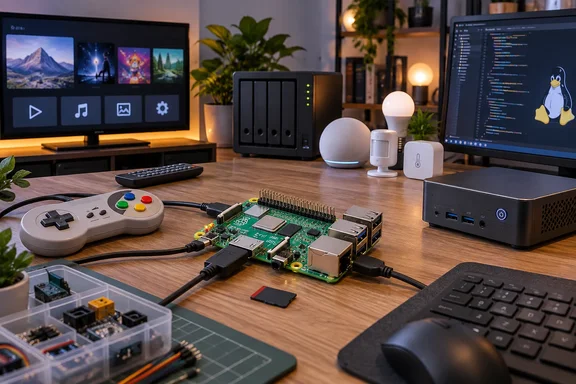
All five projects work on a Pi. The part that has aged badly is the "much cheaper" claim. Memory prices in 2026 have changed the math, and for some of these projects the official documentation adds caveats that a quick listicle skips. Here are the five projects, with the costs and limits included.
First, the price tag: 2026 has not been kind to the Pi
The argument for a Pi over a mini PC always started with price, and that part of the story has moved the most. The shift began in December 2025. Raspberry Pi launched a 1GB Pi 5 at $45 and raised prices on higher-memory Pi 4 and Pi 5 boards, blaming a sharp rise in LPDDR4 memory costs. More increases followed.
- February 2026: Notebookcheck reported that single-board computers with 2GB RAM now cost $10 more, 4GB versions cost $15 more, 8GB models are getting $30 more expensive, and the top models with 16GB RAM are up by $60. That put the Pi 5 at $65 (2GB), $85 (4GB), $125 (8GB) and $205 (16GB).
- April 2026: Aliteq reports a third round of +$100 on the 16GB Pi 5, +$50 on 8GB, +$25 on 4GB. MakeUseOf now describes the 16GB Pi 5 as selling for $305, and notes that's the price of the bare board.
- What held steady: Raspberry Pi says it has been able to protect the pricing of 1GB products, including the $35 1GB Raspberry Pi 4 variant, and the $45 1GB Raspberry Pi 5 variant.
The company blames AI data centers competing for memory. MakeUseOf reports that Raspberry Pi CEO Eben Upton has said the LPDDR4 memory used in the Pi 4 and Pi 5 now costs roughly seven times what it did a year ago. Raspberry Pi calls the pressure temporary and says it wants to reverse the increases once memory prices ease. It has given no date for that.
Mini PCs face the same memory market, so they are not immune. Still, board-only prices leave out a lot of the bill. A Pi build usually also needs:
- a proper power supply
- a microSD card or SSD
- a case, and sometimes cooling
A comment thread under Raspberry Pi's own December announcement shows the tension. Users argued that some Intel N150 mini PCs with 16GB of memory sell for about the price of a bare higher-memory Pi 5. Another commenter pointed out that mini PCs often have faster NVMe storage, SATA, 2.5GbE networking and upgradable RAM, while a Pi keeps the GPIO header that a mini PC doesn't have. Those are forum comments, not benchmarks, but they explain why the comparison is closer than it looks.
Section summary: The Pi is still the cheap option at the 1GB–2GB level. At 8GB and 16GB, "much cheaper than a mini PC" needs a real comparison of complete systems at current retail prices.
Project 1: The media center, where playback and serving differ
Butts recommends Kodi or Jellyfin, HDMI to the TV, external storage, and optionally a network share so every device at home can reach the library. He also flags an important point: the Pi 4B may suit this job better than the Pi 5, because the Pi 5 has no H.264 hardware transcoding.
The official Jellyfin documentation goes further:
- Earlier Pi hardware acceleration (OpenMAX in Jellyfin 10.8, V4L2 in 10.9) never matured, and many operations fell back to the CPU.
- The Pi 5 "lacks hardware encoders entirely."
- Jellyfin has therefore deprecated V4L2 support for the Pi. It may still work for now, but future Linux kernel or FFmpeg updates could break it, and fixes are unlikely.
The practical split looks like this:
| Use case | Pi fit | Why |
|---|---|---|
| Kodi-style playback box on the TV | Good | Local decoding; the Pi 4 decodes HEVC up to 4Kp60 |
| Jellyfin/Plex server with clients that play files directly | Reasonable | No transcoding needed |
| Server that transcodes on demand for phones, browsers or remote users | Poor | No mature hardware acceleration; the Pi 5 has no encoder |
If your household has one smart TV and a well-behaved file library, a Pi works well. If relatives are streaming 4K HDR files to a hotel TV's browser, this is where a mini PC with Intel Quick Sync earns its price. Jellyfin lists Quick Sync among its fully supported acceleration methods.
Section summary: A Pi is a fine playback box and a workable direct-play server. It is not a transcoding server.
Project 2: The lightweight home server
The home server section suggests:
- Nextcloud for files, calendars and contacts
- Vaultwarden as a self-hosted password manager
- Pi-hole for network-wide ad and tracker blocking
- Docker or Portainer to run several services side by side
These are all common Pi projects, and Pi-hole in particular is a classic because it needs so little hardware. Two caveats apply:
- Capacity depends on the workload. Serving DNS for one household is very different from syncing a Nextcloud photo library for several users. The storage connection and the number of simultaneous users matter more than the logo on the board.
- Self-hosting doesn't make anything secure. Running a password vault at home means you are responsible for backups, updates and remote access. Nothing about the hardware guarantees those.
Butts does make a fair point about the downside: if you outgrow the Pi, you can reuse it for another project. At 2026 prices, a 1GB or 2GB board makes that a smaller bet than a 16GB one.
Section summary: The Pi is good for DNS filtering, small containers and modest file sync. Plan backups and updates before you move your passwords onto it.
Project 3: Retro gaming
Butts names RetroPie and Batocera, lists systems from the NES and SNES through the Sega Genesis and PlayStation, and says the Pi 4 or Pi 5 can handle PSP and Dreamcast-era titles. Batocera's own hardware guide gives a more cautious picture:
- Pi 3: handles consoles up to the fifth generation, but may need active cooling to avoid throttling. Easy PSP and Dreamcast games run at decent speed, but most games for those systems are unplayable.
- Pi 4: runs fifth-generation consoles "near perfectly," but still only the easier PSP and Dreamcast games.
- Pi 5: the wiki's download status is essentially "when it's ready."
So "the Pi can play PSP" really means "the Pi can play some PSP games." How well a game runs depends on the title, the emulator and the build. The arcade-cabinet and handheld builds Butts mentions are real and fun, and that customization is a real point in the Pi's favor. One reminder: emulation distributions supply the emulators, not the games, so the ROMs are your responsibility.
Section summary: The Pi is excellent up to the PlayStation 1 era. Past that, results vary by game, and Pi 5 support on Batocera is still not a finished product.
Project 4: Smart-home automation
This is the best-documented of the five projects. Butts suggests Home Assistant or openHAB, and Home Assistant officially supports the Pi 4 and Pi 5.
What you need, according to Home Assistant's install guide:
- A Pi 4 or Pi 5 with at least 2GB of RAM, plus a proper power supply. Phone chargers may not deliver full power, and computer USB ports must not be used.
- A microSD card of at least 32GB, ideally rated A2.
- An SD card reader.
- An Ethernet cable. It is required for installation, and Ethernet is recommended over Wi-Fi afterward.
Installation steps:
- Install Raspberry Pi Imager on your Windows PC (or another computer).
- Choose Other specific-purpose OS > Home automation > Home Assistant, then pick the image for your board (RPi 4 or RPi 5).
- Select your SD card. Everything on it will be overwritten.
- Choose Next, then Write, and select Finish when it's done.
- Put the card in the Pi, connect Ethernet on the same network as your PC, then connect power.
- In a browser, go to
homeassistant.local.
What success looks like: On a Pi 4 or 5, the onboarding page usually appears within about a minute.
If it doesn't:
- On older Windows versions or stricter networks, try
homeassistantor the Pi's IP address instead. - Add port
8123if the page won't load without it. - If nothing appears after five minutes, reflash the card, possibly with a different card.
- If reflashing doesn't help, connect a monitor over HDMI and read the console output.
- If Raspberry Pi Imager isn't supported on your system, download the image directly and write it with a tool such as Balena Etcher.
Butts also suggests wiring sensors straight to the GPIO pins. That works, but Raspberry Pi's hardware documentation adds limits: GPIO uses 3.3V logic, 5V signals can damage it, and motors should never connect directly to the pins. Check that a sensor is compatible before you wire it.
Butts goes further and says a Pi can "easily rival or even surpass" commercial hubs. That depends on which radio protocols you need and which integrations you rely on, so treat it as an opinion rather than a spec.
Section summary: Home Assistant on a Pi is well supported and well documented. The GPIO pins are useful, but only for 3.3V-compatible parts.
Project 5: Learning programming and Linux
The last project is the one where the Pi fits best, and its origins are in education. Raspberry Pi OS is based on Debian, and Python, C, JavaScript, web servers, databases and containers all run on it. Butts argues that a separate cheap machine lets you break things without risking your main PC. That's a fair point: a mistake at the command line on a Pi means reflashing a microSD card, not rebuilding your Windows 11 installation.
Windows users have an alternative: WSL or a virtual machine gives you Linux for free on hardware you already own. What a Pi adds is real hardware: GPIO, networking you can unplug, and a server that runs all the time. It can also run headless and be managed over SSH from Windows. For desktop use, Raspberry Pi staff and commenters on the December announcement recommended at least 4GB of RAM, because a web browser uses up 1GB–2GB quickly.
Section summary: The Pi is still a very good way to learn Linux. A 1GB board is fine if you run it headless, but you'll want more memory for a desktop.
Bottom line
The five projects Butts lists are real, and a Pi runs all of them. What has changed is the "much cheaper" part. After three rounds of memory-driven price increases, the Pi is clearly the budget choice only at the low-memory end, for headless, modest or GPIO-based work such as Pi-hole, Home Assistant, a Kodi box, classic emulation or a Linux sandbox. For transcoding media servers, storage-heavy servers or anything that needs 8GB or more of RAM, price out a complete mini PC before assuming the Pi saves you money.
References
- 5 projects you can do for much cheaper with a Raspberry Pi instead of a mini PC XDA · 2026-09-29T13:35:46+00:00
- Notebookcheck Logo notebookcheck.net
- Raspberry Pi Price Increase 2026: Up to $100 More, Blame DRAM · Aliteq aliteq.com