

PC Gamer's Mouse Side-Button Poll Shows How Sticky the Defaults Are
The column started as an office argument. PC Gamer's hardware team was talking about Razer's new MMO gaming mouse, which has 12 buttons, and the talk turned to the two side buttons that nearly every gaming mouse has. The author's colleagues backed Forward and Back for web browsing. As the column notes, that is usually how gaming mice ship.
PC Gamer then ran a reader poll with three options. The results were 67% for Forward/Back, 10% for Ctrl+C/Ctrl+V, and 23% for "something else entirely." In raw numbers, the column puts Forward/Back at 1,343 votes, copy/paste at close to two hundred, and "something else" at more than 400. The author guesses that the third group is mostly using game- or genre-specific binds.
This was an opt-in poll of PC Gamer readers. There's no sampling method and no demographic data, so read it as a snapshot of that audience rather than a survey of mouse users. Even so, the split is useful. Two-thirds of a hardware-savvy audience stayed with the out-of-box behaviour, and about a third had remapped their buttons to something.
The Case for Copy and Paste on Mouse Buttons 4 and 5
The author's argument is simple. With copy and paste on the thumb, you can move text from one place to another without touching the keyboard. Browser navigation, by contrast, is already easy with the mouse alone. The column jokes that this is "more ergonomic," then adds that it means this in a moral sense rather than a medical or legal one. It's a joke, not a health claim, and it shouldn't be read as one.
The practical point holds up for some kinds of work. If much of your day is selecting text in one window and dropping it into another (spreadsheets, ticket systems, documentation, code), putting Copy and Paste under your thumb means your left hand never has to find Ctrl. If most of your time on the desktop is spent moving between web pages, Forward and Back probably earn their spot.
The author also doesn't use the same binds everywhere. In first-person shooters, the column says, the side buttons send the plain C and V keys. That detail is the most useful one for readers: what the buttons should do depends on the app, and the vendor software is built around that idea.
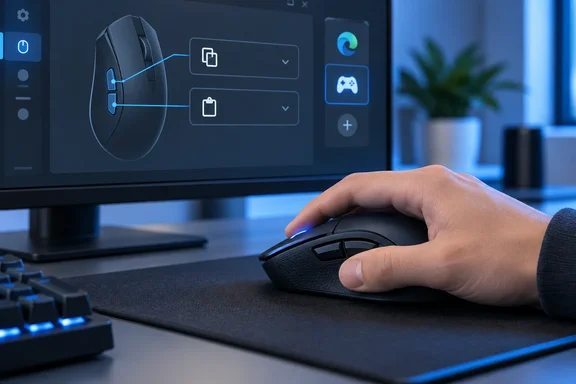
How to Map Copy and Paste in Razer Synapse 4
Razer offers a direct route, and you don't need a macro for it. Razer's support page on programming shortcuts gives the steps for Synapse 4: Launch Razer Synapse 4. Select your mouse from the DASHBOARD. Select a button you want to customize. From there you choose the shortcut category. Razer's documentation for this workflow has long described it the same way: click on "WINDOWS SHORTCUTS". Open the dropdown menu and select the shortcut you wish to program to your button. Click "SAVE" to complete the process.
- Open Razer Synapse 4 and select the mouse on the Dashboard.
- Click the thumb button you want to change. On most right-handed mice that's the rear side button (button 4) or the front one (button 5).
- Choose the Windows Shortcuts function type.
- Pick Copy from the dropdown, then save.
- Repeat for the other button with Paste.
When it's working, the button in the device layout carries the new name, because the button will now be named after the shortcut on your device layout. Before you rely on it, test it: select some text in Notepad, press the copy button, and paste it into another window.
Use the Windows Shortcuts option, not a hand-built macro. On Razer's community forum, users who recorded their own Ctrl+C and Ctrl+V macros reported trouble. One user got a macro that either doesnt copy anything and then types c and another that paste anything and then types v. Another, using a Basilisk V2, said that the copy actually copy but the paste is making an endless loop of pasting. A regular in the same forum answered that if your intent is to simply copy and paste, you don't need to create a macro for it. You can directly assign a single key using "Windows Shortcuts" assignment option.
Razer's background-software requirement
Razer's Windows Shortcuts assignments are handled by Synapse, not stored in the mouse. Users have reported this for years. On one Deathadder Essential, the Copy and Paste functions showed up with the red warning label and the same message, "Razer Synapse must be running to use this function". A buyer of a Basilisk X HyperSpeed described what happens in practice: you have to be running synapse in the background for it to apply. I disabled the software at startup and none of my button mapping changes were in effect until i launched it.
If you trim startup apps in Task Manager, leave Synapse enabled or the side buttons will go back to their defaults. The same applies if you take the mouse to a second PC that doesn't have Synapse installed.
Some users have also seen the warning while Synapse was running. The Deathadder owner went as far as reinstalling with a clean upgraded Windows and running Synapse as administrator with a support account, the same issue repeated. That report is from 2021 and involved Synapse 3. It's worth knowing about, but it isn't evidence that current versions have the same fault.
The Synapse version does matter. According to a 2026 Synapse 4 setup guide from EasyMacro, Synapse 3 can still configure devices already installed on a computer, but Razer ended updates and its cloud services on February 3, 2026. The same guide warns that a file exported from Synapse 3 is not directly compatible with Synapse 4, and the newer installer replaces Synapse 3. If your mouse still runs on a Synapse 3 install, check that Synapse 4 supports it before you upgrade, and expect to recreate your bindings instead of importing them.
How Logitech G HUB and Logi Options+ Handle Side-Button Shortcuts
Logitech splits its customisation across two apps. G HUB covers the G-series gaming range and Logi Options+ covers the MX and productivity range, and each works differently.
Logitech's G HUB support page covers assigning keyboard commands and says the steps work for every device with programmable buttons. You choose the profile you want to edit, or the DESKTOP – Default profile if you aren't using a game-specific one. Then you click the device, open the Assignments tab, pick the KEYS tab to see all available keys, and drag a key onto the white circle next to the button you want. Logitech's own example binds the "1" key to the Forward button. Once it's bound, the button's label (for example, G5) appears in that key's cell. That is how you know it worked.
That page only covers single keys. It doesn't show a ready-made Copy or Paste preset or explain how to bind a Ctrl combination. With G HUB alone, the documented approach suits the author's FPS setup (plain C and V on the side buttons) more directly than a desktop Ctrl+C/Ctrl+V pair. If you need the modifier combination, look through G HUB's other assignment categories on your own device. There's no verified universal method we can give you.
G HUB's reset options are clearly documented. Click a bound button and you get two choices. USE DEFAULT puts the button back to its factory behaviour, which on side buttons is usually Forward/Back. DISABLE turns the button off and clears its programming. To bring a disabled button back, drag an assignment onto it or click USE DEFAULT.
Logi Options+ is built more around office work. Logitech says it lets you assign shortcuts to supported mice. It also offers app-specific customisation, with presets or your own settings for apps including Chrome, Edge, Word, Excel, PowerPoint, Photoshop and Microsoft Teams. That's a good fit for the copy/paste idea: Copy and Paste on the thumb buttons in Excel and Word, Forward and Back in Edge. Logitech's product page doesn't list exact copy/paste steps, so the menu path may vary by mouse. Options+ runs on Windows 10 or later.
Profiles Settle the Desktop-Versus-Game Argument
The poll offered one mapping or another, but none of these tools make you choose one for every app. G HUB profiles and the DESKTOP – Default profile let one mouse behave differently in a game and on the desktop. Options+ does the same per application. The PC Gamer author's own setup (Copy/Paste on the desktop, C and V in shooters) is a two-profile arrangement, and it's why the column's headline adds "on desktop."
Profiles also help explain the poll's large "something else entirely" group. Gamers who bind side buttons to reload, melee or push-to-talk often have profiles that switch automatically when a game launches. It's the usual cause of a side button that seems to do the wrong thing: whatever profile is active is the one in charge. If Copy fires when you expected Back, or nothing happens, check which profile is live before you assume the binding is broken.
For IT administrators, Logitech says Logi Options+ can be mass-deployed remotely with SCCM, Intune and Jamf, and that features can be disabled with command-line parameters. On managed machines, people who want custom button mappings may be limited by whatever the admin allows in that deployment. On Razer hardware, managed or not, the mapping depends on Synapse staying installed and running.
What this means for you
If you copy text between windows all day and rarely use the browser's Back button, remap the side buttons. It's quick, and you can undo it just as quickly. If your side buttons already handle game binds, or you use Back constantly, the poll suggests you're in the majority, and nothing here says you should change. Where you can, use per-app or per-profile mappings so you don't have to pick one behaviour for everything.
- In Razer Synapse 4, use Windows Shortcuts → Copy/Paste rather than recording your own Ctrl+C/Ctrl+V macro. Users who built macros reported stray letters and paste loops.
- Keep Razer Synapse running at startup, because Windows Shortcuts assignments stop working when the software isn't running.
- In Logitech G HUB, you drag keys onto buttons under Assignments → KEYS in the profile you're editing. Logitech's documentation covers single keys, so C and V are straightforward; check the other menus if you need Ctrl combinations.
- Logi Options+ supports app-specific button settings, so you can have Copy/Paste in Word or Excel and Forward/Back in Edge on the same mouse.
- If a Synapse 3 setup is still running your mouse, remember that Razer stopped Synapse 3 updates on February 3, 2026 and old exports won't import into Synapse 4. Plan to recreate your bindings.
- After any change, test in a harmless app like Notepad before relying on it at work or in a match.
The PC Gamer poll suggests most people stay with Forward/Back simply because that's how the mouse ships. Remapping takes a few clicks in Synapse 4, G HUB or Options+, and one button click in G HUB, USE DEFAULT, undoes it. The practical limit is the software, not the hardware: if a Razer mapping needs Synapse running in the background, your Copy and Paste buttons only work while it's running.
References
- I don't care what you lot say, the side buttons on a mouse are for copy and paste (on desktop) PC Gamer · 2026-09-23T14:39:28+00:00
- Razer Macros in Synapse 4: Setup, Profiles and Fixes easymacro.net
- G HUB: Assign keyboard key commands and reset or disable buttons – Logitech Support + Download support.logi.com