

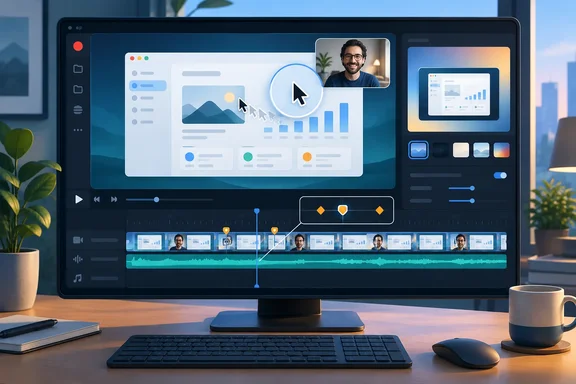
Recordly Packs Capture and Editing Into One Windows App
The project's GitHub README describes Recordly as a desktop app for recording and editing screen captures with motion-driven presentation tools built in. Instead of sending raw footage to a motion designer just to add zooms, cursor polish, or a styled background, Recordly handles that workflow in one place for free. The main repository sits under the webadderallorg organisation on GitHub. When it was checked for this story it showed about 31,200 stars and 2,500 forks, which suggests a real user base but says nothing about quality.
The basic workflow is short and the same on every platform. The documentation describes it in four steps: select a screen or window. Choose microphone and system-audio options. Start recording. Stop recording to open the editor. The last step is the important one. A Snipping Tool recording ends as a finished video file. A Recordly recording ends in an editing session.
The licence is the GNU Affero General Public License 3.0. A fork mirroring the upstream README states that Recordly is licensed under the AGPL 3.0. For ordinary users this mostly means the source is public and the app costs nothing. Shah says it is free and that it shows no ads. The project page says prebuilt installers are on its GitHub Releases page. Developers who want to build it on Windows need Visual Studio 2022 or the Build Tools with the C++ workload, plus CMake. MakeUseOf didn't say which release it tested, so this piece doesn't tie any behaviour to a particular version.
Work can be saved as a project and reopened later: the README says you can save your work anytime as a .recordly project. According to the documentation, the project file keeps the editor state and a path to the source recording, not a copy of the media. It's a reasonable inference that moving or renaming the original video could break a saved project, so keep the two together until you've exported.
Recordly's "Automatic Editing" Is Zoom Suggestions Plus a Real Timeline
The review gives the impression that Recordly does the editing unprompted. Shah writes that the app zooms in on the important part as your cursor moves, adds smooth transitions between actions, and applies all of it within a couple of seconds of stopping. He then says the effects can be removed or added to in a timeline where you crop, trim, split and rearrange clips. In his experience the automatic pass was good enough that he barely had to touch anything.
The project's own wording is more careful: Recordly can automatically emphasize activity with zoom suggestions, smooth cursor movement, add motion effects, and place the final composition inside a styled frame with wallpapers, colors, gradients, blur, padding, and shadows. The documentation also lists manually placed zoom regions, trimming, speed-up and slow-down regions, cropping, text, image and shape annotations, and extra audio regions on the timeline. Put plainly, Recordly makes a first pass based on where the cursor went, and you then accept, change or throw it away in a normal non-linear editor.
This affects how you record. Zoom suggestions follow cursor activity, so a recording where the pointer wanders around will likely produce zooms in the wrong places. A deliberate take, where you move to each control before you use it, gives the heuristic better material. That is an inference from how the feature is described, not a tested result. It does fit Shah's account that the effects were placed well when he used the app to demo software.
Cursor treatment is the other half of the polish. Shah picks out the ability to swap the cursor's style and size and to add click effects. The documentation lists size adjustment, smoothing, motion blur, click bounce, sway, and a loop mode for exports that loop cleanly. These effects work because Recordly draws its own cursor on top of the footage: Recordly renders a polished cursor overlay on top of the recording. Platform cursor-hiding behavior still depends on OS support. That second sentence leads straight to the Windows requirement below.
Windows 10 Build 19041 Decides How Clean Recordly's Cursor Looks
Recordly doesn't capture the screen the same way on every operating system. On Windows, the README says the app uses a native Windows Graphics Capture (WGC) helper on supported builds, with native WASAPI audio support. Windows Graphics Capture is Microsoft's modern screen-capture API. WASAPI, the Windows Audio Session API, is the interface the app uses to record system sound.
The threshold is stated explicitly: best results require Windows 10 Build 19041+ and the native capture helper. Older builds fall back to Electron capture, so the real cursor may remain visible. Build 19041 is Windows 10 version 2004. Every supported Windows 11 release and any current Windows 10 install is well past it. Older machines can still record through the fallback, so the requirement isn't a hard cutoff. On those builds, though, the real Windows cursor may appear in the footage underneath Recordly's styled cursor.
On Linux the same problem is guaranteed. There, Linux records through Electron capture APIs. Cursor hiding is not supported on Linux today. The documentation warns that if you also enable the rendered cursor overlay, exports may show both the real cursor and the styled cursor. System audio support varies by platform. The project also notes that system audio on Linux generally needs PipeWire. On macOS, Apple's ScreenCaptureKit handles capture, and the project says it can exclude the real cursor cleanly.
Different revisions of the README give different macOS minimums: one says macOS 14.0, another says macOS 12.3. Mac users should check the release notes for the build they download. Windows users get a single, consistent answer. On a current build you get native capture and clean cursor hiding. On anything older than 19041, expect a possible double cursor, and either turn off the rendered cursor or accept the artefact.
Webcam Bubbles, Captions and Presets Round Out Recordly's Walkthrough Kit
Recordly treats a presenter's webcam as an editable layer, not a feed baked into the frame. The README says you can add webcam footage as an overlay bubble, position it with presets or custom coordinates, mirror it, control shadow and roundness, and optionally make it react to zoom changes. Shah confirms that the bubble's shape, size and position can be changed after the recording is done, and that it follows the zoom effects so it doesn't look out of place. Because the overlay is a separate element, a badly placed bubble doesn't mean recording again.
Captions are harder to pin down. The project's own tagline, repeated across mirrors of the repository, describes Recordly as an open-source screen recorder for Mac/Windows/Linux that adds auto-zooms, animated cursors, auto-captions and more to your videos. That confirms captioning is part of the product. The details come from MakeUseOf alone. According to Shah, you have to download a local model before captions work. It then detects the spoken language automatically among English, German, Spanish, French, Portuguese, Korean, Chinese and Japanese, and the text colour, font size, position and background opacity can be adjusted. The feature lists in the README revisions checked here don't document the model or the language list. If you need captions in a language outside those eight, test it before you commit.
Presets matter most to people who publish regularly. MakeUseOf says you can style one recording, save the edits as a preset, and apply the same look to later recordings with a single click. For a team keeping tutorial videos consistent, that replaces the usual routine of recreating the same background, padding and cursor settings every time. Shortcuts cover zooming, splitting, deleting and timeline navigation, and the repository confirms they are customisable.
Export is simple. The documentation lists MP4 and GIF output, and says you can adjust format-specific settings such as quality, GIF frame rate, GIF looping, and output size before export. Shah adds that he could choose resolution, frame rate and encoding quality. The documentation confirms configurable output but doesn't list exact encoder options or supported resolutions.
Recordly Against Snipping Tool: Where the Trade-off Lands
Snipping Tool is the obvious comparison, because it's what most Windows users already use to record and because MakeUseOf's reviewer used it for years. It records and saves, and that's all it does. Recordly adds a whole presentation layer, and the cost is another app to install, update and trust, plus an editing step every time. If the job is a quick bug reproduction for a colleague, that step is overhead. If the job is a product demo someone outside the team will watch, the editing step is the reason to use Recordly.
Recordly can also open recordings made elsewhere. Shah says it opened his Snipping Tool clips, but those don't get automatic effects. That makes sense given how the feature works. Cursor-driven zoom suggestions depend on data Recordly collects while it records, and an imported MP4 doesn't carry any, so imported footage gets manual tools only. If you want the automatic pass, record in Recordly.
The table below uses documented features only. The Snipping Tool column reflects that tool's basic record-and-save role, not a feature audit.
| Capability | Recordly | Snipping Tool (recording) |
|---|---|---|
| Record full screen or a single window | Yes, with mic and system-audio options | Records the screen |
| Cursor-driven zoom suggestions | Yes, editable on a timeline | No |
| Styled cursor, click effects, motion blur | Yes; clean cursor hiding on Windows 10 build 19041+ | No |
| Webcam overlay adjustable after recording | Yes | No |
| Backgrounds, padding, rounded corners, shadows | Yes | No |
| Export formats | MP4 and GIF with quality and size settings | Saved video file |
| Reopenable project files | Yes, .recordly | No |
| Licence and cost | AGPL-3.0, free | Bundled with Windows |
Recordly's claim to replace Canva is narrower than it sounds. Shah used Canva to polish walkthroughs, and for that job Recordly's frames, backgrounds and annotations overlap with it. Nothing in the documentation suggests Recordly handles multi-track audio mixing, colour work or long-form editing. It is built for short, cursor-heavy software demos. Longer productions will still end up in a full editor.
What this means for you
If you make software walkthroughs, onboarding clips or product demos on Windows, Recordly is worth installing now. If your recordings are internal throwaway captures, you can skip it. Before you rely on it, check your Windows build. Run winver: anything at build 19041 or later gets the native Windows Graphics Capture path and clean cursor hiding. Do a short test recording with your real microphone and system-audio settings, and look at the export for a doubled cursor or badly placed zooms before recording anything long.
Managed environments need a policy decision first. Recordly is an unsigned-by-default open-source project distributed through GitHub Releases, and the project documentation doesn't mention enterprise deployment or management controls. Treat it like any other third-party capture tool: it can record everything on screen and in system audio, so review it the way you would for approval.
- Recordly is free and AGPL-3.0 licensed, runs on Windows, macOS and Linux, and ships prebuilt installers through its GitHub Releases page.
- Its "automatic editing" is a set of cursor-based zoom suggestions and motion effects that you review and adjust in a normal timeline editor.
- Windows 10 build 19041 or later is needed for native capture and hidden system cursors; older builds fall back to Electron capture, which may show the real cursor.
- Clips from Snipping Tool or other recorders can be opened and edited but don't get automatic zooms, so record in Recordly if you want the automatic pass.
- Keep source recordings next to their
.recordlyproject files, because projects reference the original media by path rather than embedding it. - Captions depend on a downloadable local model; the eight-language list comes from MakeUseOf's review and should be tested before you rely on it.
Recordly moves the effort in screen recording from editing afterwards to recording with intent. You move the cursor deliberately, and the app turns that movement into zooms and a styled frame you can fine-tune. MakeUseOf's weeks of use suggest the heuristics are good enough for everyday walkthroughs, and the documented Windows requirements are modest enough that most current PCs get the clean-cursor result. The project gets frequent updates, with nearly 1,900 commits on its main branch, and details like the macOS minimum already differ between README revisions. Check the release notes for whichever build you install rather than relying on this review's snapshot.
References
- This open-source screen recorder edits my clips for me, and it's a game changer - MakeUseOf MakeUseOf · 2026-09-25T14:30:15+00:00
- github.com github.com