

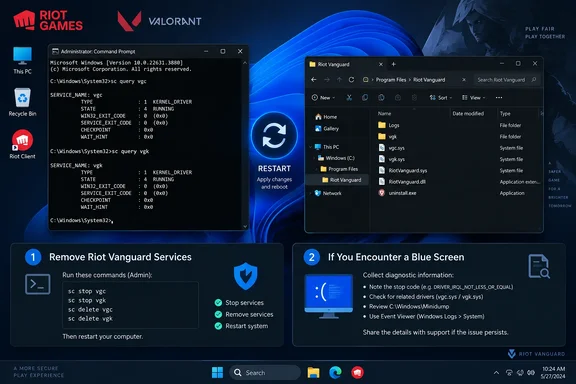
A September 19 troubleshooting guide from Shattered describes a more extensive cleanup involving registry deletion, scripts, and force-removal tools. Its central service-delete-and-restart sequence is useful, but its claim that a running service cannot be deleted conflicts with Microsoft’s documentation: Windows can accept the deletion request and mark the service for removal later. That distinction explains why restarting belongs between the commands and the file cleanup.
Riot Vanguard can remain because another game still needs it
Finding Vanguard after uninstalling a game does not necessarily mean the uninstaller failed. Riot’s Vanguard FAQ says uninstalling League of Legends will leave Vanguard installed if VALORANT is also present, because both require it. Riot says Vanguard is automatically removed only when all software requiring it has been uninstalled. Riot Games Support
That shared dependency changes the first troubleshooting decision. If you removed VALORANT but still play League of Legends, removing Vanguard will interrupt the remaining game. Riot also explicitly says Teamfight Tactics on PC requires Vanguard through the League Client; this is a Windows PC procedure, not a statement about every platform on which Riot games run.
Riot describes Vanguard as having a client component and a kernel-mode driver. The driver operates at the Windows kernel level, rather than behaving solely like an ordinary desktop application. Vanguard is also an on-boot application: Riot says that users who disable it and later want to play League must restart their computer to enable it again.
For a temporary interruption, Riot provides Exit Vanguard through its system-tray icon. For removal, the same menu offers More… > Uninstall Vanguard. These are different actions: exiting disables Vanguard, while uninstalling removes it and prevents dependent games from being played until it is restored.
Remove a stuck Vanguard installation in 12 controlled steps
Use the normal uninstaller first. Manual service deletion is the fallback for a failed removal, not a prerequisite for every successful uninstall.
You need administrator authorization, a stable Windows desktop, and an opportunity to restart. Save your work before beginning. Microsoft documents the service-deletion command for Windows 10 and Windows 11, but that command’s availability does not establish which Windows versions Riot currently supports for its games. On a work- or school-managed PC, involve the administrator rather than trying to circumvent a restriction. Microsoft Learn
The following sequence deliberately uses Command Prompt and keeps the restart separate from file removal.
- Decide which games you intend to keep. If you still need VALORANT, League of Legends, or Teamfight Tactics on PC, understand that removing Vanguard interrupts their Vanguard-dependent operation. Do not expand this cleanup into deleting shared Riot game folders.
- Save your work and close Riot games and Riot Client. Keep them closed while completing and checking the removal.
- Try Vanguard’s normal uninstall option. If its tray icon is available, right-click it and choose More… > Uninstall Vanguard, as described by Riot. If the normal removal works, you can proceed to verification instead of deleting services unnecessarily.
- Open an administrator Command Prompt if removal failed. Search Start for
Command Prompt, choose Run as administrator, and approve the authorization prompt. Use that Command Prompt window for the commands below. - Check the
vgcregistration. Run:
sc.exe query vgc
Record the output. ARUNNINGorSTOPPEDstate means the named service is registered; “stopped” does not mean “uninstalled.” - Check the
vgkregistration. Run:
sc.exe query vgk
AFAILED 1060response saying the specified service does not exist means that named registration is absent. It does not, by itself, prove every Vanguard file has been removed. - Delete the
vgcregistration if present. Run:
sc.exe delete vgc
A successful request normally reportsDeleteService SUCCESS. If the service is already absent, there is no reason to keep retrying its deletion. - Delete the
vgkregistration if present. Run:
sc.exe delete vgk
These are the two service names used in Riot’s manual removal procedure. Do not substitute other driver or service names. - Restart Windows before deleting the Vanguard folder. Treat this as a firm boundary in the procedure. Do not paste the entire operation into a script that continues directly from service deletion to file removal.
- Verify both registrations after restarting. Open an administrator Command Prompt again and run:
The expected removal result is errorCode:sc.exe query vgc sc.exe query vgk1060for each, indicating that neither named service remains registered. If either still returns a service state, stop before force-deleting files and retain the output for troubleshooting. - Remove the remaining Vanguard program folder. In File Explorer, look for
C:\Program Files\Riot Vanguard. If it remains after the restart and successful service checks, delete that specific folder. If it is already absent, there is nothing to delete. If Windows reports that files are in use or access is denied, do not take ownership of unrelated system files or broaden the deletion to other Riot folders. - Record the result and separate any remaining symptom. Successful service checks plus removal of the known program folder complete this cleanup path. A lingering app-list entry, an installation error, and another blue screen are different symptoms; capture the exact remaining message rather than repeating increasingly aggressive deletions.
The sequence’s service queries are useful because they check registration directly, rather than relying on the presence of a tray icon or an ordinary process in Task Manager. They are deliberately narrow checks: the result describes vgc and vgk, not the health of the entire Windows installation.
Microsoft’s service-delete behavior explains the restart
Microsoft defines sc delete as deleting a service subkey from the registry. When the service is running, or another process has an open handle to it, Windows marks it for deletion instead of removing it immediately. Consequently, a successful command means Windows accepted the request; it does not always mean the component has immediately disappeared from the running session. Microsoft Learn
This corrects two potentially misleading assumptions. A running service is not automatically undeletable, and every successful deletion does not necessarily remain pending until a reboot. The actual behavior depends on the service’s state and open handles. Restarting remains the appropriate boundary in Vanguard’s manual cleanup sequence before proceeding to its folder.
It also explains why routine registry surgery adds little to the supported path. The service-deletion command already addresses the service’s registry registration. Microsoft’s documentation does not establish a requirement to follow it with unconditional reg delete commands for vgc and vgk.
Likewise, deleting a service registration is not a command to erase its executable file. Do not interpret DeleteService SUCCESS as proof that Windows has automatically removed a particular vgk.sys file from disk.
Shattered also includes a combined PowerShell sequence with a comment telling the reader to reboot partway through. A comment is not an execution barrier: running the whole block would continue into subsequent cleanup commands. Keeping the pre-restart commands and post-restart checks separate avoids that problem without needing a more elaborate removal script.
A vgk.sys blue screen needs a separate diagnosis
A PC that cannot reach a stable desktop falls outside the normal removal sequence above. Do not treat an uninstaller hang and a boot-time crash as interchangeable cases.
For a Windows 11 machine that can reach the sign-in screen, the Safe Mode route described in Microsoft Q&A is to hold Shift while selecting Power > Restart, then choose Troubleshoot > Advanced options > Startup Settings > Restart. The Startup Settings screen offers Safe Mode. That guidance comes from a community support discussion, however, and does not establish that Vanguard service deletion will succeed in every Safe Mode configuration. Microsoft Q&A
This guide does not extend the desktop commands into an offline Windows Recovery Command Prompt procedure. The evidence here does not establish an offline-removal workflow, so it would be unsafe to present that environment as an interchangeable place to run the same commands against the installed system. If a stable session remains unavailable, obtain recovery assistance rather than improvising registry or driver-file deletion.
A crash report mentioning vgk.sys is evidence worth retaining, but it does not alone prove the root cause. Nor does a day without another crash prove that unrelated hardware or another driver has been ruled out. Shattered makes stronger claims about using crash history to confirm causation than the available evidence supports.
If crashes continue after Vanguard removal, preserve the stop code, crash details, and the results of the post-restart service queries. That gives the next investigation a concrete starting point without assuming either that Vanguard is still installed or that its removal should have fixed every underlying fault.
What this means for your Vanguard cleanup
Choose the least invasive path that matches the actual failure, and stop once the supported checks succeed.
- Keep Vanguard if you still intend to use a game that requires it, or accept that removing it will interrupt that game.
- Try Riot’s normal uninstall option before using administrator service-deletion commands.
- Keep the restart between deleting
vgcandvgkand removing the remaining Vanguard folder. - Treat error
1060as confirmation that the queried service registration is absent, not as proof that every file or crash cause is gone. - Escalate persistent access errors, surviving registrations, or boot failures instead of adding unverified registry edits and force-removal utilities.
A stuck Vanguard installation has a bounded manual-removal path: remove the named registrations, restart, verify, and clean up the known folder. Completing that path gives you a useful decision point—either the removal is finished, or a specific remaining error needs investigation—without turning a game-uninstall problem into an open-ended Windows cleanup.