

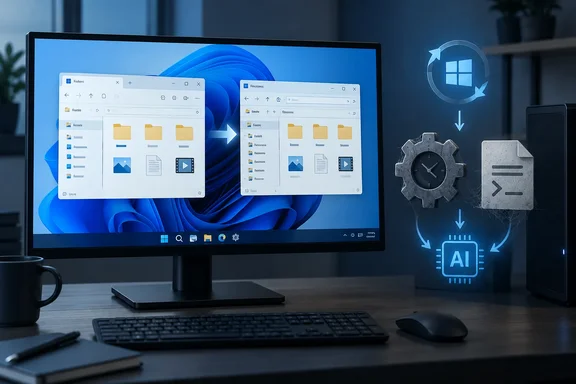
This is not a confirmed Microsoft bug, and the project's maintainer has not confirmed the cause. It is a user's investigation. The report is detailed, though, and it fits what the tool is built to do.
What the bug report says
The main report is issue #254, titled "Legacy RemoveAI-UpdateCleanup.ps1 can leave Classic Explorer after Windows updates; existing installs need migration." The reporter says the problem is a migration problem affecting existing RemoveWindowsAI installations that have an older persistent RemoveAI-UpdateCleanup.ps1. Neowin names the reporter as wallowp2p.
Here is the reported sequence:
- The reporter originally ran RemoveWindowsAI with Backup Mode on multiple Windows 11 25H2 x64 machines around 2026-08-10.
- The script dropped into %ProgramData% is a static copy of the cleanup logic from the time RemoveWindowsAI was run.
- So later fixes made in the GitHub repository therefore do not update an already-installed cleanup script.
- After subsequent Windows updates/build changes, the old scheduled cleanup can run its old package-removal rules again. On my affected systems this was associated with File Explorer reverting to the classic/Windows 10-style UI.
- The reporter says they could reproduce and recover this on multiple machines.
Neowin adds more detail from the report. The affected case is Windows 11 25H2 x64 machines running build 26200.9457 moving to 26200.9550. The leftover pieces include ProgramData cleanup scripts, user profiles, registry keys under HKLM, and the RemoveAI-UpdateCleanupChecker scheduled task.
The tool has already been fixed in the repository. The reporter points to two commits that disable velocity IDs and add AI Fabric exclusions, both tied to these symptoms. Those commits don't help anyone who installed earlier, because the copy on their machine never gets updated. Neowin's summary: the previously generated RemoveAI-UpdateCleanup still contains the old rules.
Section summary: The tool installs a cleanup job that runs after Windows updates. On older installs, that job still uses old rules. According to the reporter, those rules can remove something File Explorer's modern interface needs.
Several reports point the same way
Issue #254 is one of several recent reports with similar symptoms. Not all of them share the same cause.
- Issue #236 (about a month ago): A user said that after the Preview Update (KB5120998) (26200.9278) & .NET Framework Preview Update (KB5122385) I've lost the Windows 11 tabbed file explorer. I now have the Win 10 explorer. The title blames removal of the Microsoft.AIFabric.CBS package. The user also wondered whether removing Defender AI was involved.
- Issue #247 (opened September 26): A different user reported that file associations would break and I could not fix them unless I reverted changes and ran a restore point. It would break the context simplified right click menu as well. The issue list shows it as Removing Microsoft.AIFabric.CBS on Preview Release 26200.9550 causing File Explorer issues. The reporter could not say which build they were on, so treat this one as a loose match.
- Issue #251 (opened October 1): A Windows 11 Pro user said that after updating to 26H2, File Explorer has reverted to the classic UI, even all right-click menus on windows are in the classic look now, the file explorer no longer has the tab feature
These are user reports, and none of them proves the others. Still, they tell a consistent story. Removing the AI Fabric package was fine on earlier builds. Newer builds seem to make Explorer's modern interface depend on it, and a cleanup task that keeps removing it keeps breaking Explorer.
Why updates keep tripping it
This failure fits how the tool works. The project README lists an "Update Cleanup Check" feature that creates a scheduled task to remove newly installed AI features after Windows updates. It also has options to remove CBS packages and do a "full system cleanup" of remaining AI installers, registry keys, and package files. The tool removes system components. It does more than switch settings off.
Microsoft's servicing model adds to the risk. Microsoft's support page for KB5124010, the September 22 preview update, covers Windows 11 versions 26H2, 25H2 and 24H2. It lists OS builds 26300.9550, 26200.9550 and 26100.9550. The three versions share one servicing base, and features arrive gradually through "gradual rollout" phases. The same update lists several File Explorer changes and updates AI components such as Semantic Analysis and Content Extraction. A static removal list written in August can't know which of those components Explorer depends on by October.
Neowin makes the same point: Microsoft keeps moving components around, which risks regular breakage on tools like RemoveWindowsAI-style tools.
Microsoft's KB5124010 notes do not mention RemoveWindowsAI. Nothing suggests Microsoft built this update to fix, or to break, a third-party tool. The same page lists a separate Microsoft-acknowledged issue: a black screen or desktop that fails to load after sign-in, seen mainly on Azure Virtual Desktop hosts using FSLogix. That issue is unrelated. Don't treat every Explorer problem this month as the same bug.
The reported fix, and its caveats
Neowin says the reporter recovered their machines this way:
- Disabled the
RemoveAI-UpdateCleanupCheckerscheduled task. - Set
EnabledStateto1underHKLM\SYSTEM\CurrentControlSet\Control\FeatureManagement\Overrides\8\1561856655. - Restarted the PC.
- Left the old cleanup task disabled and installed KB5124010.
A discrepancy: Neowin gives two different feature IDs. The article body uses 1561856655, but its summary says to apply feature override 58375086, and reboot. The GitHub issue excerpt available for this story doesn't settle which is correct, or whether both are needed. Check the issue itself before you change anything. Microsoft doesn't publicly document these override IDs, so don't apply either one to a machine that doesn't show these exact symptoms.
The task-disabling part is the easiest step to undo. In PowerShell 5.1 run as administrator, Get-ScheduledTask -TaskName "RemoveAI-UpdateCleanupChecker" will tell you whether the task exists. That cmdlet searches every task folder. Disable-ScheduledTask -TaskName "RemoveAI-UpdateCleanupChecker" turns it off without deleting it. These are standard Windows cmdlets, not steps from the bug report. Disabling the task also means the tool will no longer remove AI components that come back with future updates. You give up that feature for a working Explorer, at least until the project ships a proper migration.
Before you edit the registry:
- Create a restore point and back up the registry.
- Note the current value, or confirm the key doesn't exist yet, so you can undo the change.
- Don't run a newer RemoveWindowsAI build over the old one and assume it fixes the problem. The report's main point is that existing installs need a migration, and the issue asks for one.
The README says PowerShell 7 is no longer supported and it WILL cause issues, so use Windows PowerShell 5.1 for anything involving this tool. The maintainer also keeps a pinned issue titled Windows Update Issues (How to Avoid), which says to finish all pending updates before running the script.
Analysis: the cost of removing AI features this way
Many Windows users don't want Copilot, Recall and the rest, and the project's popularity shows it. Microsoft has also started adding opt-outs. KB5124010, for example, lets you remap the Copilot key to Right Ctrl or the Context Menu key.
Removing packages from the component store is a different kind of change from flipping a setting. A cleanup task that runs after every update is effectively a second update system with its own rules. When Microsoft's dependencies change, that second system keeps applying the old rules. That is the reported problem here.
The project deserves some credit. It responded to the earlier reports with commits, and the issue #254 reporter included a migration proposal. Neowin calls the report highly detailed and says its suggested way forward could prevent repeats if the project adopts it. Debloat tools that install persistent jobs should be able to upgrade or retire those jobs.
Bottom line:
- If you ran RemoveWindowsAI before the recent fixes and Explorer suddenly looks like Windows 10: check for the
RemoveAI-UpdateCleanupCheckertask first. Use the registry steps only after confirming the correct override ID. - If you're considering the tool: test it in a virtual machine, which the README itself recommends, and keep it off machines you can't afford to lose.
- If you manage PCs for an organization: use the supported controls (Group Policy, Intune and Windows' own AI settings) instead of scripts that remove components and break when Windows changes.
References
- RemoveWindowsAI update script breaks Windows 11 File Explorer UI Neowin · 2026-10-03T13:56:01+00:00
- RemoveWindowsAI breaks file associations · Issue #247 · zoicware/RemoveWindowsAI github.com
- September 22, 2026—KB5124010 (OS Builds 26300.9550, 26200.9550, and 26100.9550) Preview | Microsoft Support support.microsoft.com