

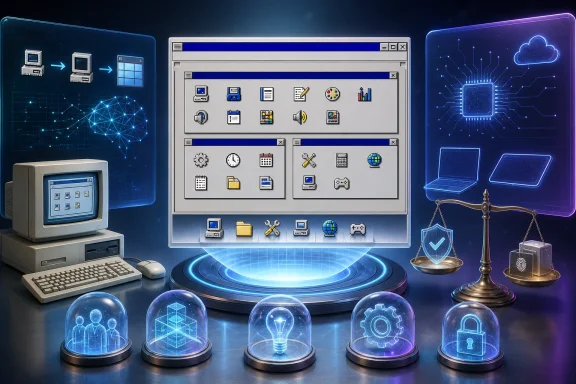
Mayuki Sawatari’s project is distributed under the MIT License and describes itself as a clone of Program Manager. That framing matters. Program Manager was an application launcher and organizer in the Windows 3.1 era; ReProgman similarly presents groups of launchable items. It does not establish that it can take over the responsibilities of Explorer, the taskbar, system settings, notification handling, or the many integration points expected of a modern Windows shell.
The AI story is compelling, but only partly verifiable
Independent reporting quotes Sawatari as saying that they asked Claude to create a Windows 3.1 Program Manager clone. That is a credible basis for calling ReProgman an AI-assisted project.
A stronger claim has circulated alongside it: that Claude Code produced a first working version in roughly an hour. The available reporting attributes that timeline to the project’s story, but there is no public prompt transcript, session record, development timeline, or independent reproduction that can show precisely what was generated during that hour, what was written or revised by the developer, and how much work followed.
That distinction is not pedantic. “Built in an hour” can mean several very different things: a visual prototype appeared quickly; a basic launcher became usable; or a finished, cross-platform application was completed. Those are not equivalent milestones. ReProgman’s source configuration points to a contemporary .NET 10 and Avalonia application with NativeAOT publishing, and its release workflow targets multiple architectures. Packaging, platform-specific behavior, distribution, and maintenance are meaningful engineering work even when an initial interface arrives quickly.
The reasonable conclusion is that ReProgman is an example of rapid AI-assisted application development, not conclusive evidence that a dependable cross-platform desktop program can be created end-to-end, unaided, in one hour.
What ReProgman is designed to run on
The declared targets are specific:
- Windows 11 on x64 PCs
- Windows 11 on Arm devices
- macOS on Apple Silicon
Those stated boundaries should guide expectations. The project does not declare Windows 10 support, even though the reviewed Windows manifest contains a Windows 10-and-later compatibility declaration. A manifest setting is not the same as tested support. Likewise, macOS support is for Apple Silicon, not Intel-based Macs.
For Windows users, this makes ReProgman potentially more relevant than an emulator or archival curiosity. It is a current application intended to run on current Windows 11 hardware, including Arm machines. But “intended to run” is not the same as independently tested reliability. The available material does not provide third-party hands-on verification of stability or application launching across every declared target.
The project’s reported downloadable packages have been described as small, in the roughly 12 MB to 16 MB range, although the precise sizes of current release assets could not be independently confirmed. Small downloads are convenient, especially for a launcher, but size says little about code quality, safety, or compatibility.
A launcher with a deliberately old-school model
The project materials describe a behavior that is more practical than a purely cosmetic retro theme. On first setup, ReProgman scans the Windows Start Menu to create its own initial catalog. After that, its own group configuration becomes the source of truth, and it does not write changes back into the Start Menu.
This is a useful separation. Experimenting with icon groups inside ReProgman should not reorganize the Windows Start menu itself. It also means changes in one place may not automatically appear in the other later. Install a new program after initial setup, for example, and users should not assume that ReProgman will continuously mirror it without intervention.
When it launches entries, the source behavior is platform-aware. On Windows, it uses the normal shell execution path for configured apps or shortcuts. On macOS, it uses the platform’s opening mechanism for application bundles and documents. In effect, ReProgman is meant to be an alternate front end for launching things that remain managed by the host operating system.
That is why the most accurate description is a Program Manager-style launcher. Calling it a “Windows 3.1 shell” makes for a punchy headline, but can lead users to expect a full Explorer replacement or an environment capable of running Windows 3.1 software. Neither conclusion follows from the available evidence.
The configuration detail Windows users should not overlook
ReProgman stores settings and group information in ReProgman.ini and Groups.ini. On Windows, its storage behavior is portable: configuration is kept with the application rather than necessarily in a conventional per-user application-data location.
That approach has an advantage. A self-contained folder can be easy to move, back up, or use as a personal launcher setup across machines. But it creates a practical trap: if the app is installed or extracted into a location where the current user cannot write, changes to groups or settings may fail to persist, potentially without an obvious warning.
Anyone trying it on Windows should therefore use a folder they can write to and make one small test before investing time in customization: create or alter a group, close the application, then reopen it to confirm the edit survived. Backing up the two INI files is also the simplest way to preserve a carefully curated retro desktop layout.
This design is particularly distinct from a normal Start-menu replacement. It prioritizes a portable, user-managed launcher collection over deep integration with Windows’ own application catalog and account-level settings.
Compatibility is not a security verdict
The project is open source, which gives technically capable users an opportunity to inspect and build it. The source indicates a .NET SDK 10.0 or newer is needed for local builds. That transparency is valuable, but it should not be confused with a completed software supply-chain assurance process.
The available materials do not establish a security audit, published release checksums, software bill of materials, malware-scan results, or documented Windows code-signing status. They also do not independently verify that a downloadable release binary exactly matches the reviewed source. These gaps are common in small hobby and open-source projects; they are not proof of wrongdoing. They are, however, sensible reasons to be measured about where and how the launcher is used.
The reviewed Windows manifest requests ordinary user-level execution (asInvoker) and does not request UI access. That suggests the source project is not designed to ask for administrator elevation as part of normal startup. It does not independently authenticate any particular distributed binary.
For a launcher that may be configured to open many local programs and documents, a cautious approach is appropriate: obtain it only from the project’s established distribution channel, avoid treating a random re-upload as equivalent, and test it before putting it at the center of a work machine’s workflow. Users who need strong assurance should build from reviewed source themselves, recognizing that local building is a technical task rather than a guarantee of safety.
The macOS caveat is more serious than the platform label suggests
The Apple Silicon version has an important trust and usability limitation: it is not notarized. The project documentation tells users to remove the downloaded application’s quarantine-related extended attributes before opening it.
That may get the application running, but it should not be treated as routine housekeeping. macOS applies those protections to downloads for a reason. Removing them bypasses a warning layer rather than proving that an application is safe. A user should verify the project and download before taking that step, and should be particularly cautious on a Mac used for sensitive work.
The contrast is instructive for Windows users as well. Cross-platform publishing can be technically straightforward with modern frameworks, while trust signals—signing, notarization, checksums, reproducible releases, and clear provenance—remain separate work. AI can accelerate code generation; it does not automatically supply those operational safeguards.
What this project says about AI-made desktop software
ReProgman makes a strong case that the visual language of older computing can be revived with modest modern tooling. The combination of a lightweight launcher concept, .NET, Avalonia, and multi-architecture publishing is a useful demonstration of how a single project can span Windows x64, Windows Arm, and Apple Silicon.
It also shows why “vibe coding” needs a less romantic reading. A recognizable interface is only one part of a desktop app. The less visible parts include configuration durability, platform support boundaries, safe release distribution, code signing, update practices, and the expectations created by words such as “shell” and “supported.” In ReProgman’s case, the project has meaningful practical features—initial Start Menu discovery, isolated group management, and platform-native launch behavior—but users should evaluate it as a niche launcher, not as a drop-in replacement for Windows’ desktop infrastructure.
For enthusiasts, that may be exactly enough. ReProgman offers a way to make a modern Windows 11 PC feel a little more like the era of Program Manager without modifying the Start Menu or pretending the old interface is the operating system itself. For everyone else, it is a useful reminder that rapid AI-assisted creation is increasingly real, while verification, polish, and software trust still require careful human judgment.