

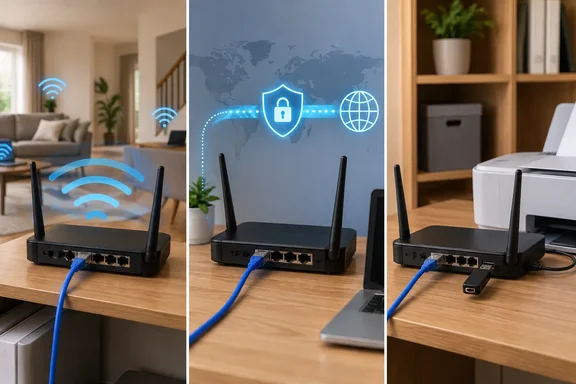
Project 1: Extender or wired access point
There are two ways to do this, and they perform very differently.
Wireless repeater. The old router joins the main router over Wi-Fi and rebroadcasts the signal. Wright says many routers have a repeater or client-bridge mode in stock firmware. Others can gain it through OpenWrt or DD-WRT.
- A single-radio repeater has to receive and retransmit on the same channel. Wright says this can roughly halve throughput. Treat that as a possible penalty, not a guaranteed benchmark.
- Dual-band units soften the hit. One band can talk to the main router while the other serves your devices.
- Placement matters. Put the repeater where it still gets a strong signal from the main router. If you put it in the dead zone, it just extends a weak connection.
Wired access point. If you can run Ethernet, this is the better route. Wright's steps:
- Connect a LAN port on the old router, not the WAN port, to the main router.
- Turn off the old router's DHCP server.
- Give it a static address in the main router's subnet.
- Match the network name and password so devices can roam between the two.
Community OpenWrt guidance backs up the DHCP step. One forum post on OpenWrt's "dumb AP" instructions says leaving DHCP on would put two DHCP servers on one network. That would leave two DHCP servers active on one broadcast domain, which would not work. The same instructions say to set the DNS and gateway to point to your main router so the access point itself can get online. They also say there's no need to connect the access point's WAN port.
On OpenWrt specifically, the DHCP step is a checkbox labelled "Ignore interface: Disable DHCP for this interface." Stock firmware from other vendors will label this differently, so look for the DHCP server toggle in your router's own menus.
Two caveats on roaming. Matching the SSID and password lets devices treat both access points as one network. It doesn't guarantee seamless handoff, because clients decide when to switch. Also, 5 GHz support is preferable. An older 802.11n unit is fine for smart plugs and cameras but will bottleneck faster connections.
Project 2: A dedicated VPN router
The idea is simple. Configure the old router as a VPN client, plug its WAN port into your main router, and give it its own Wi-Fi network. Anything that joins that network goes through the tunnel. The rest of the house doesn't. That's handy for smart TVs, game consoles and streaming sticks that have no VPN app.
Firmware. Wright says some routers, especially Asus models, ship with OpenVPN and WireGuard client options in stock firmware. Others need OpenWrt, DD-WRT or Asuswrt-Merlin. Check the firmware project's hardware list for your exact model and hardware revision before flashing. The wrong image can leave the router unusable.
Hardware floor. Wright warns that devices with 4 MB of flash or 32 MB of RAM are generally too limited for current releases. OpenWrt's hardware table is consistent with this for its own firmware, which stopped supporting that combination from 18.06 onward. Don't read that as a universal limit across every firmware.
Speed. Encryption is CPU-heavy. Wright says an old router may manage only a few dozen megabits per second with OpenVPN. He adds that WireGuard is lighter and usually does better on weak hardware. That's the article's example, not a measured result for any particular router. It's likely fine for HD streaming and browsing. It will be a bottleneck on a gigabit line.
Kill switch. Enable a kill switch or a firewall rule that blocks traffic when the tunnel drops. Otherwise devices quietly fall back to your regular connection and expose your real IP address. Don't assume a VPN client has this on by default. Check the settings for your firmware and provider.
A VPN router also isn't a privacy cure-all. It routes and encrypts traffic through your provider's tunnel, and nothing more than that.
Project 3: USB storage and print server
If the router has a USB port, it can share a drive or a printer on your network.
File sharing. Many stock firmware builds offer this under a menu like "USB storage" or "media server." OpenWrt does it through Samba packages. SMB is the protocol Windows, macOS and Linux all understand. On a Windows PC, a shared folder typically shows up in File Explorer at a path of the form \\router_ip\share. The exact share name depends on how you configured it.
Practical checks before you start:
- Speed. Older routers usually have USB 2.0 plus a slow CPU. That's fine for documents, family photos and streaming music or video. It's not a NAS replacement.
- Filesystem. Wright lists NTFS, FAT32 and ext4 as common choices. What actually works depends on your firmware and installed drivers. Back up the drive first, because formatting wipes it.
- Power. Bus-powered hard drives can draw more current than a router's USB port supplies. A powered drive or hub is safer.
- Access control. Don't default to open guest write access. Use credentialed user-level access where the firmware allows it.
Printer sharing. An older non-Wi-Fi USB printer can be shared with every computer on the network. Wright names OpenWrt packages p910nd and CUPS for this. Driver support is the usual sticking point, especially for all-in-ones and scanners. Test your model before committing. Don't assume scanning or other two-way functions will survive router sharing.
The security caveat
Once a manufacturer stops issuing security updates, any exposed service is a real risk. Wright's advice is to keep the old router off the public internet, use it only on the local network, and disable remote administration.
A home LAN doesn't make unpatched firmware safe. Check whether your model still gets updates. Be cautious about running anything sensitive on it.
Which project fits?
| Situation | Best fit |
|---|---|
| Ethernet run available, want better coverage | Wired access point |
| No cable, modest speed needs | Wireless repeater, placed carefully |
| Devices that can't run a VPN app | VPN router, if the model and firmware support it |
| USB port and a spare drive or old printer | Local file or print sharing |
The bottom line is to check your model's firmware support and update status first. Then pick the project that matches its limits.
References
- 3 free projects to try before throwing away your old Wi-Fi router How-To Geek · 2026-10-04T20:30:13+00:00
- Dumb AP / Access Point Only, client dhcp - Talk about Documentation - OpenWrt Forum forum.openwrt.org
- Testing to determine if you are a bot! openwrt.org