

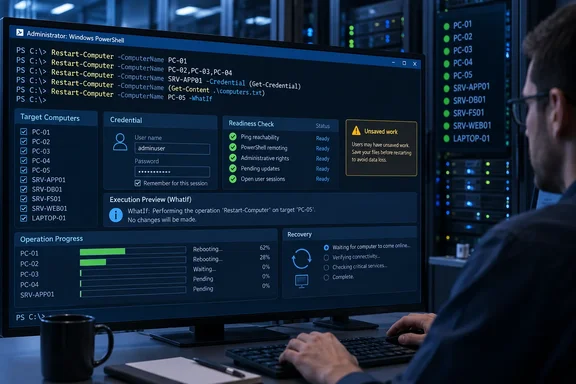
Restart-Computer cmdlet can reboot a local Windows PC, target remote computers, or pause an administrative script while a remote system restarts. For administrators, its main advantage is the ability to combine restart requests with credentials, multiple targets, and post-reboot readiness checks. Microsoft documents support for both local and remote restarts, including arrays of computer names.Petri’s September 21 guide covers these workflows, but several details need clarification before copying them into production: PowerShell 7.1’s Linux and macOS support is local, 300 seconds is an example timeout rather than a documented ceiling, and checking PowerShell readiness is more specific than checking WinRM connectivity.
The commands below perform real maintenance actions unless they include -WhatIf. Save work and arrange an appropriate maintenance window before issuing a restart.
Restart the local Windows computer
With no target specified, the command restarts the computer on which PowerShell is running:
Restart-Computer
Microsoft explicitly documents the local computer as the default when -ComputerName is omitted. That makes a missing target consequential: a command intended for a server can instead restart your administrative workstation.
The command runs under the current user’s account unless alternate credentials are supplied. Microsoft’s cmdlet documentation says the Windows implementation uses the Win32Shutdown method of Win32_OperatingSystem, which requires the SeShutdownPrivilege privilege to be enabled for the account performing the operation. Permissions therefore matter on Windows clients as well as Windows Server; this is not a server-only restriction.
For an interactive safeguard, request confirmation:
Restart-Computer -Confirm
To preview the intended action without performing it:
Restart-Computer -WhatIf
Both parameters are part of Microsoft’s documented syntax. According to Microsoft’s parameter descriptions, -Confirm prompts before execution, while -WhatIf describes the action without running it.
A preview is useful for catching the wrong target, but it does not prove that a later restart will succeed. Because it does not execute the operation, it cannot establish that remote permissions or connectivity are working.
Use force only after accepting the consequences
To force an immediate local restart:
Restart-Computer -Force
A forced restart can lose unsaved work. Petri warns that applications and running processes may be interrupted, and Microsoft describes -Force as forcing an immediate restart.
Use it only when interrupting the workload is acceptable. It is not a remedy for an incorrect computer name, missing permission, or an unreachable management service. Those failures need diagnosis before another restart attempt.
Restart a remote Windows computer
For a single remote target, supply its name explicitly:
Restart-Computer -ComputerName PC01
Replace PC01 with the intended computer. Microsoft documents support for a NetBIOS name, fully qualified domain name, or IP address. The account running the command must be permitted to restart the target.
When your current account is unsuitable, collect alternate credentials and pass the resulting credential object:
$Cred = Get-Credential
Restart-Computer -ComputerName PC01 -Credential $Cred
Get-Credential prompts for the account details. Microsoft documents that the resulting PSCredential object holds the username and stores the password as a SecureString; the example does not require a password literal in the script.
The equivalent single-command form is:
Restart-Computer -ComputerName PC01 -Credential (Get-Credential)
Neither form grants additional rights. The supplied account still needs authorization on PC01.
Remote restart and PowerShell remoting are separate requirements
Microsoft explicitly states that -ComputerName does not itself rely on PowerShell remoting being enabled. A restart request and a subsequent PowerShell remote session are therefore different operations with different readiness requirements.
The remote-management path still needs working authentication, permissions, connectivity, and compatible firewall policy. Petri identifies WMI/DCOM and WinRM/WS-Management configuration as relevant troubleshooting areas. The applicable path depends on the PowerShell version and management configuration, so a failed restart is not sufficient reason to enable every remote-management protocol.
This distinction becomes important when using -Wait -For PowerShell: sending a restart request successfully does not establish that the target will later accept PowerShell remote commands.
Restart multiple computers without losing target control
-ComputerName accepts an array, so multiple targets can be specified in one invocation:
Restart-Computer -ComputerName PC01,PC02,PC03
Microsoft’s documentation confirms this multi-computer capability. Treat the command as a request to restart every listed machine, rather than as a rolling-maintenance plan that understands application dependencies.
For an interactive batch, preview the target list first:
$Targets = 'PC01', 'PC02', 'PC03'
Restart-Computer -ComputerName $Targets -WhatIf
After checking the list and confirming that the maintenance window permits the interruption, request confirmation for the actual operation:
Restart-Computer -ComputerName $Targets -Confirm
Microsoft also documents loading computer names from a text file:
$Targets = Get-Content -Path C:\Domain01.txt
Restart-Computer -ComputerName $Targets -WhatIf
The file supplies the target names; inspect them before replacing the preview with an actual restart. Keeping target collection separate from execution makes the scope easier to review.
Avoid including the administrative computer in a remote-only batch accidentally. Microsoft accepts its computer name, localhost, or a dot as references to the local machine, and local targets have a separate limitation when waiting for recovery.
Wait for the capability the next script step needs
A restart request alone does not tell a maintenance script when it is safe to continue. Microsoft documents that Restart-Computer normally returns no output; use its waiting parameters when the next action depends on recovery.
This documented example restarts a remote server and waits for PowerShell to become available:
Restart-Computer -ComputerName Server01 -Wait -For PowerShell -Timeout 300 -Delay 2
The parameters have distinct roles:
| Parameter | Documented purpose |
|---|---|
-Wait | Blocks the pipeline while waiting for the remote restart. |
-For PowerShell | Waits until PowerShell can run commands in a remote session on the target. |
-Timeout 300 | Limits the waiting period to 300 seconds. |
-Delay 2 | Sets the readiness-query interval to two seconds. |
Microsoft supports all four parameters in the current Windows cmdlet syntax. Its detailed documentation also establishes that waiting support was introduced in Windows PowerShell 3.0.
Choose the readiness check deliberately
Microsoft documents three explicit -For values:
WMIwaits for a response to aWin32_ComputerSystemquery.WinRMwaits until a remote session can be established using WS-Management.PowerShellwaits until commands can run in a PowerShell remote session.
Petri describes -For PowerShell as verifying WinRM connectivity. Microsoft’s definition is more specific: it checks PowerShell command capability, while -For WinRM checks the WS-Management session.
For a script whose next step runs PowerShell commands remotely, -For PowerShell matches that dependency. None of these checks establishes that an application, database, or business service is healthy; each confirms only the documented management capability.
Understand timeout and local-restart limits
Petri describes -Timeout as accepting a period “up to 300 seconds.” Microsoft uses 300 seconds in its five-minute example but does not document it as the maximum. Choose the waiting period for the maintenance workflow rather than treating five minutes as a fixed cmdlet limit.
Without -Timeout, Microsoft says -Wait waits indefinitely. When a timeout expires, the cmdlet returns control even if the computers have not restarted. A timeout is not evidence of successful recovery, and it does not undo the restart request.
-Wait is not valid for restarting the local computer. If a target list contains both local and remote machines, Microsoft says the cmdlet reports a non-terminating error for waiting on the local target while still waiting for the remote targets.
Run a restart-and-wait workflow from another computer. These parameters do not provide a mechanism for resuming a script after rebooting the machine hosting that script.
Diagnose failures before retrying
Separate authorization, transport, and readiness failures rather than treating every unsuccessful operation as a reason to add -Force.
- If access is denied, verify which account is being used and whether it has permission to restart the target. Use
-Credentialwhen an authorized alternate account is required. - If the target cannot be reached, check the target name, network connectivity, and the relevant management and firewall configuration. Petri identifies these as common remote-restart troubleshooting areas.
- If the restart-and-wait operation times out, distinguish the restart from the selected readiness check. The computer may have restarted without making the requested management capability available.
- Consider
-Forceonly when interrupting a blocking workload is justified and the risk of lost work has been accepted.
These branches also explain why adding more wait time may not fix a failure. A longer timeout cannot grant permission or configure a missing remote endpoint.
Linux and macOS support has a narrower scope
Petri’s guide suggests that PowerShell 7.1 enables this command to remotely restart Linux or macOS machines. Microsoft documents a narrower feature: PowerShell 7.1 added Restart-Computer on those operating systems by calling the native /sbin/shutdown tool.
On non-Windows platforms, Microsoft lists only -WhatIf, -Confirm, and the common parameters. The Windows-specific -ComputerName, -Credential, and restart-waiting parameters do not carry over.
Consequently, the Windows remote-target examples above are not a cross-platform restart procedure. PowerShell’s availability on several operating systems does not imply identical management parameters on each.
Use shutdown.exe for a delayed, cancellable restart
For Windows users who need a countdown that an operator can cancel, Microsoft’s shutdown.exe documentation provides a direct mechanism:
shutdown.exe /r /t 60
This schedules a restart after 60 seconds. Before using it, note an important safety detail: Microsoft says any /t value greater than zero implies /f, which forces running applications to close. The countdown is an opportunity to save work, not a guarantee that applications will be allowed to block the restart.
To cancel during that countdown, run this separately in a new command-prompt window:
shutdown.exe /a
Microsoft documents /a as aborting a pending shutdown during its timeout period. It is not a recovery command for a restart already underway.
Petri also suggests delaying a PowerShell restart with Start-Sleep. A foreground script delay is different from a Windows shutdown countdown: interrupting the script before it issues the restart can prevent the request, but Ctrl+C is not a general cancellation mechanism once Restart-Computer has executed.
For other local power actions, Microsoft documents:
shutdown.exe /s /t 0
This requests an immediate shutdown, while:
shutdown.exe /h
requests local hibernation, provided hibernation is enabled.
Choose Restart-Computer when the workflow needs PowerShell credentials, explicit target collections, or remote readiness checks. Choose shutdown.exe /r /t when the operational requirement is a countdown that can be cancelled with /a—and account for its implied forced application closure before scheduling it.
References
- PowerShell Restart-Computer: Restart Local and Remote Computers Petri IT Knowledgebase · 2026-09-21T15:08:44+00:00
- Restart-Computer (Microsoft.PowerShell.Management) - PowerShell | Microsoft Learn learn.microsoft.com
- shutdown | Microsoft Learn learn.microsoft.com