

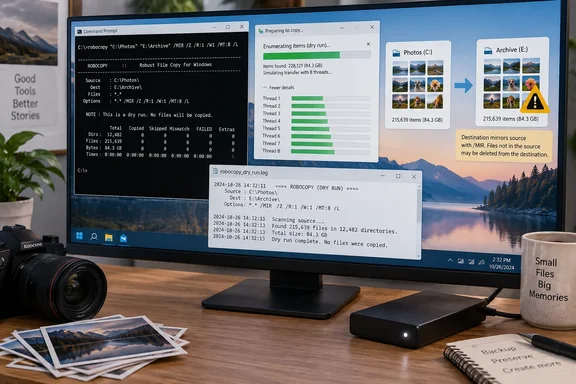
A 30-year-old utility that's already installed
Robocopy stands for "Robust File Copy." Wright says it was written by Kevin Allen and first shipped in 1996 in the Windows NT 4.0 Resource Kit, a bundle of extra tools for administrators. It was a separate download for years before becoming a standard part of Windows with Vista and Windows Server 2008.
Other sources back up that timeline. Wikipedia's entry lists a 1996 release, support for Windows NT 4 and later, and inclusion with Windows Vista and later, and says it was created by Kevin Allen. A Microsoft TechNet wiki article agrees that until Vista, Robocopy was a part of Windows Resource Kit Tools as a free download. So "30 years old" is fair as of 2026.
Today, Microsoft's command reference lists Robocopy for Windows 10, Windows 11, and Windows Server 2016, 2019, 2022 and 2025. It doesn't replace the older commands. Wikipedia notes it is functionally more comprehensive than the XCOPY and COPY commands, but replaces neither.
The syntax is simple. Microsoft documents it as robocopy <source> <destination> [<file>[ ...]] [<options>]. If you don't name specific files, Robocopy copies everything (*.*). It runs from Command Prompt, PowerShell or Windows Terminal.
Section summary: Robocopy is old, free and built into every Windows 10 and 11 PC. You don't need to install anything.
Where File Explorer falls short
To be fair to Explorer, dragging a few documents to a USB stick is still the fastest way to do it, and Wright says so too. His complaints are about big jobs:
- One prompt stops everything. A locked file or a name conflict opens a dialog box, and the whole copy waits until you click something.
- The "Calculating..." stall. Wright says that with folders holding thousands of files, Explorer's counting step has sometimes frozen for him, and his only fix was to cancel and copy in smaller batches.
- No log and no scheduling. Explorer's conflict dialog can skip or replace duplicates, but it doesn't record what happened and you can't schedule it.
The first and third points are simply how Explorer is designed. The "Calculating" stall is Wright's own experience rather than a measured result, though plenty of Windows users will recognize it.
What Robocopy does differently
Multithreaded copying
The /MT switch copies several files at once. Microsoft's reference says the thread count must be between 1 and 128 and defaults to 8. It also recommends sending output to a log with /LOG for better performance, and notes that /MT can't be combined with /IPG or /EFSRAW.
More threads don't always mean more speed. Microsoft's Azure Files migration guide says a high thread count helps fill available bandwidth but doesn't guarantee a faster migration. Extra threads help most with lots of small files and help much less with a few large ones. Wright's point that thousands of small files benefit most matches Microsoft's guidance. Just don't assume /MT:128 is always the best setting.
Retries and restartable mode
When a file fails, Robocopy retries it automatically. /R:n sets how many times and /W:n sets the wait in seconds. The default is one million retries with a 30-second wait, according to Microsoft's reference. That works out to about 347 days of retrying one stuck file. If a program is holding a file open, the default can look a lot like the Explorer hang you were trying to avoid.
Microsoft's own examples use explicit values such as /R:2 /W:5. The Azure guide adds that retries rarely help with files that are in use, because an app may keep them open for hours. It suggests catching those files on a later run instead.
/Z turns on restartable mode. If a file copy is interrupted, Robocopy can pick up where it stopped instead of starting that file again. The Azure guide recommends it only on unstable networks because the extra logging it does "significantly reduces copy performance." Use it when you're copying to a flaky NAS over Wi-Fi, not for every local copy.
Incremental reruns and logs
Robocopy compares the source and destination and skips files that haven't changed, so running the same command again works as a quick sync. /LOG:file writes a new log each time and /LOG+:file adds to an existing one. Microsoft strongly recommends creating a log so you can check the results afterwards.
One caution from the Azure guide: Robocopy can report files as "copied" when only metadata changed and no file data moved. A clean log is useful evidence, but it doesn't prove every file arrived intact. Check anything critical separately.
Because Robocopy is a command, you can save it in a batch file or schedule it. Microsoft's TechNet wiki notes it can be setup as a simply Scheduled Task that runs daily, hourly, weekly etc.
Section summary: Robocopy's strengths are parallel copying, automatic retries, resumable transfers and logs. Set the retry values yourself and treat logs as a record of what happened, not proof that nothing went wrong.
The ownership and permissions claim needs a correction
Wright says Robocopy can keep attributes, timestamps, ownership and NTFS permissions. It can, but not by default. Microsoft's reference says the default for /COPY is DAT, which covers file data, attributes and timestamps only. To copy more, you have to ask:
| Switch | What it copies |
|---|---|
(default) /COPY:DAT | Data, attributes, timestamps |
/SEC | Same as /COPY:DATS (adds NTFS ACLs) |
/COPYALL | Same as /COPY:DATSOU (adds ACLs, owner, auditing info) |
So Wright's basic example, robocopy C:\Photos D:\Backup\Photos /E, copies the files and folders but leaves permissions behind. For a home photo backup that's usually fine. For a file-server migration, it matters a lot.
Know which switches delete files
These are the switches that can remove data. Here's what Microsoft's reference says each one does:
/Ecopies subdirectories, including empty ones./Sdoes the same but skips empty folders./MOVmoves files, deleting them from the source after copying, but leaves directories in place./MOVEmoves both files and directories, deleting them from the source after copying./PURGEdeletes files and folders at the destination that no longer exist in the source./MIRequals/Eplus/PURGE. It makes the destination an exact copy of the source, which means deleting anything extra.
Wright's warning is right: Robocopy never asks for confirmation. If you swap the source and destination in a /MIR command, the backup copies over your working folder and deletes whatever the backup doesn't have. Microsoft's Azure guide says that when source and target folder levels are mismatched, /MIR "will lead to large-scale deletions and recopies."
A safe first run, step by step
Wright's advice is to preview with /L, which Microsoft describes as listing files without copying, deleting or timestamping anything. PDQ sysadmin Brock Bingham gives the same advice: test each command with /L, review the output, and only then run it against real data.
- Create the log folder first, for example
C:\Logs. - Do a dry run:
robocopy "C:\Source" "D:\Destination" /E /R:2 /W:5 /LOG:"C:\Logs\copy.log" /L - Read the log. Check the paths and the list of files that would be copied or deleted. If anything looks wrong, stop.
- Run it for real by removing
/L. - Add options only when you need them:
/MT:16for large sets of small files,/Zfor unreliable network links,/COPYALLfor permissions (usually from an elevated prompt), and/MIRonly when you actually want files at the destination deleted. - Test on unimportant data first, especially before any
/MIRor/MOVEjob.
A preview shows what Robocopy plans to do. It doesn't guarantee the real run will succeed, because files can be locked or changed between the two runs.
Exit codes can confuse scheduled tasks
Wright doesn't cover this, but it affects anyone who automates Robocopy. Its exit codes don't follow the usual "zero means success" rule. Microsoft documents codes 0 to 7 as combinations of "nothing copied," "files copied," "extra files at destination" and "mismatches," none of which mean a failure. Only a code of 8 or higher means at least one copy failed.
A script or Task Scheduler job that treats any nonzero result as an error will report failures after perfectly good runs, such as code 1, "all files were copied successfully." Check for -ge 8 (or %ERRORLEVEL% GEQ 8 in batch), then read the log.
Should you switch?
For everyday drag-and-drop, no, and Wright agrees. Robocopy is worth learning when the job is large, repeated or risky:
- Moving an old drive's data to a new SSD
- Backing up a user profile to an external disk every week
- Syncing a project folder to a NAS or network share
- Copying over a VPN or Wi-Fi link that drops now and then
There are limits. Robocopy isn't a backup product. It has no version history, so if a file gets corrupted or encrypted by ransomware, /MIR will copy that damaged version over your good backup. Files held open by other programs can fail. There's also no undo. Wright notes that free graphical front ends exist for people who want checkboxes instead of switches. The underlying tool is the same, so the same care applies.
The bottom line
Wright's case is mostly right. Robocopy is free, already installed, scriptable, and much better suited than File Explorer to huge or flaky transfers. Keep a few corrections in mind:
- The default retry setting is a million attempts, so set
/Rand/Wyourself. - Permissions only copy if you add
/SECor/COPYALL. - An exit code below 8 isn't a failure.
/MIRdeletes files at the destination.
Learn /E, /R, /W, /LOG and /L, add /MT and /Z when a job calls for them, and always do a dry run first.
References
- I'm skipping the Windows File Explorer and using this 30-year-old command-line tool to move files How-To Geek · 2026-09-28T10:00:13+00:00
- Migrate to Azure Files Using RoboCopy | Microsoft Learn learn.microsoft.com
- Robocopy | Microsoft Learn learn.microsoft.com