

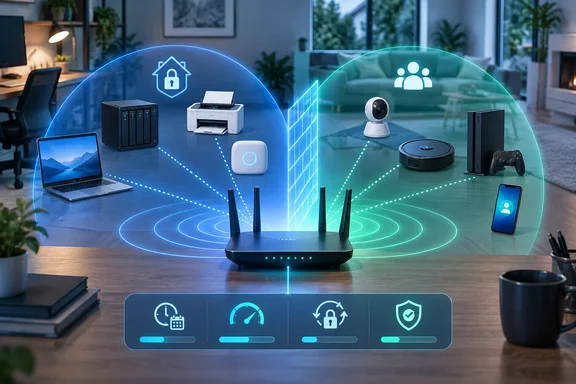
That is not merely a convenience feature. CISA’s home-network guidance identifies segmentation as a way to separate IoT devices, personal computers, and work devices, and notes that a guest Wi‑Fi option can be the simplest route to doing it. NIST has similarly advised home and small-business owners to keep IoT equipment with known security risks on a separate segment from regularly updated computing devices.
The important qualification is that guest network is a product label, not a universal security design. Some routers isolate guest clients from the main LAN automatically; some expose options such as “Allow Local Access,” “Access Intranet,” or client-to-client access. Check those switches before treating a second SSID as a security boundary.
1. Put less-trusted IoT devices behind a separate boundary
This is the strongest use for a guest network. Smart plugs, budget cameras, robot vacuums, thermostats, TVs, and similar connected devices often need internet access but do not need to browse the files on a Windows PC or reach a NAS.
A correctly configured guest network places those devices on a separate IP range or VLAN-like logical segment and blocks access to the main network. Eero, for example, documents that its guest devices receive addresses from a different subnet and cannot communicate with devices on the main network or with one another. TP-Link says its Deco guest network is automatically isolated from the main network in router mode, while its access-point mode provides an “Allow Local Access” control.
That separation can limit lateral movement if an IoT device is compromised. It does not make the device secure, remove its access to the internet, or prevent a vulnerable cloud account from being abused. Keep firmware updated, use unique account passwords, and enable multi-factor authentication where the device vendor offers it.
Before moving a device, identify how it is controlled:
- A cloud-managed camera or smart plug will often continue to work because the phone app and device both communicate through the vendor’s servers.
- Devices relying on local discovery or direct LAN communication may fail when the phone remains on the main Wi‑Fi and the device moves to the guest network.
- Local smart-home hubs, NAS-based camera recorders, Chromecast, AirPlay, Sonos, and some printer-discovery workflows may require devices to be on the same network or require more advanced multicast and firewall rules.
If a household depends heavily on local smart-home automation, a managed router with proper VLANs and configurable firewall rules is more flexible than a basic guest SSID. For a small collection of cloud-connected gadgets, though, guest-network isolation is a reasonable and accessible first step.
2. Use a scheduled SSID as a household internet cutoff
A separate network also lets a household apply a time-based internet rule to selected devices without taking the main Wi‑Fi offline. Put the tablets, consoles, streaming boxes, or secondary laptops that should follow a schedule on the guest network, then use a router’s schedule or effective-time setting to control when that SSID is active.
This is a router-level control: once the guest network turns off, its connected devices lose Wi‑Fi access. Work PCs, phones, and other devices staying on the primary SSID are unaffected.
The feature is not limited to one vendor. ASUS documents Wi‑Fi Scheduling in its Guest Network Pro interface, including its Kid’s Network and IoT Network profiles. TP-Link documents an “Effective Time” option for supported routers that turns off the guest network automatically after the specified period. Exact scheduling controls vary sharply by model and firmware, so do not assume that a router with a guest-network toggle also offers recurring bedtime hours.
A schedule is a blunt tool, not comprehensive parental controls. It does not stop cellular data, a device joining another available Wi‑Fi network, or content already downloaded locally. It can, however, provide a predictable household rule for devices that are meant to be offline overnight without requiring someone to pause each device manually.
For a smoother setup, give the scheduled network a descriptive name and use a password that only applies to those devices. Test the schedule during the day first; an incorrectly configured SSID can disconnect more hardware than intended.
3. Reserve bandwidth by capping a whole network
Guest-network bandwidth limits can be useful when the problem is contention on the internet connection rather than weak Wi‑Fi coverage. A large game download, cloud backup, torrent client, or multiple high-bitrate streams can consume available upload or download capacity and make video meetings, remote-desktop sessions, and online games feel unreliable.
On compatible hardware, placing those non-critical devices on a capped guest SSID gives the household a simple policy: devices on this network may use the internet, but only up to a defined total rate. TP-Link’s documented guest-network controls allow separate download and upload limits, and ASUS includes a Bandwidth Limiter option in Guest Network Pro.
This is a network-wide ceiling, not a sophisticated traffic-management policy. Every device on that guest network shares the cap. It is best for a group of lower-priority devices or for a single device that can be moved to the separate SSID.
Set the cap conservatively at first. If the home’s measured upload capacity is 20 Mbps, limiting the guest network to 5 Mbps upload leaves room for video calls, VPN traffic, and interactive applications on the primary network. A limit that is too low can make streaming unreliable and can cause cloud cameras to upload poor-quality footage or fail to upload clips promptly.
Also check the router’s operating mode. Features that depend on the router controlling routing and DHCP can be reduced or behave differently when the hardware operates only as an access point behind an ISP gateway. TP-Link’s current Deco documentation specifically distinguishes router mode from access-point mode for guest-network isolation. A speed-limit setting visible in one mode may be unavailable or less meaningful in another.
4. Rotate shared access without reconfiguring the household
The most straightforward use still matters: a guest SSID gives visitors, contractors, temporary tenants, and personal devices a way online without disclosing the primary Wi‑Fi password.
The practical advantage is credential rotation. Changing the password for the guest network disconnects only devices that use it. PCs, printers, TVs, consoles, and smart-home equipment on the primary network do not need to be rejoined.
QR-code sharing makes this less cumbersome than dictating a long passphrase. Eero’s support documentation says its app can share guest-network details through messages or a QR code, and that a guest network uses its own name and password. Router apps from other vendors may offer equivalent sharing or display options, but the location and availability of those controls are model-specific.
Treat the QR code as you would the password itself. A printed code in a publicly accessible place can be scanned by anyone within Wi‑Fi range. Use WPA2/WPA3 protection rather than an open network, and rotate the guest password after a contractor visit or a large gathering if you no longer want those devices to retain access.
Check these settings before relying on it
Open the router’s web interface or companion app and confirm the following:
- Enable a separate guest SSID and protect it with a distinct, strong password.
- Verify that guest devices cannot access the main LAN. Disable settings named “Allow Local Access,” “Access Intranet,” or similar unless you have a specific reason to permit access.
- Decide whether devices on the guest network should be able to communicate with each other. Client isolation improves containment but can break local device pairing and media control.
- Move one non-critical device first and test the app, casting, printing, automation, or camera workflow you rely on.
- Add a schedule or bandwidth limit only after confirming that the router model supports it in its current operating mode.
- Keep the router firmware current. Segmentation reduces exposure, but the router remains the device enforcing the boundary.
A guest network will not replace a properly planned VLAN setup for a complex home lab, local-first smart-home installation, or small business. It is still one of the few consumer-router tools that can make a meaningful difference with little extra hardware: isolate lower-trust devices, constrain selected internet use, and make Wi‑Fi sharing easier to revoke.