

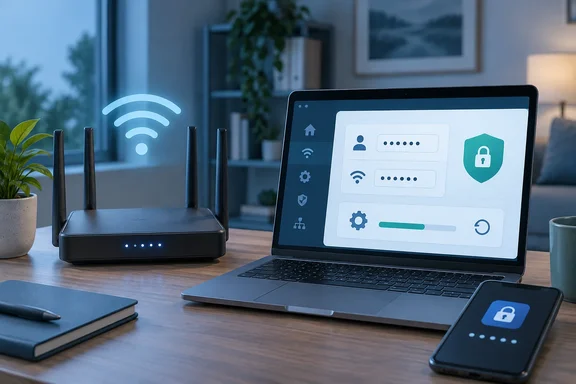
The short answer: 16 characters or more
The best-known benchmark comes from the U.S. Cybersecurity and Infrastructure Security Agency. Its consumer guidance says a password should be at least 16 characters—longer is stronger! CISA lists a few ways to get there. You can use a random string of mixed-case letters, numbers and symbols, or you can create a memorable phrase of 4 – 7 unrelated words. Some other CISA pages say 5 to 7 words. The idea is the same either way.
CISA's advice is general password guidance, not a technical minimum written for routers. It still works well for a home Wi-Fi passphrase. One of CISA's small-office checklists applies it directly to Wi-Fi: try creating a memorable passphrase using 5 to 7 unrelated words totaling at least 16 characters.
From general industry knowledge: WPA2 and WPA3 personal-mode Wi-Fi passphrases normally accept 8 to 63 characters. A 16-to-30-character passphrase fits easily, so the router won't be what stops you.
Section summary: Aim for 16 or more characters. A long, random, unique secret matters more than filling in every character type.
The "you must use symbols" myth gets an asterisk
BGR's piece says a 16-character password made only of lowercase letters is still vulnerable, and it tells readers to mix uppercase, lowercase, numbers and symbols in random order. That's partly right. A random mixed-character string is one of the options CISA recommends. But calling all-lowercase passwords weak by default is too blunt.
NIST's current Digital Identity Guidelines (SP 800-63B-4) tell organizations that check passwords not to force composition rules, such as requiring one of each character type. NIST's reasoning is that people satisfy those rules in predictable ways, like capitalizing the first letter or adding an exclamation point to a word they already use. InventiveHQ summarizes the effect this way: forced complexity usually backfires by pushing people toward predictable patterns like "P@ssw0rd1!" It also notes that a 16-character all-lowercase passphrase has a vastly larger search space than an 8-character password crammed with symbols.
The catch is that the words have to be truly random. InventiveHQ says they should be genuinely random (ideally chosen by a method like Diceware), not a famous quote or a predictable phrase. On that point BGR is right: a pet's name, a song lyric or your street address is weak however long it is. CISA's own survey data shows how common this is: 35% of people still use personal details—like pet names or family members—in their passwords.
For context, InventiveHQ describes NIST's numeric floors as at least 15 characters when it is the only thing guarding an account, and at least 8 characters when a second factor also protects it. Most home Wi-Fi networks have no second factor, so the stricter number is the one that applies. Keep in mind that NIST writes these rules for organizations that verify passwords. They aren't a Wi-Fi standard.
Section summary: Symbols are fine but not required. What matters is length, true randomness and uniqueness.
Wi-Fi password vs. admin password: they're not the same
BGR mentions both credentials but doesn't clearly separate them:
| Credential | What it protects | Who needs it | Recommendation |
|---|---|---|---|
| Wi-Fi password | Joining your wireless network | Everyone in the house, plus guests | Long random passphrase, easy to type on a TV remote |
| Router admin password | The router's settings page or app | Only whoever manages the network | Long random string saved in a password manager; never the same as the Wi-Fi password |
The admin login is the more valuable one. Anyone who has it can change DNS settings, open ports, turn off encryption or lock you out. Many routers still ship with a generic factory login, which is the risk BGR points to. The FTC's guidance is to … change the default administrative username, password and network name to something unique, and not to use your name, your address or the router's brand in any of them.
Let a password manager do the remembering
BGR recommends a password manager, and so does CISA. As the agency puts it, when we use a password manager, we only need to remember one strong password—the one for the password manager itself. You don't have to pay for one. CISA points out that some are free, like the built-in password managers in your web browser, and some cost money.
A password manager is especially handy for the router admin login, which most people use maybe twice a year and forget in between. Save it with a note about which device it belongs to.
On a Windows PC that's already connected, you can see the saved Wi-Fi key by running this in an elevated terminal:
netsh wlan show profile name="YourNetworkName" key=clear
Look for the "Key Content" line. That's useful before you change the passphrase, and it rescues you when a family member asks for "the Wi-Fi" and nobody remembers it.
A practical checklist for your router
A strong password is only one part of the job. These steps pull together guidance from the FTC and CISA:
- Check your router's manual or app. Menu names differ by manufacturer, so don't count on any specific label.
- Change the default admin username (if the router allows it) and the admin password. Use a long random string and save it in your password manager.
- Set a separate Wi-Fi passphrase of 16 or more characters, or 5 to 7 random, unrelated words.
- Turn on the strongest wireless encryption your devices support. CISA's checklist tells users to change Wi-Fi encryption to one of its recommended options. WPA3, or WPA2/WPA3 mixed mode, is the usual choice today (general industry knowledge).
- Install firmware updates, and turn on automatic updates if your router has them.
- Turn off remote management if you don't use it.
- Check the connected-devices list and remove anything you don't recognize.
What success looks like: you can sign in to the router with the new admin credentials, every device reconnects with the new Wi-Fi passphrase, and the factory login no longer works.
Common problems:
- Devices won't reconnect after the change. On Windows, forget the old network and connect again. Older smart devices may not support WPA3, so try WPA2/WPA3 mixed mode.
- Locked out of the admin page. Most routers can be factory reset, but that erases all settings, including the password you just set. Save the new credentials before you close the browser tab.
- Typing the passphrase on a TV or console is painful. This is where a word-based passphrase beats a string of random symbols.
The bigger picture
BGR's conclusion that strong passwords will "keep your home network safe" goes too far. A long passphrase stops guessing attacks and makes a leaked factory login useless. It does nothing about an unpatched firmware bug, and it won't help if someone gets phished into typing it on a fake login page. Password hygiene is one layer. Firmware updates, proper encryption and turning off features you don't use all belong alongside it.
Still, the cost is small. Ten minutes and one entry in a password manager take care of one of the most common weak spots in a home network.
References
- Cybersecurity Best Practices | Cybersecurity and Infrastructure Security Agency CISA cisa.gov
- How Long Should Your Router Password Actually Be? bgr.com · 2026-09-26T18:17:00+00:00
- NIST Special Publication 800-63B pages.nist.gov