

According to the project's GitHub release page, version 3.4.0 shipped on September 27, 2026. That's only days after 3.3.0, which the project's release history dates to September 23. If you like developers who ship often, this one qualifies.
What SageThumbs 2K actually is
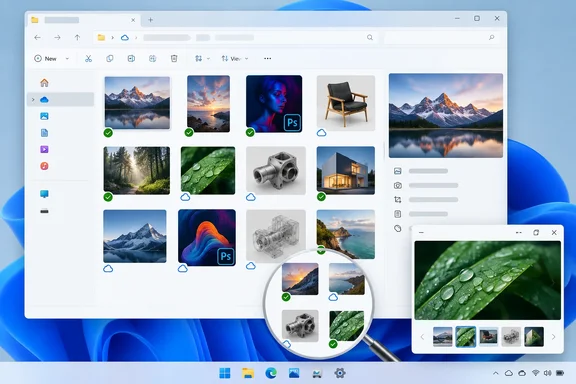
SageThumbs 2K is a File Explorer shell extension plus a companion app. Its job is to show thumbnails for file types Windows can't render itself, such as camera RAW files, Photoshop documents, HEIC and AVIF images, ebooks, comics and CAD files. The developer, LunarWerx, calls it a "Windows 11 shell extension (Rust)" and a "crash-isolated, source-available rebuild of SageThumbs." The GitHub project says it's a from-scratch, clean-room rewrite inspired by the original SageThumbs, which was maintained from 2004 to 2017 and is now abandoned. It doesn't reuse the old code.
It also does more than thumbnails. There's a right-click toolkit (convert, resize, rotate, OCR, metadata stripping, combine to PDF or CBZ), a Quick Look–style preview that opens when you press Space in Explorer, and a command-line tool called st2k.
Section summary: This is a modern, Rust-based replacement for a classic thumbnail extension, and it's been getting frequent updates.
The headline fix: thumbnails in OneDrive and Synology Drive
This change addresses GitHub issue #16. The developer says Windows asks only the cloud app for a thumbnail of a file in a synced folder, even a fully downloaded one, so Paint.NET, Affinity, PSD and every other SageThumbs format showed a plain icon there.
In other words, a file could be sitting fully downloaded on your SSD inside OneDrive, and Windows would still ask only the cloud client for a thumbnail. SageThumbs never got asked.
Version 3.4.0 changes the order. SageThumbs now takes its turn first for files that are on your PC and hands everything else, including online-only files, back to the cloud app; nothing is ever downloaded just to draw a thumbnail. That last point matters. A folder of online-only files won't start pulling gigabytes of RAW photos down just to draw previews.
The behaviour is on by default, with a switch in Settings > General, and st2k doctor now reports each cloud folder and whether it is linked.
Who benefits: anyone who keeps creative work in OneDrive's Pictures or Documents folders (which are often redirected there by default), and Synology Drive users who sync design assets between machines.
Thumbnails that stop until you restart
The second fix is a reliability bug that's easy to miss and maddening once you notice it. The release notes explain that when Explorer gave up on a slow file mid-decode, SageThumbs could lose one of its four ImageMagick slots for good; after a few of those every exotic-format thumbnail stalled, Explorer kept giving up, and only a restart brought them back.
In 3.4.0, a slot whose owning process has gone away is taken over right away. If you've seen SageThumbs thumbnails "wear out" during long sessions, this is the likely cause. The fix covers that one failure mode, though. It isn't a promise that Explorer will never hang again.
Smaller changes in 3.4.0
- Quick preview placement: Tall images no longer open or grow behind the taskbar. The window opens where you last dragged it, and double-clicking its title bar centres it again.
- FreeCAD backups:
.FCBakand.FCStd1files now get the same thumbnail as the.FCStdfile they came from. The project says it now supports 363 file types in total. That's the overall count, not the number added in this release. - Smarter
st2k doctor: The diagnostic now names the thumbnail handler Windows actually uses for a given file. It also warns when that handler belongs to another program or was built for the wrong processor, for example an x64-only DLL on an ARM64 PC (issue #47). When a thumbnail won't show, this tells you which extension is responsible. - Searchable PDFs from scans: A new right-click option, Combine into searchable PDF (OCR), runs each page through Windows' built-in OCR and adds an invisible text layer. The same feature is available as
st2k pdf --searchableand as asearchableoption in the MCPpdftool. OCR won't read every page. Pages it can't read are still included without text, and the CLI (ano text:line) and JSON output (pages_without_text) tell you how many. - Hardening: The step every decoded picture goes through before it becomes a thumbnail or a preview (shrinking, enlarging, rotating, and the contact sheet for archives) is now fuzzed with images that are always valid, in every pixel format and shape, and checked for the right size and colour rather than only for crashes. Also, the deep fuzz sessions now run every night instead of only before a release. Nightly fuzzing is a good sign, but it doesn't make the software bug-free.
Section summary: Two real bug fixes, one useful document feature, and a better diagnostic tool.
Portable vs. installer: what you give up
SageThumbs 2K comes as an installer or a portable ZIP, for both x64 and ARM64. The two don't offer the same features:
| Capability | Portable (per-user registration) | Installer |
|---|---|---|
| App, CLI, convert/resize, Quick preview, screenshots, OCR, colour picker, folder tools | Yes | Yes |
| Explorer thumbnails | Yes, after st2k register | Yes |
| Classic right-click menu | Yes, after st2k register | Yes |
| Explorer preview pane | No | Yes |
| Details pane columns | No | Yes |
| Windows 11 compact right-click menu | No | Yes |
According to the project, those last three need machine-wide registration, and Windows won't accept them any other way.
How to set up the portable build
- Extract the ZIP to a folder you intend to keep. The project says nothing is installed, nothing goes in the registry, no admin needed. Settings live in SageThumbs2K.ini next to the exe.
- To turn on Explorer thumbnails and the classic menu, turn them on with st2k register, or the button in Settings under Advanced. That registers the handler for your user account only: no installer, no administrator rights, nothing written machine-wide.
- Before moving or deleting the folder, run
st2k register --off. The developer warns you should do this before moving or deleting the folder, otherwise Windows is left pointing at a file that has gone.
The practical takeaway is to decide where the portable folder will live before you register it. If you register it from your Downloads folder and then clean up Downloads, Windows will be left pointing at a file that no longer exists.
Verifying the download and getting past SmartScreen
The project says every file below is code-signed by LUNARWERX LLC; the SHA-256 lets you check a download is the one published here. For the x64 installer (SageThumbs2K-Setup-3.4.0.exe), the published hash is bc6c716852a7a158b14f0e3bc555a8fd3fbc91dc83d4f5947645a7c61cbe8140. You can check yours in PowerShell with Get-FileHash .\SageThumbs2K-Setup-3.4.0.exe -Algorithm SHA256.
Brand-new builds may still trigger Microsoft Defender SmartScreen. The README says to check the signature via right-click the installer, then Properties, then Digital Signatures. It adds that a brand-new signed release can still meet a blue "Windows protected your PC" screen while it builds download reputation: click More info → Run anyway.
The release page also lists a second x64 installer named SageThumbs2K-Setup-3.4.0-amd64.exe. It's the same installer, published under the filename that copies older than 1.3.6 look for when updating themselves. If you're downloading by hand, the project says to take the plain one.
Things to check before deploying it
- Windows version: Neowin's listing says SageThumbs 2K supports both Windows 10 and Windows 11. The project's own GitHub material describes it as a Windows 11 extension and lists Windows 11 64-bit as the requirement. On Windows 10 you'd be outside what the developer officially supports.
- Licence: Neowin labels the downloads "Open Source." The developer uses the term "source-available," and the licence page says personal use is free under the PolyForm Noncommercial License 1.0.0, while commercial use needs a separate licence. The 3.1.0 release notes list a US$49 one-time business licence or a US$2.99 per-computer monthly plan. IT teams should get this sorted before rolling it out across a company.
- How it integrates: The README says the installer registers a classic shell extension via regsvr32 and trusts a self-signed cert for the Win11 modern menu. It's a classic extension by design (not an MSIX sandbox) because it spawns ImageMagick as a subprocess. Security-conscious admins should know about that trusted self-signed certificate before approving the installer.
- ARM64: According to the README, ARM64 builds run natively, use the same engine as x64 and cover the same formats. The improved
st2k doctorcheck can now spot leftover x64-only handlers from other programs on Arm PCs.
Should you update?
If you already use SageThumbs 2K and keep files in OneDrive or Synology Drive, yes. The cloud-folder fix alone justifies it. The ImageMagick slot fix will help anyone who browses big folders of unusual formats for hours at a time.
For newcomers: Windows 11 has improved its native support for formats like HEIC and AVIF over the years, as long as the right Store extensions are installed. PSD, RAW files from a wide range of cameras, CAD files and comics still aren't well covered out of the box. SageThumbs 2K is aimed at that gap. The portable build lets you try it for your own account without touching machine-wide settings.
Bottom line: 3.4.0 is a practical release. It fixes the cloud-folder thumbnail gap, keeps thumbnails working through long sessions, and makes st2k doctor better at showing why a thumbnail won't appear. Before installing, check the Windows 11 requirement and the non-commercial licence terms.
References
- SageThumbs 2K 3.4.0 - Neowin Neowin · 2026-09-28T16:28:01+00:00
- GitHub - LunarWerxs/SageThumbs-2k: Windows 11 shell extension (Rust): Explorer thumbnails for 331 file types Windows can't show, including camera RAW, PSD, HEIC/AVIF, video, ebooks, comics and CAD. Crash-isolated, source-available rebuild of SageThumbs. · GitHub github.com