

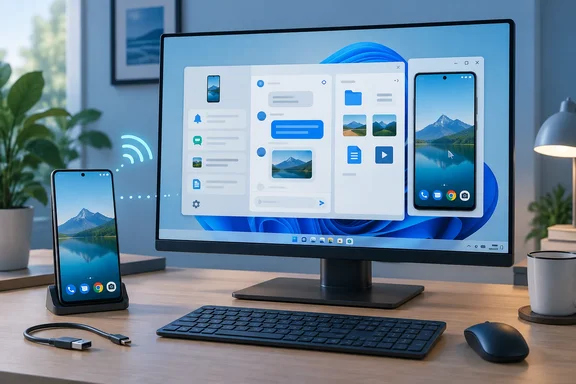
How-To Geek recently wrote about Sefirah and described it as Phone Link, scrcpy, and KDE Connect rolled into one. That comparison is marketing-friendly, but part of it holds up. Below is what the app does, how to set it up, what can go wrong, and how far you should trust it.
What Sefirah does
The developer is shrimqy, whose Play Store listing names Amal Biju. The GitHub project calls itself a Phone Link / KDE Connect alternative. According to the project README, it offers:
- Clipboard sharing in both directions. Automatic detection on Android 10 and later works through Shizuku or ADB from the desktop app.
- Media control, so your phone can control playback and volume on the PC.
- File sharing through the share sheet on either device.
- Android storage in File Explorer. This needs Android 11 or later and is still labeled experimental.
- Notifications from Android shown as Windows toasts.
- SMS: you can view and send texts as SMS, switch SIMs on dual-SIM phones, though attachments have not been implemented yet.
- Phone calls: view and answer phone calls from your Android device on your Windows PC.
- Screen mirroring and control: mirror and control the Android device via scrcpy.
The code is licensed under GPL-3.0, and the application is completely free. There is no paid tier. Per IT-Connect, the developer accepts donations to support the project, but no feature is paid.
Summary: Sefirah covers most of what Phone Link does, runs over your local network, and doesn't care who made your phone.
Why not just use Phone Link?
Phone Link usually comes preinstalled on Windows and pairs with a companion app on Android. It handles calls, messages, notifications, photos, media controls, clipboard sync and file transfers. The limitation is that its best features depend on your phone. The How-To Geek author said a Google Pixel 10 couldn't use Phone Link to mirror its screen or apps. Treat that as one person's experience, but it matches the common complaint that the full Phone Link experience favors certain partner phones, mostly Samsung.
KDE Connect is the long-running open alternative, and it works in both directions. It can't mirror your screen, though, so power users usually add scrcpy, Genymobile's well-regarded mirroring tool. That's three apps to run side by side.
Sefirah doesn't build its own mirroring engine. It controls scrcpy, an open source utility from Genymobile. The benefit is a polished, Windows-style interface on top of a proven tool, so you don't have to type terminal commands every time. Click the phone frame and a mirror window opens. Open the app launcher and each Android app can run in its own window. The author says you can have several open at once.
What it doesn't do: Sefirah is mainly about controlling your phone from your PC. It won't turn your phone into a touchpad for the PC. The author still uses KDE Connect for that and reports that both apps ran side by side without problems.
Setting it up, step by step
Part 1: Pair your phone and PC
- Install both apps. Get the Windows app from the Microsoft Store and the Android app from Google Play. Source code is on GitHub if you'd rather build it yourself.
- Grant Android permissions when the setup screens ask. If you sideloaded the Android app, the README notes that Android blocks sideloaded apps from requesting sensitive permissions. Turn on Allow restricted settings in the app's App Info page after trying to grant notification or accessibility access.
- Put both devices on the same network. Everything runs over your local network.
- Open Sefirah on the PC first. Launch the app on your Windows PC and wait for the devices to show up on both.
- Start the connection from the phone. Initiate the connection on your Android device using either manual connect or auto connect. Manual connect is faster, while auto connect takes a bit more time to determine which IP address works for you.
- Check the keys before you accept. Windows will receive a pop-up to accept or decline the connection. Ensure that the keys match on both devices. This check protects you against pairing with the wrong device, so don't skip it.
When it works, both apps land on their home screens and your notifications start loading on the PC.
Part 2: Add screen mirroring with scrcpy
Mirroring doesn't work out of the box. Per IT-Connect, you need to download scrcpy from its official repository, extract the archive, and then point Sefirah to its location in the settings. You also need to enable debugging mode on your smartphone.
- Download scrcpy. On the scrcpy GitHub releases page, get the Win64 ZIP.
- Extract it to a folder you won't move or delete later.
- Point Sefirah at it. Open Sefirah, go to Settings, find the scrcpy location option, and select the folder where you just extracted scrcpy.
- Turn on Developer options on the phone. Open the Settings app on your phone and go to the About phone option. Tap the Build number seven times until you see a message saying you're now a developer. Menu names vary by manufacturer.
- Turn on debugging. In Developer options, scroll down until you see USB debugging and enable it. Below it, you should see Wireless debugging — enable it as well.
- Plug in and approve the PC. Connect the phone by USB. A pop-up will appear on your phone asking whether to allow USB debugging from this computer. Check the Always allow box and accept it.
- Start mirroring. The project agrees that the easiest way would be to plug your device through usb and start it by clicking on Phone frame.
Part 3: Go wireless
By default, mirroring stops when you unplug the cable. The How-To Geek author's fix: in the Windows app, go to Settings > Devices, select your phone, click the gear icon, open ADB settings, and turn on TCP/IP mode. After that you can unplug, and Sefirah should reconnect over Wi-Fi. The project describes the same behavior more briefly: Sefirah will try to connect to your device if the default tcpip port is open for subsequent connections.
The author estimates the whole setup takes about 10 minutes, and you only need the terminal-style ADB steps once.
Troubleshooting common problems
| Symptom | Likely cause and fix |
|---|---|
| Devices see each other but won't connect | Firewall. The README says to check that ports 5149 to 5169 are open. |
| Sensitive notifications (like one-time codes) are missing | Due to Android's restrictions, sensitive notifications are no longer visible from Android 15 onwards. The workaround is adb shell appops set com.castle.sefirah RECEIVE_SENSITIVE_NOTIFICATIONS allow. |
| That ADB command fails (e.g. OnePlus) | Disable system optimization or Disable permission monitoring for apps in Developer options → Apps. After that, run the command again. |
| Android-to-PC clipboard doesn't sync automatically | Grant Shizuku access or keep ADB connected. Accessibility is a fallback that the project says may not work in every situation. You can also share manually from the persistent notification, the Quick Settings tile or the share sheet. |
| Explorer storage integration acts up | It's experimental. The README warns about older Windows 10 builds and unofficial "debloated" Windows 11 versions. |
| Mirroring won't start | Check the scrcpy folder path and USB debugging authorization. Otherwise, refer scrcpy docs and Scrcpy FAQ. |
| Bluetooth calling misbehaves | Pair your Bluetooth device to PC either through the in-app Bluetooth pairing or through the Windows settings, and first remove the phone if another app already registered it. |
Warning: Don't set the Android storage location to a folder that already exists. The README says Sefirah will delete that folder's contents.
Is it actively maintained?
Yes. Version 3.0.0, released July 17, added Windows Bluetooth calling with dialing, up to two simultaneous calls, hold, mute, swap and audio routing, plus a Calls page with history and a dial pad. It also added scrcpy launch shortcuts and mirroring settings for bitrate, frame rate, crop and virtual display size. It wasn't backward-compatible, and sideloaders had to uninstall the old version because its certificate had expired. Version 3.0.1 fixed storage sync, calls and notifications. The newest release, v3.1.0, reworked the actions system, added a "Play Sound" action to ring your phone, clipboard image sync and a clipboard autosync option for scrcpy. Heads up: that release notes there are no default actions and existing actions will be overwritten. The Android app on Play was last updated August 25, 2026. The developer also advises keeping the desktop and Android versions in step.
Should you trust it?
Sefirah asks for a lot: notification access, accessibility, full storage access and ADB. That's reasonable caution territory.
- Developer's claims: The Play listing says the connection uses end-to-end TLS. Its Data safety section says no data is collected and none is shared with third parties. It also says accessibility is used only to detect copy actions and that clipboard data is processed locally. These are the developer's own statements, not an independent audit.
- Reviewer's test: The How-To Geek author watched Sefirah with the Portmaster firewall during normal use and saw only local-network connections. That's reassuring, but it's one person's observation over one period of use.
- Open source: Anyone can read the code. That makes inspection possible, but it doesn't mean anyone has audited it.
Separately from Sefirah, keep in mind that ADB debugging gives a computer a lot of control over your phone. Only approve PCs you trust, and use Revoke USB debugging authorizations in Developer options when you stop using a machine. If your phone holds work data under a mobile device management (MDM) policy, check with IT before turning on debugging or accessibility access.
Bottom line
For Windows users with non-Samsung Android phones, Sefirah fills most of the gaps Phone Link leaves, especially screen mirroring, without requiring an account or a cloud service. Setup takes more effort than Phone Link, the scrcpy step can trip up newcomers, and features like Explorer storage are still experimental. For a free app that runs on your local network, it's worth the ten minutes.
References
- This free, open-source app lets me control my Android phone from my Windows PC How-To Geek · 2026-09-26T14:30:14+00:00
- Sefirah/README.md at master · shrimqy/Sefirah · GitHub github.com
- Sefirah: Open Source Android-to-PC Link for Windows & Linux it-connect.tech