

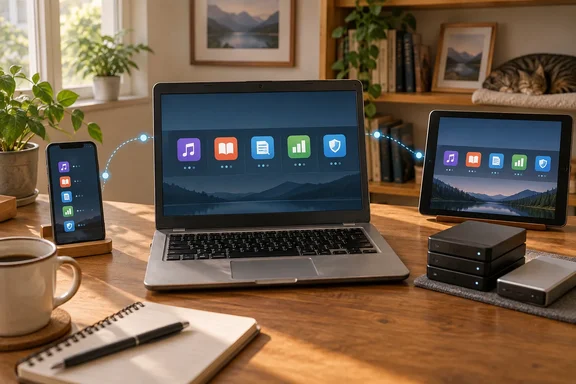
That's mostly true, with some catches. These five apps put very different loads on a machine, and they don't all install the same way on Windows. The official documentation for each project fills in details the list skips, so here's what you actually need to know before you wipe that 2013 ThinkPad.
The short version: what runs where
| Project | What it does | Hardware load | Native Windows option? |
|---|---|---|---|
| Navidrome | Music streaming server | Very light | Yes: 32- and 64-bit Intel builds |
| Audiobookshelf | Audiobook and podcast server | Light | Docker is the recommended install |
| Paperless-ngx | OCR document archive | Heavy during OCR | No. Linux only for bare-metal installs |
| Actual Budget | Envelope budgeting with optional sync server | Very light | Yes: desktop app |
| WireGuard | VPN back into your home network | Very light | Yes: official client |
Takeaway: four of the five are light enough for almost any old PC. Paperless-ngx is the exception, and it's also the one that won't install directly on Windows.
Navidrome: the best place to start
Lewis suggests beginners start with Navidrome, and the documentation supports that. It's a self-hosted music server with its own web player. Its bigger selling point is compatibility with the Subsonic API, so dozens of third-party apps (Lewis mentions Symfonium) can play your library on phones, PCs and TVs.
The old-hardware claim holds up. According to Navidrome's installation page, releases cover Linux on Intel and ARM in 32- and 64-bit versions, Windows on 32- and 64-bit Intel, and 64-bit Intel macOS. If you have an old 32-bit Windows box, this is one of the few current server apps that still supports it. Lewis says it even runs on a Raspberry Pi Zero 2 W.
Before you start:
- Install FFmpeg first. Navidrome's documentation says FFmpeg is required for it to work properly.
- Don't run it as root or Administrator. The project's security guide recommends a dedicated user account. Give it read-only access to your music folder and read-write access only to its data folder.
- Treat stored passwords as weakly protected. To stay compatible with Subsonic clients, Navidrome has to store user passwords. By default it encrypts them with a shared key that's in the public codebase, so the encryption only hides them from casual view. You can set your own key with the
PasswordEncryptionKeyoption, but you can only set it once. Change it later and users can't log in. - Leave the defaults alone. A login rate limiter is on by default. Editing transcoding settings in the web UI is off by default, because that feature could let an attacker run commands on the server.
Navidrome only serves music. It won't rip CDs or fix tags, so you'll need to organize the library yourself. Lewis uses MusicBrainz Picard for metadata.
Audiobookshelf: a small server for audiobooks and podcasts
Lewis calls Audiobookshelf the Plex of audiobooks and podcasts. The project describes itself as an open-source, self-hosted server for exactly those two things. Features include per-user progress that syncs across devices, metadata and cover lookup, automatic podcast downloads, RSS feeds, scheduled backups and companion Android and iOS apps (still labeled beta).
Lewis says the ebook reader is "fairly bare bones," and the project agrees. Its documentation calls ebook support limited. It accepts EPUB, PDF, CBR, CBZ, AZW3 and MOBI files, but it doesn't save your reading position in AZW3 or MOBI. For a real ebook library, the project itself points you to dedicated servers like Calibre-Web, which is what Lewis recommends too.
Setup details from the official Docker guide:
- Docker is the recommended way to install it.
- The default port is 13378. You can change the external port, but leave the internal one alone.
- Keep
/config(the SQLite database) and/metadata(covers, logs, backups) outside the container, plus folders for your audiobooks and podcasts. - Keep
/configon local storage, not a NAS or network share. The docs warn that performance will suffer and the database will eventually corrupt. - On Windows, remove the backslash line breaks from the sample
docker runcommand and run it as one line.
Lewis says it uses "a few hundred megabytes of RAM at most." That's his own measurement, not an official requirement. It's believable, since the server mostly just streams files.
Paperless-ngx: great once it's set up, but not light
Paperless-ngx runs OCR on scanned images and PDFs, tags the documents and builds a searchable archive. Lewis is upfront that it's the heavy one. His instance idles at around 900MB of RAM, and OCR will take all the CPU you give it.
Windows users need to know this first. The official setup guide says bare-metal Paperless runs only on Linux and doesn't support Windows. On an old Windows PC, plan on a Linux install or a Docker/VM setup. The project also recommends 64-bit ARM over 32-bit ARMv7, which may need extra work.
The FAQ says the developer tested it on a Raspberry Pi 3 B and that OCR "will run very slow" on that kind of hardware. The setup guide suggests ways to cut the load:
- Use SQLite instead of a separate database server.
- Lower
PAPERLESS_TASK_WORKERSandPAPERLESS_THREADS_PER_WORKERso the machine still has room for other work while documents process. - Run OCR before importing when you can, and leave
PAPERLESS_OCR_MODEonautoso existing text gets reused. - Set
PAPERLESS_OCR_CLEAN=nonefor faster OCR with less memory, at the cost of slightly worse accuracy. - In Docker, set
PAPERLESS_WEBSERVER_WORKERSto 1 to save memory.
On privacy: Lewis mentions an optional LLM classifier running locally through Ollama. The FAQ adds more detail. The AI features are off by default. If you turn them on, your document content goes to whatever backend you configure, which could be a local Ollama instance or a remote provider. The built-in tag and correspondent suggestions use a local, non-LLM model and send nothing anywhere. Tax returns and medical records are exactly what you'd scan into this, so check which backend you pick.
Actual Budget: you might not need the server
Actual Budget is an open-source take on YNAB-style envelope budgeting, where every dollar is assigned to a category. Lewis calls the server "extremely lightweight," and the project explains why. Actual has two parts, a client and a sync server, and the primary task of the sync server is to sync your budget between devices, and to enable bank syncing.
That makes Actual a gentle first step for Windows users. Desktop applications are available for Windows, Mac, and Linux, and the download page lists a Microsoft Store listing plus x64 and arm64 builds. The desktop app can also run its own local server. Per Actual's desktop documentation, the server runs on localhost by default and mostly uses the default server configuration. Click Start and you'll be asked to set a password.
Two warnings from the docs:
- Don't mix versions. If you already run a separate server, running the desktop app alongside an existing server can lead to version mismatches. In that case, use the web client.
- Building from source is harder. The server CLI and source builds need Node.js. The build-from-source guide says the Actual server requires Node.js v22 or greater.
Lewis says getting data out of your bank is the biggest hurdle. You can pay for a third-party bridge like SimpleFIN or import files by hand. He sticks with CSV files so his bank data doesn't go through another company.
WireGuard: remote access without opening every port
WireGuard is the networking piece that ties the other four together. Run it on your home server and you can tunnel into your own network from anywhere, instead of going through a commercial VPN provider. Lewis points out that the codebase is small, around 4,000 lines, and the server uses very few resources.
Lewis's closing advice is the most useful part of the list. Don't expose these services directly to the internet. Putting Navidrome on a public port for convenience gives attackers one more target. Connect to your home network through WireGuard or Tailscale first, then open your services as if you were on your home Wi-Fi. No pile of forwarded ports, no reverse proxy.
That's good advice, but it isn't a finished setup. A self-managed WireGuard server still needs:
- Key pairs generated and kept safe for every client
- A way to reach your home from outside, usually a port forward on the router
- Firewall and routing rules that allow what you want and nothing more
Tailscale, which Lewis also mentions, uses WireGuard under the hood and handles much of the key and NAT work for you. The trade-off is that you depend on Tailscale's coordination service. That's fine for most people, but you're no longer running everything yourself.
Is the "any old PC" promise realistic?
Mostly, yes. The one thing the headline glosses over is that these apps aren't all equally easy on a Windows machine. Navidrome, Actual and WireGuard run natively on Windows. Audiobookshelf works best in Docker. Paperless-ngx needs Linux. If your old PC still runs Windows, that difference will shape how you set things up more than the RAM figures will.
A sensible order for beginners:
- Try Actual Budget on the desktop. No server needed, and you can add one later.
- Set up Navidrome as your first always-on service.
- Add WireGuard or Tailscale before you want access from outside the house.
- Add Audiobookshelf once you're comfortable with Docker and volume mounts.
- Do Paperless-ngx last, after you've planned OCR tuning, storage and backups.
Bottom line: this is a good way to give an old laptop a second life, and it doesn't cost anything. Keep app data outside your containers, back up the documents and budget files, use unique passwords, and keep everything behind a VPN. Your old hardware can handle it. Just don't put your budget server on the open internet to get there.
References
- 5 more beginner self-hosting projects you can run on any old PC How-To Geek · 2026-09-28T14:30:14+00:00
- Installation | Navidrome navidrome.org
- Security Considerations | Navidrome navidrome.org