

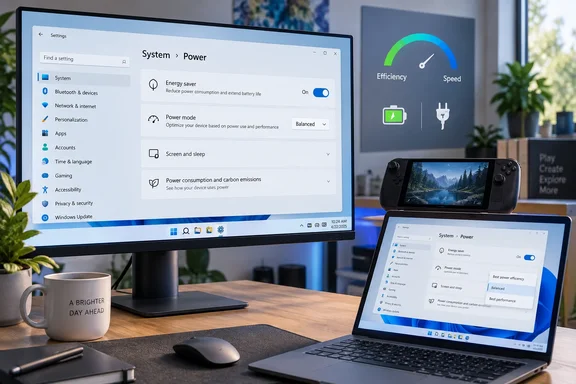
Microsoft’s support documentation confirms the underlying distinction. Energy Saver manages system activity to conserve energy, while Power mode lets you choose a preference for efficiency, balanced operation or performance. Switching off the first does not automatically change the second.
Windows 11 Energy Saver extends power saving beyond the battery
Microsoft documents Energy Saver for Windows 11 24H2 and later, replacing the Battery Saver experience described for earlier releases. The important expansion is its availability on desktop PCs as well as battery-powered machines. Microsoft’s Windows update overview explicitly describes Energy Saver as usable on plugged-in PCs and desktops for continuous energy conservation.
That makes the name worth taking literally. A desktop has no laptop battery to stretch through a flight, but it still consumes electricity. Energy Saver gives it a way to prioritize conservation; its presence on a mains-powered computer is intentional, rather than evidence that Windows has mistakenly applied a laptop-only feature.
Microsoft’s power-settings documentation describes Energy Saver as dimming the screen and limiting background processes. Its battery-saving guidance more broadly says that the feature automatically manages system processes and power usage. Those are useful explanations of its purpose, but they do not establish a fixed performance penalty across every application and device.
How-To Geek goes further, describing restrictions involving background applications, scheduled tasks and synchronization, alongside a specific brightness reduction. The Microsoft support pages available for this report do not establish that complete list as universal Energy Saver behavior. It would therefore be misleading to promise that disabling Energy Saver will restore a particular OneDrive transfer, fix delayed email or recover a predictable amount of CPU performance.
For the same reason, an active Energy Saver setting is something to investigate, not a diagnosis. If you deliberately enabled it to conserve energy, it may be doing exactly what you wanted. If responsiveness is now the priority, changing that preference is a reasonable first step.
Energy Saver and Power mode make different choices
Power mode is the second control to inspect, even after Energy Saver is off. Microsoft lists three choices in Windows 11 and describes their purposes plainly:
| Power mode | Microsoft’s documented purpose | When that preference fits |
|---|---|---|
| Best power efficiency | Saves battery life. Microsoft also documents reduced background activity on battery and plugged-in power. | Choose it when conserving energy matters more than prioritizing performance. |
| Balanced | Balances performance and battery use. | Choose it when neither maximum performance nor maximum conservation is the overriding goal. |
| Best performance | Maximizes performance. | Choose it for work where performance is the priority. |
The crucial plugged-in detail is documented independently of Energy Saver: Microsoft says Best power efficiency can limit background activity whether the PC is connected to power or running on its battery. Connecting a charger therefore does not, by itself, mean the computer is using a performance-oriented Power mode.
Microsoft’s current instructions also expose separate Plugged in and On battery selections. Where those controls are available, a laptop can favor performance at a desk while retaining an efficiency-oriented setting away from an outlet. There is no need to treat one preference as appropriate for every situation.
On a desktop, the route through Settings > System > Power to the Power mode selector is also described by MakeUseOf in its coverage of desktop power settings. Its recommendation to select Best performance is an available choice, not evidence that every desktop needs that mode. Microsoft’s own description supports Balanced as a compromise rather than a malfunctioning configuration.
How-To Geek’s account includes subjective observations of worse responsiveness and gaming performance under Best power efficiency on an ASUS ROG Xbox Ally X and an MSI Claw 8 EX. Those observations should remain attributed to How-To Geek: they are not WindowsForum testing, and they do not establish a performance difference for other PCs. The evidence reviewed here contains no independent reproduction of those particular handheld observations.
Nor do Microsoft’s cited support pages establish that selecting Best power efficiency always parks performance cores, slows an SSD, restricts a GPU or forces a display to 60Hz. Such detailed hardware outcomes require evidence for the relevant device and configuration. The supported general conclusion is narrower: Power mode changes the preference Windows is being asked to follow.
Check Energy Saver before changing Windows 11 Power mode
These instructions concern Windows 11’s Energy Saver interface, documented for version 24H2 and later. Older Windows interfaces may instead show Battery Saver. Microsoft also cautions that some power options depend on the hardware and manufacturer, so a missing selector does not necessarily indicate a broken installation.
Before changing anything, identify your goal. Removing an unwanted saving preference makes sense when performance is the priority. If you are trying to preserve the remaining charge during travel or an outage, turning off conservation features works against that goal.
Turn off unwanted Energy Saver operation
- Open Start > Settings > System.
- On a battery-powered PC, open Power & battery. How-To Geek gives Power as the corresponding page on a desktop.
- Expand Energy saver and inspect Always use energy saver. Turn it off if you do not want that configuration enabled.
- On a battery-powered device, inspect Turn energy saver on when battery level is at. Select the level at which you want automatic conservation to begin.
- If screen dimming is the issue, inspect Lower screen brightness when using energy saver. Turning that option off addresses the brightness preference without requiring you to abandon Energy Saver’s other functions.
For an immediate change, Microsoft also documents an Energy saver control in Quick Settings. Open Quick Settings from the taskbar and turn Energy Saver off if it is active. Microsoft describes a dedicated Energy Saver system-tray icon on desktops and a leaf indicator on battery-powered devices; the Settings page is the more useful place to inspect the actual configuration rather than relying on an icon’s color.
The activation threshold deserves attention even after you turn off the always-on option. They are separate choices: disabling an always-on preference does not express your desired low-battery threshold. If automatic activation is configured, Energy Saver can still become appropriate when the battery reaches that level.
There is an important documentation boundary around plugging in. Microsoft’s battery-saving guidance describes manually enabling Energy Saver until the next time the PC is connected to power, while its update overview explicitly supports Energy Saver on plugged-in computers. Those descriptions do not establish one universal charger-transition rule for every configuration. Inspect its active state in the power condition you actually use instead of assuming that connecting or disconnecting a charger settles it.
Set Power mode for the power source you use
- Return to Settings > System > Power & battery, or the desktop Power page.
- Open Power mode.
- Where separate choices appear, set Plugged in to Best performance if maximizing performance is your objective, or Balanced if you want the documented compromise.
- Set On battery independently. Balanced retains that compromise; Best power efficiency prioritizes conservation.
- Confirm that the displayed selections match your intended configuration.
How-To Geek reports that Power mode cannot be changed while Energy Saver is active. If the selector is unavailable, turn Energy Saver off before trying to change it.
The immediate confirmation is the setting itself: Energy Saver is no longer active when you do not want it, and Power mode shows your chosen preference for the relevant power source. That confirms the configuration change. It does not, without a workload comparison, establish a speed improvement.
These choices are reversible through the same controls. You can restore your previous Power mode, re-enable Energy Saver in Quick Settings or revise its battery threshold when your priorities change. No registry edit or command-line modification is needed for this procedure.
An unavailable Power mode selector has a documented fallback
Energy Saver is not the only explanation for an unavailable Power mode control. Microsoft says that a custom power plan can prevent users from changing Power mode through Settings.
Its documented remedy is to open Control Panel > System and Security > Power Options and select Balanced, then return to the Power mode control. Before doing so, recognize that this changes the selected power plan; it is a separate action from choosing Balanced in the Settings app’s Power mode selector.
The overlapping names make the interface unnecessarily easy to misread. In this procedure, the Control Panel’s Balanced plan is the compatibility step Microsoft recommends for an unavailable selector. After selecting that plan, you can return to Settings and choose the Power mode that fits your intended use.
Do not extend that fallback into a requirement to replace every custom plan. It addresses a specific symptom: being unable to change Power mode. Microsoft also says power-setting availability depends on the PC’s hardware and manufacturer, so selecting Balanced cannot guarantee that every machine will expose identical controls.
If Energy Saver is already off and Power mode already reflects your preference, this particular configuration check has reached its limit. The evidence does not justify escalating from there to processor-core tweaks, undocumented power commands or promises that another switch will unlock hidden performance.
Choose Windows 11 power settings for the work ahead
Change these controls when their current priorities conflict with yours; leave a deliberate conservation configuration alone when battery endurance or reduced energy use remains the goal. A performance-oriented preference is useful for demanding work, while Microsoft’s descriptions support Balanced as a reasonable compromise without promising identical performance in every application.
The practical decisions are straightforward:
- Check Energy Saver’s active state and automatic battery threshold separately, because turning off an always-on option does not define when low-battery activation should occur.
- Check Power mode even after disabling Energy Saver, because the two controls represent different choices.
- Use separate plugged-in and battery settings where Windows exposes them, rather than assuming a charger automatically selects Best performance.
- Use Microsoft’s Control Panel Balanced-plan fallback only when a custom plan may be preventing changes to Power mode.
- Treat performance gains as device- and workload-dependent; the reporting does not establish a universal percentage improvement or a guaranteed fix for sluggishness.
Windows 11 gives users documented ways to choose between conserving energy and favoring performance. The worthwhile “fix” is making those preferences intentional: inspect both controls, change the one that conflicts with your current task, and retain the option to conserve power when circumstances call for it.
References
- Windows is throttling itself and you didn't know it—here's the two-second fix How-To Geek · 2026-09-21T20:30:13+00:00
- Power settings in Windows 11 | Microsoft Support support.microsoft.com