

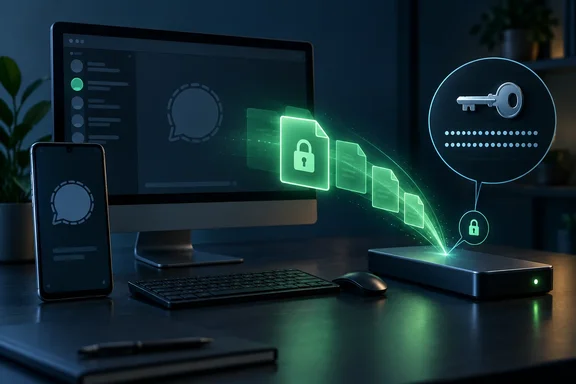
The main news for WindowsForum readers is the desktop part. Signal says on-device backups are available on Signal Desktop and Signal iOS for the first time, and fully revamped on Signal Android. They provide another way to preserve an end-to-end encrypted copy of your Signal messages. Before you point one at a USB stick and forget about it, though, you should understand how the recovery key works.
What actually shipped
Signal published the announcement on September 28, 2026, in a blog post titled "Back to Backups: A Year in Review." The main changes:
- Local backups on iOS and desktop. These are new. On-device backups have been available on Android for many years, but they now utilize the same cross-platform format that's supported by Signal Desktop and Signal iOS.
- Cross-platform restore. Signal says Signal Secure Backups and on-device backups can be created and restored across every supported operating system: Android, iOS, Linux, macOS, and Windows.
- A new folder layout. CyberInsider reports that media is now stored separately from the main archive, and duplicate files within a backup are saved only once, reducing the space needed to keep or synchronize repeated snapshots.
- Attachment backfill for linked devices. A newly linked desktop can fetch older media straight from your phone. Technobezz notes that Signal Desktop can request missing files from a user's primary device.
- Faster iPhone migrations. The iOS update separately improves transfers between iPhones using a local encrypted wireless connection over Wi-Fi Aware.
Signal says this completes the first phase of the backups project. Technobezz adds that work on non-backup improvements is still under way.
In short: you now get one backup format across five operating systems, with a local option on every one of them.
Hosted vs. local: two different deals
Signal offers two backup paths, and they are not the same product.
| Signal Secure Backups (hosted) | On-device backups (local) | |
|---|---|---|
| Where it lives | Signal's servers | A folder you choose (drive, NAS, etc.) |
| Free media coverage | Last 45 days | Limited only by your storage |
| Paid option | Up to 100 GB of media | Not applicable |
| Extra rotating TEE key | Yes | No |
| Old backups | Replaced automatically every 24 hours | You have to delete them yourself |
On the hosted side, free accounts keep text messages backed up, but only the last 45 days of media, and messages larger than 128 kilobytes fall under that same 45-day limit. The paid tier costs $1.99 per month and covers up to 100 GB of media. It is a bigger allowance, not an unlimited one.
Hosted backups also get something local backups can't. Hosted backups use a supplemental key held in a trusted execution environment and rotated daily. Signal says this key can't decrypt anything without your own recovery key. Its job is to add forward secrecy, and Signal's clients use remote attestation to confirm that each old key is thrown away when it's replaced.
Local backups have no equivalent. Signal says that because it has to support any storage target (a personal drive, a NAS, a third-party cloud service), it can't use the same TEE mechanism. The result is stated plainly in the post: your on-device backup recovery key can decrypt all past backups wherever they are stored, not just the most recent one.
Setting up a local backup on Windows (or any desktop)
Signal's support documentation lists these steps for Signal Desktop:
- Open Signal Desktop. Go to Settings > Backups. Under Other ways to back up, select Set up.
- If prompted, enter your computer password to authorize the setup.
- Choose the folder where you want the backup to be stored.
- Signal shows a 64-character recovery key. Save it somewhere secure, confirm that you've stored it, and select Next.
- Review the reminder to keep your recovery key safe, then select Continue to complete the setup. Once setup is complete, create a Signal Desktop backup.
Success means you have a backup folder in the location you chose and a recovery key stored somewhere other than the PC it protects.
Common mistakes to avoid:
- Renaming the folder. Signal's documentation says: Important: Do not rename the backup folder after it is created.
- Copying only part of it. The new format is a folder of files, not a single archive. AboutSignal described it during beta as stored as a folder containing multiple files and are fully end-to-end encrypted. If you mirror it to a NAS or external drive, copy the whole folder.
- Losing the key. Signal's troubleshooting page says the company cannot recover, reset, or bypass this key. If the key is lost, the backup is permanently inaccessible.
The restore caveat Windows users should know
Signal's announcement calls restores cross-platform. Its desktop support documentation is narrower. That page says desktop backups let you restore it to Signal on your primary Android device, and adds: *Restoring a Signal Desktop Backup on iOS is not currently supported. The support page may simply not have caught up with the 8.30 launch, but the two sources disagree.
In practice, a restore happens on the phone, not on the PC. AboutSignal reported during beta that it's currently not possible to restore an on-device backup on Desktop, but you can manually transfer your Desktop backup to your phone and restore it there. Signal's documented phone-side flow is: choose "Restore on-device backup," enter your phone number, pick the transferred folder, grant access, and enter the recovery key.
Two catches: Any previously linked devices will need to be relinked afterwards. Also, when you restore a Signal Desktop backup on your primary phone, the existing link between Signal on your phone and Signal Desktop is removed. If you're thinking of a desktop backup as a way to rebuild your desktop client, it isn't one. It's a lifeboat for your phone's account.
Longtime Android users should also note the format change. A user in the signalbackup-tools GitHub project found that the new iOS version doesn't have the same .backup file format from Android, this is now in folders. Don't expect your old single-file archives to mix with the new ones.
Disappearing messages and stale copies
Both backup methods exclude messages set to disappear within 24 hours. Messages with longer timers are another story. Signal says it skips expired disappearing messages found in a local backup during restoration, although it doesn't automatically remove old backup files from a user's chosen storage location.
That's where local backups get harder to manage. Signal replaces a hosted backup every 24 hours. A local backup copied to a USB drive last spring just stays there, still encrypted, and still readable by anyone who has your key. Signal suggests periodically deleting old local backups and considering shorter disappearing-message timers. If your Windows machine runs File History or a NAS snapshot job over that folder, you may be keeping historical copies without realising it.
Why attackers want your recovery key
This isn't a theoretical risk. On June 26, 2026, the FBI and CISA updated a public warning saying that Russian intelligence-service actors impersonating messaging-app support accounts have started trying to trick victims into handing over backup recovery keys. The agencies stressed that the attackers compromised individual accounts, not the encryption. Once a victim creates a backup and gives up the key, the attackers can read their message history and may take over the account. The sample phishing messages in the advisory warn about a "sync issue" and tell victims to paste their key into the chat.
The FBI/CISA advisory also says that generating a new recovery key in Settings invalidates the old one for future downloads, but that doesn't help if an attacker has already downloaded a backup. With local backups there's an extra wrinkle: the old key still unlocks every old archive encrypted with it, wherever those files ended up.
The advice is simple. As CyberInsider put it, users enabling backups should keep their recovery key somewhere secure and never provide it in response to a message claiming to be from Signal Support. Signal Support will never ask for it. Store the key in a password manager, and treat any message asking for it as an attack.
The takeaway
The good news: Windows, macOS and Linux users finally have a documented, encrypted, self-managed backup option, and the new folder-based format with deduplication plays well with NAS sync and external drives. The bad news: taking control of your storage also means taking on the housekeeping. That covers folder integrity, deleting old copies, and above all protecting a single 64-character key. If you want the backup to clean up after itself, the hosted option does that. If you'd rather keep your data under your own roof, the local option is now available on every platform.
References
- Signal adds encypted local backup support to iOS, desktop apps BleepingComputer · 2026-09-29T17:30:08-04:00
- Signal brings encrypted local backups to iPhone and desktop cyberinsider.com
- merging IOS and Android Backups · Issue #397 · bepaald/signalbackup-tools github.com