

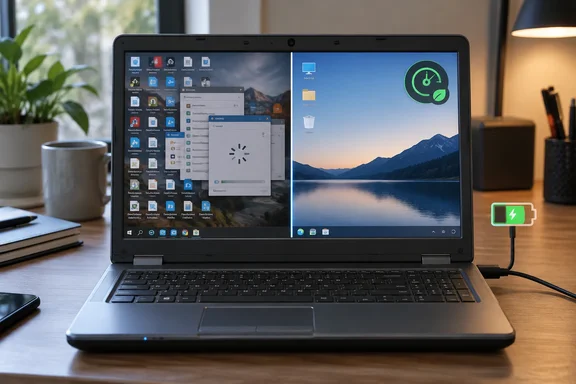
Microsoft's own guidance points the same way, with some caveats. Microsoft says a Windows device may run slowly because of limited storage space, too many startup apps, outdated software, or hardware that no longer meets modern performance needs. Its support page also notes that older PCs with outdated hardware may not see significant improvements, and that upgrading may then be the better long-term answer.
Change 1: Thin out the startup crowd
Sood's complaint will be familiar. Over the years, game launchers, chat apps, update utilities and manufacturer tools had registered themselves to launch at sign-in. They all woke up at once, just when she wanted the laptop ready. After she disabled some of them, she says the desktop appeared sooner and the PC became usable sooner. She also says fewer background apps meant less RAM and CPU use.
Microsoft's guidance says apps that run at startup can slow boot time and increase background usage, so you should disable the ones you don't need to start automatically.
How to do it
- Open Task Manager. Microsoft's performance page gives Ctrl + Shift + Esc as the shortcut. Microsoft's startup documentation also describes right-clicking Start and choosing Task Manager.
- Open the Startup apps tab. The MakeUseOf article uses a hamburger menu to get there. Layouts can vary, so if you don't see that menu, use the left-hand navigation or the Start-button route.
- Look at the Startup impact column, starting with anything marked High.
- Right-click an app you don't need at every sign-in and choose Disable.
Settings alternative. Microsoft's startup documentation also lists Settings > Apps > Startup, where each app has an On/Off toggle. Task Manager gives the more detailed view.
What the impact labels mean. Microsoft defines them by measured startup cost:
| Label | Meaning |
|---|---|
| Low | Under 300 ms of CPU and under 292 KB of disk |
| Medium | Between Low and High |
| High | More than 1 second of CPU or more than 3 MB of disk |
| Not measured | No data is available, and the app is enabled |
| None | The startup app is disabled |
"Not measured" does not mean "harmless." The ratings describe the cost at startup. They don't promise that disabling an app will speed up everything you do later.
What to leave alone. Sood left her antivirus, audio and touchpad utilities and cloud-sync apps enabled. She disabled chat apps and manufacturer utilities. That is a sensible example, not a universal whitelist. Check what an entry does before you disable it. Disabling is not uninstalling, so if something stops working, switch it back on.
Change 2: Turn down the visual effects
Sood compares this to turning off menu animations on a TV. The TV is no more powerful, but there is less between your click and the result. In Windows, that means menus appear instead of fading in and windows lose their zoom animation. She is clear that this won't make an old laptop new. It only removes visual fluff that can make a slow PC feel slower.
Microsoft agrees on the substance. Its guidance says Windows 11 visual effects can use system resources, and adjusting these settings can improve responsiveness. Microsoft doesn't promise a particular speed gain.
Her route
- Press Win + R, type
sysdm.cpland press Enter. - Open the Advanced tab and click Settings under Performance.
- Select Adjust for best performance.
- Click Apply, then OK.
Microsoft's route. Select Start, type "Adjust the appearance and performance of Windows", open it, then use the Visual Effects tab and select Adjust for best performance. Both routes lead to the same Performance Options dialog.
The trade-off. Windows looks plainer afterward. Sood wouldn't bother on a newer laptop that already feels quick. On an older machine that hesitates, she thinks the swap is worth it.
A fair caution. This changes how responsive the interface feels. It doesn't reduce the work your applications do. If a spreadsheet recalculates slowly, this setting won't help.
Change 3: Switch the power mode to Best performance
Sood had left Windows on its default balance of speed and power. She moved to Best performance, accepting that it costs battery.
How to do it (Windows 11)
- Open Settings > System > Power & battery.
- Under Power mode, choose Best performance.
Microsoft's power-mode page lists three options: Best power efficiency, Balanced and Best performance. It says you can choose them for Plugged in or On Battery on some PCs, which matches Sood's note that some machines show separate options. Microsoft also says if the control is locked, a custom power plan may be selected. In that case, open Control Panel > System and Security > Power Options and select Balanced.
The cost. Microsoft's note is blunt: Best performance increases power consumption, drains a laptop battery more quickly and may make the device run warmer. Its advice is to use the mode only when you need maximum performance and power isn't a limit. In practice, that suggests Best performance while plugged in and Balanced when you are on the road.
Windows 10 users
Microsoft's pages cover both Windows 11 and Windows 10, but the menu paths differ. On Windows 10 the power-mode slider is hidden on some PCs, depending on hardware and the manufacturer. Microsoft says it needs version 1703 or later. Also, Microsoft says after October 14, 2025, it no longer provides free software updates from Windows Update, technical assistance, or security fixes for Windows 10. Settings tweaks can make an old Windows 10 PC feel livelier. They do nothing about that support gap.
What to try if you're still slow
If the three changes don't help, Microsoft's list suggests checking:
- Windows and optional driver updates
- A Windows Security quick scan
- Free disk space, using Storage Sense
- Apps you no longer use
- Background app permissions
- Task Manager's Processes and Performance tabs, for the process that is actually using the resources
Bottom line
This is a sensible order of operations. Trim startup first, because it costs nothing in looks or battery. Then decide whether you can live with a plainer interface. Finally, use Best performance when the charger is nearby. None of it replaces diagnosing a failing drive, a full disk or too little RAM. As Sood herself admits, the settings can't hide the hardware's age forever, but they may delay the shopping trip.
References
- These 3 Windows changes made my aging PC feel fast again - MakeUseOf MakeUseOf · 2026-10-04T14:00:14+00:00
- Configure Startup applications in Windows | Microsoft Support support.microsoft.com