

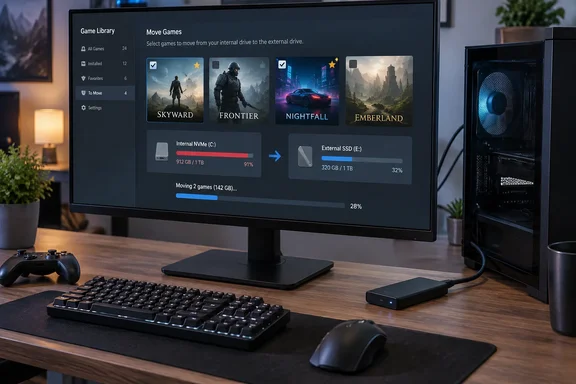
That is one person's experience, not a benchmark. It is still a useful prompt to ask when a cheaper external drive is good enough for a game library, and when it isn't.
What the author actually reported
- The setup. He has 13 games on the external drive. He says they feel as responsive as the ones on his internal drive, and he names the action platformer Dead Cells as an example.
- A split library. His most-played titles, and anything that needs the fastest possible loading, stay on the internal SSD. Slower-paced games, such as a turn-based RPG, go on the external drive.
- Cost reasoning. He compares a 5TB external SSD with spending $250 or more on a 1TB internal drive. The article names no models and gives no purchase date, so treat that as his rough framing, not current pricing.
- Connection. He says he has hit no bottlenecks on USB 3 and that USB 2.0 ports are too slow to be useful. He gives no port generation, cable type or measured throughput.
- Portability. He says he can sign into Steam on another PC, point it at the drive, and play. He has used this to test a game on his wife's PC.
- Caveats. His hardware is dated: a GTX 1070 and a six-year-old CPU and motherboard. He says someone running Cyberpunk 2077 at maximum settings might see differences he can't. He also notes that a yanked cable mid-game can cost progress or risk corrupted data.
He did not time loads before and after, name the drive or publish any numbers. "Barely changed" is a subjective impression. A dated GPU may also hide storage differences, because it is likely to be the limiting factor in many games.
Why "fast enough" can be a reasonable bet
Tom's Hardware published a gaming storage test on August 8, 2026. It covered 11 games and compared SATA SSDs with PCIe NVMe drives. It does not test external USB drives, so it can't confirm this author's result.
The test does back the general idea that the fastest drive isn't always needed. Tom's Hardware says that during gameplay most storage activity is random reads as assets stream into memory, with sequential reads less common and writes minimal. That helps explain why a drive's headline sequential speed doesn't always translate into a visible gain.
Tom's also says that, for load times, flagship drives often deliver only marginal improvements despite much higher sequential throughput, although some titles load several times faster from NVMe than from SATA.
The caution runs the other way too. Tom's notes that DOOM: The Dark Ages lists an NVMe SSD as a requirement. A game's own requirements should outrank any rule of thumb. Moving a title with a stated NVMe requirement onto a USB drive is the likeliest way to be disappointed.
How to set it up in Steam
Steam's client handles this directly. The steps below follow Steam's Storage settings as described by Steam's support guidance and recent how-to coverage. Menu labels can vary slightly between client versions.
- Connect the drive to a USB 3 or faster port, using a good cable. Make sure it stays connected for the whole operation.
- Add a library location. In Steam, go to Settings, then Storage. Select the + button and add a library folder on the drive you want to use.
- Optionally make it the default. Open the library's "…" menu and choose Make Default. This only changes where new games install. It does not move games already installed.
- Move existing games. Select the drive that has the game installed, tick the box next to the games you want to move, and click Move. Choose the new library as the destination.
- Or move one game at a time. Open Library, right-click the game, choose Properties, then Installed Files, and click Move install folder.
The time a move takes depends on the amount of data and the speed of both drives. A move involving a USB connection is usually slower than one between two internal SSDs. Even so, moving should usually beat re-downloading a huge game, as the author found, though he gives no timings.
Where the external-drive approach gets riskier
- Steam itself. Steam's support page advises against installing the Steam client on an external drive because of potential performance issues. Using an external drive only as a library location is a different case from moving the Steam installation.
- Saves and settings. Some saves that aren't in Steam Cloud may live outside the game folder. Steam's support page says they are often under Documents, in a My Games folder. Don't assume the external drive carries everything when you move to another PC.
- Moving between PCs. Steam's Move feature is documented for relocating games between library locations on the same computer. Plugging the drive into a second PC and adding it as a library is the author's own workflow. Expect to sign in to the right account, and expect that some games may need extra components or checks.
- The physical link. A loose cable can drop the whole library mid-session. Keep the drive where it won't get tugged, and keep important saves backed up.
- Streaming-heavy games. Open-world and modern engine titles are the ones most likely to show a difference. Test them on both drives if you can.
A practical way to decide what goes where
Use the author's own split as a template. Put the games you play most, plus any with NVMe requirements, on internal storage. Put the large, slower-paced and rarely played games on the external drive. If a game stutters or loads noticeably slower after the move, move it back with the same Move tool.
If you want a real answer for your own setup, time a few loads yourself before and after moving a game. Use the same save and the same stopwatch each time.
The bottom line
The XDA piece is an honest anecdote with good caveats, and its main idea is sound. For many games, a larger and cheaper external SSD on a fast USB port can be a sensible overflow library. It isn't proven to match an internal NVMe drive. Matching drives to games is the safer approach than moving the whole library blindly.
References
- I moved my Steam library to a cheap external SSD, and load times barely changed XDA · 2026-10-05T10:00:16+00:00
- We tested the impact of SSD speed on gaming performance in 11 titles — we analyzed from SATA to PCIe 5.0 to see whether upgrading to a faster NVMe SSD would have an impact | Tom's Hardware tomshardware.com
- How to Change Steam Game Install Location and Move Games itechguides.com