

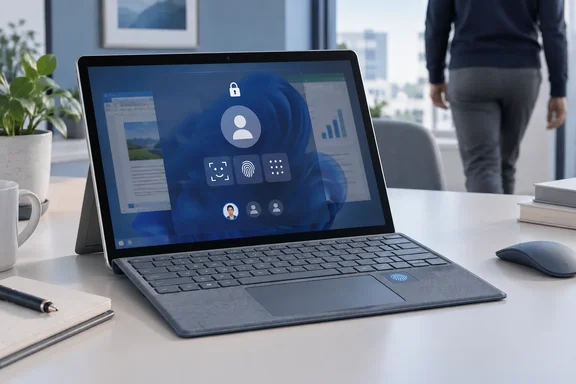
Getting past the lock screen
The first step is the same on every Surface. Microsoft says to dismiss the lock screen by swiping up from the bottom edge of the screen or by pressing a key if you have a Surface Keyboard or Type Cover attached. After that, if prompted, enter the password for your user account. If you've set up a PIN or Windows Hello, you'll see those options on the sign-in screen as well.
Microsoft points to two separate help pages for two separate problems, and they're easy to confuse:
- You forgot your password. If you're trying to sign in to your Surface but can't remember your password, view Reset a forgotten Microsoft account password.
- Your Surface is asking for a BitLocker recovery key. Microsoft sends you to its separate "Find your BitLocker recovery key" guide.
These are different problems. A forgotten password is an account issue. A BitLocker prompt means the drive's encryption wants proof before Windows will even start. Forgetting your Windows Hello PIN is a third, separate case, covered further down.
In short: swipe up or press a key, then enter your credentials. If the screen asks for a BitLocker key instead, you're in recovery territory, not a password problem.
Sign out or lock: what each one does
This is the distinction that matters most. According to Microsoft, signing out closes all your open apps. Locking protects your account and lets someone else sign in with their own account, but your open apps stay open.
A simple way to think about it:
| Action | Your open apps | Best used when |
|---|---|---|
| Lock | Stay open | You're stepping away and want to come back to the same session |
| Sign out | Closed | You're done and want your session ended |
| Switch account | Stay open | Someone else needs the Surface for a while |
Microsoft doesn't say that signing out saves unsaved work for you, so save your documents before you sign out. That tab with the half-finished expense report won't save itself.
How to sign out or lock
- Open Start and select your account picture in the lower-left corner of the Start menu.
- Select Sign out or Lock.
Keyboard shortcuts are faster:
- Windows logo key + L locks the Surface straight away.
- Ctrl + Alt + Delete opens a screen where you can choose Lock or Sign out.
Windows + L is worth learning. It's one shortcut, and it keeps whoever walks past your desk out of your email.
In short: lock when you're coming back, sign out when you're finished, and save your work before signing out.
Switching accounts on a shared Surface
Family tablets, shared office machines and a student's Surface Go handed around the kitchen table all need this. Microsoft says if you're sharing your Surface with someone else, you can switch to their account without signing out or closing apps.
The steps: go to Start and select your account picture in the lower-left corner of the Start menu. Select an account.
If the account you want isn't listed, Microsoft's fallback is to select Sign out and then choose the account from the sign-in screen. Signing out closes your apps, so save first.
In short: switching keeps your session running in the background. If the other person's account isn't in the list, you'll have to sign out.
Windows Hello: which Surface models support face and fingerprint
Microsoft calls Windows Hello a more personal and secure way to sign in. Which kind you can use depends on your hardware, and Microsoft's model list is specific.
Face recognition
Microsoft says the front-facing Windows Hello camera recognises your face and iris on these models:
- Surface Studio (all models)
- Surface Pro 4 and later models
- Surface Pro X (all models)
- Surface Laptop (8th Edition), Surface Laptop (7th Edition), Surface Laptop 5G for Business, Surface Laptop 6 for Business, Surface Laptop 5, Surface Laptop 4, Surface Laptop 3, Surface Laptop 2 and Surface Laptop (1st Gen)
- Surface Laptop Studio (all models)
- Surface Go (all models)
- Surface Book (all models)
Fingerprint
Fingerprint sign-in is listed for:
- Surface Laptop 13-inch (1st Edition) and Surface Laptop Go (all models), when fitted with a Fingerprint Power Button with One Touch sign-in through Windows Hello
- Surface Pro Signature Keyboard with Fingerprint Reader
- Surface Pro Type Cover with Fingerprint ID
Microsoft's Windows Hello troubleshooting page is blunt about one point: the Surface Laptop 13-inch (1st Edition) and all Surface Laptop Go models don't support facial recognition, so fingerprint is the biometric option on those machines. On a Surface Pro, the fingerprint reader is in the keyboard, not the tablet. Buy a keyboard without one and you won't have fingerprint sign-in.
Setting up Windows Hello
Microsoft's "Set up your Surface" guide gives the route: go to Start > Settings > Accounts, and under Account settings, select Sign-in options. Select Facial recognition (Windows Hello) or Fingerprint recognition (Windows Hello), then select Set up. Then follow the on-screen enrolment steps.
In short: check your model before counting on face or fingerprint sign-in. For Surface Pro fingerprint sign-in, the keyboard you buy makes the difference.
PIN, picture password and security key
Beyond biometrics, Microsoft says you can sign in with a PIN or a picture password. It adds a caveat: these options may not be available if you've added work email accounts to the Mail app or joined a network domain. On a company-managed Surface, your IT department's policy may decide which methods you get.
To set them up:
- Go to Start and select Settings > Accounts > Sign-in options.
- Windows 11: under Ways to sign-in, select Picture password, PIN (Windows Hello) or Security key, then follow the on-screen instructions.
- Windows 10: select Picture password or Windows Hello PIN, then follow the on-screen instructions. Microsoft's Windows 10 steps don't list a security key option.
Windows 10 needs some context. Microsoft's Surface troubleshooting documentation says support for Windows 10 ended on October 14, 2025, and Windows 10 no longer gets free security fixes through Windows Update. The Windows 10 steps still work, but a Surface still on Windows 10 has bigger problems than choosing a sign-in method.
Controlling when Windows asks you to sign in again
Want your Surface to ask for credentials every time it wakes, or only after a while? Microsoft says: go to Start, and select Settings > Accounts > Sign-in options. On Windows 11: Under Additional settings, go to If you've been away, when should Windows require you to sign in again? and choose an option from the list. On Windows 10: Select Require sign-in and choose an option from the list.
Microsoft doesn't list the available choices, so check the drop-down on your own device. As a general security rule, the stricter setting is the safer one on a laptop you carry around.
When Windows Hello won't recognise you
Microsoft's Surface troubleshooting guide covers the usual problems:
- Fall back first. If your face or fingerprint doesn't scan properly, Microsoft says to sign in with your PIN or password and then set up Windows Hello again.
- Choose the right option. If you've set up several methods, Windows shows them all on the sign-in screen, and you may need to pick the Windows Hello option yourself.
- Update the Surface. Open the Surface app, expand Help & support to check update status, and select Check for updates if any are available.
- "Couldn't recognize you. Please sign in with your PIN." Microsoft says this can happen if you wear glasses and didn't enrol both with and without them, or if the lighting has changed a lot. On Windows 11, go to Start > Settings > Accounts > Sign-in options > Facial recognition (Windows Hello) and select Improve recognition.
- Fingerprint problems. Wipe the sensor with a lint-free cloth (no glass cleaner or chemicals). Use the same finger you enrolled, and make sure it's clean and dry. On a Fingerprint Power Button, check that the LED around the button is lit. If you use a Surface Pro keyboard with a fingerprint reader, detach it and reattach it.
- Re-enrol. On Windows 11, under Fingerprint recognition (Windows Hello), you can Add another fingerprint, or Remove your fingerprint and then select Set up again.
- Forgot your PIN? Sign in with your password, go to Sign-in options > PIN (Windows Hello) and select I forgot my PIN.
- Last resort. If Windows Hello used to work, Microsoft suggests a recent app, driver or update may be the cause and points to restoring or resetting the Surface.
For business devices, Microsoft adds that you can get self-help support from the Surface app or web browser. For technical assistance, contact your organization's IT helpdesk or admin.
Bottom line
Microsoft's guide boils down to this. Lock when you'll be back, sign out when you're finished, and switch accounts when someone else needs the device. Check your model and keyboard before relying on face or fingerprint sign-in. Keep a PIN or password ready for when biometrics fail, and if your Surface is still on Windows 10, upgrading matters more than any of these settings.
References
- Troubleshoot problems with Windows Hello on Surface | Microsoft Support support.microsoft.com