

This feature had a rough path to release, so the timeline is worth a look.
What the feature does
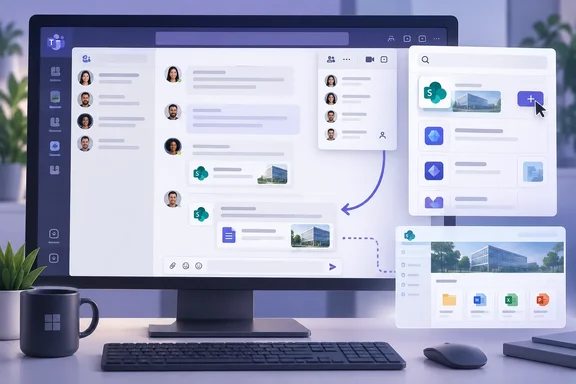
The roadmap description is the official statement of scope. In a chat or channel, users select Add agents and bots from the roster drop-down. That opens what Microsoft calls an "in-context store," where users can discover SharePoint agents and add them directly to the conversation and collaborate in the group.
Microsoft's original Message Center notice for this roadmap ID, preserved by the admin-news site M365 Admin (handsontek), adds a second discovery route: SharePoint agents are available in the Teams Store under the Agents category, making them easier to find and deploy across Teams experiences.
The roadmap text says nothing else about adaptive cards or link unfurling. Don't read the title as a promise that any agent link will produce a rich preview card. What Microsoft has actually documented is SharePoint-agent discovery and addition inside Teams conversations.
In short: you can find SharePoint agents from inside the conversation where you need them, rather than going back to the SharePoint site first.
A rollout that took most of 2026
This feature has slipped several times:
| Stage | What the record showed |
|---|---|
| Late 2025 | SharePoint Stuff's December 1, 2025 roadmap roundup listed the item IN DEVELOPMENT |
| Original Message Center plan | Targeted Release and General Availability were both scheduled to roll out and finish in January 2026 |
| Mid-January 2026 | SharePoint Stuff's January 19 roundup moved it to ROLLING OUT |
| January 29, 2026 | Microsoft added a note: Due to a blocker we have paused rollout until March for this feature. |
| Later 2026 | The Message Center archive at mc.merill.net shows the entry last updated June 12, 2026, still "In development," with a GA date of October CY2026 |
| Now | The submitted roadmap record lists the status as Launched, GA October 2026 |
The January "paused until March" note is still in the description, but it's out of date. March came and went, and the target moved to October.
Microsoft never said publicly what the blocker was. The roadmap page itself warns that it gives "estimated release dates" and that all information is subject to change. A Launched status also doesn't mean every tenant has the feature today. Teams rollouts usually arrive gradually, so some users may see the new entry point weeks before others.
In short: the feature was announced for January, paused, and is now marked as launching in October 2026. If you don't see it yet, give it a few weeks.
What admins need to know
The original Message Center notice said No admin action is required; the feature is enabled by default. It said affected users were All users of Microsoft Teams on Desktop and Mac. That notice is from the first rollout plan, so check your current Message Center post before assuming nothing has changed.
What to expect:
- Platforms: Desktop and Mac only. Microsoft hasn't confirmed mobile.
- Cloud: Worldwide multi-tenant only. GCC and other government clouds aren't listed.
- Help desk prep: users will see a new route to SharePoint agents in the roster menu. A short note to them now could save some "what's this?" tickets later.
How to add an agent today
Some of this already works through routes Microsoft documents in its support articles. Since the new store experience is still reaching tenants, it's not clear exactly which details below belong to roadmap item 515465 and which shipped earlier.
Route 1: The roster menu in a group chat
Microsoft's guide to adding Copilot agents to group chats describes this flow:
- At the top of the chat, select Add people, agents and bots.
- Under People, select Add agents and bots.
- Choose an agent. Teams shows what it does and which permissions it needs.
- Select Add.
Agents you've added before appear first, followed by new ones you can install. Get more apps in the lower-right corner shows more choices. Microsoft also says you don't need a Copilot license just to add Copilot agents to a group chat. That page doesn't cover licensing for SharePoint agents specifically.
Route 2: The Teams app store
Microsoft's support page on finding SharePoint agents in the app store says:
- Select Apps in the left navigation bar.
- Open the Agents category. SharePoint agents appear together, sorted by how recently you used them.
- Search if you need to. Search only covers your personalized list of recent agents, not every agent in the tenant. If an agent doesn't show up, that's probably why.
- Select an agent to see its name, icon, creator, SharePoint site location, grounding sources and Teams permissions.
- Select Add and pick a chat, channel or meeting. You can choose one destination at a time, but you can repeat the steps to add it elsewhere.
Agents you've already installed skip the details screen and go straight to the destination picker. The details are still available from the overflow menu. You can also share an agent from the store, which shows a message preview and asks where to post it.
Route 3: Share a link from SharePoint
This is probably what the "link unfurling" in the title refers to. Microsoft's guide to sharing SharePoint agents in Teams describes it:
- In SharePoint, on a site, page or document library, select the Agent icon in the upper-right corner and choose the custom agent.
- Select the ellipsis (…) and then Copy link for Teams.
- Optionally, select Settings in the Link copied dialog to change who can access the agent through the link.
- Paste the link into a group chat, meeting chat or channel. When Teams prompts you, add the agent.
- After the agent introduces itself and shows its starter prompts, @mention it to ask a question.
One common mistake: if nobody selects Add to this chat/channel, the link still appears for everyone, but nobody can interact with the agent.
To remove an agent, open the chat's ellipsis menu, choose Manage apps, then select the ellipsis next to the agent and choose Remove.
In short: there are three ways in (roster menu, app store, pasted link). The roadmap feature adds a SharePoint-focused store to the first one.
Permissions are the real story
Adding an agent to a chat is easy. The rules about what it will answer are where people get caught out, and Microsoft's sharing guide is clear about them:
- The agent uses the asker's permissions. Each person can only get answers from sources they already have access to.
- Sharing the agent doesn't share the content. Permissions on the sites, pages and files behind the agent don't change when you share it. You may need to update access on those sources separately.
- No guests or external users. Agents won't respond in a group chat or channel that includes external or guest users. In cross-company channels, this will look like a broken agent, but it's working as designed.
Teams also handles one awkward case carefully. If you can see an answer but some people in the chat can't, Teams doesn't post it automatically. You select View response, review it, and decide whether to share it. While you review, others see that a response is being reviewed. If you share it, the post shows who asked, reviewed and shared it. If you don't, the agent tells the group the answer wasn't shared.
My take: this is a sensible default, but it depends on one person making a quick call about sensitive material in the middle of a conversation. The review step makes oversharing less likely, not impossible. Organizations with weak SharePoint permissions should clean those up, because an agent will make every bad permission much easier to stumble into.
The bigger picture
This isn't a headline feature. It's a usability fix. SharePoint agents are only useful if people can find them, and until now that often meant knowing which site an agent lived on and copying its link. Putting discovery in the roster menu and the app store fits Microsoft's wider effort to make agents easy to reach wherever people work.
Two caveats. First, easier discovery likely means more agents in more chats, so admins should expect more questions about why an agent won't answer, and the cause will usually be permissions or guest users. Second, the roadmap title still talks about adaptive cards and link unfurling while the description talks about store discovery. Until Microsoft documents more, plan around the description.
Bottom line: Teams on desktop and Mac is getting an easier way to find and add SharePoint agents, ten months later than first planned. Users don't have to set anything up, but admins should check SharePoint permissions before agents start showing up in more conversations.
References
- Microsoft Teams: Adaptive card-based app & copilot agent link unfurling in Teams Microsoft 365 Roadmap · 2026-10-01T23:00:07.038613Z
- Share an agent from SharePoint in Teams | Microsoft Support support.microsoft.com
- Find and add Copilot agents to group chats in Microsoft Teams | Microsoft Support support.microsoft.com