

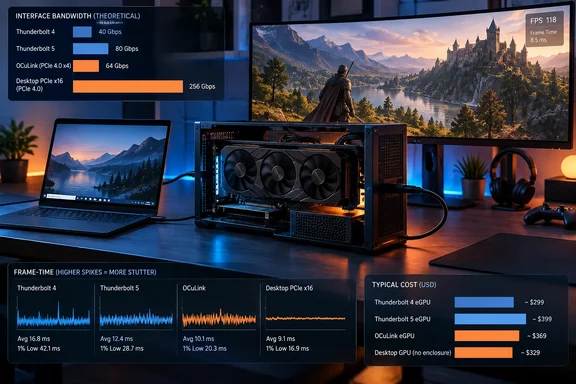
Intel specifies Thunderbolt 4 at 40 Gbps of bidirectional transport bandwidth, with a 32 Gbps minimum PCIe data requirement. That is vastly less PCIe throughput than a conventional PCIe 4.0 x16 desktop graphics slot can offer. The comparison is useful, but it should not be read as a simple frames-per-second formula: a graphics card keeps many textures, shaders, geometry buffers, and render targets in its own VRAM. Those assets are not constantly shuttling across the cable.
The bottleneck appears when a game repeatedly needs data across that external PCIe link, and it becomes more painful in workloads sensitive to latency and uneven frame delivery. An eGPU is therefore a practical upgrade path for particular PCs, not a portable equivalent of putting the same card in a desktop tower.
Thunderbolt’s constraint shows up in frame times, not only averages
Notebookcheck’s 2021 testing of Gigabyte’s RTX 2080 Ti Gaming Box measured a performance deficit of 7 to 32 percent against a desktop using the same GPU. Its tests also found that the deficit could fall to single digits at 4K when the GPU drove an external display directly.
That variation is the part prospective buyers should focus on. At higher resolutions and settings, the GPU spends more time rendering each frame, so the relative impact of the external connection can shrink. In CPU-limited esports games or lower-resolution gaming, where frames are generated quickly and the system needs to exchange data more frequently, the connection is more likely to hold the card back.
PC Gamer’s later comparison gives the limitation a more current illustration. It tested an RTX 4070 Ti and RTX 4090 across Thunderbolt, OCuLink, PCIe 4.0 x8, and PCIe 4.0 x16 arrangements. With the RTX 4070 Ti at 1440p, PC Gamer found Thunderbolt was around 25 percent behind OCuLink in many tests, and it reported lower one-percent lows and more visible stuttering.
Average FPS can make an eGPU look healthier than it feels. A system delivering 90 FPS with recurring long frames can feel less responsive than one delivering a lower but steadier average. For Windows gamers, that makes benchmark charts that include one-percent lows, frame-time plots, and the exact display configuration more useful than a single headline number.
PC Gamer’s setup also was not a laboratory-perfect interface comparison: its PCIe x8 and x16 baseline systems used different PCs from the Thunderbolt and OCuLink test machine. The publication disclosed that limitation. Still, its direct Thunderbolt-versus-OCuLink comparison used the same Minisforum AtomMan X7 Ti platform, which makes its conclusion about the relative behavior of those two external links more persuasive.
Use the ports on the eGPU, not the laptop screen
The simplest practical rule is to connect the external monitor directly to the graphics card installed in the enclosure.
When a game is rendered by an eGPU and shown on a laptop’s built-in display, completed frames must travel back through the external connection to the laptop. That return path adds bandwidth use and latency on top of the game’s normal PCIe traffic. Notebookcheck’s lower losses with an external monitor reflect that difference, and PC Gamer made the same recommendation for its OCuLink setup.
This is particularly important for a Windows handheld or compact laptop where the internal panel is the reason the machine was purchased. An eGPU can still operate that display, but it is the compromise configuration. Users expecting a desk-bound experience should budget for an external monitor and plug it into DisplayPort or HDMI on the card itself.
The rule applies even if the enclosure has other video ports. The monitor should be attached to the GPU’s outputs, not to a dock output that may be connected to the laptop’s integrated graphics. Windows can run a mixed-GPU desktop, but the point of an eGPU gaming setup is to minimize unnecessary trips between the discrete GPU and the host system.
A top-end GPU can be the worst value in a Thunderbolt enclosure
The most useful conclusion from PC Gamer’s testing is not that Thunderbolt eGPUs are useless. It is that a high-end GPU can become an unusually poor purchase when restricted by a four-lane external connection.
Its RTX 4090 results showed sharply reduced gains over the RTX 4070 Ti on both Thunderbolt and OCuLink. In Cyberpunk 2077, PC Gamer recorded a 45 percent uplift for the RTX 4090 over the RTX 4070 Ti in its PCIe x16 desktop baseline, versus 22 percent through OCuLink and 19 percent through Thunderbolt. It also reported severe stutter in certain Thunderbolt-plus-RTX-4090 tests.
That does not mean every RTX 4090 eGPU installation will produce the same loss. Host CPU performance, game engine behavior, memory, driver version, resolution, and the laptop’s USB4 or Thunderbolt implementation all affect results. It does mean that the buyer paying for an upper-tier card is less likely to receive the performance increase that card delivers in a properly configured desktop.
For a Thunderbolt 4 eGPU, a midrange GPU is usually the more rational match. The exact boundary will differ by game and pricing, but the decision process is straightforward: choose the card for the performance the external link can actually deliver, rather than the fastest card physically accepted by the enclosure. Spending the difference on a better monitor, larger SSD, or a desktop build may have a larger real-world payoff.
OCuLink can improve the position, but it is not a universal upgrade. PC Gamer’s results put it ahead of Thunderbolt in its tested configuration, in part because it exposes a more direct PCIe connection with less protocol overhead and latency. Yet OCuLink is not a standard USB-C laptop port. It must be present on the host PC, often on selected mini PCs and handhelds, and the dock, cable, power supply, and physical setup tend to be less tidy than a Thunderbolt enclosure.
Thunderbolt 5 raises the ceiling, but does not create x16 bandwidth
Thunderbolt 5 is a genuine step forward. Intel lists 80 Gbps bidirectional bandwidth and a 64 Gbps PCIe data requirement, doubling Thunderbolt 4’s minimum PCIe figure. It also has a Bandwidth Boost mode that can favor display traffic in supported scenarios.
But a Thunderbolt 5 logo does not mean an eGPU has the same path to the CPU as a desktop card in a PCIe 4.0 x16 slot. PCIe 4.0 runs at 16 GT/s per lane; a four-lane PCIe 4.0 connection provides roughly one quarter of an x16 link’s lane count. Protocol overhead and the design of the host, controller, enclosure, and cable reduce the neatness of any raw-bandwidth comparison further.
Razer’s Core X V2 illustrates both the improvement and the remaining compromise. Razer sells the Thunderbolt 5 enclosure for $349.99 and specifies a PCIe 4.0 x4 graphics connection. That is a meaningful advance over many earlier Thunderbolt 3 and Thunderbolt 4 designs, and Tom’s Hardware has reported that it supports current full-size AMD and Nvidia cards. Yet the x4 link is still the hard boundary between the installed GPU and the host.
There is another cost detail buyers should not overlook: the Core X V2 does not include a power supply. Razer’s product listing says the PSU is sold separately. A buyer pricing the enclosure at $350 still needs to add a suitable ATX or SFX power supply, the graphics card, and often an external monitor. The cheaper-looking enclosure can become a substantially more expensive project before Windows ever detects the GPU.
It is also backward-compatible with compatible Thunderbolt 4 and USB4 systems, according to Razer’s documentation, but compatibility is not extra bandwidth. Connecting a Thunderbolt 5 enclosure to a Thunderbolt 4 laptop leaves the host-side connection operating within the older platform’s limits.
The eGPU purchase test is about the host, not the enclosure
Before buying an enclosure, Windows users should establish whether their particular machine exposes a full-capability Thunderbolt 4, Thunderbolt 5, USB4, or OCuLink connection for external PCIe devices. A USB-C connector alone proves almost nothing. USB-C describes the physical connector; it does not guarantee Thunderbolt, USB4 PCIe tunneling, external-GPU support, or the same implementation quality across systems.
Check the laptop or mini PC manufacturer’s specifications, firmware notes, and support documentation—not merely the port icon. Confirm that the enclosure supports the GPU’s physical size, slot width, power connectors, and cooling requirements. Then price the complete installation, including the PSU where required.
The concrete payoff remains real: an eGPU can make a portable Windows PC far more capable at a desk while preserving its small form factor away from it. The cost of that flexibility is a lower and less consistent ceiling than the same GPU receives in a desktop. Thunderbolt 5 narrows the gap, but it does not eliminate the fundamental trade-off: external graphics are most convincing when matched with an external display and a GPU selected for the bandwidth available, rather than for the largest number printed on its box.
References
- eGPUs do work, but they come with some notable limitations Engadget · 2026-09-17T23:00:00+00:00