

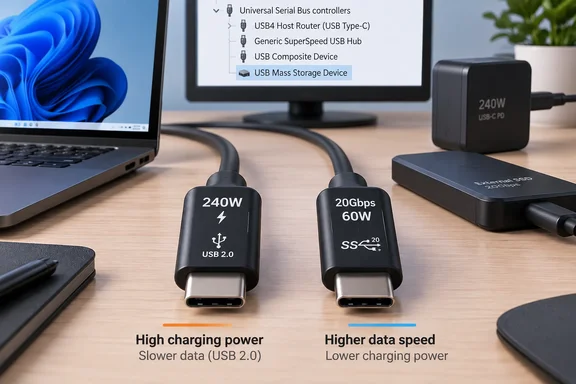
How-To Geek's Patrick Campanale makes this point in a new piece using his own cable drawer as the example. He writes that Apple's 240W USB-C cable charges at full power but moves data only at USB 2.0 speeds, and that the 87W cable included with his 2016 MacBook Pro had the same limit even though the laptop had four Thunderbolt 3 ports. His advice is sound. The USB-IF's own labeling rules add some detail that his piece gets slightly wrong, and his Windows tip needs correcting too. Both are covered below.
Watts measure power, not speed
A USB-C cable does at least two separate jobs:
- Power delivery: how much current and voltage it can safely carry. Power ratings for compliant USB-C to USB-C cables come in two tiers: 60W and 240W.
- Data signaling: how fast bits move through it. This can be USB 2.0's 480Mb/s or USB 3.2 and USB4 rates of 5, 10, 20, 40Gbps or more.
The two ratings are independent. Building a thick-conductor cable that handles high current is cheap. Adding the extra wire pairs and shielding needed for multi-gigabit data costs more. Accessory firm ChargeTechLab says its 240W pick supports USB 2.0 data (not USB 3.x) — typical for high-current charging cables, which prioritize power delivery over data, and warns that if you also need data transfer at USB 3.x speeds at 240W, you'll need a more specialized and significantly more expensive cable.
The 240W figure is also a limit, not a promise. Tom's Hardware's reporting on the logo program sums up the negotiation: to enable higher voltage, you need USB charger who can enable higher voltages, device who can report a capability to charge in higher voltage modes and a cable capable to deliver enough power. A 240W cable plugged into a 65W laptop charger still gives you 65W.
Campanale explains why so many cables stop at USB 2.0: much of what people plug in never needs more. He points to headphones, wired mice and some phones and tablets as USB 2.0 devices, and since most cables are only ever used for charging, manufacturers build for that.
Section summary: Wattage tells you about charging only. Unless a cable's data rate is stated, you don't know it.
What the USB-IF rules actually require
Campanale writes that the USB-IF requires certified cables to show both charging and data rates. The actual rule is a bit different, and the difference explains why so many cables show a big "240W" and nothing else.
According to the USB-IF's cable compliance page, all USB-C® to USB-C cables categories must be labelled with either a power capability of 60W or 240W by using the appropriate power icon and/or logo. The data-rate requirement has an exception: all cables except for High-Speed USB (USB 2.0) USB-C to USB-C cables, are required to be marked with the appropriate data rate they can support. The USB-IF's own example is that a USB 20Gbps USB-C – USB-C cable that supports 20V at 3A must be marked with the Combined Performance and Power 20Gbps/60W logo.
The USB-IF's Type-C cable logo guidelines say the same about USB 2.0 cables at either power tier: they deliver data at up to 480Mbps, but this data · performance capability is not required to be included on the cable.
So a fully certified, legitimate USB-C cable can show only a power mark and still be USB 2.0 for data. The practical rules are:
| What you see on the cable or box | What it most likely means |
|---|---|
| Power logo only (60W or 240W) | Probably USB 2.0 data (480Mb/s), or charge-only if uncertified |
| Combined logo, such as "20Gbps / 60W" | Certified for both that data rate and that power tier |
| "USB 3.2" or "USB 3" with no speed given | Unclear: could be 5, 10 or 20Gbps |
| Lightning-bolt Thunderbolt mark or USB4 logo | Built for high-bandwidth use, but check the exact rated speed |
| Nothing at all | Assume USB 2.0 at best, as Campanale advises |
A missing data logo doesn't mean a cable is fake or uncertified. It may just be an honest USB 2.0 cable. Some uncertified cables carry no data lines at all. Campanale admits he's been caught out by charge-only cables himself.
The USB-IF's logo licensing page also says certified logos may be used only on products that passed compliance testing and appear on its Integrators List. A real USB-IF mark is useful evidence. It still describes only what it says, so a 240W logo is a power claim and nothing more.
Section summary: Certified USB 2.0 cables can legally show only a wattage logo. Faster certified cables must also show their data rate.
Why "USB 3.2" alone doesn't tell you the speed
Campanale has a fair complaint about the naming. The USB-IF folded USB 3.0 and 3.1 into USB 3.2, which defines three rates:
- USB 3.2 Gen 1: 5Gbps (the old USB 3.0)
- USB 3.2 Gen 2: 10Gbps
- USB 3.2 Gen 2x2: 20Gbps
So USB 3.2 is not inherently faster than USB 3.0; the name alone doesn't pin down the speed. The USB-IF now pushes plain speed terms such as "USB 10Gbps." Test lab Granite River Labs notes that the USB4® and USB 3.2 specifications collectively identify four transfer rates – 40Gbps, 20Gbps, 10Gbps, and 5Gbps. USB 2.0 kept its version-number branding. Granite River Labs says one reason is that if branded as "USB 480Mbps," customers might incorrectly assume that a device with a higher number represents faster speed.
When you shop, look for a speed number such as 5, 10, 20 or 40Gbps. If a listing only says "USB 3.x," treat it as vague.
A fast cable can't fix a slow port
A connection runs at the speed of its slowest part. The USB-IF's USB 3.2 material says linked components operate at the lowest speed they all support. A 40Gbps cable between a 10Gbps laptop port and a 5Gbps enclosure runs at 5Gbps.
Before blaming a cable, check every part of the path:
- Host port. Is it USB 2.0, 5/10/20Gbps, USB4 or Thunderbolt? Check your PC maker's spec sheet. Ports on the same laptop often differ.
- Hub or dock. If one sits in between, its limits apply.
- Device. An external SSD enclosure rated for 10Gbps will never run at 40Gbps.
- Cable. Only once the others check out does the cable become the likely bottleneck.
Keep in mind that 480Mb/s, 10Gbps and similar figures are signaling rates. Real file copies are slower because of protocol overhead and drive performance.
Checking USB connections on Windows: what Microsoft documents
Campanale's check on a Mac is System Information, then USB under Hardware. He says that on Windows you can "do the same thing" in Device Manager under Universal Serial Bus controllers. Microsoft's documentation doesn't support that. Device Manager does show USB devices, but Microsoft describes it as showing device status and properties, not a clear negotiated-speed reading.
Here are the Device Manager steps as Microsoft documents them:
- Press Windows key + R, type
devmgmt.msc, and press Enter. - Select your computer at the top of the tree.
- Choose Action > Scan for hardware changes.
- Choose View > Show hidden devices to include inactive devices.
- Expand Universal Serial Bus controllers and select the device.
- Right-click it and choose Properties to see its status.
- Open the Details tab and use the Property list for items such as Status or Problem code.
This is useful for confirming that a device was detected and has no errors. If it doesn't appear, that suggests a charge-only cable or a bad connection. Don't expect a simple "10Gbps" label.
For a closer look, Microsoft documents USBView (usbview.exe), a utility that lists USB host controllers, hubs and attached devices. Its left pane shows a tree of connections, and its right pane shows the selected device's descriptors and current configuration. To get it:
- Download and install the Windows SDK.
- During setup, select Debugging Tools for Windows and clear the other options.
- Run
usbview.exefrom the debugger folder for your processor type. On x64 systems the default location isC:\Program Files (x86)\Windows Kits\10\Debuggers\x64.
If usbview.exe isn't there, Microsoft says to confirm the SDK installed to the right folder, or reinstall it with Debugging Tools selected. Microsoft also warns that because USBView is an older app, it might not show newer USB information. It helps with diagnosis, but it won't reliably show every modern USB4 or Thunderbolt detail.
An easy practical test, based on general experience rather than a Microsoft procedure: copy the same large file to the same drive with two different cables. If one cable gives a much lower speed on an otherwise identical setup, that cable is the likely culprit.
Section summary: On Windows, Device Manager confirms that a device is detected and working. USBView shows more of the USB tree. Neither should be treated as a simple cable speed tester.
A buying checklist that covers more than wattage
- Charging only? Match the power rating to your charger and device, and don't worry about data speed. Do check that it isn't charge-only if you might ever sync or transfer files.
- External SSD or storage? Look for an explicit 10Gbps, 20Gbps or higher rating, ideally with a combined USB-IF data and power logo.
- Dock, monitor or eGPU? Buy a cable rated for the specific standard, such as Thunderbolt or USB4, and confirm your PC's port supports it.
- Unmarked cable? Follow Campanale's rule and assume USB 2.0.
- Label your cables. A strip of tape saying "40Gbps dock" or "charge only" can save a lot of frustration later.
The bottom line
USB-C put one connector shape on almost everything, but the cables behind that shape still vary widely. Campanale's advice to assume USB 2.0 unless the cable says otherwise is the safest default. The USB-IF rules back it up: a certified cable showing only "240W" is very likely a USB 2.0 cable. For Windows users, the added lesson is that Device Manager confirms a device is working, not how fast it's connected. Check the specs, check each part of the connection, and use the cable's wattage only to judge charging.
References
- Don’t judge a USB-C cable by its wattage alone—here's what to look for instead How-To Geek · 2026-09-29T10:00:15+00:00
- What Is an E-Marker Chip in USB-C Cables? | ChargeTechLab chargetechlab.com
- Universal Serial Bus Viewer in Windows - Windows drivers | Microsoft Learn learn.microsoft.com