

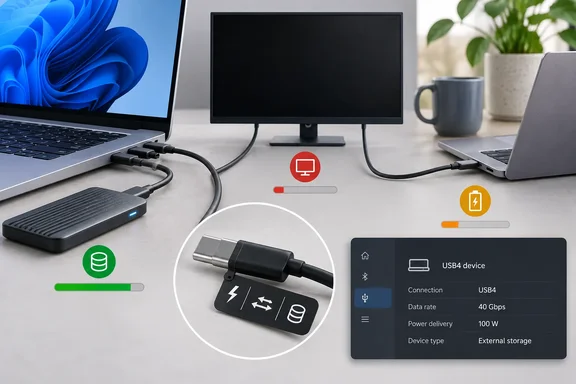
USB-C defines the physical plug and socket. It says nothing about what the cable, the port, or the hardware behind the port can actually do. MakeUseOf made this argument recently, and it holds up against the USB Implementers Forum's own documents. The real trouble is labeling, and the fix has more to do with reading specs carefully than with swearing at cables.
The connector did what it was built to do
USB-C arrived in 2014 to replace a drawer full of plugs: micro-USB, mini-USB, Lightning, laptop barrel chargers, odd camera connectors, and USB-A, which somehow never goes in the right way first time. The USB-IF describes Type-C as a slim, reversible connector that "supports scalable power and performance". That word "scalable" matters more than anything else in the definition.
Adoption followed. Apple dropped Lightning on the iPhone in 2023. The European Commission's common-charger rules have required USB-C charging since December 28, 2024 on covered products sold in the EU, including:
- Phones, tablets and e-readers
- Digital cameras and handheld game consoles
- Headphones, headsets, earbuds and portable speakers
- Keyboards, mice and portable navigation devices
Laptops were added on April 28, 2026. The rule makes the charging connector the same across these products. It does not make every USB-C port equally capable, and nothing in the regulation claims it does.
The short version: the plug is standardized. What travels through it is not.
"USB-C" tells you the shape, nothing more
A USB-C label tells you the plug fits. Behind that port you might find any of these:
| What's behind the port | Typical top data rate |
|---|---|
| USB 2.0 (Hi-Speed) | 480Mbps |
| USB 3.x | 5, 10 or 20Gbps |
| USB4 | 20 or 40Gbps |
| USB4 Version 2.0 | 80Gbps |
| Thunderbolt 4 / 5 | 40Gbps / higher |
Video output is optional. Charging can be anything from a trickle up to 240W under USB Power Delivery 3.1. The USB-IF says PD was limited to 100W before revision 3.1, which added 28V, 36V and 48V fixed voltages for 140W, 180W and 240W.
The variation is deliberate. Cheap earbuds and a high-end workstation can use the same plug, and each product only pays for the features it needs. Putting 40Gbps silicon in earbuds would raise the price and do nothing for your music.
Every cable has two ratings: power and data
Most of the confusion comes from cables. Every USB-C cable has two separate ratings:
- Power: how many watts it can safely carry. Certified cables are marked 60W or 240W.
- Data: how fast it moves bits, from 480Mbps up to 80Gbps.
The two don't track each other. A thick 240W charging cable can be a USB 2.0 cable that copies files like a flash drive from 2000. A short, high-bandwidth cable can be limited to 60W. Length matters too: the highest data rates often don't survive long passive cables.
So when your monitor stays dark, your SSD crawls, or your laptop charges slowly, nothing may be broken. You may just have picked up a cable made for a different job.
Certification helps, with limits
The USB-IF simplified its naming in 2022, dropping names like "USB 3.2 Gen 2x2" for plain speeds such as "USB 20Gbps". Its current cable certification rules are more specific than many buyers realize:
- Every USB-C to USB-C cable going through the USB-IF compliance program must carry a 60W or 240W power marking, and the markings are checked before testing starts.
- Every cable except USB 2.0 (Hi-Speed) cables must also show its supported data rate. The USB-IF's example is a 20Gbps cable rated for 20V at 3A, which gets the combined "20Gbps/60W" logo.
- USB 2.0 cables must carry the power icon, but a data marking is optional.
- A cable that fails testing may not carry the logos.
The limits are just as important. Certification is voluntary, so these rules only bind cables that go through the program. Plenty of uncertified cables are sold online without any of these markings. In the USB-IF's own words, "All cables do not have the same capabilities", and choosing the right one is left to the buyer. A certified cable also can't add features your laptop doesn't have.
A useful rule of thumb follows from this. A cable that shows only a wattage is most likely a charging cable, because data-rate markings are required on every certified category except USB 2.0.
Look-alike ports on the same computer
Device makers add to the confusion. Apple's 2024 Mac mini with M4 is a good example. Its two front USB-C ports run USB 3 at up to 10Gbps and don't drive displays. Its three rear ports are Thunderbolt 4 with USB4 at up to 40Gbps and DisplayPort support. Nothing printed on the case tells them apart; you learn the difference from the spec sheet. The configuration matters too: on the M4 Pro model, the rear ports are Thunderbolt 5 and the front ports stay at 10Gbps.
Windows laptops and budget phones are often worse. A spec sheet may just say "USB-C" without mentioning video, and a cheap hub may advertise 4K while running at a choppy 30Hz. A USB-C socket in a wall outlet may not support USB Power Delivery at all, so a laptop charges noticeably slower from it than from its own charger.
Takeaway: if a spec sheet says only "USB-C", treat it as incomplete. Don't assume any particular speed or video support.
How Windows 11 helps you diagnose it
Windows gives more help here than most people realize, provided your hardware supports it.
Connection notifications. Under Settings > Bluetooth & devices > USB you'll find connection notifications that alert you when the system detects a connection problem, such as limited functionality, recognition issues, etc. Microsoft's slow-charging warnings appear when the charger is not compatible or powerful enough for your PC, when the cable cannot deliver enough power, when the charger is connected to the wrong port. Microsoft's documentation also describes a "Use different USB port" message for when a USB4, Thunderbolt, or DisplayPort device is plugged into a port that can't run it but another port on the machine can. Whether you see these messages depends on how your PC maker implemented USB-C, so no warning doesn't mean nothing is wrong.
The USB4 Hubs and Devices page. Microsoft says that starting in Windows 11 build 22621.1778 (KB5026446), the Windows Settings app lists attached USB4 hubs and devices and their capabilities. To check yours:
- Open Settings.
- Go to Bluetooth & devices > USB > USB4 Hubs and Devices.
- Look through the tree of connected hubs and devices and their listed capabilities.
- Use the copy option if you need to send the details to support. Microsoft says you can copy the details into the clipboard to share it with customer support or system administrators for troubleshooting.
If the page is missing: If a system is not USB4-capable, the USB4 Hubs and Devices page will not appear. To confirm, check for "USB4 Host Router" populating in the Device Manager. There's also a limitation worth knowing. Microsoft says the page is designed to only show USB4 and Thunderbolt 3 devices/hubs attached to your system. If a dock you expected to see is missing, it may not be running in USB4 mode. That usually points to the cable or the port.
This page is not a full map of every port on your PC. You still need your manufacturer's spec sheet to know which ports do what.
A practical plan for your cable drawer
Troubleshooting a failed USB-C connection, or buying something new? Check these in order:
- The port. Look up your PC's spec sheet for each port's data rate, display support and charging support.
- The cable. Look for both a data rate and a wattage, such as 40Gbps/240W. If it shows only a wattage, assume it's for charging.
- The charger or accessory. A 240W cable can't make a 30W charger deliver more than 30W.
- What Windows says. Read any USB notification, and check the USB4 page on capable systems.
- Label your good cables. Colored tape on your one fast cable for drives and displays will save you trouble later.
A caveat, so this doesn't swing too far the other way: cables and ports do fail, and some cheap accessories are simply out of spec. "Check the labels first" is a starting point, not a guarantee.
Where the blame belongs
USB-C did what it promised. One reversible connector now covers everything from earbuds to 80Gbps docks, and that flexibility is why it could replace so many other plugs. What's still missing is clear labeling of what each cable and port can do. The USB-IF's certification rules cover certified cables, but uncertified cables and vague "USB-C" spec sheets still leave buyers guessing. That's on the device and cable makers.
Next time a USB-C connection lets you down, check both ratings on the cable and look up what your port supports before blaming the connector.
References
- Everyone is mad at USB-C for the wrong reason MakeUseOf · 2026-09-26T17:00:14+00:00
- Discover USB Settings and Notifications in Windows 11 | Microsoft Community Hub techcommunity.microsoft.com
- USB Type-C® Cable and Connector Specification | USB-IF usb.org