

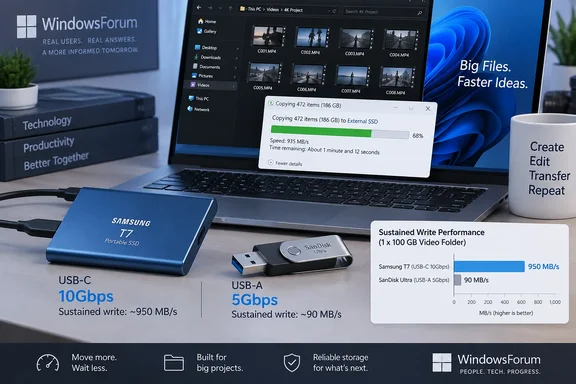
The practical dividing line is sharper than the packaging suggests. Tom’s Hardware measured Samsung’s compact Fit Plus at 319.7 MB/s reading a 10GB mixed-file set, but only 58.4 MB/s when writing it. In the same comparison, the publication said that write result was below 15 percent of the Kingston DataTraveler Max 1TB’s write performance. A drive that writes around 58 MB/s needs roughly three minutes to accept 10GB of data before filesystem and source-drive overhead; a genuinely fast model can cut that wait to seconds rather than minutes.
For Windows users, the relevant question is therefore not “Is this USB 3?” It is: Will this drive repeatedly ingest the files I actually move, at a speed my PC can supply? A cheap low-profile stick remains a sensible purchase for recovery tools, documents, BitLocker recovery keys, firmware files, and infrequent file transfers. Paying more is rational when the drive is part of a recurring workflow rather than an emergency accessory.
“USB 3.2” Still Does Not Tell Buyers Enough
USB’s naming history is a consumer-hostile mess, and the old terms have not disappeared from retailer listings. USB 3.0 began as a 5Gbps interface, but the USB Implementers Forum later folded earlier USB 3.x specifications into USB 3.2. The result is that USB 3.2 can describe products operating at 5Gbps, 10Gbps, or 20Gbps.
USB-IF itself now identifies the performance tiers by transfer rate. A buyer seeing “USB 3.2” with no accompanying 5Gbps, 10Gbps, or 20Gbps claim has learned almost nothing about the connection’s ceiling. The manufacturer may be using technically permissible language, but it has left the useful comparison work to the customer.
The arithmetic exposes the limitation. A 5Gbps port has a theoretical raw rate of 625 MB/s; a 10Gbps port has a 1,250 MB/s raw ceiling. Actual file copies fall below those figures because of encoding, protocol overhead, the host controller, the source or destination drive, and the flash drive’s own controller. A product claiming up to 900 MB/s writes is built for a 10Gbps-class connection; plugged into a 5Gbps port, it cannot reach that headline number regardless of the quality of the drive.
That does not mean a fast drive becomes a bad buy on an older PC. Tom’s Hardware found large differences in real-world write performance between inexpensive compact drives and higher-end 1TB-class models, and a strong drive can still outperform a cheap alternative after the host port caps its peak throughput. But buyers should not pay for a 10Gbps drive expecting 900 MB/s from a legacy 5Gbps USB-A port, a slow hub, or a front-panel connector routed through a lower-speed internal header.
USB-C Solves Orientation, Not Performance
USB-C is a connector, not a speed grade. A USB-C flash drive can communicate at USB 2.0’s 480Mbps rate, USB 3.2’s 5Gbps or 10Gbps modes, or newer USB4 rates depending on the device, cable, and host. USB-IF’s own Type-C guidance explicitly notes that a USB 3.2 or USB4 host paired with a USB 2.0 Type-C product or cable operates at USB 2.0 speed.
This distinction catches Windows laptop owners particularly often. A new ultraportable may have only USB-C ports, while an inexpensive dual-connector thumb drive may prioritize compatibility over transfer speed. The second connector is still valuable: it can eliminate an adapter when moving files between an older desktop with USB-A and a newer laptop, tablet, or phone. It should not be mistaken for evidence that the storage inside is fast.
For a Windows PC, check the documentation for the exact port specification, especially on desktops with a mix of rear motherboard ports, case front-panel ports, docks, and monitor hubs. Device Manager can identify USB controllers, but a motherboard manual or OEM specification sheet is generally the cleaner way to establish whether a particular port is 5Gbps, 10Gbps, 20Gbps, or USB4. Testing the drive directly on the machine is more revealing than assuming every blue USB-A port or USB-C socket performs alike.
Write Speed Is the Specification That Gets Left Out
Retail listings routinely foreground read speed because it produces an impressive number and makes a drive look responsive when opening files. That is useful for a portable media library or for carrying installers, but it is the less important metric for anyone copying to the flash drive.
A Windows 11 ISO, a local File History archive, exported Outlook data, Hyper-V virtual machine files, RAW photos, or 4K video must be written before the drive can be carried elsewhere. If the drive’s write throughput falls to 50–100 MB/s, the cost of that slowdown accumulates every time a backup or handoff is made. Buyers who regularly move 100GB or more should treat the absence of a published write specification as a warning, not an invitation to infer performance from the read rating.
Kingston’s DataTraveler Max illustrates what an actual two-sided speed claim looks like. Kingston rates the USB 3.2 Gen 2 drive at up to 1,000 MB/s reads and 900 MB/s writes, while also qualifying that results vary with host hardware, software, and usage. Tom’s Hardware independently found the DataTraveler Max among its stronger performers and used it as the comparison point for the Fit Plus’s much lower write result.
Those figures still are not a promise of uninterrupted 900 MB/s writes. Flash media commonly uses a faster temporary cache, then slows once that cache fills or as the controller performs garbage collection and error-management work. A short synthetic benchmark can show the drive’s best case; a long copy of mixed files shows closer to the experience of transferring a real working folder.
The important omission is that many flash-drive makers do not publish cache behavior, sustained-write results, controller details, or even a meaningful write-speed rating. Capacity can also change the hardware equation: manufacturers may use different NAND configurations across 128GB, 256GB, 512GB, and 1TB versions bearing the same product name. A review of the exact capacity is more useful than a review of the family name alone.
Benchmarks Matter More Than the Package
Tom’s Hardware’s test method is more useful than a peak-speed badge because it copies a 10GB dataset containing 1,204 files, including images, video, and ISO files. That resembles a Windows user’s actual task much more closely than reading one large sequential test file under ideal conditions.
When comparing reviews, look for separate results for:
- A real-world mixed-file copy test that reports both reading and writing.
- Long-duration writes or a discussion of whether speed collapses after a brief burst.
- The exact capacity tested, since the 1TB version may not behave like the 128GB version.
- The interface and host port used for testing, so a 10Gbps result is not confused with performance on a 5Gbps PC.
- Physical clearance, since several high-speed “stick SSD” designs are wide enough to obstruct neighboring laptop ports.
The last point is easy to dismiss until it affects a two-port notebook. Tom’s Hardware notes that newer flash-drive-shaped products from vendors including SK hynix and Adata blur the line between thumb drives and external SSDs. Their internal SSD-like components can produce higher performance, especially over longer workloads, but their larger housings can block adjacent ports. Small conventional drives trade some performance for portability; the better choice depends on whether the device lives on a keyring or moves hundreds of gigabytes every week.
When a Portable SSD Is the Better Upgrade
There is a point at which spending more on a premium flash drive stops making sense. If the task involves frequent large backups, editing media directly from portable storage, running applications, carrying virtual machines, or writing hundreds of gigabytes in one session, an external SSD is usually the more appropriate category.
Tom’s Hardware’s current flash-drive testing reaches the same conclusion: external SSDs generally handle longer workloads and small-file writes better because they have larger components, better controllers, and more surface area than a thumb-sized drive. The tradeoff is bulk, a cable in many cases, and less pocketability. For a sysadmin carrying boot tools and occasional customer exports, a fast flash drive has a compelling role. For a technician cloning drives or a creator offloading footage, the premium should often go toward an SSD instead.
The buying rule is simple: pay for a premium flash drive when independent testing confirms high write performance and the drive will save time often enough to matter. Otherwise, buy the smaller, cheaper model for portability and compatibility, and reserve the larger storage budget for an external SSD when sustained work—not convenience—is the job.