

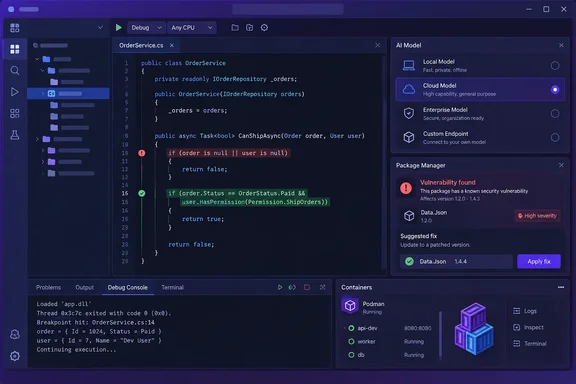
There's also a breaking change. If you already set up BYOM, read the migration notes below before you update.
Which build is this?
The blog post points readers to the Visual Studio 2026 Stable Channel but doesn't give a version number. Other sources place it in the 18.10 release. Microsoft's C++ Team Blog recently published a recap covering everything that changed from version 18.7 through 18.10 (released this month). Wikipedia's Visual Studio entry lists the current stable release as 2026 18.10.0 / September 8, 2026. The same entry lists supported platforms as Windows 10 and Windows 11; Windows Server 2019 and later.
Servicing builds have followed. The third-party lifecycle tracker eosl.date reports that Microsoft Visual Studio 18.10.2 is the latest supported version (September 2026), and that the previous release, 18.9 reached EOL on 2026-09-08. That tracker isn't Microsoft, so check the installer yourself. Either way, if you're still on 18.9, updating now makes sense.
Summary: This is the 18.10 feature wave for Visual Studio 2026. The blog post arrived weeks after the bits did, which is common for Microsoft's monthly roundups.
Bring Your Own Model: the headline feature
BYOM lets developers use models their teams prefer, either through GitHub Copilot or through their own model deployments. According to Microsoft, this works whether or not you're signed in to GitHub. That matters for organizations whose approved AI setup is an internal Foundry deployment rather than a personal Copilot seat.
The key facts from Microsoft's blog:
- Status: Preview, enabled by default in the Community, Professional and Enterprise editions.
- Providers: Microsoft Foundry, OpenAI, Anthropic and Ollama.
- Custom endpoints: Supported for OpenAI and Ollama only.
- Where it runs: Agent Mode, through the new Agent (Preview).
- Capability gaps: Not every model supports every Agent Mode capability. Microsoft says Visual Studio shows clearly when a feature isn't supported, rather than failing silently.
The C++ Team Blog describes it the same way, noting that model capabilities vary, and not every model supports every Agent Mode tool. The practical upshot: a small local Ollama model and a frontier model on Foundry won't behave alike in agentic workflows. That's no surprise, but it's worth saying before someone files a bug because their 7-billion-parameter model couldn't run a multi-step refactor.
Getting started
- Open Chat in Visual Studio.
- Open the model picker and choose Add a model or Manage Models.
- Connect to your provider (Foundry, OpenAI, Anthropic or Ollama, including a custom OpenAI or Ollama endpoint if you have one).
- Start working in Agent Mode with the new Agent (Preview).
What success looks like: your model appears in the picker and responds in Agent (Preview). If an agent capability isn't available for that model, Visual Studio should say so rather than doing nothing.
The breaking change
- The old BYOM paths are gone. BYOM now works only with the new Agent (Preview), which Microsoft says is built on a GitHub Copilot SDK-powered harness. BYOM in the older Ask and Agent modes is no longer supported.
- Ollama models must be re-added. Microsoft says Ollama models you added earlier need to be added again because of backend changes for that provider.
A note on naming: the blog calls the feature BYOM, but Microsoft's release notes use a different name. They say BYOK now works with the new Agent (Preview), which is built on the GitHub Copilot SDK-powered harness. The C++ Team Blog confirms both names refer to one feature: The release notes also refer to this capability as Bring Your Own Key (BYOK). If you're searching documentation or feedback tickets, try both terms.
The release notes also show the feature came through Insiders first. They note that Previously added Ollama models within 18.10 Insiders 1 will need to be re-added in 18.10 Insiders 2 due to a few backend updates for that provider. So Insiders users who hit this once may hit it again, and Stable users arriving from older BYOM setups will hit it for the first time.
Summary: BYOM means you're no longer tied to one vendor's model list. It's still a preview, the old modes are retired, and Ollama users need to re-add their models.
Copilot-assisted fixes for vulnerable NuGet packages
This is the most practical AI feature in the update for enterprise .NET shops. When a restore raises an NU1901, NU1902, NU1903 or NU1904 warning, a sparkle action now appears in the Error List's Fixer column. Selecting it opens GitHub Copilot Chat in agent mode and asks Copilot to fix the vulnerable packages using the NuGet MCP server.
For context, these are NuGet Audit's known-vulnerability warnings, split by advisory severity: NU1901 is low, NU1902 moderate, NU1903 high and NU1904 critical. A critical warning deserves your attention before lunch. A low one can wait until the next sprint.
Steps
- Restore a solution that contains a package with a known vulnerability.
- Open View > Error List and find the NuGet Audit warning.
- Select the sparkle action in the Fixer column.
- Review and apply the changes Copilot proposes.
Prerequisites and common failure points
- You must be signed in to GitHub Copilot. This feature is tied to your Copilot sign-in in a way BYOM isn't.
- The NuGet MCP server must be enabled. Microsoft says it's built into Visual Studio and can be turned on from the Copilot Chat tools menu. If the sparkle action does nothing useful, check this first.
- "Review and apply" is the key step. This is assisted remediation, not automatic patching. A version bump that clears an advisory can still break your build or behaviour, especially with major-version jumps. If the vulnerable package is a transitive dependency, find out which top-level package pulled it in before accepting a proposed change. The
dotnet nuget whycommand helps with that.
Summary: Going from a warning to a proposed fix now takes one click. Checking that the fix is correct is still your job.
Exploring pull requests with the Git agent
The Git agent can now do the groundwork of pull-request review for you: reading the discussion, the changed files, and what actually matters. Microsoft's release notes describe the same feature: Open Copilot Chat, select the Git agent, and ask it about your pull request, attaching the PR as context from the Git Repository window.
How it works:
- Open GitHub Copilot Chat and select the Git agent.
- From the Git Repository window, attach the pull request as context.
- Ask your question. The response includes navigable links that open the relevant comments and files in the IDE's pull-request view.
- Ask follow-up questions to dig deeper.
For richer context, connect your Git provider's MCP servers. Microsoft names GitHub and Azure DevOps as supported. The blog also says the agent runs on whichever model you've connected, so a BYOM setup carries over here.
The limits are worth keeping in mind. This feature helps you explore and navigate a pull request. It doesn't approve, merge or certify one. An AI summary of a 40-file change is a good map, but a map isn't a code review.
Summary: Less scrolling, faster orientation and clickable links to what matters. You still make the review decision.
The debugger shows which operand decided your if
This update adds branch highlighting for C#. While debugging, pause on an if statement that uses && or ||. Alongside the existing inline → true or → false hint, Visual Studio now uses red and green highlighting to show which operand decided the result:
&&evaluating to false: highlights the operand that failed or caused evaluation to short-circuit.||evaluating to true: highlights the operand that satisfied the condition.
Take if (user != null && user.IsActive && quota.Remaining > 0). When that's false, you can see immediately whether the problem is the null check, the inactive account or the exhausted quota, without adding watches for each piece or working it out in your head.
Configuration:
- Right-click a highlighted expression to turn branch highlighting off from the editor context menu.
- Change the colours under Tools > Options > Environment > Fonts and Colors if the defaults clash with your theme.
Microsoft describes this only for C# if statements using && and ||. Don't expect it in other languages or constructs unless Microsoft says so.
Summary: A small feature that saves real time on compound conditions, and one that doesn't depend on AI.
Attach to Process now supports Podman
Container discovery in Visual Studio now recognizes Podman as well as Docker. That's welcome news for teams that moved to Podman for its daemonless design or for licensing reasons.
- Start your container.
- Go to Debug > Attach to Process.
- Set Connection type to Podman.
- Select Find. Your Podman containers should appear, with the same attach experience as Docker.
Microsoft says both .NET and C++ containers can be debugged with no extra configuration. The blog doesn't list host-OS, remote-machine or Podman-version requirements. If Find comes back empty, first check that the container is actually running and that Podman works from your Windows environment.
Summary: Podman is now a first-class option for container attach, alongside Docker.
Analysis: the bigger picture
Put the five features together and Microsoft's direction is clear. Copilot remains the base layer, but the model underneath is becoming interchangeable. That's a pragmatic answer to enterprise concerns about data residency, cost and vendor lock-in. It also means you no longer have to pick a side in the model debate just to use your IDE.
There are open questions, though. If NuGet fixes require a Copilot sign-in while BYOM doesn't, which features work in a fully self-hosted, GitHub-free setup? Microsoft hasn't mapped that out feature by feature. The "not every model supports every capability" caveat also means your experience will vary with the model you choose. Admins standardizing on one deployment should test it against the agent workflows their developers actually use before rolling it out.
The quietest items may prove the most useful day to day. Operand highlighting and Podman attach need no model, no sign-in and no MCP configuration. They just work.
If you use BYOM, re-add your Ollama models and move to Agent (Preview). If you maintain .NET dependencies, enable the NuGet MCP server and start with your NU1904 warnings.
References
- Visual Studio September Update – Power Your Workflow with Your Model Visual Studio Blog · 2026-09-29T16:00:04+00:00
- Microsoft Visual Studio End of Life (EOL) Dates and End of Support (EOS) Dates | 18.10.2 - September 2026 Release eosl.date
- What’s New for C++ Developers in Visual Studio 2026 (18.7 – 18.10) - C++ Team Blog devblogs.microsoft.com