

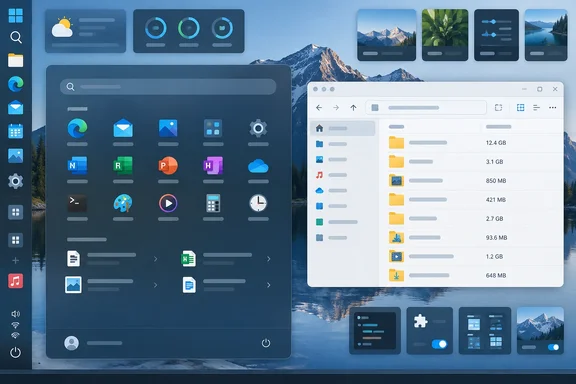
Here are the mods in the roundup, how to set them up, and what can go wrong.
What Windhawk actually is
Windhawk, from Ramen Software, calls itself a platform that makes Windows programs easier to customize. Each mod is a small piece of code that the Windhawk engine injects into a target process, such as explorer.exe, and hooks into. Windhawk's GitHub repository documents this approach, and the source code is public. Mods are shared as readable source, which helps with transparency. That doesn't make every mod safe, and most people won't read the code before installing anyway.
Windhawk's mod catalog lists more than a handful of tweaks, and some of them are widely installed. The listing shows Better file sizes in Explorer details at 214,754 users, and the Taskbar height and icon size mod has more than 300,000.
Section summary: Windhawk is a third-party engine that injects community-written code into Windows processes. It isn't a set of Microsoft-supported settings.
The five mods MakeUseOf highlights
1. Windows 11 Start Menu Styler
The MakeUseOf author says the Recommended section wastes space and that the Start menu can't match a desktop theme. Start Menu Styler can:
- Remove the Recommended section
- Restore a Windows 10-style menu layout
- Apply community themes, including FluentInspired and RosePine
- Cut the menu down to just a search bar
How to install it, following the MakeUseOf walkthrough:
- Install Windhawk, preferably from the official Windhawk site.
- Open Windhawk and go to its mod catalog. MakeUseOf describes this as an "Explore" area in the top-right corner, but menu labels may change between versions.
- Search for Windows 11 Start Menu Styler and click Details.
- Click Install, then open the mod's settings to choose a theme.
Troubleshooting: The author found that some themes don't work with Microsoft's newer Start menu layout. Turning off the new Start menu layout in the mod's settings fixed it in their case. Treat that as one person's fix, not a guaranteed one. The settings also let advanced users add their own styling code.
2. Taskbar height and icon size
This is the easiest mod to justify. According to the mod's own catalog page, by default, the Windows 11 taskbar shows taskbar icons with the 24x24 size. Since icons in Windows are either 16x16 or 32x32, the 24x24 icons are downscaled versions of the 32x32 variants, which makes them blurry. The mod page gives the stock values as taskbar height: 48, icon size: 24x24 (Windows 11 default). It also says only Windows 11 is supported, and people on older versions are pointed to 7+ Taskbar Tweaker.
In an earlier MakeUseOf piece, the mod is described as having three settings: icon size, taskbar height, and taskbar button width. Setting icons to 32 should give you sharp, unscaled icons, especially on high-resolution monitors.
For more visual changes, MakeUseOf suggests adding Windows 11 Taskbar Styler for transparency, blur, hover animations and spacing.
Caveat: Windows updates can break this mod. In June 2025, a user filed a GitHub issue saying update KB5060829 left tiny icons with huge horizontal spacing. That update added a built-in option that shrinks taskbar icons when the taskbar fills up. Microsoft's own instructions for it: right-click an empty area on the taskbar, select Taskbar settings, expand the Taskbar behaviors section, and choose your preference under Show smaller taskbar buttons. If the mod starts acting strangely after an update, check that setting first.
3. Better file sizes in Explorer details
File Explorer's Details view shows sizes for files but not folders, so finding what's eating your disk means opening Properties on one folder after another. Windhawk's catalog says this mod enhances file size display in Explorer details with folder sizes, human-readable units (MB/GB), and optional IEC notation (KiB/MiB).
Setup notes from MakeUseOf's testing:
- Folder sizes are off by default. After installing, open the mod's settings and pick one of three modes.
- The author recommends the mode where sizes are calculated only while holding Shift, to avoid slow folder loading. To see sizes, hold Shift and refresh the folder.
- The mod can also pull sizes from the Everything search tool. The author says that option showed wrong sizes on their machine, so test it before you rely on it.
Why the manual mode? Adding up a large folder tree every time you open a directory costs disk activity. The Shift-to-calculate option means you only pay that cost when you ask for it. That's our reasoning, not something the mod's documentation measures.
4. Vertical Taskbar for Windows 11
Windows 11 took away the option to dock the taskbar on the left or right. As a separate MakeUseOf review put it, unlike Windows 10 and earlier, you can't just drag the taskbar to the left or right side of the screen. This mod brings that back. You can:
- Put the taskbar on the left or right
- Choose different positions for primary and secondary monitors
- Adjust the taskbar's width
The MakeUseOf author uses theirs on the left at 58 pixels wide on an ultrawide monitor. That's their preference, not a default. On a 21:9 display, turning the taskbar vertical gives back vertical space for documents and web pages, where it matters most.
Known conflict: Combining this mod with Taskbar height and icon size has caused problems. A GitHub report from August 2025 said that when co-existing with the vertical taskbar mod, the taskbar-icon-size mod causes the taskbar on non-primary screens to disappear. The issue may be fixed in later versions, but if you use multiple monitors, add these two mods one at a time.
Microsoft may make this mod less necessary. XDA Developers reported that Microsoft may have just announced that the ability to move the taskbar is returning to Windows 11 in the near future. Until a native option ships to your channel, Windhawk is the workaround.
5. Taskbar Labels for Windows 11
Windows 11 gives you two taskbar button styles: combined without labels, or ungrouped with labels. This mod adds combinations Windows doesn't offer, such as:
- Ungrouped buttons without labels
- Labels shown while buttons stay combined
- Custom running indicators, progress indicator styles and label font size
- Per-app behavior in the advanced settings
Section summary: Together, the five mods cover the Start menu, taskbar size, taskbar position, button grouping and folder sizes in Explorer. Each has its own settings and possible side effects.
The smaller mods
The MakeUseOf author also uses mods that:
- Switch browser tabs with the mouse wheel
- Change volume by scrolling over the taskbar
- Close apps by middle-clicking their taskbar buttons
- Scroll inactive windows and resize windows by dragging their edges
Windhawk's catalog confirms the volume mod. It lets you control the system volume by scrolling over the taskbar or anywhere with modifier keys.
The catch: updates, debug symbols and antivirus
Many Windhawk mods rely on Microsoft's debug symbols to find the internal functions they hook. The Windhawk developer explained this in a 2022 reply to a user whose mod wasn't working: the mod depends on debug symbols to be available, and unfortunately, Microsoft doesn't always release symbols to insider Windows versions. Insider builds are the most likely to break mods. Regular cumulative updates can too, as KB5060829 showed.
Windhawk's troubleshooting guidance lists common reasons a mod fails:
- An unsupported Windows version
- An outdated copy of Windhawk
- Debug symbols that are unavailable or can't be downloaded
- Bugs in the mod or in Windhawk
- Conflicts between antivirus software and code injection. Windhawk has a process-exclusion setting for this, and known incompatible programs are excluded by default.
If a mod breaks, work through these steps:
- Update Windhawk and the affected mod.
- Check the mod's page and its GitHub issues for reports tied to your Windows build.
- Turn off recently installed mods one at a time to find conflicts.
- Look for new built-in Windows settings, such as the taskbar button-size option, that might override the mod.
- If your security software blocks injection, review Windhawk's exclusion settings rather than turning off your antivirus.
Should you install it?
For home users and enthusiasts, Windhawk is a sensible, reversible way to get back options Microsoft removed. Mods can be turned off individually, and the code is public. For managed business PCs, it's a harder sell. A tool that injects code into Explorer is the kind of thing security teams want to review first, and every Patch Tuesday could break something.
Some context on the "fixes everything" framing: MakeUseOf's author suggests Microsoft cut these features because too few people used them. Microsoft's reported moves to bring back some customization, including taskbar positioning, suggest the demand was real. XDA notes that you also have other options like ExplorerPatcher, which are a bit more focused for anyone who mainly wants the Windows 10 look back.
Bottom line: Windhawk won't make Windows 11 faster or more secure. It does bring back sharp taskbar icons, a vertical taskbar, folder sizes in Explorer and flexible taskbar grouping. Install mods one at a time, keep them updated, and expect to troubleshoot after big Windows updates.
References
- I installed a Windows mod tool and it fixes almost everything wrong with Windows 11 - MakeUseOf MakeUseOf · 2026-09-26T17:15:15+00:00
- (Taskbar height and icon size) Win11 update KB5060829 - tiny icons with huge horizontal spacing · Issue #2062 · ramensoftware/windhawk-mods github.com
- windhawk/README.md at main · ramensoftware/windhawk · GitHub github.com