

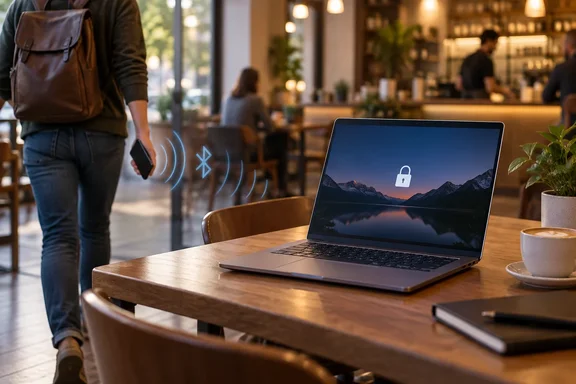
Dynamic Lock is a real safety net. It also has a real gap, and you should know about that gap before you trust it at a crowded table.
What Dynamic Lock actually does
Dynamic Lock uses your phone as a stand-in for you. Microsoft's support documentation says that it uses Bluetooth to pair with a phone, and locks the device when the Bluetooth signal drops below a certain level, indicating that you are no longer near your device. Microsoft says the purpose is to help prevent unauthorized access to your device if you forget to lock it when stepping away.
The feature first showed up on February 8, 2017, in Windows 10 Insider Preview Build 15031, and it shipped with the Windows 10 Creators Update later that year. Microsoft's Learn documentation now lists Windows 10 and Windows 11 as supported.
Under the hood, it doesn't measure distance. It reads Bluetooth signal strength, known as RSSI (Received Signal Strength Indicator). The readings are relative: 0 is stronger than -10, and -60 means the two devices are moving apart. Microsoft's enterprise documentation describes default settings meant to let you move around an average office or cubicle without locking the PC. It also warns that the same values can behave differently in different places. Walls, crowds, a phone in a back pocket and cheap Bluetooth radios all change the reading.
Section summary: Dynamic Lock treats your paired phone's Bluetooth signal as a rough sign that you're nearby. When the signal gets weak enough, Windows locks the PC.
How to set up Dynamic Lock in Windows 11 and Windows 10
There are two parts: pair the phone, then turn on the toggle. You don't need any extra software, and you don't need to create a new account.
Step 1: Pair your phone over Bluetooth
Windows 11:
- Turn on Bluetooth on both your phone and your PC.
- Go to Settings > Bluetooth & devices. Select "Add Device", then select "Bluetooth".
- On your phone, open the Bluetooth menu and tap on the device that matches your computer's name.
- Check that the security PIN on the phone matches the PIN on the PC before you approve the pairing. You may also need to tap a pop-up on the phone to finish.
Windows 10: According to Make Tech Easier, Windows 10 users will find this option at Start -> Settings -> Devices -> Bluetooth & other devices. Pick Add Bluetooth or other device, then follow the same pairing steps.
Step 2: Turn on Dynamic Lock
- Open Settings > Accounts > Sign-in options.
- Scroll down to Dynamic lock. It's usually near the bottom, under the additional settings.
- Turn on Allow Windows to automatically lock your device when you're away. Depending on your build, this is a check box or a toggle.
Make Tech Easier also points out a second route: the feature is part of Windows Security, and easily accessible from its Account protection menu. Click Dynamic lock settings to continue.
What success looks like
Once it's on, the Dynamic lock section should show the name of your paired phone. As a Yahoo Tech walkthrough puts it, once connected, you will see the name of the Bluetooth device paired with your computer. Your computer will automatically lock when you take the Bluetooth device out of range. Make Tech Easier notes that it may take a few seconds for the phone pairing to be visible on your Dynamic lock settings page.
To test it, carry your phone well away from the PC and wait. Microsoft's current support guidance says to take your phone with you when you move away from your device, and Windows will automatically lock within a minute after you're out of Bluetooth range. When you come back, you'll need to sign in with your PIN, password or Windows Hello. Dynamic Lock does not unlock the PC when you return.
Section summary: Pair the phone, turn on the toggle under Sign-in options, check that the phone's name appears, then test by walking away.
The catch: "within a minute" is a long time in a coffee shop
The MakeUseOf piece says it can take about 30 seconds to a full minute for the lock to kick in. Microsoft's own statements back up the general idea but not one exact number:
| Source | Stated behavior |
|---|---|
| Windows Insider blog, Build 15031 (2017) | Screen turns off and PC locks after 30 seconds once the phone isn't found nearby |
| Current Microsoft support page | Locks "within a minute" after leaving Bluetooth range; range varies by device |
| Microsoft Learn (enterprise docs) | Locks only when signal falls and the system is idle |
The 30-second figure came from a 2017 preview build, so don't treat it as a promise for your PC today. The idle rule matters more. Microsoft's technical documentation says that if someone starts using the PC before the Bluetooth signal falls below the limit, the device won't lock. In other words, the nosy stranger who sits down right away can keep it unlocked by using it. Microsoft calls Dynamic Lock "an additional barrier" and says plainly that it doesn't replace locking the computer yourself.
Should you feel betrayed? No. It was always designed as a backup for when you forget. It's like a car that locks its doors a minute after you walk away: useful, but you wouldn't leave a laptop on the seat and count on it.
Section summary: The delay is real, the exact timing varies, and a PC that someone is actively using won't lock. Press Windows + L first. Dynamic Lock is the backup.
Troubleshooting common failure points
- No Dynamic Lock option in Sign-in options: Make sure your PC actually has working Bluetooth. Microsoft notes that the settings available depend on your device configuration. On work or school PCs, IT may control the feature (see below).
- Phone shows "Paired" but not "Connected": WindowsForum's own tutorial suggests opening Bluetooth settings and confirming that your phone shows as Connected. If it shows only Paired, click it and try Connect (if available), or remove and re-pair.
- Unreliable or random locking: Make Tech Easier warns that if the phone keeps frequently disconnecting, you won't be able to achieve a dynamic lock on Windows. The WindowsForum tutorial suggests keeping the phone in the same place, such as a pocket or bag, and turning off aggressive Bluetooth battery-saving features on Android.
- Out-of-date laptop drivers: Check your laptop maker's support site for current Bluetooth and Wi-Fi drivers, because Windows Update drivers aren't always the newest.
- You left your phone at the table: Dynamic Lock can't help here. The phone is still next to the PC, so as far as Windows can tell, you are too.
For IT admins: Group Policy and Intune
In managed environments, Microsoft Learn documents two ways to deploy the feature:
- Group Policy: Turn on Configure dynamic lock factors under Computer Configuration > Administrative Templates > Windows Components > Windows Hello for Business.
- Intune: Create a custom policy using the OMA-URI
./Device/Vendor/MSFT/PassportForWork/DynamicLock/DynamicLock(Boolean, True). A signal rule under.../DynamicLock/Pluginssets the RSSI thresholds.
Microsoft recommends keeping the default values, rssiMin="-10" and rssiMaxDelta="-10", and testing in each environment before a wide rollout. Phone is currently the only supported device class.
Other settings to pair with Dynamic Lock
- Require sign-in after sleep: Microsoft's "Securing your device" guidance says to go to Settings > Accounts > Sign-in options and make sure Windows requires sign-in when waking from sleep. It suggests 10 to 15 minutes of idle time before sleep as a reasonable setting.
- Presence sensing (Windows 11, if your hardware has it): Some Windows 11 PCs have a built-in presence sensor. Microsoft says it can turn the screen off when you leave, configurable under Settings > System > Power & battery > Screen and sleep. It's a separate, sensor-based feature, and only some PCs have it.
- Windows + L: It's instant, free, and doesn't depend on Bluetooth.
The verdict
Dynamic Lock is one of Windows' better lesser-known features. It costs nothing, takes minutes to set up, and helps with a very common mistake. Just keep its limits in mind: it depends on signal strength, it waits up to a minute, and it won't lock a PC that someone is already using. Turn it on so it can catch you when you forget, and keep pressing Windows + L before you walk away.
References
- One of the easiest security upgrades for my Windows PC was already in Settings MakeUseOf · 2026-09-29T20:00:14+00:00
- Announcing Windows 10 Insider Preview Build 15031 for PC | Windows Insider Blog blogs.windows.com
- Dynamic lock | Microsoft Learn learn.microsoft.com