

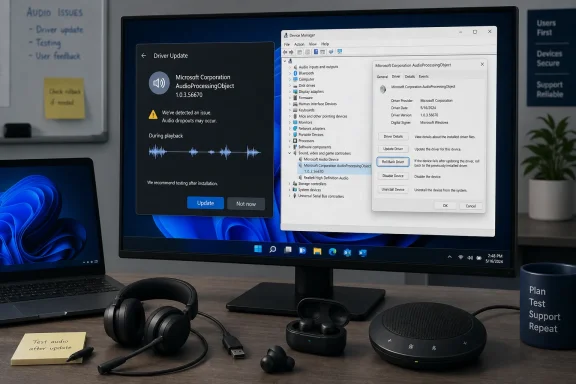
The practical answer is simple: if your audio is currently stable, treat this as a driver-stack change, not a routine background tweak. On a personal PC, avoid installing optional driver updates unless they solve a problem you actually have. If the update is already installed and audio quality dropped afterward, use Device Manager rollback where available, then reinstall the exact OEM or device-vendor audio package if rollback is not offered. Microsoft’s own audio troubleshooting guidance points affected users toward Device Manager rollback when audio stops working after a Windows update.
For admins, the lesson is not “panic about one driver.” It is narrower and more useful: put Windows Update-delivered audio drivers through a test ring before broad deployment on 24H2-and-later hardware. Keep normal Windows quality updates moving, but do not let the first validation signal for audio effects packages be a flood of help-desk tickets from users whose headsets, conference audio, or production sound paths suddenly changed.
WindowsForum’s own thread about this update makes the risk concrete. One member reported that after Windows Update installed Microsoft Corporation Audio Processing Object Driver Update 1.0.3.56670, audio quality deteriorated and drop-outs began. The same report said the update did not show up where the user expected to find removable updates. That does not prove universal breakage, but it does show the support shape: a driver package changes audio behavior, while the obvious consumer rollback path may not expose it cleanly.
That history also fits a long-running WindowsForum pattern. Members have been asking for years about Sound Blaster X-Fi beta drivers, IntelliPoint and IntelliType driver releases, Logitech 5.1 speaker problems, missing surround channels, strange rear-speaker output, and general “how do I update my audio driver?” troubleshooting. The difference with 1.0.3.56670 is that it is not branded as Realtek, Creative, Logitech, Focusrite, or a laptop maker’s package. It appears as a Microsoft Corporation AudioProcessingObject driver, which makes the change harder for ordinary users to recognize and harder for admins to explain.
Microsoft’s Audio Effects Layer Is the Part Users Don’t See
The important clue is the name: AudioProcessingObject. An Audio Processing Object, or APO, sits in the Windows audio path and can affect how sound is processed before it reaches a speaker, headset, microphone, app, or conferencing stack. Users usually do not think in those terms. They think in symptoms: calls sound worse, Bluetooth audio stutters, a microphone suddenly clips, spatial effects change, or a USB audio interface behaves differently after an update.
That invisibility is what makes the package risky. A graphics driver update usually announces itself through a vendor name, control panel, or release note. An APO driver can affect audio behavior without a user knowing which endpoint, enhancement, or processing layer changed. When a WindowsForum member ties 1.0.3.56670 to persistent drop-outs and then cannot find it in the normal uninstall-updates list, the complaint lands exactly where support teams already struggle: the update is significant enough to disrupt work, but abstract enough to resist the usual “remove the bad update” story.
Microsoft’s Update Catalog listing gives the one firm boundary we can use for planning: the package is scoped to Windows 11 Client, version 24H2 and later. That means this is not a generic warning for every Windows 11 machine in every branch. It is a 24H2-and-later concern, and it belongs in the audio validation checklist for organizations moving to or already running that branch.
The same catalog search also shows newer Microsoft APO package lines associated with later branches such as 25H2 and 26H1. Keep that fact, but do not overread it. It does not prove a specific Microsoft strategy, and it does not tell us what changed inside 1.0.3.56670. It does show that Microsoft APO packages are present in the catalog for newer Windows 11 servicing targets, which is enough reason for admins to treat this as an ongoing driver class rather than a one-off curiosity.
The Fix-It Instinct Is the Wrong First Move
For one affected PC, the instinct is obvious: roll back the driver, reinstall the OEM package, reboot, and test. That is reasonable for a single workstation. It is not a fleet strategy.
The better question is whether Windows Update-delivered audio effects packages should be allowed to reach production machines before they have been tested on the hardware and endpoints people actually use. A corporate laptop used for Teams calls, a classroom PC connected to shared speakers, a support desk with USB headsets, a streamer’s workstation, a music-production setup, and a gaming rig with vendor spatial audio all have different tolerance for change. But all of them can be disrupted by a component that alters the path between application and endpoint.
This is where 1.0.3.56670 becomes more than another driver complaint. The Update Catalog can tell readers the package exists and that it targets Windows 11 24H2 and later. WindowsForum’s user report can tell readers that at least one affected machine experienced audio drop-outs after installation. The operational decision is whether that class of update should arrive automatically on systems where audio behavior is part of the job.
That decision should be made before the update reaches a broad deployment ring. If your users rely on Bluetooth headsets, USB audio interfaces, laptop microphone arrays, docking stations with audio devices, accessibility audio hardware, conference-room systems, or vendor enhancement apps, the safe posture is staged validation. If your environment has no meaningful audio dependency and Windows Update driver delivery is already accepted, the risk may be lower. But “lower” is not “zero,” and the rollback story matters.
A Concrete Recovery Sequence for Affected Users
If you already installed Microsoft Corporation AudioProcessingObject Driver Update 1.0.3.56670 and audio now drops out, sounds distorted, or behaves differently, use a controlled sequence instead of randomly deleting drivers.
- Confirm the timing. Open Windows Update history and note when the Microsoft Corporation AudioProcessingObject driver update installed. Capture a screenshot if this is a work machine or a system you may need to support later.
- Test the same audio path that failed. Use the same headset, speaker, microphone, app, sample rate, USB port, Bluetooth pairing, dock, or conferencing setup. Do not change five variables at once.
- Open Device Manager. Microsoft’s support guidance for audio problems after Windows Update directs users to Device Manager and rollback where available. Search for Device Manager from Start, then inspect audio-related entries under Sound, video and game controllers, Audio inputs and outputs, and, where relevant, Software components.
- Use Roll Back Driver if it is available. Open the suspected audio device or component, choose Properties, then the Driver tab, and select Roll Back Driver if Windows offers it. Reboot afterward and retest the exact failing scenario. Microsoft’s Device Manager guidance describes rollback as the supported path when a recent driver update causes trouble.
- If rollback is unavailable, reinstall the correct OEM or device-vendor audio package. For laptops and desktops, use the PC maker’s support page or support app for the exact model. For USB audio interfaces, headsets, docks, or pro-audio hardware, use the device maker’s driver and control software. Microsoft’s audio-driver guidance also points users toward Device Manager and additional troubleshooting when Windows Update does not resolve driver problems.
- Retest before making more changes. Play local audio, stream audio, join a call, record a short microphone sample, switch outputs, sleep and resume, and reconnect Bluetooth or USB devices. If the problem disappears, document the working driver version.
- Do not purge the driver store blindly. APO-related components may not be attached to the obvious speaker entry. Removing packages just because a filename looks audio-related can create new failures and make the original regression harder to prove.
That sequence is boring by design. It preserves evidence, uses the supported rollback path first, and avoids the common trap of turning one bad driver experience into a broken audio stack.
Rollback May Not Be Where Users Expect It
The WindowsForum dropout report matters because the user did not just complain that audio became worse. The report also said the update was not exposed through the normal uninstall-updates path. That experience is credible because driver packages are not always presented to users like cumulative Windows updates.
If you go to Settings > Windows Update > Update history > Uninstall updates and do not see the APO package, that does not prove it is absent, harmless, or impossible to roll back. It may simply mean the driver must be handled through Device Manager or through replacement with an OEM package.
Device Manager is therefore the first practical stop. Expand audio-related categories, inspect the Driver tab, and check whether rollback is available. If it is, use it. If it is not, reinstall the model-specific or device-specific audio package and retest. On laptops, the correct package is often from the OEM, not from a generic audio-chip vendor. On USB audio interfaces and creator hardware, the correct package is usually from the interface vendor, not Windows Update.
Power users can inspect installed driver packages with advanced tools, but inspection is not the same as deletion. The point is to document what changed, not to remove every package that mentions audio. That distinction matters because APO components can sit in software-component territory rather than under the speaker or microphone name users recognize.
The 24H2 Boundary Is the Operational Clue
The strongest planning fact is the catalog scope: Windows 11 Client, version 24H2 and later. If your production fleet is not on 24H2 or later, this specific catalog listing is less urgent for today’s machines. If you are piloting 24H2, deploying it broadly, or preparing for later Windows 11 branches, this package belongs in your test plan.
That does not mean every 24H2 system will receive 1.0.3.56670, and it does not mean every system that receives it will break. Driver applicability depends on hardware and component matching that administrators cannot fully infer from the public catalog listing. The absence of a simple public matrix is part of the support problem: from the catalog page alone, an admin cannot confidently identify every affected laptop, dock, headset, microphone, USB interface, or Bluetooth endpoint.
The newer branch listings for Microsoft APO packages, including 25H2 and 26H1, make the issue more important for planning. They suggest admins should not treat APO servicing as a single isolated catalog oddity. A one-time problematic driver can be blocked, replaced, and forgotten. A recurring class of audio-processing packages needs a recurring validation process.
That validation does not have to be elaborate. It does have to be real. A lab desktop with basic speakers is not enough if your users depend on Bluetooth headsets, laptop microphone arrays, USB-C docks, meeting-room audio, accessibility devices, or low-latency audio hardware. Test the devices people actually use.
Vendor Audio Enhancements Are the Hidden Dependency
The phrase “audio enhancements” sounds cosmetic, like a bass boost toggle in a consumer control panel. In real environments, audio processing can be operational. Noise suppression in a call center, beamforming on a laptop microphone array, echo cancellation in a meeting room, spatial audio on a headset, and low-latency behavior on a USB interface can decide whether a device is fit for purpose.
An APO update can interact with those layers even when it is not branded as the vendor’s main driver. That is the uncomfortable middle ground. Users do not experience “an audio-processing-object compatibility issue.” They experience broken sound.
WindowsForum’s older driver discussions show how familiar this terrain is. A member looking for Creative Sound Blaster X-Fi support was really trying to match a driver branch to hardware behavior. Another reader asking about Logitech Z506 5.1 speakers was trying to understand why only some speakers played correctly and why the rear channels sounded wrong. The site’s own audio-driver troubleshooting coverage reflects the same baseline reality: Windows sound problems often land at the boundary between OS driver selection, vendor packages, speaker configuration, and user expectations.
The 1.0.3.56670 report adds a newer twist. The package name does not tell a user, “This belongs to your headset,” or “This belongs to your laptop microphone array,” or “This belongs to your audio interface.” It says Microsoft Corporation AudioProcessingObject. That makes the dependency less visible while the symptom remains very visible.
For home users with ordinary laptop speakers and no current problem, the conservative move is to avoid optional driver updates unless they are needed. For creators, streamers, gamers with tuned audio stacks, and anyone using external interfaces, the conservative move is stronger: keep the OEM or device-vendor installer available before accepting audio-driver changes. For organizations, the conservative move is test-ring deployment.
Microsoft Owes Admins a Better Change Story
The frustrating part of Microsoft Corporation AudioProcessingObject Driver Update 1.0.3.56670 is not that a driver may have caused trouble. Drivers have always had regressions. The frustration is that the public-facing change story is thin.
The Update Catalog confirms the package name, version, classification, size, date, and Windows 11 24H2-and-later targeting. It does not give admins a practical explanation of what changed, which hardware or software components are in scope, what problems the update is intended to fix, or what known issues might exist with vendor audio enhancements, Bluetooth endpoints, conferencing stacks, USB interfaces, or rollback.
That opacity pushes support teams toward blunt behavior. If an audio package can materially change user experience but does not come with admin-readable release notes, many organizations will delay it, test it narrowly, or prefer OEM driver bundles they can document. That is not hostility to Microsoft updates. It is rational risk management.
Audio failures are also harder to measure than crashes. A broken display driver might create obvious failures. A bad audio-processing update may produce abandoned calls, distorted recordings, intermittent Bluetooth drop-outs, teachers switching devices, streamers losing time, and help-desk tickets that simply say “sound keeps cutting out.” Those incidents can be dismissed as local weirdness unless enough users connect them to the same update.
That is why WindowsForum user reports matter. A single anecdote does not establish universal impact, but it can identify a failure pattern early: an identifiable Microsoft APO update, a noticeable decline in audio quality, drop-outs after installation, and no obvious uninstall entry where a user expects one. That is actionable support intelligence.
A Sensible Deployment Policy Is Boring by Design
The safest enterprise posture is not “never install Microsoft APO updates.” That is too broad and could eventually block useful fixes. The better posture is staged driver governance.
Start with a pilot group that actually reflects your audio estate. Include the laptop models, docks, Bluetooth headsets, USB headsets, conference-room devices, accessibility hardware, and external interfaces your users rely on. Include at least one machine from each major hardware generation you still support. If executives, support agents, teachers, trainers, or creators use specialized audio paths, include those paths too.
Then run a short, repeatable script:
- Play local audio.
- Stream audio in a browser.
- Join a Teams, Zoom, or equivalent call.
- Test microphone input and record a short sample.
- Switch between built-in speakers, headset, dock audio, and Bluetooth.
- Sleep and resume.
- Dock and undock.
- Disconnect and reconnect Bluetooth.
- Test vendor audio enhancements if your hardware uses them.
- Confirm Device Manager rollback or OEM reinstall options before broad rollout.
Only after that should a driver package move to a wider ring. If the pilot finds drop-outs, distortion, missing inputs, strange channel mapping, or conferencing problems, pause the driver and keep quality updates separate from the audio-driver decision.
Small offices and power users can use the same logic without enterprise tooling. Update one noncritical PC first. Keep the OEM audio installer downloaded. Record the current driver version before changing anything. Do not accept a vague “driver update” on the one machine you need for tomorrow’s meeting, recording session, class, stream, or customer call.
The Decision Tree for 1.0.3.56670 Is Narrow but Useful
There is no supplied evidence that 1.0.3.56670 is a security fix, and the public catalog information does not explain what the package changes. That absence matters. For security updates, the normal bias is to install quickly unless there is a known blocker. For opaque driver updates that affect a sensitive subsystem, the better managed-system bias is validate first unless the update fixes a problem you actually have.
If you are already affected by audio drop-outs after the update, do not keep reinstalling random drivers from the internet. Confirm the timing, inspect Device Manager, try rollback if available, reinstall the correct OEM or device-vendor audio package, and retest the same audio path. If the PC is business-critical, capture screenshots and driver versions before changing too much.
If the update is pending on a personal 24H2 PC and audio is stable, waiting is reasonable. If the machine is used for recording, streaming, conferencing, assistive audio, low-latency work, or customer-facing calls, do not install it casually. If it is a fleet, do not let production users become the first test ring.
If your current production baseline is not 24H2 or later, this specific catalog targeting makes the immediate decision less urgent. But it should still influence your 24H2 migration plan. Audio validation belongs beside VPN, printing, docking, BitLocker recovery, graphics, and line-of-business app testing.
WindowsForum readers looking for broader repair steps can pair this analysis with the site’s related guide, “Update Audio Drivers in Windows to Fix No Sound and Distortion,” which covers conventional audio-driver troubleshooting. The sharper lesson here is that conventional troubleshooting comes after a deployment decision, not before it.
The Practical Answer for WindowsForum Readers
The answer to “should I let it install?” is conditional, but not evasive. Treat Microsoft Corporation AudioProcessingObject Driver Update 1.0.3.56670 as a driver-stack change for Windows 11 24H2 and later, not as a harmless background tweak. Let it through automatically only on machines where Windows Update-delivered drivers are already part of your accepted support model and where vendor-specific audio behavior is not mission-critical.
For everyone else, separate OS patching from driver acceptance in practice. Keep Windows quality updates flowing. Put audio drivers behind testing, user consent, an approval workflow, or a manual OEM process. That distinction protects reliability without pretending every driver package deserves the same treatment as a cumulative update.
Home users should understand the limits of Settings. If the update breaks audio and does not appear under Uninstall updates, that is not the end of the road. Device Manager rollback, OEM driver reinstall, Bluetooth re-pairing, and audio enhancement testing are the realistic consumer recovery path.
The enhancement toggle is worth testing, but it should not be oversold. Go to Settings > System > Sound, choose the affected output or input device, and look for Audio enhancements or related processing options. Turn enhancements off for testing, reboot if needed, and compare behavior. That does not remove the APO package, but it can help distinguish a device-driver problem from an effects-processing problem.
The APO Package Turns Driver Updates Into a Policy Question
The concrete lessons from 1.0.3.56670 are less dramatic than a broken-patch panic, but more useful for admins planning Windows 11 24H2 and later deployments.
- Microsoft’s Update Catalog identifies Microsoft Corporation AudioProcessingObject Driver Update 1.0.3.56670 as targeting Windows 11 Client, version 24H2 and later.
- The catalog also shows Microsoft APO package lines for newer branches such as 25H2 and 26H1, which makes APO driver validation relevant beyond one package listing.
- A WindowsForum user reported degraded audio and drop-outs after 1.0.3.56670 installed, and said the update was not visible in the normal uninstall-updates list.
- Microsoft’s own support guidance for audio problems after Windows Update points users toward Device Manager rollback where available.
- If rollback is unavailable, the safer next step is the exact OEM or device-vendor audio package, not random driver-store cleanup.
- Fleets that depend on vendor audio enhancements, Bluetooth headsets, conferencing gear, docks, or external interfaces should validate APO updates on real hardware before broad deployment.
The bigger story is that Windows 11 audio behavior now depends on layers many users cannot see: OS components, driver packages, OEM tuning, endpoint firmware, Bluetooth behavior, conferencing features, and audio effects. When one of those layers is serviced through Windows Update, the user-visible symptom may be simple — drop-outs, distortion, missing channels, or worse call quality — while the root cause is buried in the stack.
Microsoft Corporation AudioProcessingObject Driver Update 1.0.3.56670 may be benign or beneficial on many machines. But the WindowsForum report shows why automatic trust is the wrong default for audio-critical systems. If sound matters to the work, APO driver updates should be tested, documented, and reversible — not accepted blindly because the publisher line says Microsoft.
Frequently Asked Questions
What is Microsoft Corporation AudioProcessingObject Driver Update 1.0.3.56670?
It is a Microsoft Corporation driver package listed in the Microsoft Update Catalog as an AudioProcessingObject driver update for Windows 11 Client, version 24H2 and later. The catalog listing identifies its targeting and classification, but it does not provide an admin-friendly explanation of exactly what changed inside the package.
Is this only for Windows 11 24H2?
The catalog listing for 1.0.3.56670 identifies Windows 11 Client, version 24H2 and later. That means the immediate concern is 24H2-and-later systems, not every Windows 11 machine in the abstract.
Should I install it if Windows offers it?
If your audio is stable and the update is optional, do not install it casually. If you are troubleshooting a specific audio problem, it may be worth testing. If the machine is used for conferencing, recording, streaming, accessibility audio, USB audio interfaces, Bluetooth headsets, or production work, test first or wait.
What should I do if it already caused audio drop-outs?
Confirm the timing in Windows Update history, open Device Manager, inspect audio-related devices and software components, and use Roll Back Driver if available. Microsoft’s support guidance recommends driver rollback through Device Manager when audio fails after a Windows update. If rollback is unavailable, reinstall the correct OEM or device-vendor audio package and retest.
Why can’t I find it under Uninstall updates?
Driver packages do not always appear in the same user-facing uninstall list as cumulative Windows updates. WindowsForum’s report about 1.0.3.56670 specifically noted that the user did not see it in the normal uninstall-updates list. That is why Device Manager rollback and OEM driver reinstall are the practical recovery paths.
Does one WindowsForum report prove the update is bad for everyone?
No. One report does not prove universal breakage. It does, however, identify a plausible regression pattern: audio degrades after a Microsoft APO driver update, drop-outs appear, and the normal uninstall route may not expose the package. That is enough to justify caution on audio-critical systems.
What should admins do before allowing this broadly?
Test on representative 24H2 hardware and real endpoints: built-in speakers, laptop microphones, Bluetooth headsets, USB headsets, docks, conference-room devices, accessibility hardware, and external audio interfaces. Run call, playback, recording, sleep/resume, dock/undock, and device-switching tests before broad deployment.
Is this a security update?
No source provided here establishes that 1.0.3.56670 is a security fix. Treat it as an audio driver-stack change unless Microsoft publishes information saying otherwise.
What is the safest home-user recovery path?
Use Device Manager rollback if available, then reinstall the exact OEM or device-vendor audio driver if rollback is not available. Avoid random driver download sites and avoid deleting driver-store packages unless you know exactly what you are removing.
What is the main takeaway?
For Windows 11 24H2 and later, Microsoft APO driver packages should be treated as real audio-stack changes. If the machine’s sound behavior matters, test first, document what changed, and keep a known-good rollback path.
References
- Should you let Microsoft APO driver updates install automatically on Windows 11 24H2? learn.microsoft.com
- catalog.update.microsoft.com catalog.update.microsoft.com