

Windows 11 25H2 changes the servicing baseline more than the desktop
Microsoft’s “Inside this update” page is best understood as a map of recent Windows improvements. It includes separate sections for the Windows 11 2025 Update, Windows 11 2024 Update, and Windows 10 2022 Update. That structure matters: a capability appearing somewhere on the page is not necessarily new in 25H2, and the page’s Windows 10 applicability label does not make the Windows 11 features available on Windows 10.
The date to associate with 25H2’s original availability is September 30, 2025. In Microsoft’s Windows Experience Blog announcement that day, Windows servicing executive John Cable identified the Windows 11 2025 Update as version 25H2 and explained its delivery mechanism. A subsequently encountered support page should not be mistaken for a fresh launch announcement, nor should its use of “latest” be treated as a complete account of the release status of every Windows version.
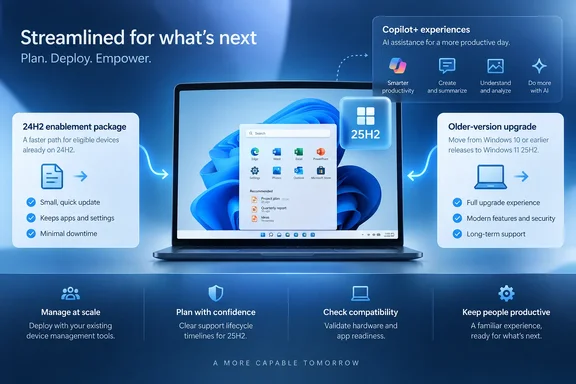
For PCs already running Windows 11 version 24H2, Microsoft delivers 25H2 through an enablement package. The two versions share a code base and servicing branch. Instead of requiring the same transition as an older Windows installation, an eligible 24H2 device can move to the new annual release through servicing technology similar to that used for monthly updates.
That shared foundation explains why an upgrade can be significant for maintenance without producing a dramatically different desktop. Microsoft continues to deliver features through monthly updates. By the time a device moves to 25H2, its user may already have encountered some of the improvements listed under the annual release.
There is a timing qualification in Microsoft’s announcement: feature parity with the recently announced 24H2 feature set begins with the November 2025 security update. The launch announcement therefore should not be read as a promise that every feature was identical on every device on September 30. It describes a shared servicing direction, with individual changes still subject to update timing and availability.
The starting version also changes the installation model. Microsoft says Windows 11 version 23H2 and earlier require a full operating-system swap to reach 25H2. The streamlined enablement-package explanation belongs specifically to the 24H2-to-25H2 transition; it is not a universal description of upgrading any Windows PC.
| Starting point or configuration | What Microsoft establishes | Practical consequence |
|---|---|---|
| An eligible Windows 11 24H2 device | Version 25H2 uses an enablement package and a shared servicing branch. | Expect a servicing-led transition rather than the full replacement required by older Windows 11 versions. |
| Windows 11 23H2 or earlier | Moving to 25H2 requires a full operating-system swap. | Do not base deployment expectations on the shorter 24H2 transition. |
| A supported Copilot+ PC | Several AI experiences are specifically scoped to this hardware category. | The Windows version alone does not establish feature eligibility. |
| An Enterprise or Education device | Microsoft documents additional management capabilities and a longer support period. | Edition and management policy belong in the deployment decision. |
| A Windows 10 device | The support page contains a separate Windows 10 section. | Its broad applicability label does not extend 25H2’s Windows 11 capabilities to Windows 10. |
For IT departments, the other material change is the support lifecycle. Microsoft says 25H2 starts a new 24-month support period for Home and Pro editions and a 36-month period for Enterprise and Education. These are version-specific servicing periods, not a promise of that much support beginning whenever an individual user eventually installs the release.
That creates a straightforward reason to consider 25H2 even when users see few changes. A feature inventory answers what people can do; a servicing baseline answers which release the organization will maintain. Those are related decisions, but they operate on different timescales and should be recorded separately in an upgrade plan.
Windows Update offers 25H2 within compatibility and policy boundaries
Microsoft’s documented consumer installation route is uncomplicated: open Start > Settings > Windows Update, then select Check for updates. The support page also identifies the “Get the latest updates as soon as they’re available” switch as the way to seek earlier access to non-security updates. These are two related controls, not interchangeable promises that a particular feature will appear immediately.
In the September 2025 launch announcement, Microsoft described 25H2 as a controlled rollout beginning with eligible 24H2 devices whose users had enabled that switch. That is a historical description of the initial release. It should not be presented as a verified account of the rollout’s breadth in September 2026, because the announcement’s plan to expand availability over subsequent months does not establish today’s device-by-device status.
The compatibility boundary is more durable. Microsoft says it may apply a safeguard hold when a device is likely to encounter an application or driver incompatibility. A held device is not offered the update until the issue is resolved. Turning on the early-updates switch is therefore not a documented way to override compatibility protection.
For an unmanaged Windows 11 PC, the supported sequence is:
- Open Start, select Settings, and open Windows Update.
- Select Check for updates to ask Windows Update for the updates applicable to that device.
- If you want earlier access to non-security changes, enable “Get the latest updates as soon as they’re available.”
- Follow the installation offer that Windows Update actually presents, rather than assuming that every feature described on Microsoft’s overview page is immediately applicable.
The meaningful result of this process is an applicable update offer, not necessarily the appearance of every advertised experience. A Copilot+ feature can remain hardware-dependent after a successful operating-system update. A staged capability can have its own timing. A compatibility hold can prevent an offer altogether.
An absent offer, on its own, does not diagnose the cause. Microsoft’s launch explanation establishes that compatibility safeguards exist, but it does not identify a particular reader’s application, driver, or hardware as affected. There is no basis here for prescribing a driver removal, registry change, or installation bypass as a general fix.
Managed devices need a different interpretation. Microsoft announced 25H2 availability through Windows Autopatch and the Microsoft 365 admin center, while warning that downloads in some channels could be delayed. The same announcement scheduled Windows Server Update Services availability for October 14, 2025, with that month’s security update. Those dates and channels describe Microsoft’s release distribution; they do not mean every organization immediately approved deployment.
Microsoft’s recommendation for commercial customers was to begin with targeted deployments that validate applications, devices, and infrastructure. That remains the relevant procedure supported by the announcement. An employee’s local Windows Update settings are not a substitute for the deployment decisions an administrator makes through organizational management.
The early-updates switch also deserves a clear explanation during support calls. Microsoft describes it in terms of receiving the latest non-security updates sooner. Leaving it off should not be described as choosing to abandon security maintenance, and turning it on should not be described as joining the Windows Insider Program. Microsoft treats Insider preview builds separately in its support page.
This distinction lets readers make a more precise choice. Someone seeking earlier access to interface improvements can use the switch for its stated purpose. Someone maintaining a business-critical PC can follow the organization’s approved rollout without treating the absence of a new visual feature as evidence that Windows Update is broken.
Copilot+ features make hardware and consent part of the 25H2 decision
The most conspicuous experiences in Microsoft’s 2025 Update overview are grouped under “Copilot+ PCs unique features.” That heading is a compatibility boundary. Installing 25H2 on an ordinary Windows 11 PC does not, by itself, establish eligibility for Recall, the enhanced natural-language Windows Search, or the other capabilities listed in that group.
Microsoft’s earlier 2024 Update description identifies Copilot+ PCs as devices with a neural processing unit capable of more than 40 trillion operations per second. The important purchasing implication is the named hardware category, rather than a loose claim that a PC is “AI-ready.” A feature that Microsoft scopes to Copilot+ PCs should be evaluated against that scope, not inferred from the presence of Windows 11 or the Copilot application.
Recall remains an opt-in preview with its own controls
Microsoft labels Recall as a preview. Its purpose is to make previous activity searchable through snapshots of applications, websites, and documents. Users opt in and authenticate with Windows Hello; the overview also documents controls to pause or reset snapshot collection.
Those details place Recall in a different decision category from a taskbar refinement. The user is deciding whether to collect a searchable record of activity, not merely whether to accept a new button arrangement. Opt-in status and collection controls therefore belong beside the feature description, rather than being buried beneath a general claim that Windows has become more intelligent.
Microsoft also describes a personalized Recall homepage showing recent snapshots and frequently used applications, along with filters and navigation improvements. Export options use a one-time code to support sharing with third-party applications. The overview establishes that these controls exist, but it does not provide a complete regional availability matrix or an administrative deployment procedure.
For a reader assessing Recall, the supported questions are consequently concrete: is the device eligible, does the user want snapshot collection, and are the available pause, reset, filtering, and export controls suitable for the intended use? The documentation does not support treating installation of 25H2 as consent to Recall, nor does it justify describing the preview as a universally available production feature.
Click to Do and Windows Search change different parts of a workflow
Click to Do operates on text and images already on the screen. Microsoft lists text actions such as summarizing, rewriting, and creating lists, alongside image actions including background removal and object erasure. The feature also connects selected material to experiences such as Copilot, Reading Coach, and Immersive Reader.
The workflow improvement is a shorter route from displayed content to an action. A user can work from a selected passage or image rather than first moving that material through a separate manual workflow. Microsoft also describes a tutorial, multilingual support, and personalization for pen shortcuts, although the overview does not establish that every action has identical language or regional availability.
Enhanced Windows Search addresses a different problem: finding material when the user cannot remember an exact filename or setting label. Microsoft describes semantic indexing and on-device AI, with natural-language queries such as “change my theme.” In this context, semantic search means the feature is intended to interpret the meaning of a query rather than relying only on an exact label match.
The overview says cloud-stored photos and files can appear alongside local results, and that keyword matches can come from file contents. It also identifies a unified settings page for search permissions and indexing. These details make the feature relevant to people whose information spans local storage and cloud services, but they do not establish that every cloud provider or every file format is supported.
Microsoft explicitly lists Snapdragon-, AMD-, and Intel-powered Copilot+ PCs for the improved Search experience. That is a useful scope expansion within the Copilot+ category. It should not be shortened to “available on Snapdragon, AMD, and Intel PCs,” because dropping the category would incorrectly include ordinary devices using processors from those companies.
The Settings agent carries a language restriction
Microsoft’s overview describes a Copilot-powered agent that helps users find and change Windows settings through natural language. It currently specifies English as the required primary display language. That requirement concerns the Windows display-language configuration, not simply whether the person typing a request knows English.
For multilingual households or organizations, this is a practical deployment constraint. Two otherwise similar devices can differ in feature availability because their display-language settings differ. There is no basis in the overview for promising that switching a single application’s language will satisfy the requirement.
Voice Access is also listed with natural-language commands, Simplified and Traditional Chinese support, custom words, and an in-product guide. Because these improvements appear within Microsoft’s Copilot+ grouping, it would be unsafe to generalize every listed enhancement to every existing Voice Access installation. The useful distinction is between the established accessibility tool and the particular new capabilities Microsoft is describing.
Separately, Microsoft lists Copilot improvements such as customizable keyboard shortcuts, press-to-talk voice interaction, and Click to Do integration. These are application and interaction changes, not evidence that every PC receives the same locally processed AI experiences. The overview is broad; readers should preserve the product, hardware, language, and preview boundaries within it.
File Explorer and accessibility changes offer value without a new Windows identity
The 2025 Update overview also covers improvements that are easier to overlook because they do not change the name of the product or introduce a large new interface. For users who spend their day managing files, navigating with a screen reader, or arranging application windows, these smaller changes may be more relevant than an AI demonstration.
File Explorer gains curated views of Microsoft 365 content, additional context-menu organization, sharing options involving Android devices, and controls for snoozing backup reminders. Microsoft also lists restoration of previous tabs. These changes address recurring interruptions and navigation work rather than requiring users to adopt an entirely new file-management model.
Some File Explorer changes have an explicit account boundary. Live Persona Cards are documented for users signed in with Entra ID, Microsoft’s organizational identity platform. That does not establish availability for every personal Microsoft account, and it should not be presented as a general contact-card feature that all Windows users will see after updating.
The distinction between personal and organizational accounts also appears in the page’s earlier Windows 11 2024 Update material about Microsoft Teams. Microsoft describes a single application that can switch between personal and work or school accounts. Users select their profile picture in the upper-right corner to add or switch accounts, and can launch personal and work accounts simultaneously with distinct taskbar icons.
That is a documented application workflow, not a merger of the accounts themselves. Microsoft also says notifications identify the relevant account, with more detailed personal-account notifications supporting actions from the banner. For someone who uses Teams both privately and at work, the concrete improvement is clearer handling of parallel identities within one application.
Narrator’s 2025 improvements are similarly specific. Microsoft lists scan-mode shortcuts for reaching the beginning or end of items, skipping links, and accessing lists. Users can also copy spoken content, obtain AI-powered image descriptions, and use Screen Curtain to hide the display while Narrator reads aloud.
These capabilities solve different problems and should not be collapsed into a generic accessibility claim. Navigation shortcuts reduce the work of moving through content. Copying spoken output helps retain information. Screen Curtain changes what is visible to people nearby. Microsoft additionally describes live transcription, speech recap, and guidance through new features, but the overview does not give a feature-by-feature hardware and language matrix.
Voice Typing receives a profanity-filter toggle. Input improvements include a Gamepad keyboard layout for touch devices, improved controller navigation, and PIN sign-in support on the lock screen. These are relevant to users operating a Windows device without a conventional desk arrangement, although the overview does not establish universal support across every controller or touchscreen configuration.
Taskbar changes include icon resizing, previews, clock options with seconds, clearer indicators, and improved accessibility grouping. Microsoft also identifies administrator-configurable pin policies. The last item belongs to device management, not merely personal customization: it gives organizations another aspect of the user experience to account for when validating a rollout.
Snap receives inline tips and keyboard-shortcut guidance when users interact with the Snap Bar or Snap menu. This is a discoverability improvement. Rather than requiring a user to find a separate tutorial, Windows can surface guidance where window arrangement is already happening.
Windows Share gains image editing before sharing, previews for web content, compression-level choices, and suggested applications for drag-and-drop sharing. The practical advantage is the ability to prepare content closer to the point of sending it. The overview does not specify compression algorithms or quality measurements, so there is no supported basis for promising a particular size reduction or image-quality result.
Widgets, meanwhile, adds multiple dashboards, lock-screen customization, and a redesigned Discover feed with Copilot-curated stories. These are personalization and content-discovery changes. They may be useful to an individual user, but they do not justify a separate enterprise deployment argument without an established organizational requirement.
Taken together, these improvements explain how a release can be useful while introducing no major new feature set. The value resides in particular tasks. A screen-reader user, a Teams user with two account types, and an administrator managing taskbar pins can each have a different reason to care, without any of them needing a wholesale desktop redesign.
The 2024 Update section explains capabilities that 25H2 users may already have
Microsoft’s support page explicitly separates the Windows 11 2024 Update from the 2025 Update. That separation prevents a common mistake: attributing every capability on a long, continuously useful support page to the newest annual version. Several of its most actionable instructions describe the 2024 baseline on which 25H2 builds.
File Explorer’s earlier changes include creating 7-Zip and TAR archives in addition to ZIP. Microsoft describes a compression wizard with format choices and customization, improved handling of extraction filename conflicts, and metadata editing for PNG images. For a reader deciding whether a separate archive utility is still needed, the supported conclusion is that Windows has gained these particular built-in capabilities—not that it replaces every function of every third-party archiver.
The same section documents clearer context-menu labels for cut, copy, paste, rename, share, and delete. It also permits dragging files between the location segments in File Explorer’s address bar. Those segments, called breadcrumbs, represent levels in a path, such as This PC, Windows (C🙂, and Program Files.
The networking changes are equally concrete, but hardware-dependent features need to be kept separate from interface improvements. Wi-Fi 7 support requires both a compatible PC and a compatible access point. Microsoft’s broad throughput claims on the overview page are not measurements of a reader’s network, and Windows installation alone cannot establish the performance of the radio hardware, access point, or connection.
By contrast, the Wi-Fi QR-code workflows are documented as usability features. They reduce the need to type network details manually, and the support page gives separate procedures for joining a network, sharing a saved network, and sharing a PC’s mobile hotspot.
Wi-Fi QR codes provide three distinct connection workflows
For joining a network, Microsoft specifies a Windows device with a camera. Open the Camera app and point it at a Wi-Fi network QR code, such as one displayed by another device or posted at a location. The supported result is connection using the information encoded in that code, without manually entering the network details.
For sharing a known Wi-Fi network, the documented route is:
- Open Quick Settings and select Wi-Fi.
- Find the network and open its properties.
- Select “Show Wi-Fi network password” at the top of the settings page.
- Use another device that supports QR-code connections to scan the displayed code.
Microsoft also provides a route for previously used networks: open Settings > Network & internet > Wi-Fi > Manage known networks, then select the relevant network to display its password. The distinction is useful when the network a user wants to share is stored on the PC but is not the current connection.
For a mobile hotspot, open Settings > Network & internet > Mobile hotspot. Microsoft says the properties area includes a QR code that another compatible device can scan. This is sharing the PC’s hotspot connection, rather than revealing the connection details of an unrelated saved wireless network.
Because these workflows are designed to provide network access, the recipient matters. The practical implication of displaying a password or connection QR code is that someone who receives it can use those details to connect. Treating the display as something to share deliberately follows directly from the feature’s purpose; it is not merely a decorative network status screen.
Wi-Fi privacy controls concern location as well as connectivity
Microsoft explains that a list of nearby Wi-Fi networks can potentially be used to identify a device’s location. Its documented controls therefore live under Settings > Privacy & security > Location, rather than being limited to the Wi-Fi connection page.
The overview describes a prompt when an application first attempts to access location or Wi-Fi details. The prompt allows the user to enable location services and grant permission, or to deny an unexpected request. Once permission has been granted, applications using location or Wi-Fi data appear under Recent activity on the Location page.
Microsoft also describes a location indicator in the taskbar while an application is active. These controls give the reader two useful checks: which applications have recently accessed the information, and whether an application is using it now. A request involving Wi-Fi information can consequently be a location-permission issue even when the user thinks of Wi-Fi only as a network connection.
The “Notify when apps request location” setting governs whether those prompts appear when location services are off. Disabling the notification should not be confused with a separate instruction to approve an application. The page describes a choice about prompting; it does not say that suppressing the prompt grants the request.
Bluetooth LE Audio requires support on both ends
Microsoft documents direct pairing and streaming for compatible assistive hearing devices using Bluetooth Low Energy Audio, or LE Audio. Audio presets and ambient-sound controls may be available through Settings or Quick Settings, depending on the hearing-device model and configuration.
The compatibility warning is explicit: ordinary Bluetooth support does not establish LE Audio compatibility. Both the Windows PC and the assistive hearing device must support the required audio technology. Even a device described as supporting Bluetooth LE is not automatically established as compatible with LE Audio.
This is a material purchasing boundary. A Windows update cannot be assumed to turn an existing Bluetooth connection into the documented assistive-audio experience. The exact ambient-sound and preset controls also vary by device, so a universal sequence for adjusting them would be misleading.
For the information Windows does expose, Microsoft points to Settings > Bluetooth & devices > Devices. The page describes connected-device information such as battery life and connection status, together with easier access to audio settings. Those interface improvements apply more broadly than hearing devices, but they do not remove the hearing-device compatibility requirements.
Energy Saver and adaptive brightness solve different power problems
The 2024 material describes Energy Saver for both battery-powered and plugged-in PCs, including desktops. It can be toggled through Quick Settings or set to activate at a battery percentage. Microsoft lists Settings > System > Power & battery as its configuration route.
Its status indication differs by device type: desktop PCs receive an Energy Saver system-tray icon, while battery-powered devices retain the familiar leaf indicator. This gives users a documented visual sign that the mode is active, without requiring an inferred performance test.
Content Adaptive Brightness Control is a separate capability. It adjusts display brightness according to the content shown, with the aim of reducing energy consumption while maintaining a usable image. Microsoft gives the path Settings > System > Display, then the control under Brightness & color.
The documented options are Off, Always, and On Battery Only; the default for battery-powered devices is On Battery Only. Microsoft also states that the manufacturer must enable the feature, so it is unavailable on some laptops and 2-in-1s. If the option is absent, this overview does not support diagnosing a failed Windows upgrade or inventing a registry-based way to enable it.
Finally, the earlier section describes Voice Clarity expanding beyond Surface devices. Microsoft says it uses low-complexity AI models to reduce echo, background noise, and reverberation, and is compatible with x64 and Arm64 processors without additional hardware. Its application boundary is important: Microsoft describes software using Communications Signal Processing Mode, including examples such as Phone Link and WhatsApp, rather than promising processing for every audio stream.
Windows 11 25H2 security changes make legacy dependencies worth checking
Microsoft’s security framing for 25H2 includes improvements to build-time and runtime vulnerability detection, along with AI-assisted secure coding under its Secure Future Initiative. These are Microsoft’s descriptions of its engineering process. They are not independent measurements showing that a particular workload becomes safer by a stated percentage after installation.
The more concrete compatibility change is the removal of legacy components. Microsoft’s launch announcement names PowerShell 2.0 and Windows Management Instrumentation command-line, better known as WMIC. The version and component names matter: removal of PowerShell 2.0 is not a claim that all PowerShell functionality disappears, and removal of WMIC is not a claim that every Windows management interface has been removed.
For an administrator, this creates a focused validation task. If a script, installer, support procedure, or management workflow explicitly depends on either named component, include that dependency in the pilot. The evidence supports checking for those dependencies; it does not provide a universal replacement command or establish that every old script will fail.
The shared 24H2 code base should therefore not be used as a reason to skip application and tooling checks. An enablement-package transition can still change the supported component set or the defaults an organization sees. Microsoft specifically says that selected features initially released disabled by default in 24H2 are enabled by default in 25H2.
Commercial capabilities also include Wi-Fi 7 for enterprise connectivity and the ability to remove selected preinstalled Microsoft Store applications using Microsoft Intune or Group Policy on Enterprise and Education devices. The edition boundary belongs in the claim. The announcement does not establish the same policy capability for Home or Pro, nor does it supply enough detail to construct a safe removal procedure for particular applications.
The support overview adds a redesigned Windows Settings homepage with system-information cards and enterprise-specific views. It also describes controls for third-party applications’ AI-model usage and revised activation and printer-renaming dialogs. These are additional surfaces to validate where organizations provide standardized support instructions or tightly managed device configurations.
Two system-management features require especially careful availability language. The Windows Backup application is described as beginning a PC-migration rollout with a new pairing page for transferring files and settings. The same overview says full support during setup will arrive in future updates. A visible pairing page should therefore not be treated as proof that the entire setup-time migration workflow is available.
Quick machine recovery, presented as part of the Windows Resiliency Initiative, uses Windows Recovery Environment, or WinRE, to enable automatic fixes for boot issues. That establishes its purpose and recovery environment, but not a complete troubleshooting recipe. The overview does not specify every qualifying failure, network prerequisite, or recovery outcome.
There is consequently no supported reason to tell a user to induce a recovery boot, disable safeguards, or replace an existing recovery plan solely because this feature appears in the release summary. For IT, its presence is a capability to evaluate. For a user facing an actual boot failure, the broad description is not enough to diagnose the machine.
Windows Hello also receives a refreshed passkey-authentication interface across sign-in flows, Recall, and the Microsoft Store. Microsoft describes easier switching between authentication methods. That is a user-interface change within authentication workflows, not evidence that account-recovery rules or organizational identity policies have become interchangeable.
Choose the 25H2 deployment path before chasing individual features
For an eligible, unmanaged Windows 11 24H2 PC, use Windows Update’s supported offer and decide separately whether earlier non-security updates are desirable. For an organization, start with a representative deployment group and validate the applications, devices, and infrastructure Microsoft identifies, paying particular attention to legacy tooling and changed defaults.
The shared servicing foundation makes the 24H2 transition easier to plan, but it does not collapse all device configurations into one. An older Windows 11 installation has a different upgrade mechanism. A Copilot+ PC has a different AI feature scope. An Enterprise or Education device has different management options and a different servicing period.
A useful pilot should reflect those established differences. Testing only a recent Copilot+ laptop would not demonstrate the experience on an ordinary Windows 11 PC. Testing an unmanaged personal-account device would not validate Entra ID-dependent File Explorer features or administrator-configured taskbar pins. This is an implication of Microsoft’s documented boundaries, not a claim that any of those configurations is faulty.
The same discipline helps home users avoid unnecessary troubleshooting. Missing enhanced Search on a non-Copilot+ PC is not, by itself, evidence of a bad installation. Missing adaptive-brightness controls on a laptop can reflect manufacturer support. Missing an assistive-audio option can reflect LE Audio compatibility rather than the annual Windows version.
Before making a purchase or planning a workflow around a feature, establish the dependency that actually governs it. The overview supplies enough information to distinguish hardware-dependent AI, language-dependent Settings assistance, account-dependent collaboration features, and model-dependent hearing-device controls. It does not justify assuming that the words “Windows 11 25H2” on two PCs guarantee identical capabilities.
The most useful takeaways are these:
- Use the 24H2-to-25H2 enablement-package explanation only for that supported starting point; Microsoft says Windows 11 23H2 and earlier require a full operating-system swap.
- Open Settings > Windows Update and select Check for updates, while treating the early non-security updates switch as a preference rather than a compatibility override.
- Evaluate Recall, enhanced Windows Search, and the Settings agent against their stated Copilot+, preview, consent, and language requirements before depending on them.
- Include PowerShell 2.0 and WMIC dependencies in enterprise validation, and keep Enterprise and Education policy capabilities separate from assumptions about Home and Pro.
- Distinguish features documented under the 2024 Update from the 2025 release, especially when assessing Wi-Fi sharing, LE Audio, Energy Saver, and File Explorer archive support.
- Treat the Windows Backup pairing rollout and quick machine recovery as specifically described capabilities, not as proof of a complete migration or recovery procedure for every PC.
Windows 11 25H2’s most dependable value is a maintained annual baseline built on work already delivered through Windows servicing. The next useful step is to match that baseline to the machine in front of you: accept the supported upgrade path, validate the dependencies that affect your work, and adopt individual features when their hardware, account, language, and rollout requirements are satisfied.
References
- Inside this update | Microsoft Support Microsoft Support · 2026-09-21T00:00:00+00:00
- How to get the Windows 11 2025 Update | Windows Experience Blog aka.ms