

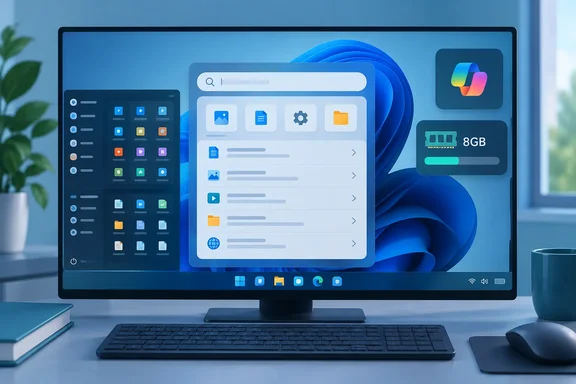
That's a fair summary of where Microsoft's reset stands. Below we go through each grade, separate one reviewer's opinion from what Microsoft has documented, and cover what Windows users and IT admins should know before 26H2 lands on their machines.
26H2 is the paperwork, not the party
Don't expect 26H2 to change much overnight. Hachman points out that most of the work has already shipped through monthly Patch Tuesday updates. The fall release mostly collects those changes for anyone who chose to delay them.
Microsoft's own description of how 26H2 is delivered backs that up. Versions 24H2, 25H2 and 26H2 share one underlying codebase and run on a common servicing branch. Monthly updates over the past year already put much of the code for 26H2 on PCs, where it sat dormant. The enablement package switches those components on. VideoCardz names the package: 26H2 is delivered to these systems through the KB5121794 enablement package.
Here's what that means in practice:
- Release date: Microsoft began releasing the Windows 11 2026 Update, known as version 26H2, on September 29, 2026.
- Who gets it: Microsoft's release-health page says it is available on eligible 24H2 and 25H2 devices where the user has turned on "Get the latest updates as soon as they're available." If the update is ready for a device, it downloads and installs automatically and finishes with a single restart.
- Who doesn't: Windows 11 version 26H1 devices cannot upgrade directly to 26H2, because 26H1 uses a different Windows core than versions 24H2, 25H2 and 26H2.
- Support reset: This update will get 24 months of support for Home and Pro users, while Enterprise and Education users will be supported for 36 months. As a reminder, Windows 11, version 24H2 Home and Pro editions will reach end of updates on October 13, 2026.
- Features may still trickle in: VideoCardz notes that Microsoft is using a controlled rollout, so installing 26H2 does not guarantee that every feature will appear immediately.
That last date is the practical reason to care about a release Windows Latest bluntly called a "nothingburger." In its own testing, the site said 26H2 doesn't have any new features for consumers. Nothing showed up in our tests. If you're on 24H2 Home or Pro, the real feature here is two more years of security updates.
Section summary: 26H2 is a small enablement package that turns on code you mostly already have. If you run 24H2 Home or Pro, you have until mid-October before updates stop.
Taskbar and Start: C
In September, Microsoft finally shipped two long-requested changes: you can move the taskbar to any edge of the screen, and you can make it smaller. Hachman also notes that you can now resize Start icons, and Start has separate views for Pinned, Recently Used and All. He gives Microsoft credit for listening, but says the changes didn't make much difference to him. He's not fond of the Windows 11 Start menu and misses Windows 10's Live Tiles and alphabetical app list. Start may be faster since moving to WinUI 3, but in his view speed was never the main problem. These days he launches apps by searching and treats his pinned taskbar icons as his real Start menu.
If you want to try the new options, Microsoft's May Insider blog post gives the settings paths:
- Taskbar position: Settings > Personalization > Taskbar > Taskbar behaviors. The position option sits next to icon alignment.
- Smaller taskbar: Settings > Personalization > Taskbar > Taskbar behaviors > Show smaller taskbar buttons, set to Always. Both the icons and the taskbar height shrink, and you don't need to restart or sign out.
- Seeing every window: On a left or right taskbar, turn on "Never combine" with labels shown, and each app window gets its own labeled button.
In that May post, Microsoft also listed some limitations. Auto-hide and the tablet-optimized taskbar didn't work in the new positions, touch gestures were still in progress, and the search box showed up only as an icon. Per-monitor positions and drag-and-drop were "under evaluation." Those notes date from the preview stage. We couldn't confirm which of them still apply to the September release, so if auto-hide is a dealbreaker for you, test it first.
The same post promised section-level toggles for Start, a separate switch for file recommendations that doesn't wipe out File Explorer's recent files, Small and Large Start sizes, and renaming "Recommended" to "Recent." Those controls are useful. They don't change the basic layout Hachman dislikes.
Section summary: You get much more control, but Start's layout hasn't really changed. Power users who mostly launch apps by search won't notice much.
Copilot learns to chill: B
This is where the reset is easiest to see. Hachman reports that Copilot icons are gone from Notepad, Photos and Snipping Tool. Copilot still lives in its own app (without the old avatar) and in the Microsoft 365 apps, which he thinks is where it belongs.
AI hasn't left Windows, though. Paint still lets you ask Copilot for stickers or generated art. Photos keeps generative erase and super resolution, which Hachman calls Copilot without the Copilot brand. He thinks that's the right approach: offer useful AI tools you choose to use, run them locally where possible, and stop pushing a mascot at people.
He also adds a warning worth taking seriously. Microsoft's recent work on agents and "vibe coding" inside Windows and Microsoft 365 could tempt it to show off again. Microsoft is already pushing agents: Windows Report says the Settings app now includes an Agent that can help users find and manage settings using natural-language commands. Whether that counts as AI you asked for depends on how often it gets in your way.
Section summary: Fewer Copilot entry points and AI tools you opt into. A B is fair, as long as the agent push doesn't undo it.
Search: A-
Hachman says Microsoft delivered on its promise of consistent search across the taskbar, Start, File Explorer and Settings. Taskbar results now clearly separate apps, settings and documents. On his SSD-equipped laptop, File Explorer searches rarely took more than a second or two. He's tempted to change a lifelong habit and search for the file first instead of opening the app.
That's one reviewer's experience, not a benchmark, and results on an older hard drive or a heavily loaded index could differ. Still, Thurrott's coverage of 26H2 lists a more reliable Windows Search among the highlights, so the improvement isn't just one person's impression.
Section summary: This is the best grade on the card, and if your experience matches his, you'll feel it every day.
Windows Update and setup: B
Hachman likes that Windows Update is simple on the surface with more options underneath. One toggle gets you updates early. You can pause updates to a specific date. You can also opt into preview and driver updates, use a range of reset options, and rely on Quick Machine Recovery if a PC won't boot. Setting up a new PC is supposed to be faster because updates can be deferred to get you to the desktop sooner, though he hasn't tried that option himself.
His complaints: Delivery Optimization, Windows' long-standing peer-to-peer update sharing, has "never seemed to work" for him. He also finds the Windows Insider channel structure confusing.
Section summary: Update controls finally feel built for people. Peer-to-peer delivery and the Insider program still need work.
Performance on 8GB PCs: B
To his credit, Hachman admits he can't say for sure that Windows feels faster without a head-to-head test on the same hardware. On the 8GB laptops PCWorld has tested, including a Dell XPS 13 in August, he says basic browsing and Office ran fine. But opening Edge with ten tabs used up almost all available memory, and even an idle background app hurt responsiveness.
That's a warning for anyone buying a cheap laptop while memory prices are high. Eight gigabytes works for light use and runs out quickly once you start multitasking. Hachman suggests Microsoft's motivation to optimize may depend on whether the memory shortage continues.
Section summary: 8GB is workable if you're careful. Power users should still buy 16GB.
A quieter Windows: A-
Widgets, which had become a dumping ground for Bing content, are calmer now, and Hachman has seen fewer pop-up "ads" for Windows features. He's open about a caveat: he turns off almost every notification, which naturally makes Windows seem quieter. Treat this as one person's perception, not a measured drop in nagging.
What IT admins should check before deploying
Microsoft's 26H2 release-health page listed three known issues, all marked mitigated as of September 29:
| Issue | Who's affected | Documented response |
|---|---|---|
| USB audio fails to start (Code 10, no sound, dead volume controls) | Limited to some USB Audio Class 1.0 devices | Fix promised in a future update; contact Microsoft Support for Business for urgent help |
| Domain trust failure | Credential Guard-protected machines whose domain controllers aren't at Windows Server 2025 domain functional level | 26H2 starts honoring existing Machine Identity Isolation settings. Disable the setting the same way it was enabled (Intune, Group Policy or registry), restart, then run Test-ComputerSecureChannel -Repair -Credential (Get-Credential) |
| Black screen after sign-in | Mainly Azure Virtual Desktop hosts using FSLogix | Launch explorer.exe from Task Manager as a stopgap, or deploy the Known Issue Rollback Group Policy (KB5124010 for 24H2/25H2/26H2) |
Microsoft's page notes that offline sign-in with cached credentials may still work during the trust issue, and that AD replication isn't affected. Check the live release-health status before you approve the update widely, because "mitigated" doesn't mean "resolved."
The verdict
Is 26H2 the fresh start Microsoft promised in March? No. It's a progress report, and an honest one. Search, Copilot restraint and a calmer desktop show real results. Start and memory efficiency are still unfinished. These are subjective grades from one experienced reviewer, but the pattern matches Microsoft's own documentation: the company has mostly been removing clutter rather than adding features.
How would you grade it? Has the new taskbar position changed how you work, or are you still searching for apps and ignoring Start like Hachman? Tell us in the forums.
References
- Microsoft promised a better Windows 11. Here’s its 6-month report card - PCWorld PCWorld · 2026-10-01T17:00:00+00:00
- Microsoft Starts Rolling Out Windows 11 Version 26H2 thurrott.com
- Windows 11 26H2 is now available - VideoCardz.com videocardz.com