

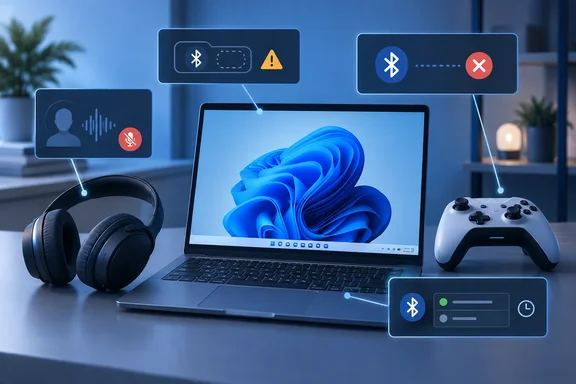
Before changing drivers, check that the accessory is charged, powered on, and within range, and run the Bluetooth troubleshooter in the Get Help app. Microsoft also notes that an unshielded USB device in a nearby USB 3.0 port can interfere with Bluetooth—worth checking before blaming Windows power management.
1. Devices disconnect without warning
Power saving is one possible cause, not the automatic culprit. Microsoft also points to outdated drivers and temporary glitches when Bluetooth connections repeatedly drop. On a laptop, first check whether Energy Saver is enabled; turning it off temporarily can help establish whether it is involved.
If the dropouts continue:
- Search for and open Device Manager.
- Expand Bluetooth and identify the Bluetooth adapter, rather than an accessory or enumerator.
- Open the adapter’s Properties. If a Power Management tab is available, clear Allow the computer to turn off this device to save power.
- Test the connection again.
That tab is not available on every adapter. Disabling power saving can also increase power use, so it is a troubleshooting trade-off, particularly on a laptop—not a setting every PC needs changed. If the disconnection happens only after headphones have sat idle, check the accessory maker’s own settings for an idle timeout before changing Windows drivers.
2. The Bluetooth switch vanishes
First find out which switch is missing. Open Settings > Bluetooth & devices. If Bluetooth works there but its Quick Settings tile is absent, the action may simply need to be added back. If Bluetooth is absent from Settings too, Microsoft says the PC might lack an adapter or its driver might not be installed. A missing tile alone does not establish that the hardware has failed.
Check Device Manager > Bluetooth for the adapter. If it is listed, try Update driver > Search automatically for drivers. Microsoft notes that a PC manufacturer may have a newer Windows 11 driver even when Device Manager says the best one is installed. If a reinstall is needed, uninstall the identified adapter, restart the PC, and let Windows attempt to reinstall it; if it does not reappear, use Device Manager > Action > Scan for hardware changes. Do not uninstall an arbitrary Bluetooth entry merely because its name looks unfamiliar.
3. Headphones sound worse during calls or games
For Bluetooth Classic Audio, a sudden change from stereo sound to thin, mono audio when a chat app activates the headset microphone can be expected profile behavior. Microsoft’s driver documentation explains the divide: A2DP handles high-quality stereo playback, while the Hands-Free Profile handles microphone capture alongside mono playback. Windows 11 switches profiles automatically when an app opens the headset microphone or starts a communications audio stream.
The least disruptive test is to select a different microphone in the call or game app while continuing to use the Bluetooth headphones for output. That may allow stereo playback if the app no longer invokes hands-free audio on the headset. BGR proposes disabling Hands-free Telephony, but that can remove the headset’s microphone or calling function; disabling a related driver is an especially poor first move when the audio change may be normal operation.
There is an important exception to the broad “Bluetooth calls must sound mono” rule: on compatible LE Audio PCs and accessories, Microsoft documents configurations that support stereo playback while the microphone is active. Hardware, drivers, and Windows version determine whether that option is available.
4. Windows shows the wrong connection status
If an accessory is off but Bluetooth & devices still shows it as connected, the status display may be wrong; it does not necessarily mean the accessory is transmitting audio. Microsoft explicitly lists improved accuracy for disconnected accessories—and a fix for a Bluetooth radio that was off while its Settings toggle showed on—in KB5124010, the September 22, 2026 non-security preview for Windows 11 versions 24H2 and 25H2. The listed OS builds are 26100.9550 and 26200.9550. These changes have not necessarily reached every eligible PC, and the preview notes do not promise to fix every reconnection problem.
5. Bluetooth stops working after an update
Timing is a useful diagnostic clue, but it is not proof of cause. BGR describes complaints following January, April, and August 2026 updates; the Microsoft material reviewed here does not establish those month-by-month Bluetooth incidents or identify a single update responsible for them. What Microsoft does document is a set of Bluetooth improvements in September’s preview, including connection-state and toggle fixes, LE Audio reliability improvements, and a fix for a possible 0x139 crash during Bluetooth audio streaming.
If trouble began after a recent Windows or driver update, identify the adapter in Device Manager and try an updated driver. If it worked before the change, open the adapter’s Properties > Driver and consider Roll Back Driver if that button is available. Microsoft also documents reinstalling the adapter driver and obtaining a Windows 11 driver for the specific PC model from its manufacturer. Those steps are more targeted than removing a security update on the assumption that Windows caused the fault.
The practical rule: diagnose the symptom first, then change one thing at a time. A vanished control, a dropped radio link, and a headset entering call mode may all say “Bluetooth problem” on the surface—but they do not share one magic checkbox underneath.
References
- The 5 Biggest Problems Users Have With Bluetooth On Windows 11 bgr.com · 2026-09-28T00:47:00+00:00
- Bluetooth Classic Audio - Windows drivers | Microsoft Learn learn.microsoft.com
- Turn Bluetooth on or off in Windows | Microsoft Support support.microsoft.com