

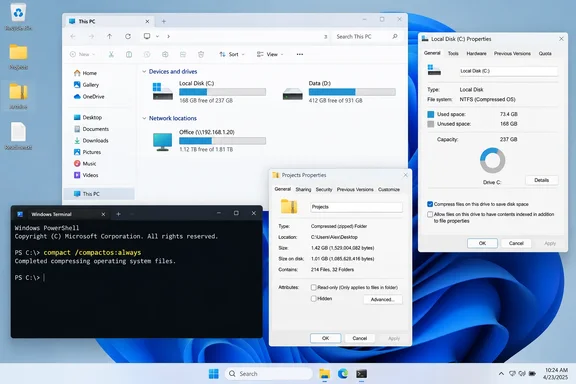
What matters for Windows 11 users is that XDA tested two different things, and only one of them is Compact OS. How much space you get back, and how risky it is, depends on which one you run.
What XDA reported
XDA writer Abhinav Raj tested two machines: a Lenovo Legion 5 Pro laptop and a desktop with a PCIe Gen 4 NVMe SSD. On both, compact /compactos:query said the system was not in the Compact state because Windows had decided compression wasn't worth it. That's the normal result on a PC with plenty of free space.
After he forced Compact OS on:
- The laptop gained nearly 7 GB, and the job took about five minutes.
- The desktop gained about 5 GB.
He then ran the same tool on the laptop's entire C:\Users folder with LZX compression. That pass took almost thirty minutes and went through about 460,000 files. It shrank roughly 190 GB of data to 158 GB, saving about 31.5 GB. Add the 7 GB from Compact OS and you get the 38 GB in the headline. He also tried an Xbox Games folder and got almost nothing back, which he blamed on game assets already being stored in compressed archives.
These numbers come from one writer on one laptop. They're believable, but nobody should expect them as a guaranteed result.
Summary: About 7 GB came from Compact OS. The other 31.5 GB came from compressing a user-profile folder, which is a separate operation with different trade-offs.
Compact OS: Microsoft's supported way to shrink Windows itself
According to Microsoft, Compact OS installs the operating system files as compressed files and is supported on both UEFI-based and BIOS-based devices. Windows Update keeps working normally too: When running CompactOS, Windows update can replace or remove individual files as needed to help maintain the drive footprint size over time.
The compact command reference lists three options:
queryQueries the system's Compact state.alwaysCompresses all operating system binaries and sets the system state to Compact, which remains unless administrator changes it.neverUncompresses all operating system binaries and sets the system state to non-Compact, which remains unless administrator changes it.
Microsoft also publishes some numbers. Its size table, measured on Windows 10 version 1607, shows a 4 GB x64 Windows 10 Home install dropping from a 15.06 GB base footprint to 11.3 GB with Compact OS, a saving of more than 3.7 GB. XDA's 5–7 GB on modern Windows 11 machines is a bit higher. That fits a larger OS, but those figures are old and your result will depend on your install.
Step-by-step: turning on Compact OS
- Open Terminal (Admin), PowerShell, or Command Prompt as administrator.
- Check the current state:
compact /compactos:query - Note your free space first. In PowerShell (not Command Prompt, where this cmdlet won't run), use:
Get-PSDrive -Name C - Turn on compression:
compact /compactos:always - Wait. XDA notes there's no progress bar, and the window sits on "Compressing OS binaries" until it finishes. When it's done, you get a summary with the compression ratio and the number of files compressed.
- Run
Get-PSDrive -Name Cagain and compare the free space with your first reading. - Restart when convenient. In its Compact OS guide, NinjaOne says it's also recommended to reboot the system once the process has been completed.
To undo it, run compact /compactos:never from an elevated prompt.
Summary: Compact OS is documented, supported, and reversible. Expect several gigabytes back, not dozens.
Folder compression: where the big number came from
The 31.5 GB came from pointing compact.exe at an ordinary folder. Microsoft says this command is the command-line version of the NTFS file system compression feature, so it only works on NTFS volumes, not FAT or FAT32.
XDA used this command:
compact /c /s:"C:\Users" /exe:lzx /i
/c compresses, /s: recurses through the folder and its subfolders, and /i keeps going past errors instead of stopping. The /exe:lzx part needs some explaining. Microsoft describes /EXE as compression that Uses compression optimized for executable files that are read frequently, but not modified. It offers four algorithms: XPRESS4K (fastest and default value) XPRESS8K XPRESS16K LZX (most compact).
The trouble is that C:\Users isn't full of files that never change. It holds documents, browser profiles, mail caches, sync folders, and app data that get rewritten all the time. The following is based on general knowledge of how this compression works, not on XDA's testing: when an /EXE-compressed file is modified, it's usually written back uncompressed. That means your savings can shrink as you use the PC, and frequently written data was never a good fit for this mode. Microsoft's own wording, "read frequently, but not modified," points the same way.
Folders where this works well:
- Application install folders and portable tools
- Old project archives you only read
- Developer SDKs and toolchains that sit there unchanged
Folders where it's a poor fit:
- Game libraries (XDA's own Xbox test got almost nothing back)
- Photos, video, music, and ZIP files, which are already compressed
- Databases, virtual machine disks, and active sync folders
Summary: This step produced most of XDA's savings, but your profile folder is a mixed bag. Choose targets that mostly get read, not written.
Fixing the undo command
XDA's undo command for folders has a formatting error:
compact /u /s: "C:\[FOLDER NAME]" /exe /i
The space after /s: separates the path from the switch, so the command may not do what you expect. Remove the space:
compact /u /s:"C:\Users" /exe /i
Including /exe matters here. Microsoft says If /EXE is specified, only files compressed as executables will be uncompressed, and its documentation adds that without /EXE, only regular NTFS-compressed files are uncompressed. If you used /exe:lzx to compress, use /exe to undo it. A plain /u would skip those files.
Performance: probably fine, but not "never"
XDA says you'll never notice the CPU cost on a modern processor with a fast NVMe drive. That's a reasonable guess for a Ryzen 7000-class desktop, but it's a hunch, not a guarantee. NinjaOne is more careful, warning that Compact OS may increase CPU usage and slightly impact boot or app load times, especially on older hardware. The setting tends to make the most sense on cheap laptops with small eMMC or SATA storage, and those also tend to have the weakest CPUs. Is that a contradiction? Not quite. On slow storage, reading less data can make up for the extra decompression work, but you need to test it on your own machine to know.
Here's a sensible way to try it:
- Run Compact OS first. It's supported, the risk is low, and it's easy to undo.
- Try folder compression on one folder you mostly read, and measure the result before doing more.
- Don't run LZX across your whole profile just because one laptop gained 31.5 GB.
- Before compressing anything in bulk, check your backups. Better safe than sorry.
The bottom line
XDA is right that Windows 11 has an effective, free alternative to paid "PC cleaner" tools for saving disk space. It's wrong that Microsoft keeps quiet about it. Compact OS is documented, supported, reversible, and good for several gigabytes on a typical install. The headline 38 GB mostly came from blanket folder compression, which is a sharper tool. Use it on folders full of files that rarely change, use the corrected undo command if you need to reverse it, and don't count on the same result as one Legion laptop.
References
- Windows has a compression mode built in that Microsoft never mentions, and it gave me 38 GB back on my C: drive - XDA XDA · 2026-10-02T13:00:17+00:00
- Compact OS, single-instancing, and image optimization | Microsoft Learn learn.microsoft.com
- Windows Setup Command-Line Options | Microsoft Learn learn.microsoft.com