

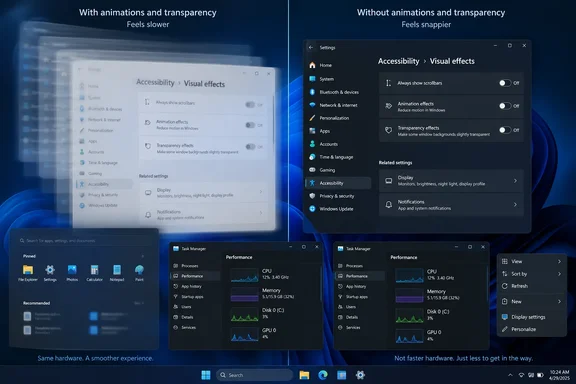
That distinction gets lost in the article’s claim that disabling a pair of visual toggles makes Windows 11 faster “without upgrading a single thing.” It can make a substantial difference to how immediate window controls, menus, task switching, and Start feel—especially when the system is drawing delayed or stuttering transitions. But neither switch increases CPU performance, adds RAM, speeds an SSD, or resolves an overloaded startup configuration. Users should treat it as a safe front-end adjustment and a useful diagnostic step, not a performance fix in itself.
Microsoft’s own documentation provides a useful clue to why the tweak resonates. Its Windows design guidance has long noted that animation can make people think an operation is slower even when the underlying task has not changed. In other words, the complaint is often legitimate, but its source may be the interface’s pacing rather than a newly broken machine.
The two Settings toggles do what they say
Windows 11’s Animation effects control is the least disruptive place to start. Open Settings, select Accessibility, then Visual effects, and turn off Animation effects. Microsoft confirms that this disables Windows animations system-wide through the supported settings interface; it does not require a registry edit, a third-party “debloat” script, or an administrator account.
The immediate changes are visual. Windows no longer eases and fades between many interface states; menus, controls, and windows appear or disappear with much less transition. For users who move rapidly among File Explorer, browsers, terminals, Remote Desktop sessions, and management consoles, that can make the desktop seem much closer to the click.
The trade-off is equally plain: Windows becomes more abrupt. Some people prefer that directness. Others rely on motion to understand where a window went, distinguish a new panel from an existing one, or follow an interface transition. Microsoft positions the control as an accessibility and focus option, which is more accurate than treating it as a universal speed setting.
The neighboring Transparency effects toggle removes the acrylic-style blur and translucency used across parts of the Windows interface. Microsoft describes the result as making window backgrounds more opaque. This is a visual preference first, though it can also reduce the work associated with drawing blurred, layered surfaces.
For machines using integrated graphics, high-resolution displays, older graphics drivers, or remote sessions where desktop compositing is already less smooth, disabling both settings may eliminate visible hitching. On a modern PC with a healthy GPU and current drivers, the measurable resource savings may be negligible even if the change still feels better.
“Adjust for best performance” is a much broader change
MakeUseOf also recommends the older Performance Options dialog, available by pressing Windows+R, entering sysdm.cpl, and opening Advanced > Performance > Settings. That remains a valid Windows control panel route, and Microsoft still documents visual-effects tuning as a way to reduce resource use.
But selecting Adjust for best performance is far more aggressive than merely turning off Windows 11 animations. It can disable font smoothing, thumbnail previews, shadows, window-content rendering while dragging, Peek behavior, and other elements that users may not expect to lose. Applying it blindly can make a modern desktop look unfinished and, more importantly, degrade readability.
A more disciplined configuration keeps the settings that preserve usability:
- Leave Smooth edges of screen fonts enabled so text retains anti-aliased edges rather than becoming visibly jagged.
- Leave Show thumbnails instead of icons enabled if image, video, PDF, or document previewing is part of the workflow.
- Leave Show window contents while dragging enabled if working with an outline while moving windows would be more distracting than helpful.
- Leave Save taskbar thumbnail previews enabled unless there is a specific reason to minimize desktop effects as aggressively as possible.
Disabling animation-specific entries—such as minimizing and maximizing effects, fading menus, and animated controls—delivers most of the “instant” desktop response without turning off every polish feature Windows has accumulated since the Vista era.
This is also where the MakeUseOf article overreaches. Its author describes transparency and animation as a noticeable resource drain, but provides no before-and-after measurements for CPU load, GPU load, frame time, memory consumption, battery life, or application launch speed. Microsoft says visual effects can use system resources, but it does not promise a material performance gain from these two toggles on every Windows 11 device.
The likely gain is latency you can see, not work Windows avoids
The Windows desktop is composed by the Desktop Window Manager, which is responsible for presenting windows and many visual effects. Microsoft’s Windows graphics documentation warns developers that blur-behind rendering can be resource-intensive for both CPU and GPU workloads. That supports the narrower claim that transparency can matter on constrained or graphics-limited systems.
Yet the desktop compositor normally exists whether or not these two effects are enabled. Turning off transparency does not remove Desktop Window Manager from Windows 11, nor does it change the performance of a compile, a database query, a file copy, a virtual machine, or a browser tab that is waiting on a remote server. It trims presentation work and removes deliberate visual delay.
That makes the setting particularly useful when the symptom is narrow: the Start menu hesitates visually, task switching looks choppy, opening a Settings page feels over-animated, or minimizing windows appears to lag even though the apps themselves remain responsive. It is much less useful when the system takes minutes to boot, disk activity remains saturated, memory pressure causes constant paging, or a specific application pegs the CPU.
The fastest way to tell the difference is to make the two changes, then repeat the exact action that felt slow. If the perceived delay disappears while Task Manager shows no material change in CPU, memory, disk, or GPU use, the issue was chiefly presentation. If the delay remains, the Windows effects were never the main problem.
A clean desktop setting should not hide a real fault
Microsoft’s current performance guidance points to the usual suspects when Windows is genuinely sluggish: too little free storage, excessive startup software, background activity, outdated software or drivers, malware, and hardware that no longer fits the workload. Those causes have a far larger effect on startup time, app launches, and sustained responsiveness than a fade animation.
For Windows 11 users who find the visual-effects tweak helpful but still have a slow PC, the next practical step is Task Manager, not more cosmetic tuning. Press Ctrl+Shift+Esc, check the Performance and Processes views while reproducing the slowdown, then review Startup apps for programs that do not need to launch with every sign-in. Microsoft specifically identifies startup applications as a contributor to both boot speed and overall system performance.
IT administrators should also avoid interpreting a request to disable animations as evidence that an endpoint needs a hardware refresh. It can be a sensible accommodation for users sensitive to motion, a low-risk preference for virtual desktop users, or a temporary workaround for an interface that is visibly stuttering. It becomes a hardware or driver investigation when the same machine also shows sustained high resource use, display-driver faults, poor remote-session performance, or slow application behavior after effects are removed.
A useful tweak, with a modest promise
MakeUseOf is right about the practical procedure: Windows 11 exposes the switches, and many people will prefer the result. Microsoft’s own settings documentation confirms the route, while its performance guidance confirms that visual effects are not free. The omission is a benchmark and a boundary around what the settings can actually repair.
Disable Animation effects first and live with the change for a day. If the desktop remains visually heavy or uneven, disable Transparency effects as well. Then stop and assess the result. A computer that now feels immediate may only have needed less ornament; a computer that remains slow needs attention directed at the workload, startup software, storage, drivers, or hardware—not another round of appearance tweaks.
Update: Additional details (September 21, 2026)
XDA Developers reports that transparency effects were most noticeable on its low-spec Windows 11 virtual machines, including systems configured with two to four CPU cores and 4GB of memory. In that testing, disabling transparency made menus, app switching, and other desktop interactions feel more fluid, while an older second-generation dual-core Intel Core i3 laptop did not become meaningfully faster even after both transparency and animation effects were disabled.
The outlet also distinguishes between Acrylic and Mica rendering: Acrylic’s frosted-glass blur is described as more demanding because it continually samples and blurs content behind a surface, while Mica is more opaque and generally used for longer-lived app backgrounds. By contrast, its Ryzen 7 and RTX 3060 laptop showed little practical performance benefit from disabling transparency, reinforcing that the setting is most relevant to weak integrated graphics and lightly provisioned virtual machines.
References
- I made Windows 11 feel faster without upgrading a single thing - MakeUseOf MakeUseOf · 2026-09-18T18:00:13+00:00
- I changed one Windows 11 setting, and my PC instantly looked cleaner and felt faster XDA · 2026-09-21T00:00:16+00:00