

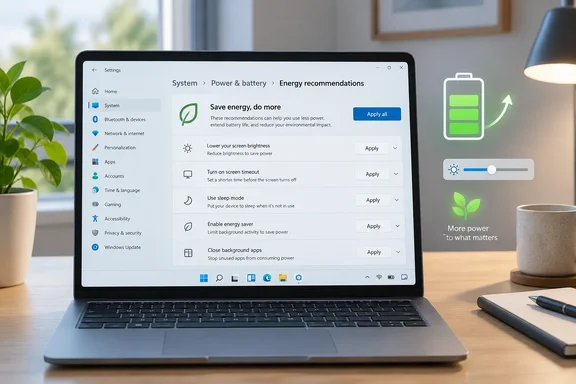
His headline needs some qualification, though. Below: where the setting lives, what "Apply all" changes, what PCWorld measured and what it didn't, and how to tell whether your own laptop is likely to see a gain like the one in the headline.
Where to find it: a four-step job
You don't need registry edits, PowerShell or third-party tools. Itechguides says the same: you do not need Command Prompt, PowerShell, Registry edits, or ViveTool to enable these features.
- Open Start > Settings (or press Win+I).
- Select System, then Power & battery.
- Click Energy recommendations.
- Click Apply all at the top, or click Apply next to each item you want.
Microsoft's own battery guide gives the same path. It says you can select Apply all or adjust individual settings that are likely to use more power than average, such as screen brightness, the screen saver and the sleep and screen-off timers.
How to tell it worked: each item on the page should now show as applied. Clicking an applied item opens its settings page. Groovypost notes that after you apply a recommendation, you will have the option to adjust the setting further. For example, clicking the screen-timeout item takes you to Screen and sleep, where you can lengthen a three-minute timeout if it's too aggressive.
Summary: Settings > System > Power & battery > Energy recommendations > Apply all. If one setting annoys you later, open it and change it. You don't need to undo the whole bundle.
What "Apply all" actually changes
Microsoft's support page for the feature lists ten settings. Those are the core list, but Microsoft also warns that what you see depends on your device type, whether it's plugged in, and which sensors it has. Here's the list with practical notes:
- Power mode for best energy efficiency. Microsoft says this sets the power mode to "Recommended settings" to balance efficiency and performance. Hachman suggests leaving a more efficient mode on all the time, because most productivity apps don't need much processing power and a lower mode also means less fan noise.
- Screen brightness for best energy efficiency. PCWorld says this sets brightness to 75 percent by default. Microsoft's documentation doesn't give that figure as a universal value. Microsoft also notes the setting doesn't yet apply to external displays.
- Sleep after 3 (or 10) minutes and turn off the screen after 3 (or 10) minutes. Microsoft says the timeout depends on the system. Hachman points out that these only help when the laptop is actually idle, such as during a coffee run. If you're actively working, they never kick in.
- Content-adaptive brightness and contrast. Windows adjusts the built-in screen depending on what's displayed. Microsoft warns that the shifts can be distracting and that photo and video editors who need accurate color may want it off. It isn't available on devices without batteries.
- Adaptive brightness (changes brightness when the lighting around you changes). This needs an ambient light sensor and doesn't work with external monitors.
- Sleep when I leave and dim the screen when I look away. Both need a presence sensor. Hachman finds the dimming distracting. He calls auto-sleep useful, but notes that walking away from a laptop in public is a bigger risk than a flat battery.
- Turn off the screen saver.
- Stop USB devices when the screen is off. Microsoft says this blocks access to USB devices while the screen is off. It isn't available on devices without batteries.
Pureinfotech's list of the same feature matches Microsoft's ten items: set the power mode for best energy efficiency, set the screen brightness for best energy efficiency, put my device to sleep after 3 (or 10) minutes, turn off my screen after 3 (or 10) minutes, followed by the display, presence and USB items.
Why PCWorld's list has extra items
Hachman's tour also includes dark mode, dynamic refresh rate and turning off HDR. Microsoft's support page for the feature doesn't list any of those three. The explanation is that the feature has grown over time, and the support page hasn't kept up.
Eleven Forum's tutorial gives the history:
- The feature first appeared starting with Windows 11 build 22621.1344.
- Starting with Windows 11 version 22H2 KB5030310 Build 22621.2361, Microsoft added 2 additional energy recommendations for turning on dark mode and adjusting refresh rate to conserve energy.
- Later, with build 26100.1882 (24H2) Microsoft is beginning to roll out a new energy recommendation for turning off HDR to conserve energy on PCs with HDR displays.
So if your page has no HDR item, nothing is broken. You probably don't have an HDR display, or the rollout hasn't reached your PC. Without a variable-refresh panel there's nothing for the refresh-rate item to change. Itechguides sums it up: the available controls depend on your Windows version, hardware, display, drivers, and existing settings. Hachman also notes that some items may already be switched on when you open the page.
Summary: Microsoft documents ten items. Newer builds and better displays can show up to three more. Don't expect your list to match PCWorld's or a friend's.
What PCWorld tested and what the numbers mean
Hachman tested two laptops with Qualcomm Snapdragon chips: an Asus ZenBook A16 with an OLED display and a Microsoft Surface Laptop 7th Edition with an IPS display. He wanted to see whether the display type changed the result.
He didn't run full battery rundown tests. He ran Procyon's one-hour office productivity benchmark with Wi-Fi on, recorded how much battery each laptop used in that hour, and projected total runtime from that. The hour counts are estimates, not measured full-charge runtimes.
| Laptop | Run | Hourly drain, normal settings | Hourly drain, recommendations on | Projected runtime |
|---|---|---|---|---|
| Asus ZenBook A16 (OLED) | First | 17% | 14% | ~5.9 h → 7.7 h |
| Asus ZenBook A16 (OLED) | Second (brightness at max) | 18% | 10% | — |
| Surface Laptop 7th Ed. (IPS) | First | 16% | 8% | 6.25 h → 12.5 h |
| Surface Laptop 7th Ed. (IPS) | Second check | 17% | 7% | — |
PCWorld didn't give runtimes for the second runs. Using the same projection method, our own arithmetic gives roughly 5.6 to 10 hours for the Asus second run and about 5.9 to 14.3 hours for the Surface second check. Treat those as back-of-envelope figures, not measurements.
The "doubled" headline comes mainly from the Surface. On the Asus first run the gain was a more modest 1.8 hours, although Hachman notes that still comes close to a full workday.
Reading the results critically
The numbers are encouraging, but a few cautions apply:
- Brightness is doing much of the work. In his "normal" baseline, Hachman had power mode already turned down and brightness turned up. Before the second Asus run, he raised baseline brightness to maximum, and that run showed the bigger gap. If you already keep your screen dim, expect smaller gains.
- IPS versus OLED is plausible but not proven. PCWorld suggests older IPS laptops may benefit more once Windows lowers the backlight, which fits with backlight power not scaling with on-screen content. With one laptop of each type, though, that's a pattern worth noting, not a conclusion.
- You can't tell which setting saved what. The test measured the whole bundle. Dark mode may help on an OLED, where black pixels are effectively off, but nothing in the test separates its effect from the brightness and timeout changes.
- The sleep timers barely count here. A one-hour benchmark keeps the machine busy, so sleep and screen-off timeouts probably didn't contribute much. In everyday use with idle stretches, they could matter more.
Hachman's own verdict is "your mileage may vary." From an IT perspective (our analysis, not PCWorld's), that's the right framing. The test shows the bundle can make a big difference on a laptop that starts out bright and badly tuned. It doesn't show that every laptop will double its battery life.
Energy recommendations vs. Energy saver
People often confuse these two features, and they behave very differently.
According to Hachman, the recommendations don't really affect functionality. Energy saver usually comes on around 30 percent battery and can pause background tasks and sync, which could hold up an important email or a file backup. Microsoft says Energy saver manages system processes and power use, and you can set it to turn on at a chosen battery level or switch it on manually from the battery quick setting. WindowsForum's own tutorial adds a version note: on Windows 11 version 24H2 and later, Microsoft uses Energy saver, which replaces the older Battery saver feature. On Windows 11 23H2/24H1 and earlier, you may still see Battery saver instead.
Use the recommendations as an always-on baseline, and keep Energy saver for when the battery is genuinely running low.
If "Apply all" isn't enough, or doesn't seem to work
- An item won't apply or is missing: check whether it needs hardware you don't have, such as a presence sensor or ambient light sensor. Brightness items don't apply to external monitors.
- The screen keeps dimming or shifting: turn off content-adaptive brightness under System > Display > Brightness. Microsoft specifically flags this one for photo and video work.
- Your mouse or webcam stops responding after the screen turns off: that's the USB recommendation doing its job. Turn it off if it causes problems with peripherals or docks.
- Still short on battery: Microsoft's broader guide suggests lowering the refresh rate under Display > Advanced display, checking Battery usage per app for apps that use a lot of power in the background, and choosing a more efficient power mode. Microsoft notes that power-mode options depend on your hardware and manufacturer.
For admins: if you'd prefer users not see the page at all, an Eleven Forum member posted a registry command that uses the Settings page visibility policy: reg add "HKLM\SOFTWARE\Microsoft\Windows\CurrentVersion\Policies\Explorer" /v SettingsPageVisibility /t REG_SZ /d "hide:energyrecommendations" /f. Be careful in managed environments. This value overwrites any existing SettingsPageVisibility list, so merge it with pages you already hide rather than replacing them.
The bottom line
Energy recommendations isn't new. It has been in Windows 11 since the 22H2 era and has gained items over time. PCWorld's test is still a useful reminder that one of the most effective battery tweaks is already built into Windows. On a Surface Laptop running a bright screen, it cut hourly drain roughly in half. On an OLED ZenBook, the gains were smaller but still real.
Open the page and look through what your laptop offers. Click Apply all, then go back and loosen anything that gets in your way, such as the three-minute screen timeout during a long meeting. Your results will depend heavily on how bright your screen was to begin with.
References
- I doubled my laptop’s battery life in a single click. Here’s how - PCWorld PCWorld · 2026-10-01T11:01:00+00:00
- How to use Windows 11 'Energy Recommendations' to save energy, extend battery, and lower carbon footprint - Pureinfotech pureinfotech.com
- How to Enable New Energy and Battery Settings in Windows 11 itechguides.com