

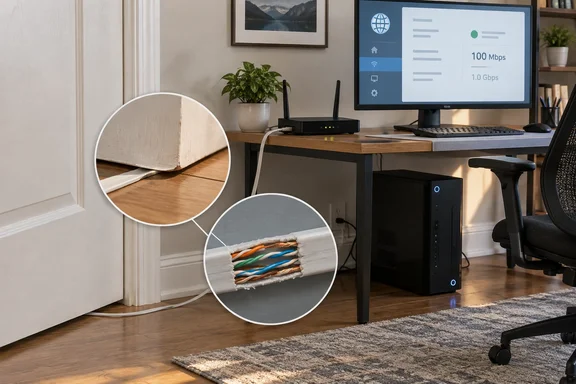
The author isn't claiming a lab-grade diagnosis. They never found the exact spot where the cable failed. Still, the lesson holds up, and plenty of other troubleshooting guidance backs it: check the physical layer before you tear everything else apart.
What happened
The setup was simple. The author described a flat ~100ft cable run on the baseboards of my home up to my office. The 2.5GbE link on that run kept dropping to gigabit, and sometimes it fell to 100 Mbps overnight. The author suspected a severed pair somewhere along the cable, and replacing it fixed the problem.
A few things to keep in mind about that account:
- The cause is suspected, not proven. The cable was never opened or tested with an instrument, so nobody knows exactly where it failed.
- The make and model aren't named. The category, conductor gauge and manufacturer of the failed cable are unknown.
- Length wasn't the issue. About 100 feet is roughly 30 meters. The Ethernet Alliance's NBASE-T specifications support 2.5 Gbps over up to 100 meters of Category 5e or better cable, so this run was well within the rated distance.
Summary: The link was slow and unstable, and replacing a long flat cable fixed it. That's a useful story, but it isn't a teardown.
Why a damaged cable looks like a software problem
Most Ethernet cables contain four twisted pairs of copper wire, eight conductors in all. The twists cancel interference and reduce crosstalk, and a cable's rated performance assumes those twists stay intact.
Different Ethernet speeds need different numbers of working pairs. Gigabit Ethernet requires all four twisted wire pairs in the cable. A 100 Mbps connection can operate using only two pairs. 2.5GBASE-T also uses all four. So if one of the extra pairs is damaged, the cable may still connect at 100 Mbps, even though it can't carry a faster link.
That's where "downshift" comes in. Many PHYs (the chips that handle the physical connection) give up on the higher speed after several failed attempts and settle for a slower one. Linux users sometimes see this spelled out: one Texas Instruments forum thread shows a kernel log reporting "Link is Up - 100Mbps/Full (downshifted)". On Windows you usually just see a working connection at a lower speed, with no warning. As How-To Geek put it in an earlier report, neither Windows nor your router will notify you that is happening by default.
One technical caveat
The XDA piece suggests that one broken pair explains a 2.5GbE link falling to gigabit. That's shaky, because gigabit needs all four pairs too. A cleanly broken pair should knock the link down to 100 Mbps, not to 1 Gbps. The author's stop at gigabit could come from a marginal or intermittent fault, from how that particular PHY negotiates, or from something else. The source doesn't say which. A link stuck at exactly 100 Mbps is a strong cable clue. A 2.5GbE port settling at 1 Gbps is a weaker one.
Why intermittent faults are worse
A clean break at least gives you a steady symptom. A crack that opens and closes as the cable moves or warms up does not. The author noted that a crack that opens and closes as the cable shifts or warms up causes the link to drop and renegotiate. Corrupted frames get discarded and TCP resends the lost data. From your chair, that looks like random packet loss, latency spikes and stalled transfers.
Summary: A damaged pair often doesn't kill the link. It just slows it down quietly, which is why it gets blamed on drivers.
Are flat cables the villain?
Only partly. Flat cables aren't always untwisted or defective. Many still contain four twisted pairs laid side by side in a ribbon. NETGEAR's Cat5e flat cable, for example, is listed with four UTP twisted pairs and 32 AWG stranded copper. For comparison, typical round Cat5e and Cat6 cables use 23 or 24 AWG, which is noticeably thicker.
The bigger risk is how flat cables get installed. They fold neatly against themselves, run under doors and tuck behind furniture. Those are the kinds of sharp creases and repeated pinch points that can fatigue thin copper. A round cable pushes back when you bend it too hard. A flat cable just goes along with it.
The author cites the TIA-568 rule that the minimum bend radius for unshielded twisted pair is four times the cable's outside diameter. Older editions of the standard applied that figure clearly to horizontal (in-wall) cable and left patch cords "under further study." So treat it as a sensible guideline rather than a universal law, and check the manufacturer's installation guidance for your cable.
A cable's category label also can't make up for physical damage. A Cat6a cable with a cracked conductor will perform worse than an intact Cat5e one.
Summary: Flat cables are fine for tidy short runs. They're a poor choice for pinch points, door gaps and anywhere they'll be folded or flexed repeatedly.
How to troubleshoot a suspect Ethernet link
Here's a practical order of operations, based on the reporting and on vendor guidance:
- Check the negotiated link speed. On Windows 11, open Settings > Network & internet > Ethernet and look at the link speed, or run
Get-NetAdapterin PowerShell and read the LinkSpeed column. A gigabit or faster port showing exactly 100 Mbps is a big clue. - Leave speed and duplex on auto. You can see the adapter's Speed & Duplex setting in Device Manager. Intel specifically recommends leaving Gigabit adapters on Auto Negotiation rather than trying to force a particular speed.
- Reseat the plug. Intel's support guidance says the cable should click firmly into the jack, and if it doesn't, this cable should be considered broken, and you need to replace it.
- Test with a short, known-good cable. Connect the PC straight to a switch or router port. If the connection immediately negotiates at 1.0 Gbps, the computer and switch are capable of Gigabit Ethernet. The fault is likely in the original cable, wall jack, patch panel, coupler or intermediate device.
- Check the whole path. Intel points out that the culprit can be any cable between the machine and the router, including any cabling in before and after any switches, or on the other side of any wall jacks, and behind the wall.
- Walk the route. Look for crushed sections, staples, door-hinge pinches, sharp folds and strained connectors. A clean-looking jacket doesn't prove the copper inside is intact.
- Use a tester if you have one, but know its limits. A basic wire-map tester can find opens, shorts and miswired pairs. It doesn't certify bandwidth, and it may miss a fault that only shows up intermittently.
- Don't re-create the fault. If the replacement cable goes through the same pinch point, you've only reset the clock on the next failure.
What success looks like: a steady link at the speed you expect, no overnight drops to 100 Mbps, and no more mystery stalls.
Bottom line
The account is anecdotal, and one technical explanation in it needs a caveat. The advice still stands: start with the patch cable, then bypass any wall jacks or intermediate equipment, confirm the capabilities of both Ethernet ports and only then move on to drivers and advanced adapter settings. A five-minute cable swap costs far less than rebuilding your whole network over a bad crease behind the couch.
References
- I tore apart my home network only to discover my Ethernet cables were the problem XDA · 2026-09-26T21:00:16+00:00
- Ethernet Link Speed Capped at 100 Mbps intel.com
- AM3352: PHY driver displayed "Downshift occurred from negotiated speed 1Gbps to actual speed 100Mbps, check cabling!" - Processors forum - Processors - TI E2E support forums e2e.ti.com