

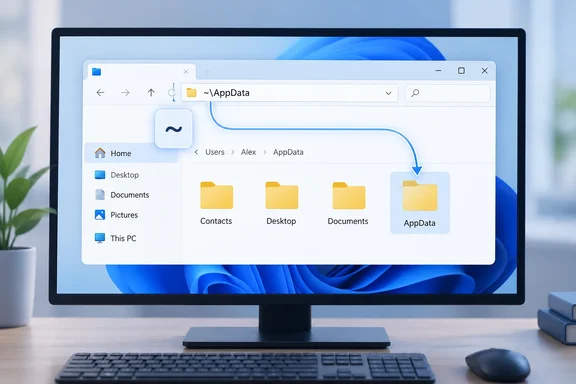
~ to mean "my home folder" for decades. Windows users heading to AppData have had to type C:\Users\ and their account name, or remember %USERPROFILE%. Microsoft is now testing the tilde shortcut in File Explorer. It's a small change, but anyone who ends up in AppData several times a week will notice it.
What Microsoft actually shipped
Microsoft's official release notes for Windows 11 Insider Experimental Preview Build 26340.9596 give a release date of 2 October 2026. Under File Explorer, the notes say the Address Bar now supports '~', making it quicker to navigate directly to your user profile folder and subfolders (e.g., "~\AppData").
The notes also say the build is based on Windows 11, version 26H2 via an enablement package. Pureinfotech says the same, describing it as the Windows 11 Insider Preview Quality Update (26340.9596) for version 26H2 through the Experimental experience in the Windows Insider Program.
Here's what it means in practice:
~opens your user profile folder, which is usually something likeC:\Users\YourName~\AppDataopens the AppData folder inside your profile. Pureinfotech says entering it takes you straight to the AppData folder under your profile.- You don't need to know or type your account name, so the same shorthand works for whichever account is signed in
In short: this is an address bar change in File Explorer, available in one Experimental 26H2 build, and it's listed as gradually rolling out.
Why this matters more than it sounds
AppData is where Windows apps keep per-user settings, caches, logs and other data. Power users and help desk staff go there all the time to clear a corrupted cache, find a config file, collect logs for a bug report or check what an app has left behind.
Until now there were two usual ways in:
- Type the full path, for example
C:\Users\YourName\AppData. That's fine until your profile folder turns out to be a truncated name, a Microsoft account email fragment, orYourName.DOMAINon a work machine. - Use environment variables. The address bar already expands
%USERPROFILE%\AppData. It works, but it's a lot of percent signs to type.
Microsoft's own documentation describes the USERPROFILE variable as the user's profile folder, with "~\AppData"-style targets living inside it. The tilde doesn't give you access to anything new. It just takes fewer keystrokes to get there.
Developers will recognise it straight away. If you use WSL, Git Bash or a Linux box, ~ is muscle memory. Typing it into Explorer and getting nothing was a small annoyance. Now Explorer understands it.
Quick comparison: ways to reach your profile and AppData
| What you type in the Explorer address bar | Where it goes (typical) | Notes |
|---|---|---|
~ | C:\Users\<username> | New. Experimental Build 26340.9596 only |
~\AppData | C:\Users\<username>\AppData | New. Opens the parent AppData folder |
%USERPROFILE%\AppData | C:\Users\<username>\AppData | Long-standing equivalent |
%APPDATA% | C:\Users\<username>\AppData\Roaming | Opens the Roaming subfolder, not the parent |
%LOCALAPPDATA% | C:\Users\<username>\AppData\Local | Opens the Local subfolder |
That distinction matters. ~\AppData takes you to the parent AppData folder, not Roaming or Local. Microsoft's documentation gives C:\Users\<username>\AppData\Roaming as the typical path for the roaming application-data folder and C:\Users\<username>\AppData\Local for local, non-roaming app data. If you want one of those directly, the existing %APPDATA% and %LOCALAPPDATA% variables still get you there in one step. Since the release notes say ~ works with subfolders, longer paths such as ~\AppData\Local should work too. Microsoft's example only shows ~\AppData, though.
The C:\Users\<username> paths above are typical, not guaranteed. Profiles can be redirected or relocated. Pointing at whatever the current profile actually is, wherever it lives, is the main advantage of using ~ or %USERPROFILE% over a hard-coded path.
How to try it (if you're an Insider)
If your device is in the Windows Insider Program's Experimental channel on the 26H2 track:
- Update through Settings > Windows Update until you reach Build 26340.9596 or later.
- Check your build. Press Win+R, type
winverand press Enter. The dialog shows your OS build number. - Open File Explorer and click the address bar. Alt+D also moves focus there.
- Type
~and press Enter. You should land in your profile folder. - Try
~\AppDataand press Enter to open the AppData folder.
If it doesn't work: Microsoft lists this under changes and improvements gradually being rolled out. Being on the right build doesn't guarantee you have the feature yet, so this isn't necessarily a fault on your machine. Use %USERPROFILE% until it reaches you.
Scope warning: the release notes only cover File Explorer's address bar. They say nothing about the Run dialog, Command Prompt, file pickers in other apps or anywhere else paths are typed. Don't assume ~ works in scripts, shortcuts or Group Policy paths. PowerShell has long had its own handling of ~, but that's separate from this Explorer change.
The rest of Build 26340.9596
The tilde wasn't the only change in this build. Pureinfotech says the release brings faster Settings, easier File Explorer navigation, Cloud Rebuild access, and Unicode 17.0 support. Windows Report also highlights Unicode 17.0 text shaping, saying the update allows Windows to display newly encoded characters and writing systems introduced with the latest Unicode standard more accurately.
Don't confuse it with a second build released the same day. Neowin reports that Microsoft just released Windows 11 Insider Experimental Preview builds 26340.9596 and 28120.3151 (26H1), and the 26H1 build has its own changes. The tilde shortcut is documented for the 26H2 build, 26340.9596.
The tilde also follows a run of File Explorer changes in this channel. A week earlier, Microsoft's Insider blog announced Experimental Build 26340.9577, and earlier builds worked on search and the context menu.
Will it ship to everyone?
Nobody outside Microsoft knows yet, and there's no date. Experimental-channel features can change, get pulled, or never leave the Insider program. As WinCentral said about an earlier build in the same series, experimental Windows features can appear, disappear and change during the testing process before Microsoft decides whether to ship them more broadly.
That said, this is about as low-risk as Windows features get. It doesn't add AI, change the UI or require new hardware. It only adds one more thing the address bar can understand. Unless Insider feedback finds a conflict, such as a real folder named ~ (tilde is a legal filename character), there's no obvious reason to drop it.
The bottom line
On its own, the tilde won't change how most people use Windows 11. Still, File Explorer behaving more like the tools developers and admins already use is a good thing, and small improvements to everyday tasks often matter more than headline features.
For now:
- Insiders on the Experimental channel (26H2): update to Build 26340.9596 and try
~and~\AppDatain the address bar. If nothing happens, it hasn't rolled out to your device yet. - Everyone else: keep using
%USERPROFILE%,%APPDATA%and%LOCALAPPDATA%. They work today in released versions of Windows. - IT pros: don't build documentation, scripts or training around
~until the feature ships in a general release and Microsoft says exactly where it's supported.
References
- Windows 11 is getting a shortcut that makes jumping into AppData much easier Neowin · 2026-10-02T21:22:01+00:00
- Build 26340.9596 for Windows 11 26H2 makes File Explorer faster pureinfotech.com
- Windows 11 Insider Experimental Preview Build 26340.9596 - Windows Insider Program learn.microsoft.com