

Windows treats RAM as something to spend
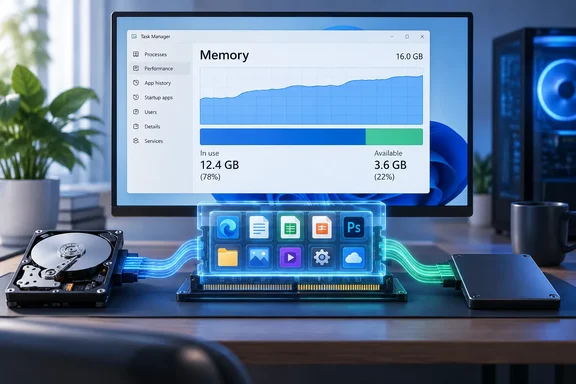
Windows treats spare RAM as something to spend, not something to protect. Engadget describes the older approach as loading only what the open programs needed. Windows now tries to predict what you'll want soon and keeps it in memory. That might be an app you open every day or a file you work on regularly.
Engadget attributes this to a service called SysMain, which was called SuperFetch in older Windows versions. It learns your habits and keeps likely-needed data in standby memory. The example is Chrome: if you open it every morning, Windows may keep it ready, and launching it from RAM is much faster than loading it from storage. That is why a PC can sit at more than half its RAM in use, or close to 100 percent.
The number to watch: Available
To see what is happening:
- Press Ctrl + Shift + Esc to open Task Manager.
- Select the Performance tab, then Memory.
- Ignore In use and look at Available.
Engadget says cached data counts as available because Windows can reclaim it instantly. Microsoft's WMI documentation for memory counters defines Available as memory, including Standby and Free, that is immediately available for use by processes, drivers, or the operating system. The same documentation says Cached includes Standby and Modified memory containing cached data and code for rapid access.
A "full" bar can therefore be a healthy cache rather than a shortage. The more RAM a PC has, the more room Windows has to cache.
Other explainers say the same. How-To Geek describes Available as memory ready to be allocated immediately, including standby cache that Windows will instantly discard if needed. That is an independent outlet, not Microsoft guidance.
Why the Processes tab doesn't add up
If you add up the Processes tab and get less than the Performance tab's In use figure, nothing is wrong. HelpDeskGeek explains that the Processes tab only counts each app's own memory footprint, leaving out kernel pools, cached data, and hardware-reserved memory.
When high memory use really is a problem
Engadget says high usage can still be a real issue. The warning signs are:
- the PC runs slowly
- apps crash
- Windows warns that it is low on memory
If you see those, try the following.
- Check the Processes tab. Find the apps using the most RAM and close any you don't need.
- Restart the PC if it has been a while. Engadget says this clears memory leaks, where a program doesn't hand back memory it has finished with. A restart is a temporary fix, though. If the same app's memory keeps growing, update it or look into that app rather than rebooting repeatedly.
- Disable startup apps you don't use. In Windows 11 you can do this in Task Manager's Startup apps section. Fewer background apps means less memory held from the moment you sign in.
Skip the "memory cleaner" apps
Engadget is blunt that third-party memory cleaners are generally not worth using. They may lower the percentage in use. But pushing apps out to the page file, which is part of your storage drive that Windows uses as backup memory, makes those apps slower. It is also not a lasting fix, because the system eventually reloads the same data.
A lower percentage on screen is not the same as a faster PC. Find the process or the real memory pressure first.
RAMMap, if you want a deeper look
Microsoft's Sysinternals RAMMap is an advanced physical-memory analysis tool. Per Microsoft Learn, it runs on Windows Vista and higher. Its tabs cover:
- usage by type and paging list
- process working sets
- prioritized standby list sizes
- per-page use
- file data held in RAM
Microsoft says it helps you understand how Windows manages memory and analyze application memory use. It is a diagnostic tool, not a recommendation to clear memory routinely. Other guides describe using its Empty menu to flush the standby list. That should be a troubleshooting step, not routine maintenance, since Windows normally reclaims standby memory on its own.
SysMain: a last resort, not a tweak
Engadget notes that some people disable SysMain entirely and revert to the old memory-management approach. It doesn't recommend this in most cases. The exception it describes is an older PC with a mechanical hard drive, where constant preloading can keep the disk busy and make the system sluggish.
If that matches your machine, Engadget gives these steps:
- Press Win + R, type
services.mscand press Enter. - Find SysMain and open its Properties.
- Click Stop.
- Set the startup type to Disabled.
This stops Windows preloading files and apps into RAM. Engadget does not claim it helps other systems, and the advice is conditional on an old HDD-based PC that is short of RAM. On an SSD machine, leave it alone. If it doesn't help, set the startup type back to Automatic.
When the real answer is more RAM
Engadget's bottom line is that a PC stuck with 8GB or less should be upgraded to 16GB or more, even though it acknowledges RAM is more expensive than ever. Before buying, confirm that you have real memory pressure. That means Available stays low during your normal work, and you see slowdowns, crashes or low-memory warnings. Reclaimable cache alone isn't a reason to upgrade. Whether you can upgrade at all depends on your hardware, since some laptops have soldered memory.
The short version
- High "In use" is usually fine. Windows deliberately fills spare RAM with cache.
- Judge by Available and by symptoms: sluggishness, crashes, low-memory alerts.
- If there is a real problem: close heavy apps, trim startup apps and restart.
- Avoid RAM cleaners. They cut the displayed number, not the underlying problem.
- Disable SysMain only on an old HDD system. Even then, treat it as an experiment.
- On 8GB or less with constant pressure, the lasting fix is more RAM.
References
- Why Windows 11 Is Always Using So Much RAM - Engadget Engadget · 2026-10-03T16:00:00+00:00
- Task Manager RAM Meaning: What In Use, Available, Committed, and Cached Really Mean helpdeskgeek.com
- Please stop trusting Task Manager's RAM numbers howtogeek.com