

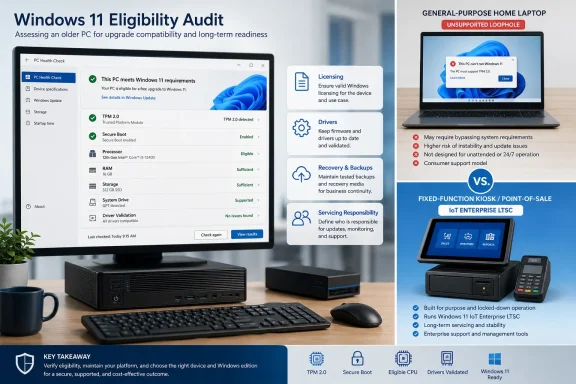
Consider Windows 11 IoT Enterprise LTSC only for a genuine fixed-function device, and only after confirming an appropriate procurement and licensing channel, validating every required application and peripheral, and assigning responsibility for image recovery and servicing.
Start with this audit before replacing hardware or attempting an unsupported installation:
- Run Microsoft’s PC Health Check and save or record its Windows 11 eligibility result.
- Open Settings > System > About and record the processor model, installed RAM, system type, and current Windows edition.
- Press
Win + R, runtpm.msc, and note whether a TPM is present and whether it reports specification version 1.2 or 2.0. - Open Windows Security > Device security > Security processor details to confirm the security processor’s status.
- Press
Win + R, runmsinfo32, and record BIOS Mode and Secure Boot State. Do not assume a system lacks Secure Boot merely because it is currently disabled; check the firmware and OEM documentation. - Run Windows Update, including applicable optional driver updates, and inspect Device Manager for missing, failed, or generic devices.
- Check the PC or motherboard manufacturer’s support page for the exact model and confirm that it provides Windows 11 drivers for the chipset, storage controller, network adapters, graphics, audio, camera, biometric devices, and any model-specific controls.
- Inventory required printers, scanners, docks, smart-card readers, industrial interfaces, and other peripherals. Confirm Windows 11 support with their manufacturers rather than relying only on whether an old driver installs.
- Classify the machine honestly: is it a general-purpose desktop or laptop, or a fixed-function device such as a kiosk, point-of-sale terminal, dedicated signage system, or single-purpose controller?
- If IoT Enterprise LTSC is under consideration, obtain written confirmation from procurement or a licensing specialist that the organization has a legitimate acquisition and activation path for the intended device and deployment.
The last checks matter because “can install Windows 11” and “has a supported Windows 11 lifecycle” are not the same conclusion. Hardware security, processor eligibility, driver availability, servicing commitments, licensing, and workload design must be evaluated separately.
Use this decision table before choosing a path
| Device and audit result | TPM and Secure Boot state | Processor eligibility | Driver validation | Supported Windows 11 path | Risk of an unsupported installation | Is IoT Enterprise LTSC eligible for consideration? | Recommended action |
|---|---|---|---|---|---|---|---|
| General-purpose PC that passes PC Health Check | Required security configuration is present and enabled | Eligible | OEM provides Windows 11 drivers; Windows Update and Device Manager show no unresolved hardware problems | Standard supported upgrade or clean installation, subject to normal edition licensing | Not applicable if the supported path is used | Normally no reason to consider it; the machine is a general-purpose PC | Back up the device, update firmware and drivers, and use the supported desktop Windows 11 path |
| General-purpose PC with TPM or Secure Boot disabled, but firmware may support them | Capability exists or is uncertain, but configuration is incomplete | Check with PC Health Check after correcting firmware settings | Validate through Windows Update, Device Manager, and the OEM support page | Potentially supported if the required settings can be enabled and all other checks pass | High if requirements are bypassed instead of properly configured | No, not merely because firmware settings are inconvenient | Review OEM instructions, preserve recovery keys, enable the supported settings, and rerun PC Health Check |
| General-purpose PC with an ineligible processor | TPM 2.0 and Secure Boot may still be present | Ineligible according to PC Health Check | Drivers may exist, but driver availability does not override processor eligibility | No ordinary supported Windows 11 upgrade path established by these checks | The device is unsupported and updates are not guaranteed; plan for rollback or replacement | No. CPU ineligibility does not turn a personal or office PC into a fixed-function IoT device | Replace the PC for supported Windows 11 use, keep it isolated for testing, or repurpose it for another supported workload |
| General-purpose PC lacking TPM 2.0, Secure Boot capability, or both | Missing rather than merely disabled | May also be ineligible | Older components may have incomplete Windows 11 driver coverage | No supported desktop Windows 11 path unless the hardware can be brought into compliance through supported OEM options | High; booting successfully would not create a servicing commitment | No, unless the device is genuinely redesigned and operated as fixed-function and all other IoT conditions are met | Replace or repurpose the hardware rather than building a daily-use endpoint around a bypass |
| Fixed-function device that passes ordinary Windows 11 checks | Required security settings are enabled | Eligible | Application, peripheral, firmware, and recovery testing completed | Supported desktop Windows 11 may remain the simplest path | Avoid unsupported methods because a fixed workload still needs reliable servicing | Possibly, but only after procurement and licensing confirmation and lifecycle planning | Compare the supported desktop edition with IoT Enterprise LTSC based on workload stability, vendor support, and operational ownership |
| Fixed-function device that fails one or more ordinary eligibility checks | Record the exact TPM and Secure Boot limitations | Ineligible or unresolved | All required drivers and peripherals must be tested on the exact target image | No ordinary supported desktop Windows 11 path has been established | Significant; an installer workaround does not guarantee future updates | Only eligible for consideration, not automatic deployment. Confirm fixed-function positioning, acquisition rights, hardware support, application compatibility, and servicing responsibility | Escalate to the device vendor, procurement, licensing, security, and operations teams; do not deploy based solely on a successful lab installation |
| Device with unresolved driver or peripheral support | Security state may be acceptable | Processor may be eligible | Failed: missing OEM Windows 11 support, Device Manager errors, or unvalidated critical peripherals | Not ready for production even if PC Health Check passes | Unsupported or improvised drivers can create reliability and recovery problems separate from Microsoft’s hardware requirements | Not until the complete image, application stack, and peripherals are validated | Stop the migration, obtain supported drivers or replacement peripherals, and test backup and recovery |
| Lab or hobby PC used only for experimentation | Any state must be documented accurately | May be ineligible | Best-effort validation only | Supported only if it meets the normal requirements | Acceptable only if the owner knowingly accepts uncertain updates, data loss, and possible reinstall or replacement | Not simply because it is a lab machine | Keep it away from essential data and business authentication, maintain backups, and be prepared to erase or retire it |
This table is intentionally conservative. Passing PC Health Check does not replace driver validation, while finding working drivers does not override a failed eligibility result. Likewise, calling a system “dedicated” does not by itself establish that IoT Enterprise LTSC is appropriate or properly licensed.
Microsoft’s IoT documentation changes the question, not the device’s purpose
Microsoft’s processor lists and Windows 11 eligibility rules should not be reduced to the question of whether a processor can execute the operating system’s code. A computer may boot Windows 11 and appear fast enough while still falling outside Microsoft’s supported desktop upgrade path.
WindowsForum’s coverage of Microsoft’s early Windows 11 Insider rollout captured how quickly this distinction became contentious. Insiders were invited to install preview builds and provide feedback, but participation in preview testing was not the same as a final support commitment for every test machine. Subsequent WindowsForum reports followed Microsoft’s reaffirmation that it was not lowering the published Windows 11 baseline, despite continued requests from owners of capable older PCs.
That history matters when evaluating Windows 11 IoT Enterprise LTSC. Microsoft positions the edition for fixed-function, specialized devices where the operating environment and assigned workload are deliberately controlled. That description changes the deployment question from “How can I keep using this old PC?” to “Is this a managed appliance with a defined purpose, validated image, recovery plan, and legitimate acquisition route?”
It does not follow that an older home PC or ordinary office workstation becomes an IoT device because it runs only a few applications today. General-purpose systems still change roles: users install software, connect new peripherals, browse the web, handle documents, access personal or corporate identities, and expect broad compatibility. Those expectations require a desktop support plan.
A real fixed-function deployment should have all of the following:
- A documented single-purpose or tightly limited workload.
- A controlled application set and change-management process.
- Validation of the exact hardware revision, firmware, drivers, peripherals, and application versions.
- A legitimate procurement and licensing channel confirmed before the edition is recommended.
- A tested deployment image and a way to restore it after disk failure or corruption.
- An assigned owner for security updates, servicing, backup, monitoring, and incident response.
- A replacement or rollback plan if a critical application, driver, or security control fails.
Without those controls, IoT Enterprise LTSC is not an operational strategy. It is merely a different edition name attached to the same unresolved hardware and support risks.
TPM 2.0, Secure Boot, and CPU eligibility answer different questions
Windows 11’s requirements are often discussed as though TPM 2.0, Secure Boot, and processor generation all provide the same protection. They do not.
TPM 2.0 enables or strengthens platform protections associated with capabilities such as Device Encryption and System Guard with Dynamic Root of Trust for Measurement. TPM-backed features can also protect cryptographic material and support identity, health-attestation, biometric, and deployment scenarios. Those capabilities are particularly useful for managed endpoints where encryption state and device trust affect access decisions.
Microsoft also documents BitLocker support with TPM 1.2 and TPM 2.0 while recommending TPM 2.0. That distinction is important: the presence of TPM 1.2 does not mean the machine has no useful TPM-backed protection, but it also does not make the system equivalent to a Windows 11 device configured around TPM 2.0.
Secure Boot is a separate check. It helps protect the startup process and is not simply another name for TPM protection. A machine can expose one capability while lacking or disabling the other. Administrators should inspect both instead of inferring their status from the computer’s age.
Processor eligibility is another distinct column. It forms part of Microsoft’s supported Windows 11 baseline, but it should not be used as a shortcut for determining whether encryption, Secure Boot, firmware, drivers, and endpoint management are properly configured. An eligible CPU does not prove that those protections are active. Conversely, an ineligible PC may possess some useful security features while still lacking a supported Windows 11 upgrade path.
The practical audit therefore asks four separate questions:
- Eligibility: Does PC Health Check report that the machine qualifies for Windows 11?
- Configuration: Are TPM 2.0 and Secure Boot present and correctly enabled?
- Compatibility: Does the OEM support Windows 11 on the exact model, and do all required devices have validated drivers?
- Operations: Who owns updates, recovery, application testing, and eventual replacement?
A “yes” in one category does not fill in the others.
Driver support can be the deciding factor
Processor and TPM debates can obscure a more immediate deployment problem: the operating system must reliably control the hardware attached to it.
Begin with Windows Update, but do not stop there. Review optional driver updates and inspect Device Manager for unknown devices, warning icons, disabled components, or devices running only on generic drivers. Then compare those results with the OEM support page for the exact PC, motherboard, or device model.
Pay particular attention to:
- Storage and RAID controllers.
- Chipset and power-management components.
- Wired, wireless, and Bluetooth adapters.
- Integrated and discrete graphics.
- Audio hardware and microphones.
- Cameras, fingerprint readers, and other biometric equipment.
- Touchscreens, pens, hotkeys, docking stations, and proprietary control devices.
- Printers, scanners, payment devices, serial adapters, and specialist peripherals.
A driver that installs is not necessarily a driver the manufacturer supports on Windows 11. For a home test system, the distinction may be tolerable. For an endpoint expected to recover cleanly after an update or disk replacement, it is a material lifecycle issue.
The same rule applies to IoT Enterprise LTSC. A stable operating-system image is useful only if the full application and peripheral chain has been tested against it. Procurement confirmation must come before recommendation, and technical validation must come before production deployment.
The unsupported-install warning remains the hard stop
Microsoft’s position on ordinary Windows 11 installations remains direct: when Windows 11 is installed on hardware that does not meet the minimum requirements, the device is unsupported and is not guaranteed to receive security updates or other updates.
That warning is more consequential than whether the installer accepts the machine today. A successful installation demonstrates that a particular build can boot and run on a particular configuration. It does not create a supported servicing commitment for the device.
WindowsForum users have repeatedly followed this gap between installation and support. Reports on the forum covered Microsoft’s reaffirmation of the requirements, a later block affecting a popular bypass method, and the removal of bypass references from support documentation. Those reports are useful warnings against building a lifecycle plan around any one installer technique. The durable point is simpler: bypassing a requirement does not change the resulting machine’s support status or guarantee future updates.
For a home lab, isolated test machine, or short-lived experiment, the owner may accept that uncertainty. The device should contain no irreplaceable data, should not be the only recovery computer available, and should be backed up with the expectation that reinstalling or retiring it may become necessary.
For a daily-use endpoint handling personal information, business authentication, or organizational data, an unsupported installation should not be presented as an ordinary upgrade. The decision-maker must explicitly accept uncertain servicing and maintain a near-term replacement plan.
A sensible decision tree is:
- If PC Health Check passes and the OEM supports Windows 11 drivers, use the supported desktop Windows 11 path.
- If firmware settings are the only apparent obstacle, follow the OEM’s instructions, protect recovery information, enable the relevant capabilities, and rerun the checks.
- If the processor or required security hardware remains ineligible, replace or repurpose a general-purpose PC.
- If the machine is only a lab device, document the unsupported state and assume that rollback, reinstallation, or replacement may be required.
- If the device is genuinely fixed-function, evaluate IoT Enterprise LTSC only after licensing, procurement, application, peripheral, recovery, and servicing responsibilities are confirmed.
Fixed-function support is valuable precisely because it is restrictive
Windows 11 IoT Enterprise LTSC should be evaluated as part of a controlled device program, not as “Windows 11 with fewer rules.” Its fixed-function positioning makes sense when the device has a stable purpose and administrators control what runs, what connects, and how the image is recovered.
The decisive test is operational, not cosmetic. Renaming a PC, restricting the Start menu, or asking a user to run only one application does not automatically create a managed fixed-function device. The organization must be prepared to own the complete image and its dependencies.
Before approval, require sign-off on these points:
- Role: The device’s fixed function and permitted user actions are documented.
- Procurement and licensing: The acquisition route and intended deployment have been confirmed by the responsible procurement or licensing party.
- Hardware: The exact device revision and firmware configuration are recorded.
- Applications: Every required application has been tested on the proposed edition and image.
- Peripherals: Drivers and functionality have been validated for every required attached device.
- Security: TPM, Secure Boot, encryption, accounts, network access, and management controls have been assessed individually.
- Recovery: A known-good image, recovery media, installation material, configuration records, and required keys are available.
- Servicing: A named owner is responsible for evaluating updates, testing them where necessary, deploying them, and responding to failures.
- Exit plan: The organization knows when and how the device will be replaced, reimaged, or removed from service.
If any of those responsibilities are missing, choose supported desktop Windows 11 hardware or repurpose the old device for a workload with a supportable operating system. Do not make IoT Enterprise LTSC the default answer to failed PC Health Check results.
Where the upgrade-or-replace decision becomes concrete
For enthusiasts, the useful dividing line is whether a machine can remain a hobby system without being mistaken for a supported, secure daily endpoint. For organizations, the dividing line is whether the device has a defensible security, driver, recovery, licensing, and servicing story.
A machine with TPM 2.0, Secure Boot, an eligible processor, and OEM-supported Windows 11 drivers has the cleanest path. Even then, administrators should verify encryption, backup, applications, and peripherals rather than assuming the hardware result completes the migration assessment.
A machine with only some of those qualities requires a workload-based decision. It may be technically capable of running Windows 11 while remaining outside the supported path. That distinction should be recorded in the asset inventory and communicated to the person accepting the risk.
A fixed-function device may justify consideration of IoT Enterprise LTSC, but only when it is managed as specialized equipment. Confirm the fixed-function role, establish a legitimate licensing and procurement channel, validate the application and peripheral stack, and assign an owner for image recovery and servicing. If those conditions cannot be met, use supported desktop Windows 11 hardware or repurpose the device.
The relevant question is therefore not simply whether Windows 11 can be installed. It is whether the owner can document eligibility, security configuration, driver support, update expectations, licensing, recovery, and operational responsibility for the entire remaining life of the device.
Frequently Asked Questions
Does TPM 1.2 make a PC secure enough for Windows 11?
TPM 1.2 can support protections including BitLocker, and it is more capable than having no TPM-backed protection. Microsoft recommends TPM 2.0, however, and TPM 2.0 enables or strengthens capabilities associated with Device Encryption and System Guard/DRTM.
That does not mean every capability mentioned is strictly impossible with TPM 1.2. It means TPM 1.2 and TPM 2.0 should not be treated as equivalent, and TPM 1.2 does not satisfy Windows 11’s normal TPM 2.0 eligibility requirement. Run PC Health Check for the supported upgrade determination.
Does Secure Boot require TPM 2.0?
No. Secure Boot and TPM are separate platform capabilities, although they can complement one another as part of a broader security configuration. Check Secure Boot in msinfo32 and inspect TPM status separately with tpm.msc and Windows Security.
Can Windows 11 IoT Enterprise LTSC replace Windows 11 Pro on an old home PC?
It should not be treated as a replacement path for an unsupported general-purpose home PC. Microsoft positions IoT Enterprise LTSC for fixed-function specialized devices.
Before considering it, confirm that the machine has a genuine fixed-function role, that an appropriate procurement and licensing channel exists, that required applications and peripherals have been validated, and that someone owns image recovery and servicing. Otherwise, choose supported desktop Windows 11 hardware or repurpose the old computer.
Will an unsupported Windows 11 PC always miss security updates?
Not necessarily, but Microsoft does not guarantee security or other updates for unsupported devices. Receiving updates so far does not create a future servicing commitment. That uncertainty is the central operational risk.
Is passing PC Health Check enough to approve an upgrade?
No. It establishes the basic Windows 11 eligibility result, but it does not validate every driver, application, peripheral, firmware setting, backup process, or recovery procedure. Check Windows Update, Device Manager, and the OEM support page for the exact model before approving production use.
Can working Windows 11 drivers make an ineligible processor supported?
No. Driver availability and processor eligibility are separate checks. A computer can have functional drivers and still fail PC Health Check, just as an eligible computer can have unsupported peripherals or missing OEM drivers.
What should I do if Secure Boot or TPM is disabled?
Check the PC or motherboard manufacturer’s instructions before changing firmware settings. Confirm whether the feature is supported, back up important data, and preserve any encryption recovery information. After making supported configuration changes, rerun PC Health Check and verify the results in tpm.msc, Windows Security, and msinfo32.
What is the safest use for an older PC that cannot qualify?
Repurpose it for a workload supported by another operating system, keep it as a nonessential and isolated lab device, or retire and recycle it responsibly. Do not make an unsupported Windows 11 installation the only system holding important data or providing access to critical accounts.