

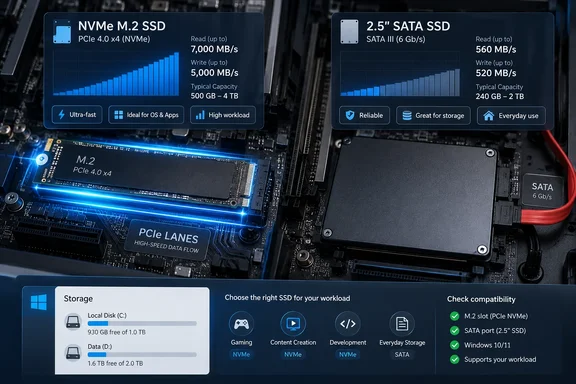
Engadget’s SSD comparison puts the headline gap at roughly 500–560 MB/s for fast consumer SATA drives, about 3,500 MB/s for PCIe Gen3 NVMe drives, and approaching 15,000 MB/s for current Gen5 models. Those are representative performance figures, not promises for every drive carrying those labels. IBM’s explanation supports the underlying distinction: SATA serves both hard drives and SSDs, whereas NVMe was designed specifically for non-volatile storage, with higher transfer speeds and lower latency among its advantages.
For Windows buyers, there is another useful distinction: NVMe support is already part of modern Windows. Buying an NVMe SSD is therefore primarily a hardware-selection decision, although particular Windows features impose additional requirements.
NVMe changes how an SSD communicates with the PC
An SSD’s flash memory stores the data. Its connection and command interface determine how the computer asks for that data and moves it between storage and the rest of the system. Two drives can therefore both be SSDs while offering very different performance ceilings.
SATA is the older storage interface in this comparison. It accommodated mechanical hard drives before SSDs became commonplace, and SSDs using that interface remain subject to its bandwidth limits. NVMe, short for Non-Volatile Memory Express, defines a command interface intended for non-volatile memory. In typical internal PC storage, it works across PCI Express, usually shortened to PCIe.
The distinction is slightly more precise than “two different connectors.” NVM Express, the organization responsible for the specifications, describes its PCIe transport specification as the mapping that lets host software communicate with non-volatile memory across a PCIe bus. The organization also defines other transports, so “NVMe always means PCIe” would be too broad outside this PC-focused comparison.
The command-handling model is also different. Sandisk explains that SATA SSDs commonly use AHCI, the Advanced Host Controller Interface, which was designed around mechanical storage. Its Native Command Queuing supports up to 32 commands, whereas NVMe was designed to accommodate the greater parallelism available from flash storage. Kingston likewise distinguishes the hard-drive-oriented AHCI driver model from NVMe’s flash-oriented design and use of PCIe.
That gives NVMe two relevant advantages: a faster connection can carry more data, and its storage protocol is designed to handle flash-storage requests efficiently. Neither advantage tells you the performance of a particular product on its own. “NVMe” identifies the technology family; it is not a single speed rating.
SATA’s bandwidth ceiling explains the benchmark gap
SATA’s familiar 6Gb/s rating and an SSD’s advertised MB/s figure use different units. The first describes the interface rate in gigabits per second; the second describes transferred data in megabytes per second. They should not be compared as though the numbers used the same scale.
The submitted Engadget comparison gives SATA a theoretical ceiling of 600 MB/s and places fast consumer drives around 500–560 MB/s. Sandisk independently uses 600 MB/s as the SATA comparison point, against more than 14,000 MB/s for the latest-generation NVMe drives in its explainer.
The important boundary is that a SATA SSD cannot escape the capacity of its SATA connection merely by using faster flash. NVMe over PCIe has a much higher available bandwidth ceiling, with different PCIe generations offering different levels of performance.
| Drive category | Representative figure in Engadget’s comparison | How to interpret it |
|---|---|---|
| Fast consumer SATA SSD | Around 500–560 MB/s | Close to the practical limits of the SATA interface in favorable transfers. |
| PCIe Gen3 NVMe SSD | About 3,500 MB/s | A substantially higher transfer ceiling than SATA, without representing every Gen3 drive. |
| PCIe Gen5 NVMe SSD | Approaching 15,000 MB/s | A high-end performance figure that should not be applied to all NVMe SSDs. |
These figures establish a large bandwidth difference. They do not supply measured Windows startup times, application-launch results, or game-loading comparisons.
That is an important purchasing limit: a transfer-rate ratio is not a whole-PC speedup ratio. A drive advertised at several times the throughput of another offers the possibility of moving data faster. The time saved in a particular task depends on how much of that task consists of storage work that benefits from the higher rate.
Consider the buying logic without assuming any unreported benchmark result. If your main problem is waiting for large transfers, throughput is directly relevant to the decision. If your main complaint is that one application takes too long to become usable, a sequential transfer figure alone cannot tell you how much a new SSD will help.
The same reasoning applies to reads and writes. A prominent read-speed number answers a narrower question than “How fast is this drive?” A buyer who primarily writes large amounts of data needs evidence about writing performance, rather than treating a read specification as a substitute.
No particular SATA and NVMe models were tested against each other in the evidence behind this comparison. It supports choosing between the technologies; it does not establish a winning product or a measured upgrade benefit for your PC.
Windows supports NVMe without making it a universal requirement
Microsoft documents a built-in NVMe storage driver called StorNVMe, with the filename stornvme.sys. It has been available since Windows 8.1 and Windows Server 2012 R2. Microsoft’s accompanying feature-support documentation covers Windows 10 version 1903 and later.
For a Windows 10 or Windows 11 reader, the useful conclusion is that NVMe is an established part of the operating system’s storage support. It is not a new Windows 11-only capability.
Operating-system support and hardware compatibility still answer different questions. A Windows driver gives the operating system a way to communicate with supported NVMe hardware. It does not establish that a particular laptop or motherboard can physically accept the drive you intend to buy, or that an older machine can start Windows from it.
Microsoft’s Windows 11 minimum requirements also do not impose an NVMe requirement. The general storage requirement is a device with 64 GB or more capacity, alongside the other processor, memory, firmware, security, and graphics requirements. SATA versus NVMe is therefore not, by itself, the dividing line between a Windows 11-compatible and incompatible computer.
DirectStorage has a narrower, feature-specific requirement. Microsoft’s Windows 11 specifications list an NVMe SSD for storing and running games using the Standard NVM Express Controller driver, together with a DirectX 12 GPU supporting Shader Model 6.0. Buyers planning around that documented feature configuration should treat the SSD, driver, and graphics requirements as a set.
This is a reason to prefer NVMe when building a compatible gaming PC around those capabilities. It is not a reason to declare an existing SATA game library unusable, nor a measured promise that every game will load faster. The supported software and its requirements remain part of the decision.
For an IT administrator, the same boundaries help keep a purchasing specification accurate. “Windows supports NVMe” describes operating-system capability. “This PC supports this SSD” is a hardware compatibility statement. “This application benefits enough to justify replacement” is a workload decision. Procurement becomes more defensible when those claims are evaluated separately.
NVMe is the stronger new-build choice, while SATA can remain the right upgrade
For a new PC that supports the intended drive, NVMe offers the more capable storage path. IBM, Sandisk, and Kingston agree on the underlying advantage: NVMe is designed for solid-state storage and can exploit PCIe bandwidth beyond SATA’s limits.
That makes NVMe a sensible starting point when price and capacity are comparable. It gives the buyer more performance headroom, and it meets the storage-interface portion of Microsoft’s published Windows 11 DirectStorage configuration.
The evidence does not establish a current price advantage for either category. There are no model-by-model prices here, so “SATA is always cheaper” would be an unsupported shortcut. A useful comparison needs the actual purchase price and capacity of compatible products, not an assumption based on the age of the interface.
SATA has a straightforward role when the computer’s supported upgrade path is SATA. In that situation, the choice is not necessarily between a slow purchase and a fast purchase. It may be between installing a compatible SSD and buying a drive the machine cannot use.
Keeping a working SATA SSD is a different decision from buying storage for a new system. Replacement needs a concrete benefit: more capacity, access to a required feature, or evidence that storage performance is limiting a task you care about. A large specification gap alone does not quantify that benefit.
This distinction also prevents an unnecessary all-or-nothing approach to existing storage. The question is what each drive needs to do. Where the requirement is simply additional compatible SSD capacity, the highest available transfer rate may have little bearing on whether the purchase meets that requirement.
Choose an SSD by compatibility first, then by the work it must do
Buy NVMe when your PC supports the intended drive and its additional performance or feature support serves a real need; keep SATA in consideration when compatibility or retaining useful existing storage is the priority.
The first check is the exact storage support of the target computer. The evidence here does not identify a motherboard or laptop model, so it cannot provide a universal socket, installation, or boot-conversion procedure. Before purchasing, establish whether the proposed drive’s interface and physical format are supported, whether it will serve as a boot drive or additional storage, and what performance information is available for that exact configuration.
Next, describe the desired improvement in practical terms. “I need more room” calls for a capacity comparison. “I spend too long transferring data” makes transfer performance relevant. “I want to meet the published requirements for a Windows feature” calls for checking the full feature configuration. Each is a more useful starting point than “NVMe is faster.”
- Choose a drive that your specific PC supports; Windows having an NVMe driver does not establish hardware compatibility.
- Treat approximately 500–560 MB/s for SATA, 3,500 MB/s for Gen3 NVMe, and approaching 15,000 MB/s for Gen5 NVMe as representative figures, not universal guarantees.
- Compare actual prices at the capacity you need, because this evidence establishes no current price winner.
- Prefer NVMe for a compatible new build when its cost and capacity fit, particularly when targeting Microsoft’s published Windows 11 DirectStorage configuration.
- Replace a working SATA SSD for a defined capacity, compatibility, feature, or performance benefit—not solely because another drive has a larger advertised number.
NVMe provides the higher performance ceiling and the storage path to favor in a compatible new PC. SATA remains a useful way to add or retain flash storage where it fits the machine and the workload. The next purchase should follow those requirements: first establish what the computer can use, then pay for the capacity and performance that will improve the job it actually does.