

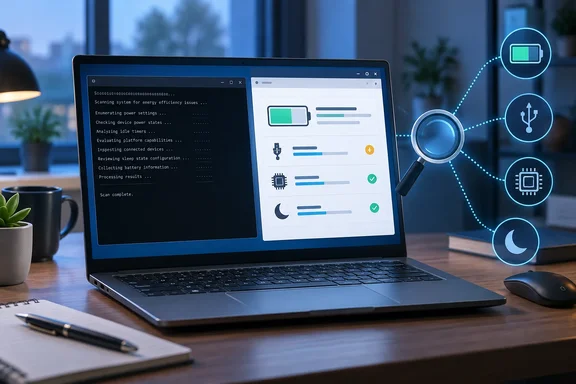
powercfg /energy, that watches a PC for 60 seconds and produces an HTML report on settings, devices and processes that can hurt energy efficiency and battery life. A MakeUseOf test published September 25, 2026 shows why it's worth running when a laptop's battery suddenly drains faster. It's most useful when the PC is idle and you read the output with some skepticism. The report won't name one culprit for you, and many of its "errors" describe choices you made on purpose. What it does well is shorten the list of suspects so you can check each one with other powercfg commands, which beats changing power settings at random.
Powercfg /energy is a 60-second trace, not a battery verdict
Microsoft's Powercfg command-line reference says the /energy option analyzes the system for common energy-efficiency and battery-life problems and generates a report, an HTML file, in the current path. The documented syntax is powercfg /energy [ /output file_name] [ /xml ] [ /duration seconds ]. The /duration switch specifies the number of seconds to observe system behavior. Default is 60 seconds. There's also a /trace variant that records system behavior and does not perform analysis, which is useful if you want the raw trace data rather than the finished report.
Microsoft sets one clear condition: the /energy option should be used when the computer is idle and has no open programs or documents. Older embedded-Windows guidance from Microsoft describes what the report can catch. It says the output can help identify the hardware preventing certain sleep states, power-policy recommendations to improve your device's power consumption, CPU optimizations, and more. The same guidance frames the tool as something OEMs would use as a first-pass validation of their device, which explains why it flags anything short of maximum power saving.
The "current path" detail matters in practice. From an elevated Command Prompt the working directory is usually C:\Windows\System32, and Microsoft Q&A answers tell users the report will be saved to C:\Windows\System32\energy-report.html. Passing an explicit /output path puts the file somewhere you can find it, and you don't need to browse a system folder.
Running the energy report cleanly on Windows 11
The MakeUseOf procedure uses an elevated Terminal (PowerShell) session and writes the report to your user profile folder. Microsoft documents the /energy, /output and /duration switches. The $env:USERPROFILE path and the Start-Process step are the author's own choices, and they're sensible ones in PowerShell.
- Close apps and documents you don't need, including background tools that run from the system tray.
- Open Terminal as administrator.
- Run
powercfg /energy /output "$env:USERPROFILE\energy-report.html". - Leave the PC alone until the trace finishes.
- Open the report with
Start-Process "$env:USERPROFILE\energy-report.html".
When the trace finishes, Windows reports how many errors, warnings, and informational entries it found, along with the HTML file location. Console output posted on HP's support community shows the usual sequence: "Enabling tracing for 60 seconds... Observing system behavior... Analyzing trace data... Analysis complete."
If the problem comes and goes, lengthen the observation window. Microsoft's own example is powercfg /energy /output "longtrace.html" /duration 120, which runs a two-minute trace. That still only covers two minutes, so it won't capture a full discharge cycle.
When powercfg /energy returns without a report
One Microsoft Q&A user says the command returns in a couple of seconds and does not generate any form of file report, even though /batteryreport worked fine on the same machine. Troubleshooting guidance from Mundobytes says to check the current folder (C🙂 or specify /output with a safe path, and confirm that you are running as administrator. If that doesn't help, rerun the scan after closing applications that might interfere. That advice comes from a third-party guide, not Microsoft, but it's low-risk and matches the documented output behavior.
MakeUseOf's two runs show why idle conditions matter
The author's first run is a good example of a messy trace. MakeUseOf reports average CPU utilization of 45.95% during that run, with the download manager Gopeed alone accounting for 27.02%. Chrome, Brave, Docker, FxSound and several other processes also appeared.
After closing unneeded apps and leaving the machine untouched, the author reran the test. Average CPU utilization fell to 3.67%, and the warning count dropped from 22 to 11. These are the author's own measurements on one PC, not a benchmark. They don't show that closing those apps improved battery life, and they don't show that Gopeed caused the drain. What they do show is that half the warnings in a busy trace can come from whatever happened to be running.
Community users noticed the same effect years earlier. A Tom's Hardware forum user reviewing a report noted that the tool is also meant to be run at a dead idle because it will call a program using less than 10% of the cpu as using lots of resources. A short sampling window combined with a low threshold for "high" CPU use means any background activity turns into warnings.
Energy report errors are leads, not a to-do list
The report sorts findings into Errors, Warnings and Information. On the author's machine it flagged the High Performance power plan, a disabled sleep timeout, maximum-performance Wi-Fi settings, PCI Express power management, USB devices that weren't entering selective suspend (the low-power state Windows can put idle USB devices into), and programs asking Windows for shorter timer resolutions. Your report will differ, since each finding reflects that machine's configuration and what it was doing during the trace.
The findings can be specific. According to MakeUseOf, a USB warning can include the hardware ID of the device that won't suspend, a timer warning can name the process that requested a different timer resolution, and high-CPU findings list the individual executables.
The labels are harsher than the problems usually are. A Tom's Hardware forum reply summed it up: the "Errors" are not well named. They just mean the system is not set to save every ounce of power it can. The same thread showed a report listing Power Plan Personality is High Performance (Plugged In) as an error on a desktop. That's a deliberate choice on a machine with no battery. On the Ten Forums community, a user said their report always complained about a long sleep timeout and that the tool does not understand that that is a decision not an error.
The author's own example makes the same point. One USB error pointed to USB\VID_2F6E&PID_4E17, which PowerShell identified as a Focusrite Scarlett 2i2 audio interface. An audio stream was active during the trace, so the interface was supposed to be awake. A red entry for a device you were using on purpose isn't a fault. The same goes for high CPU during a video encode, a display timeout you set long on purpose, or platform-power warnings caused by firmware or hardware limits that no Windows setting can fix.
A practical way to triage is to start with findings that match the symptom you actually have. Examples are a laptop that won't sleep, a battery that drains while idle on the desktop, or a fan that runs with nothing open. Ignore unrelated warnings until you've ruled out the relevant ones.
Following the clues with powercfg /requests, /lastwake and /waketimers
The energy report is most useful as a starting point for other powercfg commands. Each one answers a narrower question, and Microsoft's reference documents all of them.
powercfg /requests returns the application and driver power requests currently active. These are signals that apps and drivers send to keep the display on or stop the PC from sleeping. On the author's PC, the command immediately showed Chrome holding a video wake lock and an execution request because it was playing audio. It also listed FxSound and a USB audio device with active audio streams, which explained the USB and timer warnings from the energy report. If an app holds a request you don't expect, Microsoft also documents powercfg /requestsoverride, which sets an override for a specific process, service or driver. Use it with care, because it overrules an app's own request to stay awake.
Two commands help when the PC wakes up on its own:
powercfg /lastwakereports what woke the system from its most recent sleep transition.powercfg /waketimerslists active wake timers. Microsoft notes that when a wake timer expires it can wake the system from sleep and hibernation.
If a peripheral keeps showing up, powercfg /devicequery wake_armed lists devices currently configured to wake the system. Microsoft separates this from wake_programmable, which lists devices a user could configure to wake the PC. The armed list shows what can actually wake it right now. powercfg /devicedisablewake "device name" then removes a specific device's permission to wake the PC, using the name exactly as the armed list shows it.
For unfamiliar hardware IDs like the Scarlett's VID/PID string, MakeUseOf says PowerShell's Get-PnpDevice can usually turn that cryptic string into a device name you actually recognize. Microsoft's Powercfg documentation doesn't cover that cmdlet. Device Manager's hardware ID field is another way to match the string to a device.
Choosing between /energy, /batteryreport and /sleepstudy
People often mix up three reports that answer different questions.
| Command | What it looks at | Default window | Best for |
|---|---|---|---|
powercfg /energy | Live system behavior and power configuration | 60 seconds (adjustable in seconds) | Inefficient settings, devices or processes while the PC is running |
powercfg /batteryreport | Battery usage characteristics over the system's lifetime | Adjustable in days | Judging the battery itself, including capacity history |
powercfg /sleepstudy | Modern Standby quality | Last three days (adjustable in days) | Whether the laptop really sleeps with the screen off, and what drained it |
If the battery holds less charge than it used to, the energy report won't show that; the battery report will. Microsoft describes /batteryreport as a report of battery usage over the lifetime of the system, with optional /output, /xml and /duration days switches. The Mundobytes guide notes it covers cycles, design capacity vs. current capacity, and estimated lifespan, which makes it the right tool for deciding whether to replace a battery.
If the laptop loses charge in a bag overnight, /sleepstudy is the better tool. Microsoft documents it as a diagnostic report of Modern Standby quality over the last three days. It applies to devices that use Modern Standby, so its output depends on the hardware's supported power states. A Microsoft Q&A answer recommends running it alongside /energy and says it will generate a very detailed report of the last couple of days.
What this means for you
Run powercfg /energy when battery behavior changes and Task Manager or the Windows battery settings page don't explain why. There's little reason to run it on a schedule. The first report on almost any PC will list items that are really preferences, so rerunning it weekly to clear red entries mostly means undoing your own settings. Sysadmins helping users will get more from a controlled idle trace plus /requests than from a screenshot of a busy machine's report.
- Close apps and leave the PC idle before tracing, because Microsoft specifies idle conditions and a busy run can double the warning count.
- Use
/outputwith a path you control, since the report otherwise lands in the current directory, oftenC:\Windows\System32when elevated. - Treat each error as a question about intent, and leave High Performance plans, long timeouts or awake audio devices alone if you chose them on purpose.
- Confirm a suspect with
powercfg /requests,/lastwake,/waketimersor/devicequery wake_armedbefore changing a setting or disabling a device's wake permission. - Switch to
powercfg /batteryreportfor battery wear questions andpowercfg /sleepstudyfor drain during Modern Standby. - Lengthen the trace with
/duration 120or more when the problem is intermittent, and keep in mind that it's still a short sample.
powercfg /energy has been in Windows for years. It gets overlooked because it only runs from the command line and because its alarming labels put off people who do find it. Run on an idle machine and read with the context MakeUseOf's two runs provide, it turns a vague "my battery is worse" into a short list of devices, processes and settings you can check with the rest of powercfg. That's a more reliable fix than toggling power options until the battery percentage drops more slowly.
References
- I ran Windows' hidden power report and found exactly why my battery was dying - MakeUseOf MakeUseOf · 2026-09-25T14:00:14+00:00
- Powercfg command-line options | Microsoft Learn learn.microsoft.com