

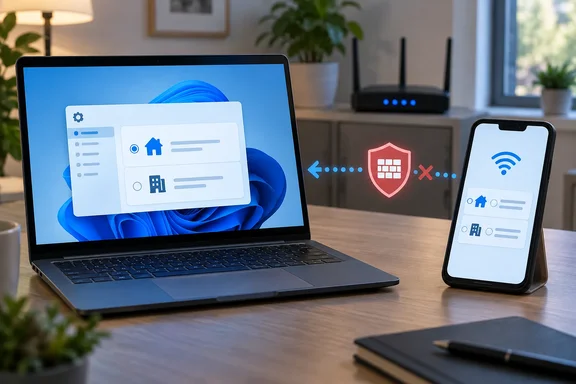
How Windows 11's Public Network Profile Hid a PC From iPerf3 and Quick Share
The writer wanted to run iPerf3 speed tests from a phone to a PC, to see how the phone's Wi-Fi held up with the router moved into a cabinet. iPerf3 is a common tool for measuring throughput between two machines, and in this setup the PC ran the server while the phone connected to it. The phone never found the PC. The writer spent a long time suspecting the router before finding that Windows had the home network classified as Public.
The key clue came from ping. Pinging the phone from the PC returned a response, but it just plain refused to work the other way around. Traffic that works in one direction and fails in the other points to the PC's inbound policy, not to the router or the Wi-Fi link. If the router were at fault, the PC-initiated ping would most likely have failed too.
After the writer switched the profile to Private, the iPerf3 server became reachable from the phone. Google's Quick Share, which had never worked on that PC, started working as well. The writer had assumed Quick Share failed because the motherboard has no built-in Bluetooth. No router reset was needed.
These are one person's first-hand observations. The report doesn't give the Windows build, the iPerf3 version, the Quick Share version or the exact firewall state, and nobody else has reproduced the result. The underlying Windows behaviour, though, is well documented by Microsoft.
Why Outbound Traffic Makes the Public Profile Look Like a Router Fault
Public mode is hard to spot because very little breaks from the PC's own point of view. How-To Geek notes that the Public profile still allows outbound traffic by default, which is part of the reason it took so long to realize that this was causing some of the LAN connectivity issues. Web browsing, cloud apps, and connections the PC starts to a NAS or homelab server all keep working. Only connections that another device starts toward the PC get dropped.
Phone Link made the picture more confusing, because it worked normally under the Public profile. The writer's explanation is that Windows treats Phone Link as a trusted service and allows the traffic it needs through the firewall. That's a reasonable guess, but Microsoft hasn't documented it. The practical point holds either way: some features work on Public and others don't, so "Phone Link works" tells you nothing about whether your iPerf3 server or file share can be reached.
The same pattern turns up outside home labs. In one Microsoft Q&A thread, an administrator said Dante audio controller software on Windows 11 is only discovered properly if the network connection firewall profile is set to Private or Domain. In that case the laptop was plugged straight into the audio hardware, both got APIPA addresses and the Windows Firewall connection profile defaulted to Public. Different hardware, same symptom: the device looks broken because Windows is hiding the PC.
Microsoft's Public vs Private Profile Rules, Spelled Out
Microsoft's support documentation for Windows 11 is plain about the default. When you first connect to a network, Windows sets it to Public, and Microsoft calls that the recommended setting. Under Public, the PC is hidden from other devices on the network and can't be used for file and printer sharing. Under Private, the PC is discoverable and file and printer sharing are available. Microsoft adds that you should know and trust the people and devices on a network before choosing Private.
Microsoft's advice on Public goes further than many people expect. It says to use Public for networks at home, at work or in public places, and to use it in most cases. So "I'm at home" is not the test. The test is whether you trust every device on that network and actually need other devices to reach your PC.
Microsoft's firewall documentation explains the difference. Windows Firewall keeps separate settings for domain (workplace), private (trusted) and public (untrusted) networks. The main difference between Private and Public is whether other devices on the same network may see, and possibly connect to, your PC. As a general rule, public networks get stricter controls because you have less reason to trust what's on them.
Windows doesn't guess its way toward Private. The Wikipedia entry on Windows Firewall summarises the design this way: a network is never assumed to be private unless designated as such by a local administrator. Every new home network, every new Ethernet adapter and every new Wi-Fi network starts out Public, so a PC that has been reinstalled, re-networked or given a new adapter can quietly lose inbound access it used to have.
| Behaviour | Public profile (default) | Private profile |
|---|---|---|
| Discoverable by other devices | No, the PC is hidden | Yes |
| File and printer sharing | Can't be used | Available |
| Microsoft's intended use | Most networks, including home, work and public places | Networks where you know and trust the people and devices |
| Outbound traffic from the PC | Allowed by default | Allowed by default |
Switching the Windows 11 Network Profile to Private, Step by Step
Changing the profile takes a few clicks and is easy to undo. Microsoft documents this route for Windows 11:
- Open Start > Settings > Network & internet. You can also right-click the network or Wi-Fi icon on the taskbar and choose Network and internet settings.
- On Wi-Fi, select Wi-Fi, then select the network you're connected to. On a wired connection, select Ethernet.
- Under Network profile type, choose Private network. To go back, choose Public network (Recommended).
The change applies straight away. In How-To Geek's case, the iPerf3 server became reachable from the phone immediately after the switch. To confirm the change on your own machine, retry the connection from the other device. For a simple reachability check, ping the PC from the other device, since that was the direction that failed.
Some users find the setting won't stick. In one Microsoft Q&A thread, the owner of two Samsung Galaxy Book laptops reported that they could change the ethernet connection to Private while the machines were on, but it switched back to Public when rebooted, even after trying Settings, the registry, Group Policy and PowerShell. If your profile keeps reverting, treat it as its own problem rather than a failure of the basic fix. On organisation-managed PCs, Microsoft notes that policy settings may stop you changing the Windows Firewall configuration, so managed users should go to their administrator.
According to Microsoft's Wi-Fi troubleshooting guidance, a Windows network reset returns known connections to Public and removes and reinstalls network adapters. Microsoft recommends it only as a last step. If you reset the network while chasing a LAN fault like this one, you'll need to set the profile to Private again afterwards.
When Private Isn't Enough: Firewall Rules, Sharing Settings and Nearby Sharing
Switching to Private makes the PC discoverable. It doesn't configure every app or share for you, and in some cases more steps are needed.
For Windows file sharing, Microsoft lists separate checks. Make sure the computers are on the same network (for example, connected through the same wireless router) and set a Wi-Fi network to Private. Then turn on Network discovery and File and printer sharing under Private networks in Advanced sharing settings. You can reach that page from Settings > Network & internet > Advanced network settings, or by searching for "manage advanced sharing settings". Microsoft's troubleshooting steps also have you confirm that the Function Discovery Provider Host, Function Discovery Resource Publication, SSDP Discovery and UPnP Device Host services are running and set to start automatically. The same steps also suggest turning off password-protected sharing. That's a real security trade-off, so weigh it rather than applying it by default.
For a server app like iPerf3, the app's own firewall permission also counts. The Windows Security app includes an Allow an app through firewall page. The per-profile checkbox there mostly controls inbound access: as iTechGuides explains, most ordinary outbound internet access is already allowed by the default outbound policy; the checkbox generally concerns whether the application may receive inbound connections under that profile. The same guide advises choosing Private when an app should work on trusted networks, and choosing Public only if it genuinely needs to accept traffic on untrusted networks. It also warns that a launcher may not be the same executable as the process that actually listens for connections. That's worth checking if an allowed app still can't be reached.
Microsoft's own Nearby Sharing feature has an explicit requirement. Its troubleshooting page says Nearby Sharing works only when the network is set to Private, and that both devices need Bluetooth and Wi-Fi turned on, on the same network for Wi-Fi sharing. Nearby Sharing and Google's Quick Share are different products, though. Microsoft's rule doesn't prove that Quick Share needs Private, and Google's own Quick Share help asks for both devices on the same Wi-Fi network without mentioning Windows profiles. The Quick Share fix in this story rests on one user's experience. It's plausible, since Quick Share has to accept an incoming transfer, but no vendor documents it.
Turning off Microsoft Defender Firewall is the wrong fix. Microsoft warns that doing so could leave the device more open to unauthorized access, and suggests allowing a blocked app through the firewall instead. Users who can't use Private at all have another option. A Microsoft Q&A answer describes creating an inbound rule scoped to a trusted IP range, so that only those machines can ping or map drives safely, even while the Public Firewall stays ON.
What this means for you
Your choice is whether this particular PC, on this particular network, should accept connections from other devices. If it should, and you trust everything on the network, switch to Private. If not, leave it on Public and allow only the specific apps you need.
How-To Geek's writer doesn't recommend flipping every desktop to Private for good. The writer points out that Private makes the PC discoverable and lets different firewall and sharing rules apply. If smart TVs, IoT gadgets or other devices you don't trust share the LAN, the writer suggests moving them to a separate VLAN or the router's guest network. Someone who got onto your network through a weak device, a badly exposed NAS or the Wi-Fi itself could find the PC and use any services it offers locally. The writer's compromise is to use Private when you fully trust the network or need to reach the PC, and Public otherwise. That's reasonable, because switching takes seconds.
- If another device can't reach your Windows 11 PC but the PC can reach that device, check Network profile type before you reset or reconfigure the router.
- Windows sets every new network to Public, so a new adapter, a reinstall or a network reset can bring the problem back on a PC that used to work.
- Switch to Private only on a network where you know and trust the people and devices. On hotel, library or shared networks, stay on Public.
- If Private doesn't fix it, check the app's firewall permission and, for file sharing, the Network discovery and File and printer sharing settings under Private networks.
- Leave Microsoft Defender Firewall on. Allow the specific app, or create a narrowly scoped inbound rule, instead of turning it off.
- Microsoft's Nearby Sharing officially requires a Private profile. That the Private setting fixed Google Quick Share here is one user's report, not a documented requirement.
The profile setting isn't a bug. Public is Microsoft's default for good reason, and that default costs only a moment's thought on a network you control. What caught How-To Geek's writer out was that nothing obvious breaks: the PC gets online and connects to everything it asks for. When a LAN problem only runs one way, check the Network profile type first, then decide whether the network deserves Private or whether a narrower firewall exception will do.
References
- I blamed my router for hours before finding this Windows setting causing my LAN connectivity issues How-To Geek · 2026-09-23T20:30:13+00:00
- Essential Network Settings and Tasks in Windows | Microsoft Support support.microsoft.com