

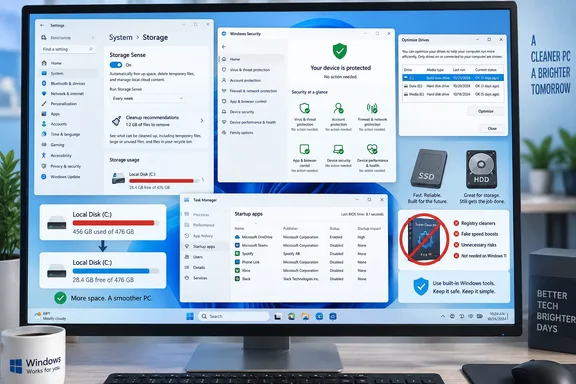
But the useful version of that advice needs more precision than “turn on Storage Sense and disable startup apps.” Windows’ built-in tools are effective when used for the jobs they were designed to do. They are a poor reason to begin deleting unfamiliar processes, manually “cleaning” the registry, or treating every performance problem as accumulated junk.
Microsoft Support’s current Windows 11 guidance backs the practical core of Pocket-lint’s checklist: keep the OS updated, scan for malware, use Storage Sense and Cleanup recommendations to recover space, remove software you do not use, and review startup applications. The important finding is that the safest cleanup workflow is also the least dramatic one. Start with storage pressure and identifiable applications; leave system internals alone.
Windows Security is a baseline, not a cleanup utility
For a home Windows 11 installation, Windows Security provides Microsoft Defender Antivirus, Microsoft Defender Firewall, reputation-based protections such as SmartScreen, and controls for ransomware protection and device security. Defender’s security intelligence updates arrive through Microsoft’s update infrastructure, and real-time protection is enabled by default unless another antivirus product has taken over.
That makes the market for vague “PC security and cleanup” bundles especially difficult to justify. A product promising to remove “hidden threats,” accelerate RAM, update every driver, and repair the registry is combining several very different jobs under one alarming sales pitch. The danger is not merely wasted money. Aggressive cleaners can remove browser data, cached credentials, restore points, installers, or application files that the user expected to keep; low-quality download sites have also long used fake update prompts and security warnings to push unwanted software.
The firewall point deserves a small correction. Windows does not need users to maintain a stack of separate consumer firewalls. Microsoft Defender Firewall applies policy through network profiles and is integrated with Windows’ networking and security model. Adding another firewall product may be appropriate in a managed business environment, but at home it can introduce duplicate notifications, network troubleshooting problems, or a false sense that the machine is protected despite missed patches and unsafe downloads.
Businesses are a separate case. Windows Security by itself is not a substitute for centrally managed endpoint detection, identity controls, logging, vulnerability management, configuration policy, or incident response. An organization may properly deploy Microsoft Defender for Endpoint or another managed security platform because it needs visibility across hundreds or thousands of devices. That is an operational requirement, not proof that a consumer PC needs a third-party tune-up application.
For an unmanaged PC, the maintenance action that matters most remains ordinary patching: check Windows Update, allow security intelligence updates, and update browsers and installed applications from their legitimate sources. Microsoft Support also points users to Microsoft Store updates, which can matter for Store-delivered apps even when Windows itself is current.
Storage Sense has a boundary many cleanup guides miss
Storage Sense is Windows 11’s automatic space-recovery feature, available through Settings > System > Storage. It can remove temporary files, clear items from the Recycle Bin after a chosen period, and make eligible cloud-backed files online-only after they have not been opened for a selected number of days.
Pocket-lint’s advice to leave Downloads out of automatic cleanup is sound. Downloads is a poor target for a blind deletion rule because the folder frequently contains installers, tax documents, exported archives, device firmware, and one-off files whose value Windows cannot determine. If Downloads has become a dumping ground, sort it by size or date and delete it manually after checking what each file is.
The missing limitation is significant: Microsoft says Storage Sense works on the system drive only, normally the C: drive. A desktop with a nearly full D: games drive, an external backup disk, or a secondary internal SSD will not be rescued by enabling Storage Sense on C:. Users with multiple volumes should open Storage settings, then review Storage used on other drives to identify the actual problem.
Windows 11 also offers a more deliberate first pass than automatic cleanup. In Storage settings, Cleanup recommendations groups temporary files, large or unused files, cloud-synced files, and unused apps. This gives users a chance to see the proposed categories and estimated space savings before acting. That is usually a better place to begin when a device is close to full, especially after a feature update has left a previous Windows installation behind.
A sensible storage sequence is short:
- Check the free capacity of C: in File Explorer before assuming temporary files are the main problem.
- Use Cleanup recommendations or the Temporary files category to review removable material, including previous Windows installations where applicable.
- Turn on Storage Sense for recurring temporary-file and Recycle Bin cleanup.
- Inspect large applications and games before deleting personal folders at random.
- Review other drives separately, because Storage Sense will not automatically manage them.
Windows reserves some storage for update servicing, temporary files, and caches. That reservation can look like unexplained disk consumption, but it is part of the mechanism Windows uses to remain updateable. The practical concern is not achieving an arbitrary amount of empty space; it is avoiding a nearly full system drive that interferes with updates, temporary work files, hibernation, and normal application behavior.
Startup apps are measurable; background activity needs judgment
Startup applications are one of the few easy performance targets where users can make a clear, reversible change. Windows 11 exposes the list in Settings > Apps > Startup, while Task Manager’s Startup apps section adds useful information about enabled status and startup impact.
Disable applications that have no reason to launch before you ask for them: game launchers, chat clients, music services, consumer updaters, peripheral utilities you seldom use, and trialware are common candidates. Doing so can reduce boot-time contention and preserve memory after sign-in. It does not uninstall the application, and it can be reversed later.
Do not disable an entry simply because its publisher is unfamiliar. Device-management software, laptop audio enhancements, password managers, backup clients, cloud-sync tools, accessibility utilities, and security products may have legitimate reasons to start with Windows. The right question is whether you recognize the program, use its background function, and can tolerate it waiting until you open it manually.
Task Manager is similarly useful, but Pocket-lint’s warning against ending random processes should be taken seriously. When a PC is slow, sort the Processes view by CPU, Memory, Disk, or Network usage, then identify the process before terminating it. Closing a named application that has hung is reasonable. Ending a Windows service, driver helper, security component, or process with a cryptic name can produce errors that disappear only after a restart.
Microsoft Support’s performance guidance includes another option that cleanup-app marketing often skips: uninstall unused software. Removing a program through Settings > Apps > Installed apps is cleaner and more durable than repeatedly killing its background process. It also reduces update prompts and attack surface from software that no longer serves a purpose.
Optimize Drives should stay boring
The Defragment and Optimize Drives tool remains relevant, but it is not an all-purpose speed button. On conventional hard disk drives, defragmentation reorganizes fragmented files to improve read efficiency. On solid-state drives, Windows uses TRIM-related optimization rather than traditional defragmentation.
Microsoft says Windows automatically optimizes drives on a schedule, weekly by default. For most SSD-based Windows 11 PCs, opening the tool simply to force an optimization offers little practical benefit. It is useful for confirming that Windows recognizes the drive correctly and that scheduled optimization is enabled; it is not a replacement for solving low free space, failing hardware, thermal throttling, malware, or a browser consuming several gigabytes of memory.
The strongest argument against third-party maintenance suites is therefore mundane: Windows already exposes the controls that solve common, observable problems. A system drive filling up calls for Storage settings. Slow sign-in calls for Startup apps. A suspicious file calls for Windows Security. A stubborn application calls for an uninstall or a targeted Task Manager check.
What Windows does not need is a cleaner that promises to fix everything at once. For most Windows 11 users, the safer maintenance routine is to update, inspect, remove what is clearly unused, and change one reversible setting at a time.
References
- I found an easy way to clean up Windows 11 without downloading a single app - Pocket-lint Pocket-lint · 2026-09-16T10:00:14+00:00