

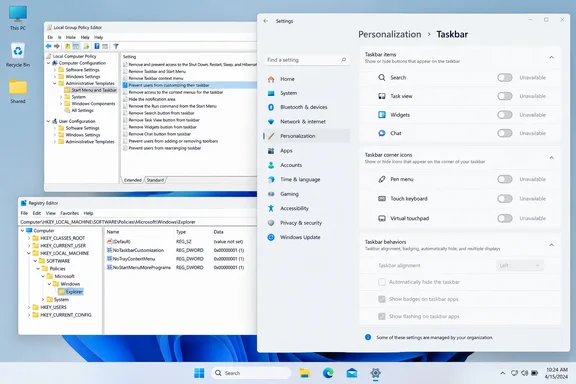
PCWorld’s September 22 guide describes two approaches: enabling TaskbarLockAll, or enabling “Prevent changes to Taskbar and Start Menu Settings.” Microsoft’s taskbar policy catalog also lists “Lock all taskbar settings,” confirming that this is an administrative policy, not a newly introduced Windows 11 customization feature.
For a shared PC, the benefit is straightforward: fewer accidental changes to a familiar desktop. Getting that result depends on selecting the right account, using the correct policy location, and distinguishing a settings restriction from a security boundary.
Windows 11’s taskbar lock needs a specific target
Before changing anything, decide what you want to preserve. A taskbar whose auto-hide setting keeps changing presents a different problem from one whose application shortcuts keep disappearing.
PCWorld reports that enabling TaskbarLockAll makes some controls under Settings > Personalization > Taskbar unavailable, including the option to automatically hide the taskbar. That gives readers a concrete behavior to check. It does not justify assuming that every visible taskbar element will become immutable.
Microsoft separately documents NoPinningToTaskbar, whose purpose is explicit: existing pinned applications remain visible, users cannot unpin them, and users cannot pin new applications. If preserving application shortcuts is the objective, that policy addresses it directly.
There is also an account boundary. The Registry procedure below uses HKEY_CURRENT_USER, meaning the user context in which Registry Editor is running. Editing that location in your own administrative account does not automatically configure another person’s profile.
Finally, treat these policies as configuration controls. A local change that someone can undo by editing the policy or its Registry value cannot reasonably be described as tamper-proof. The practical goal is to prevent unwanted changes through the ordinary taskbar interface.
Group Policy makes the taskbar restriction easier to manage
For a PC with Local Group Policy Editor available, the named policy is the clearer starting point. It avoids typing a long Registry path and provides a visible configuration state that you can revisit later.
Microsoft documents local Group Policy as an option even for PCs that are not joined to an Active Directory domain. Its broader taskbar guidance distinguishes that approach from management through a configuration service provider, or CSP, commonly used by mobile-device-management services such as Microsoft Intune.
Before enabling the restriction, configure the taskbar as you want it to behave. A lock is not a saved layout or a restore operation: setting the restriction does not, by itself, specify a preferred arrangement.
To enable the policy described by PCWorld:
- Search for
gpedit.mscand open Local Group Policy Editor. - Expand User Configuration > Administrative Templates > Start Menu and Taskbar.
- Open Lock all taskbar settings.
- Select Enabled, then select Apply and OK.
- Check the taskbar settings in the account intended to receive the restriction.
Use User Configuration, not a similarly named location under Computer Configuration. Also, do not equate that branch with “only the administrator currently using the editor.” Group Policy’s user settings apply according to the policy’s scope; a Registry edit to HKEY_CURRENT_USER is a different targeting mechanism.
For rollback, return to the same policy. If it was previously Not Configured, restore that state. If it already had an explicit configuration, record and restore that original state instead of assuming the machine began with no policy.
Windows Home users should not assume that writing an equivalent Registry value guarantees the same supported behavior as a managed Windows edition. Home normally lacks Local Group Policy Editor, and the evidence here does not establish Home compatibility for every restriction discussed. Installing an unofficial editor package is unnecessary for evaluating this procedure.
The TaskbarLockAll Registry method depends on the exact path
PCWorld’s first Registry procedure uses this location:
HKEY_CURRENT_USER\Software\Microsoft\Windows\CurrentVersion\Policies\Explorer
The value is named TaskbarLockAll, with a DWORD value of 1.
Before editing, record whether TaskbarLockAll already exists and its current data. Back up the relevant Registry key, and leave unrelated values alone. On an organization-managed PC, have the administrator make the change through the existing management system instead of introducing an unexplained local override.
Follow these steps in the intended user context:
- Search for
regeditand open Registry Editor. - Navigate to the exact path shown above.
- Select the
Explorerkey. If it is missing, create anExplorerkey beneathPolicies. - If
TaskbarLockAlldoes not already exist, right-click the right-hand pane and choose New > DWORD (32-bit) Value. - Name the value
TaskbarLockAll. - Open the value, set its data to
1, and select OK. - Open Settings > Personalization > Taskbar in the affected account and inspect the controls you intend to restrict.
The instruction calls for a DWORD (32-bit) Value, even on a 64-bit Windows installation. Do not substitute another value type merely because of the operating system’s architecture.
The important check is the resulting interface, not simply whether Registry Editor accepted the entry. PCWorld identifies the auto-hide control becoming unavailable as an observable result. Test that specific behavior before assuming the configuration is doing what you intended.
The available reporting does not establish one refresh requirement for every Windows 11 build. It therefore cannot support promising either immediate application or a universally required Explorer restart. If the expected restriction is absent, first confirm the account, path, spelling, value type, and data; do not start adding similarly named values elsewhere.
To reverse a value you created for this purpose, remove only TaskbarLockAll. If the value existed before the change, restore its original data. Do not delete the entire Explorer key, which can contain unrelated policy settings.
NoSetTaskbar and pinned-app restrictions are separate choices
PCWorld also describes a policy named Prevent changes to Taskbar and Start Menu Settings. Its Group Policy instructions use the same User Configuration > Administrative Templates > Start Menu and Taskbar branch: open that policy and set it to Enabled.
However, the accompanying Registry instructions deserve caution. PCWorld places NoSetTaskbar under:
HKEY_CURRENT_USER\Software\Policies\Microsoft\Windows\Explorer
The primary-source material available here does not verify that particular NoSetTaskbar mapping. Consequently, the named Group Policy setting is the appropriate route to evaluate this second approach; the reported Registry location should not be presented as a confirmed alternative. Nor should that different path be used for TaskbarLockAll.
For preserving pinned applications, Microsoft’s policy documentation supplies a more precise option: Do not allow pinning programs to the Taskbar, identified as NoPinningToTaskbar. It is also a user policy under Start Menu and Taskbar.
Its documented behavior is narrower and easier to evaluate:
- Applications already pinned to the taskbar continue to appear.
- Users cannot unpin those existing applications.
- Users cannot pin additional applications.
This makes the policy useful when the shortcut list is the problem but other taskbar preferences can remain adjustable. Arrange the required pins before enabling it, then verify both sides of the restriction: adding a pin and removing an existing one.
Do not confuse pinned applications with Jump Lists, the menus containing files, folders, websites, or other destinations associated with applications. Microsoft documents a separate “Do not allow pinning items in Jump Lists” policy. Locking taskbar application pins and locking destinations inside those menus are different administrative decisions.
Choose the smallest taskbar restriction that solves the problem
Use the broad taskbar-settings policy when people keep changing taskbar preferences; use the pinning policy when the application shortcuts need to stay consistent. On managed devices, place that decision in the existing policy-management workflow so the setting has an identifiable owner and rollback path.
Microsoft explicitly positions Group Policy and CSP-based management as options for advanced customization and multiple-device configuration. Repeating manual Registry edits across a fleet gives up that centralized management advantage.
Before committing the change, keep these checks together:
- Configure the desired taskbar behavior or application pins before enabling the corresponding restriction.
- Use
TaskbarLockAllat its exact Registry location, and remember thatHKEY_CURRENT_USERtargets the account context being edited. - Prefer the named Group Policy setting where the editor is available, especially for the second approach involving
NoSetTaskbar. - Verify settings access and application pinning separately, because Windows documents separate policies for those behaviors.
- Record the original configuration so you can remove your restriction without disturbing unrelated policies.
A successful taskbar lock is a small, testable administrative change: the intended account loses the specific customization capability that caused trouble, while the rest of its workflow remains usable. Establish that result on one account before extending the policy to more users or devices.
References
- Lock down your Windows 11 taskbar so no one else can change it PCWorld · 2026-09-22T15:21:09+00:00
- ADMX_Taskbar Policy CSP | Microsoft Learn learn.microsoft.com