

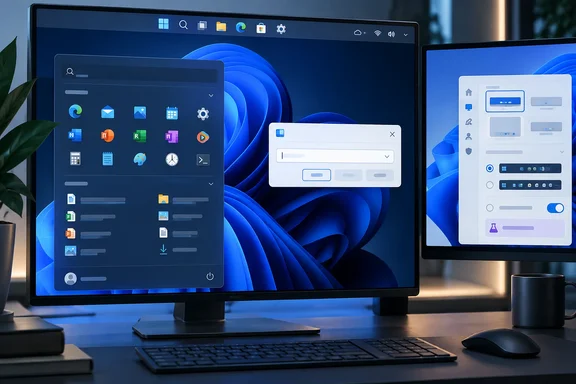
He's right about the history. But how far each feature has actually rolled out matters more than the history does, and it changes a lot from one feature to the next. Here's where each one stands, how it compares with the tools that came first, and how to turn it on.
The four features at a glance
| Feature | Native Windows 11 setting | Third-party precedent | Status from the evidence reviewed |
|---|---|---|---|
| Taskbar position (top/left/right/bottom) | Settings > Personalization > Taskbar > Taskbar behaviors | ExplorerPatcher, Start11, Windhawk | In mainstream 24H2/25H2 updates, rolling out gradually |
| Smaller taskbar | Taskbar behaviors > Show smaller taskbar buttons | Start11, ExplorerPatcher | Shipped alongside taskbar position, gradual rollout |
| Start menu controls (size, section toggles, hide profile) | Start settings | Start11 | Size options reported in the August preview; other controls first announced for Insiders |
| Modern Run dialog | Settings > System > Advanced > Run Dialog | PowerToys Run / Command Palette | Insider Experimental Channel, opt-in |
Moving the taskbar: from Insider test to Patch Tuesday
Windows 10 let you put the taskbar on any edge of the screen, and Windows 11 took that away. Microsoft's reversal took several steps. WindowsForum's coverage records that Microsoft began testing movable Windows 11 taskbar positions on May 15, 2026, in Insider Experimental Preview Build 26300.8493. In its Windows Insider Blog post that day, Microsoft called the feature one of the most-requested and listed the first rollout's gaps: auto-hide and the tablet-optimized taskbar didn't work in alternate positions yet, touch gestures were still in progress, and search boxes on other edges collapsed to an icon.
Next it went to the Beta Channel. As reported, Windows 11 Insider Preview Builds 26220.9022 and 28020.2623 brought it to Beta testers.
Then came the step most readers care about. Microsoft's August 27 preview update, KB5120998, adds a Taskbar position setting to Windows 11 versions 24H2 and 25H2, letting users select the bottom, top, left, or right edge of the screen. Patch Tuesday followed: Microsoft's September notes state that KB5124008 includes improvements from the August 27 KB5120998 preview. KB5124008 lists OS build (Windows 11 24H2): 26100.9445, OS build (Windows 11 25H2): 26200.9445.
So XDA's framing of the taskbar change as something that has arrived holds up better than you might expect. For most users it's no longer an Insider curiosity. There's still a catch: it is a gradual rollout rather than a guaranteed change on every PC, so many fully patched systems will still not display the option immediately.
How to move the taskbar
- Install the latest cumulative update (KB5124008 or later) on Windows 11 24H2 or 25H2.
- Right-click an empty spot on the taskbar and choose Taskbar settings.
- Expand Taskbar behaviors.
- Under Taskbar position, choose Bottom, Top, Left or Right.
If it worked, the taskbar moves right away, and Start and Search open from its new edge. If the option isn't there, nothing on your end is broken. Your PC just hasn't been switched on in the staged rollout yet. Some enthusiasts have forced the feature on with ViVeTool. Windows Latest published the feature IDs, saying that you can run vivetool /enable /id:61161244,61754985 and the option then shows up under Taskbar behaviors. On a production machine, I'd treat that as optional, at-your-own-risk tinkering.
How the native version compares with third-party tools
Stardock's records support XDA's timeline. Start11 v2.5, released on January 15, 2025, added left and right taskbars. Stardock said earlier Start11 versions already supported a top taskbar, and that v2.5 could put the taskbar on a different side on each monitor. Microsoft's May post only listed per-monitor positions as something it was "evaluating," so on that point the paid tool is still ahead.
Microsoft's version also has gaps outside the familiar bottom edge. WindowsForum's KB5124008 megathread notes that auto-hide, the tablet-optimized taskbar, some touch work, full Search-box behavior, and compact sizing all have important restrictions outside the traditional bottom edge. One independent write-up says auto-hide works in every position, so reports disagree on that detail. Test it yourself before you rely on it.
The best case for the native option is that it doesn't modify the shell. ExplorerPatcher's own FAQ is candid about what that can cost. It starts with recovery steps for a black screen, and it warns that Microsoft and other antivirus vendors have flagged the tool as malware, so users have to add Defender exclusions. The project also says it doesn't make its re-implemented taskbar the default because of possible future compatibility problems. In an enterprise, that alone settles it: a built-in setting beats a shell hook that the security stack complains about.
Summary: The movable taskbar is real, it's in mainstream updates, and it's rolling out device by device. Third-party tools still offer more, such as per-monitor positions in Start11, but they carry compatibility and security trade-offs.
The smaller taskbar: useful, but only on the horizontal edges
Microsoft's May 15 post described a compact mode with smaller icons, a shorter taskbar and more vertical room for apps, with no restart or sign-out needed. The setting is Settings > Personalization > Taskbar > Taskbar behaviors > Show smaller taskbar buttons. Set it to Always and both the icons and the bar shrink. It shipped in the same update wave as positioning. One analysis describes KB5120998's headline as the return of taskbar positioning: top, left, or right, plus a smaller taskbar and a small or large Start menu.
There's a limitation XDA doesn't mention. The smaller taskbar option is currently limited to top and bottom positions. It is not available when the taskbar is placed on the left or right. If you were hoping for a slim vertical bar, the native feature won't give you one yet.
Start11 got there first, as XDA says. Stardock's changelog shows taskbar size controls going back years, including a "Small with wide icon spacing" option in its June 2023 v1.46 release. The same changelog also shows how fragile this kind of feature can be. One entry notes that, on some Windows 11 Insider builds, small taskbar mode only worked once you let Start11 take over the taskbar. That's the kind of maintenance hassle that disappears when the feature is built in.
Summary: The compact taskbar is a real win on laptops and small screens. Just remember that it only works on the top and bottom edges for now.
Start menu controls: XDA got the details wrong
This is where XDA's account doesn't match Microsoft's. The article says Windows 11's "26H2 update" added Small, Medium and Large Start menu layouts. Microsoft's May 15 Insider post describes only two sizes, Small or Large, so your choice stays the same across displays. An independent analysis of the August preview also describes a small or large Start menu. None of the evidence I reviewed mentions a Medium option or confirms 26H2 as the delivery vehicle.
Here's what Microsoft actually announced for Insiders:
- A toggle for each section to show or hide Pinned, Recommended and All on their own.
- A separate switch for file recommendations. Until now, turning off Recommended also turned off jump lists and recent files in File Explorer. The new control separates the two.
- Start menu size: Small or Large.
- An option to hide your name and profile picture, which helps when you're sharing your screen or streaming.
- Recommended renamed to Recent, with recently installed apps still listed and better file relevance.
According to the analysis cited above, the Start size option and the renamed Recent section rode the same gradual rollout as the taskbar changes in the August preview. Whether every section toggle has reached mainstream builds isn't clear from what I could verify. Look in Start settings on your PC rather than assuming they're there.
XDA concedes that Start11 never copied Microsoft's exact 2026 menu, and that's the right concession. Start11's appeal has always been replacing the menu outright with Windows 7-style or Windows 10-style layouts, folders and custom icons. Microsoft's new controls only let you trim the stock menu. Those are different jobs.
Summary: Native Start customization is getting better. But the sizes are Small and Large, not three tiers, and Microsoft hasn't confirmed every new control for every PC.
The new Run dialog: a PowerToys idea moves into Windows
This is XDA's strongest example, and Microsoft's own posts back it up. The PowerToys and Windows Terminal team announced the modern Run dialog on the Windows Command Line blog on May 1, 2026. They described PowerToys as the testing ground for these ideas, and said Command Palette started as a hackathon project to build the next version of PowerToys Run, one that could become part of Windows. The team says the run command provider in Command Palette is the same code as the new Run dialog.
According to Microsoft Learn, the new dialog is built with WinUI 3 and C# and compiled with .NET AOT. It can do everything the classic dialog does (run commands, open local and network paths, scroll through history) and adds Fluent Design, dark mode and a ~\ shortcut that jumps to your user folder. Microsoft measured a median time-to-show of 94 ms, compared with 103 ms for the classic dialog. That's Microsoft's own number, not an independent benchmark, and commenters on the blog post were quick to point out that a 9 ms gain is hardly dramatic. One of them noted that the old dialog already opens your user folder if you type a single dot.
Of the four features, this one is furthest from mainstream release. Microsoft Learn says it's currently available in Windows Insider builds on the Experimental Channel. To try it:
- Join the Windows Insider Program's Experimental Channel.
- Open Settings > System > Advanced.
- Turn on Run Dialog at the top of the page.
- Press Win+R.
To go back to the classic dialog, turn the same switch off. Admins should know that Microsoft says organizational policies can disable or hide Advanced settings controls. If the switch is greyed out, that's probably a policy setting, not a bug.
Don't mix up the shortcuts. PowerToys Run uses Alt+Space by default, Command Palette uses Win+Alt+Space, and the native Run dialog stays on Win+R.
Summary: The Run dialog is a clear case of a PowerToys idea moving into Windows. For now it's an opt-in Insider feature, not a mainstream one.
The bigger picture
XDA's main argument is that Microsoft is catching up to its power users, and the evidence mostly supports it. Two qualifications are worth adding.
First, catching up isn't the same as matching. Start11 still offers per-monitor taskbar positions and full replacement Start menus. Windhawk's mods still go deeper than anything in Settings. Microsoft's versions are deliberately conservative. The May post said its goal was core functionality without accidental taskbar movement, which explains why drag-to-reposition isn't included yet.
Second, built-in features are a big deal for organizations, not just home users. Many companies won't allow a tool that Defender flags or that hooks into explorer.exe, so their users never got any of this. A setting that comes through Windows Update and can be managed through supported channels reaches a lot more people than any shell mod ever did.
Is it a little embarrassing that a feature from Windows 95 needed five years and a staged rollout to come back? Sure. Still, if you've been holding back an ExplorerPatcher install because you were nervous about Patch Tuesday, check your Taskbar behaviors page after this month's update. The option may already be there.
References
- Windows 11's best 2026 features aren't new — I've been using them for years XDA · 2026-10-01T13:30:17+00:00
- KB5120998: Move the Windows 11 Taskbar to Top or Left Again logeshwaran.org
- Now Available: Start11 v2.5 Brings Vertical Taskbars to Windows 11 stardock.com